Introduction
This manual provides detailed instructions for the installation, operation, and maintenance of your XOMAX XM-DDA711 Android 6.0.1 Car Radio Naviceiver. Please read this manual thoroughly before using the device to ensure proper functionality and to prevent damage. Keep this manual for future reference.
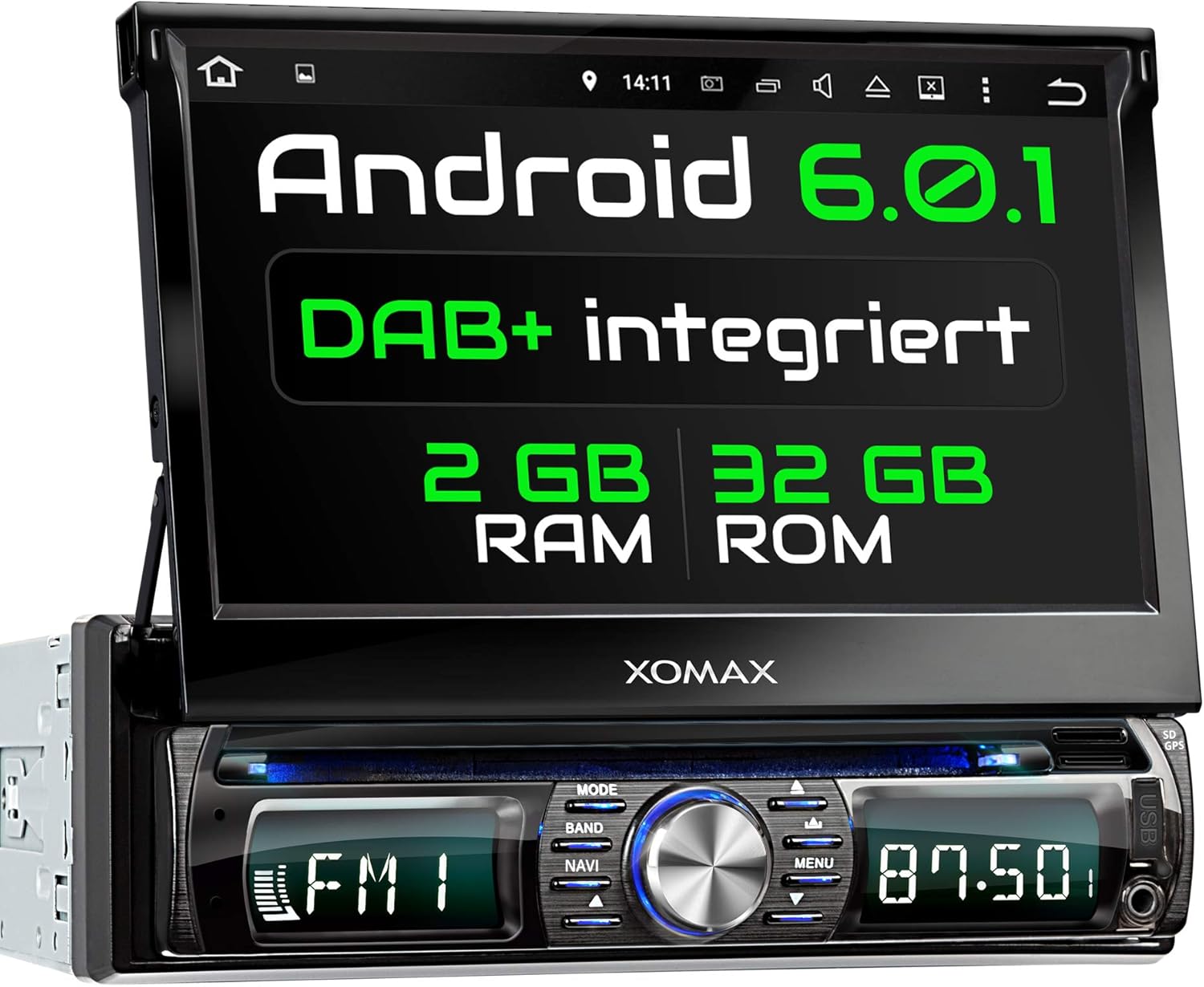
Image: Front view of the XOMAX XM-DDA711 Car Radio Naviceiver, showcasing its 7-inch touchscreen display and control panel.
Product Overview
Key Features
- Android 6.0.1 Operating System
- 7-inch (18 cm) Capacitive Touchscreen Display
- Integrated GPS Navigation
- DAB+ Digital Radio Support (DAB+ antenna included)
- Bluetooth Hands-Free Calling and Audio Streaming
- WiFi, 3G, and 4G Connectivity Support (external dongle may be required for 3G/4G)
- OBD2 Compatibility
- USB (up to 2TB) and SD (up to 256GB) Media Playback
- Steering Wheel Control Support
- Adjustable Button Illumination (7 colors)
Package Contents
The standard package for the XOMAX XM-DDA711 includes the following items:
- XOMAX XM-DDA711 Car Radio Naviceiver
- Remote Control (battery not included)
- ISO Connection Cable
- RCA (Cinch) Cable Set
- GPS Antenna
- 1DIN Mounting Frame and Trim Plate
- Release Keys
- DAB+ Antenna
- Mounting Instructions

Image: An overview of the XOMAX XM-DDA711 package contents, including the main unit, remote control, various cables, antennas, mounting accessories, and documentation.
Setup and Installation
Safety Precautions
Before beginning installation, ensure the vehicle's battery is disconnected to prevent electrical shorts or damage. Consult a professional if you are unsure about any installation steps. Ensure all wiring is correctly connected and secured to avoid interference or malfunction.
Wiring Diagram
The rear panel of the XM-DDA711 features various connection ports. Refer to the diagram below for proper wiring:

Image: Rear view of the XOMAX XM-DDA711 showing numbered connection ports. These include GPS antenna input, DAB+ antenna input, radio antenna input, USB ports, ISO cable connector, audio/video inputs/outputs, and subwoofer output.
- GPS Antenna Connection
- DAB+ Antenna Connection
- Radio Antenna Connection
- USB Connection
- ISO Cable Connection
- Audio Inputs (2x Cinch)
- Audio Outputs (4x Cinch)
- Video Output (1x Cinch)
- Rear Camera Input
- Video Input
- Subwoofer Output
Physical Installation and Dimensions
Install the unit into a standard 1DIN car radio slot. Use the provided mounting frame and release keys for secure installation. Ensure adequate space for the unit and its connections.
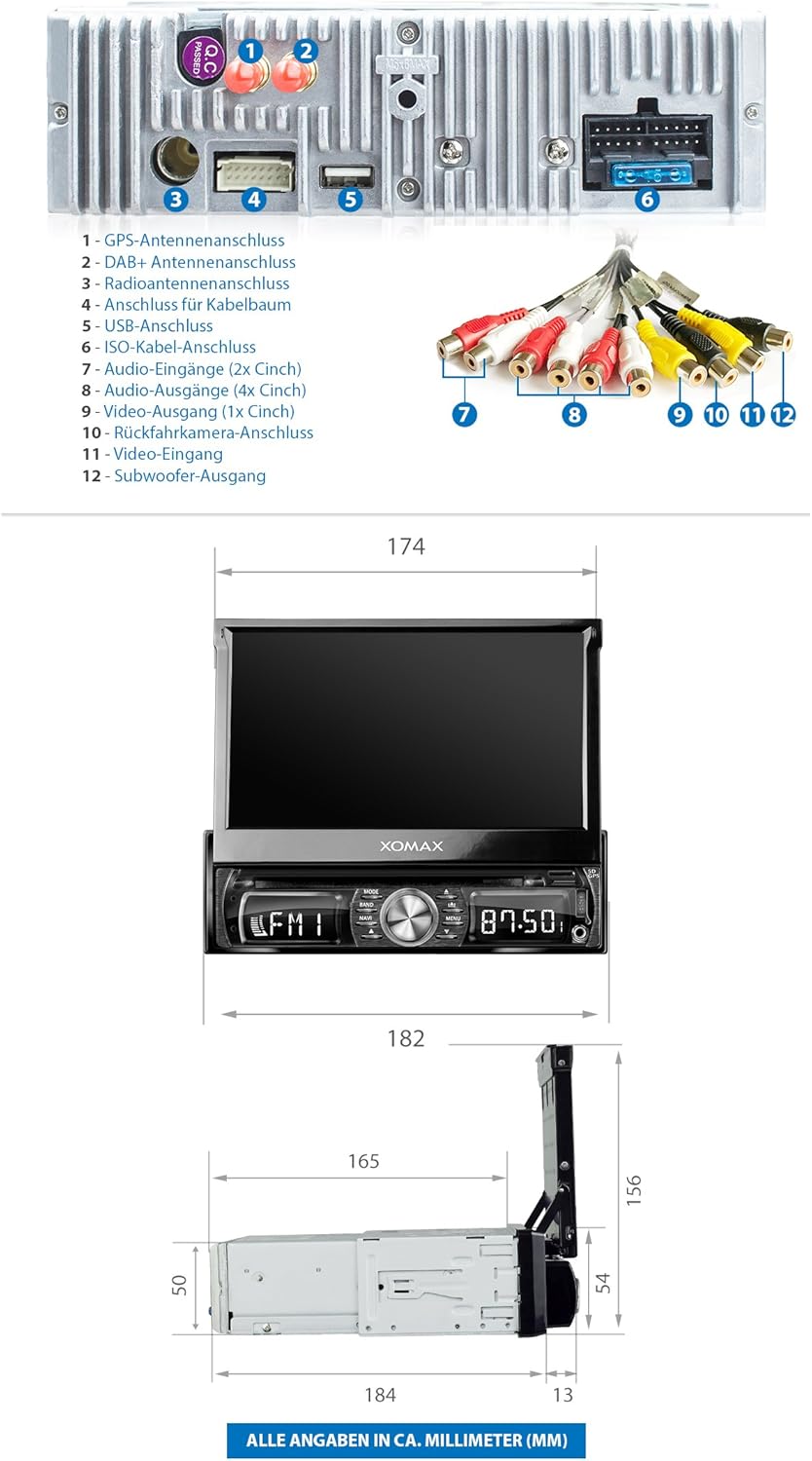
Image: Technical drawing displaying the dimensions of the XOMAX XM-DDA711 unit in millimeters, including width, height, and depth, both with the screen retracted and extended.
Refer to the included mounting instructions for detailed steps on securing the unit in your vehicle's dashboard.
Operating Instructions
Basic Operation
- Power On/Off: Press and hold the main rotary knob to power the unit on or off.
- Volume Control: Rotate the main knob to adjust the volume.
- Touchscreen: Navigate the Android interface by tapping, swiping, and pinching on the 7-inch display.
- Initial Setup: Upon first power-on, follow the on-screen prompts to select your preferred language, set the time, and configure basic system settings.
Radio Function (FM/AM/DAB+)
Access the Radio application from the main menu. You can scan for available stations, save them as presets, and switch between FM, AM, and DAB+ modes.

Image: The DAB+ digital radio interface of the XOMAX XM-DDA711, showing a list of available digital radio stations and current playback information.
Ensure the DAB+ antenna is properly connected for optimal digital radio reception.
GPS Navigation
The unit comes with integrated GPS functionality. Access the navigation application from the main menu. You can input destinations, view maps, and receive turn-by-turn directions.
Image: The GPS navigation screen on the XOMAX XM-DDA711, displaying a map with a route and a GPS antenna icon indicating signal reception.
For updated maps or alternative navigation apps, you can download them from the Google Play Store when connected to the internet.
Bluetooth Connectivity
Pair your smartphone or other Bluetooth devices to the XM-DDA711 for hands-free calling and audio streaming.
- Pairing: Go to the Bluetooth settings on the unit and your device, search for available devices, and select 'XOMAX' to pair.
- Hands-Free Calling: Once paired, you can make and receive calls directly from the unit's touchscreen.
- Audio Streaming: Play music from your paired device through the car's speakers.

Image: The Bluetooth interface of the XOMAX XM-DDA711, showing options for hands-free calling, phonebook access, and music playback, with a smartphone connected.
Multimedia Playback (USB/SD)
The unit supports media playback from USB drives (up to 2TB) and SD cards (up to 256GB). Insert your storage device into the designated port. The system will automatically detect the media and allow you to browse and play audio, video, and image files.
Internet Connectivity (WiFi/3G/4G)
Connect the XM-DDA711 to the internet via WiFi or an optional 3G/4G dongle. This enables access to online navigation, streaming services, and the Google Play Store for app downloads.
- WiFi: Go to Settings > Wi-Fi, turn Wi-Fi on, and select your network to connect.
- 3G/4G: If using an external dongle, connect it to a USB port and configure network settings as required.
Smartphone Integration (Display Mirroring)
The unit supports display mirroring, allowing you to project your smartphone's screen onto the car radio display. This feature enables you to view and interact with your phone's apps directly on the larger screen.

Image: The XOMAX XM-DDA711 displaying a mirrored smartphone screen, showing a racing game, demonstrating the display mirroring functionality.
Steering Wheel Control
The XM-DDA711 supports connection to your vehicle's steering wheel controls. This allows you to operate basic functions like volume, track changes, and call management without taking your hands off the steering wheel.
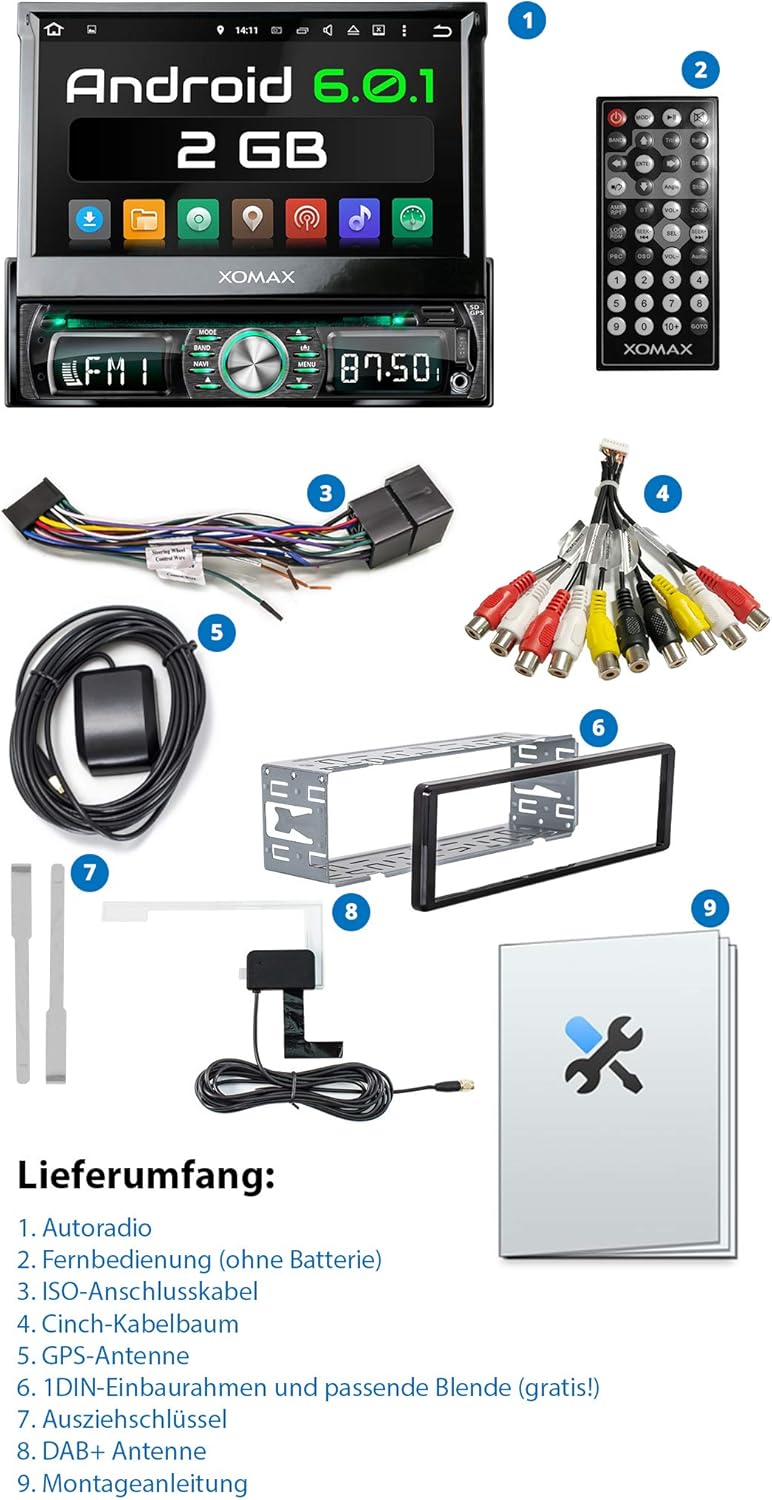
Image: The XOMAX XM-DDA711 screen showing the interface for configuring steering wheel controls, with a hand demonstrating button presses on a car's steering wheel.
Refer to the included wiring diagram and your vehicle's manual for specific connection and configuration details.
Display Settings
Customize the unit's display to your preference, including adjustable button illumination with 7 selectable colors.

Image: The XOMAX XM-DDA711 screen displaying the illumination settings menu, allowing users to select from 7 different colors for the unit's button backlighting.
Maintenance
- Cleaning: Use a soft, dry cloth to clean the unit's screen and exterior. For stubborn marks, slightly dampen the cloth with water. Avoid abrasive cleaners or solvents.
- Software Updates: Periodically check for software updates to ensure optimal performance and access to new features. Updates can typically be found on the manufacturer's website or through the unit's system settings if connected to the internet.
- Temperature: Avoid exposing the unit to extreme temperatures, direct sunlight for prolonged periods, or high humidity.
Troubleshooting
If you encounter issues with your XM-DDA711, refer to the following common problems and solutions:
| Problem | Possible Cause | Solution |
|---|---|---|
| Unit does not power on. | Incorrect wiring, blown fuse, vehicle battery issue. | Check power connections (ACC, B+), inspect vehicle fuses, ensure battery is charged. |
| No sound. | Volume too low, mute activated, speaker wiring issue. | Increase volume, check mute status, verify speaker connections. |
| Poor radio reception. | Antenna not connected, weak signal, damaged antenna. | Ensure radio and DAB+ antennas are securely connected. Check antenna for damage. |
| GPS signal loss or inaccuracy. | GPS antenna obstructed, poor satellite visibility. | Ensure GPS antenna has a clear view of the sky. Relocate antenna if necessary. |
| Bluetooth pairing issues. | Device not in pairing mode, incorrect password, interference. | Ensure both devices are in pairing mode. Restart Bluetooth on both devices. Try pairing in a different location. |
| Unit freezes or operates slowly. | Too many applications running, system overload, software issue. | Close unnecessary applications. Perform a system restart. Check for and install software updates. |
If the problem persists after attempting these solutions, please contact XOMAX customer support or your retailer for further assistance.
Specifications
| Feature | Specification |
|---|---|
| Model Number | XM-DDA711 |
| Brand | XOMAX |
| Operating System | Android 6.0.1 |
| Display Size | 7 inches (18 cm) |
| Display Type | Touchscreen |
| Connectivity Technology | Bluetooth, WiFi, 3G/4G (via dongle) |
| Special Features | GPS, DAB+, OBD2 Support, Smartphone Mirroring, Adjustable Illumination |
| Compatible Devices | Smartphone |
| Output Wattage | 60 Watts |
| Control Method | Touch |
| Package Dimensions | 27.5 x 23.5 x 9.5 cm |
| Item Weight | 2.76 kg |
Warranty and Support
For warranty information, please refer to the documentation provided with your purchase or contact your retailer. Technical support and service inquiries should be directed to the XOMAX customer service department or the authorized dealer from whom you purchased the product.