
1. Introduction and Overview
The Lenovo Legion M200 RGB Gaming Mouse (Model GX30P93886) is engineered for an enhanced gaming experience. It features a responsive 5-button design, adjustable DPI settings up to 2400, and a dynamic 7-color circulating RGB backlight. Designed for comfort and durability, this mouse includes an ambidextrous shape, textured side grips, and a robust braided USB cable.

Image: Lenovo Legion M200 RGB Gaming Mouse, highlighting its precision and style.

Image: Detailed view of the mouse, illustrating its customizable 5-button layout including left click, right click, scroll wheel, DPI button, and two side buttons.

Image: The mouse showcasing its vibrant 7-color circulating backlight for immersive gaming aesthetics.
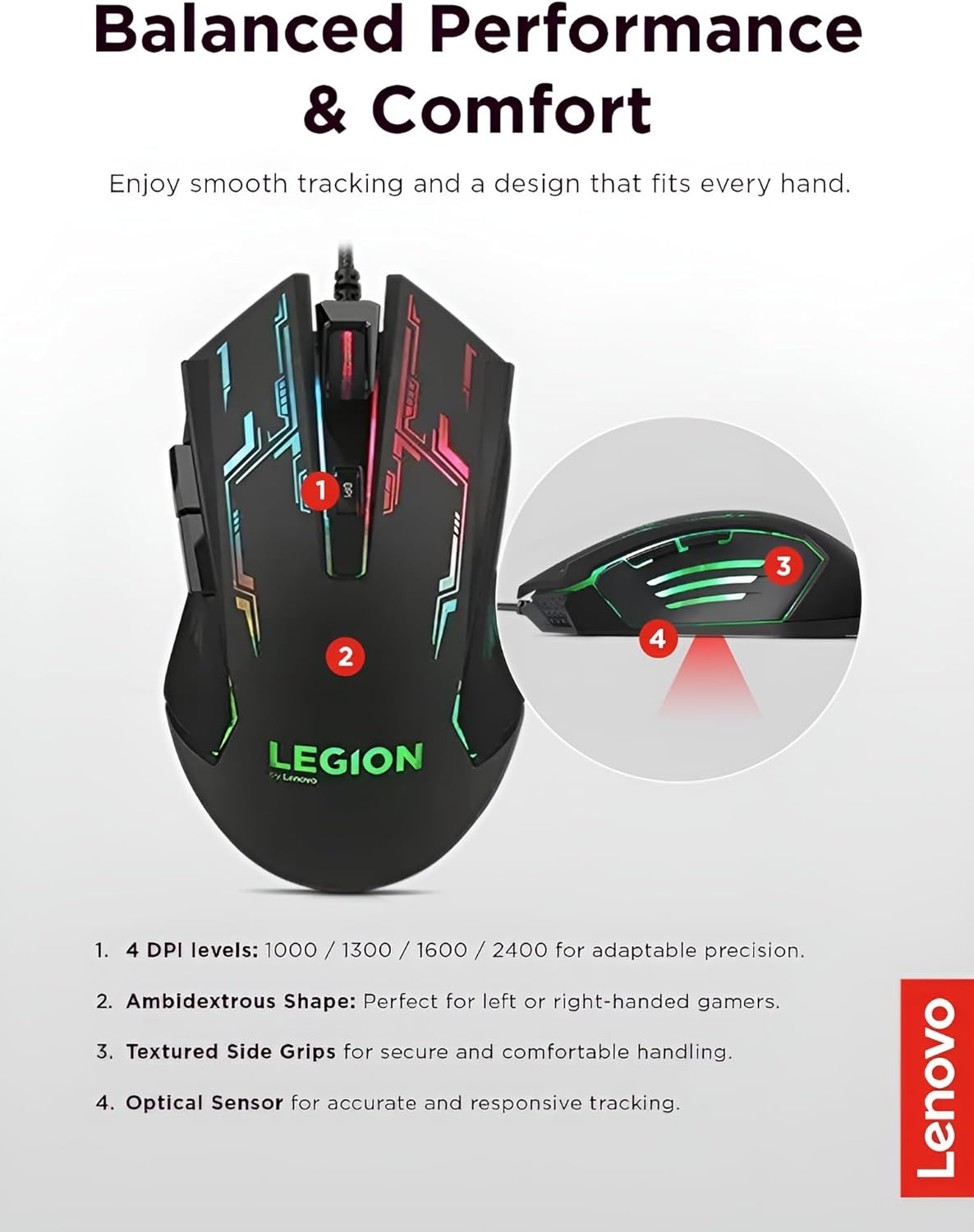
Image: Features such as 4 DPI levels, ambidextrous shape, textured side grips, and optical sensor are highlighted for balanced performance and comfort.
2. Setup
- Unpacking: Carefully remove the Lenovo Legion M200 RGB Gaming Mouse from its packaging. Ensure all components are present.
- Connection: Locate an available USB port on your computer. Plug the USB connector of the mouse firmly into the port.
- Driver Installation: The mouse is designed for plug-and-play functionality. Your operating system (Windows 7, 8, 8.1, 10) will typically detect and configure the device automatically without requiring additional driver installation.
3. Operating Instructions
Basic Functions
- Left Click Button: Performs primary actions such as selecting items, opening files, or firing in games.
- Right Click Button: Activates secondary functions, often displaying context-sensitive menus.
- Scroll Wheel: Used for vertical scrolling through documents and web pages. It also functions as a clickable middle button for additional commands.
- Side Buttons: The two side buttons are typically used for forward/backward navigation in web browsers or can be assigned to specific in-game actions or shortcuts.
DPI Adjustment
The Lenovo Legion M200 features a dedicated DPI switch button, located near the scroll wheel. Press this button to cycle through four preset DPI (Dots Per Inch) levels: 1000, 1300, 1600, and 2400. This allows for quick sensitivity adjustments to suit different tasks, game genres, or personal preferences.
RGB Backlight
The mouse is equipped with a dynamic 7-color circulating RGB backlight. This feature automatically cycles through various colors, providing an aesthetic enhancement to your gaming setup. The backlight is active whenever the mouse is connected to a powered USB port.
4. Maintenance
Cleaning
- Disconnect: Always disconnect the mouse from your computer before cleaning.
- Surface Cleaning: Use a soft, dry cloth to gently wipe the surface of the mouse. For more persistent dirt, slightly dampen the cloth with water or a mild, non-abrasive cleaning solution. Avoid using harsh chemicals or solvents.
- Sensor and Wheel: Use a cotton swab or a can of compressed air to carefully clean around the optical sensor on the underside and the scroll wheel to remove dust and debris.
Cable Care
To ensure the longevity of the braided USB cable, avoid sharp bends, kinks, or excessive pulling. Store the cable neatly when not in use to prevent damage.
5. Troubleshooting
- Mouse Not Responding:
Ensure the USB cable is securely plugged into an active USB port on your computer. Try plugging the mouse into a different USB port. Restart your computer to refresh the connection. - DPI Not Changing:
Press the DPI switch button firmly. Confirm the mouse is connected and receiving power. - Backlight Not Working:
Verify that the mouse is properly connected to a powered USB port. The backlight should activate automatically upon connection. - Erratic Cursor Movement:
Clean the optical sensor on the underside of the mouse. Ensure you are using the mouse on a suitable, non-reflective surface; a mouse pad is highly recommended. - Buttons Not Functioning:
Check if any software or game-specific settings are overriding the default button functions. Test the mouse on another computer to determine if the issue is with the mouse hardware or your computer's configuration.
6. Specifications

Image: Physical dimensions, cable length, and weight of the mouse.
| Feature | Detail |
|---|---|
| Sensor Technology | Optical |
| Sensor Resolution | 1000 DPI (Default) / 1300 DPI / 1600 DPI / 2400 DPI (4 levels) |
| Scroll Wheel | Yes |
| Report Frame Rate | 500 fps |
| Maximum Moving Speed | 30 in/sec |
| Maximum Acceleration | 10 g |
| Supported Operating Systems | Windows 10 / Windows 8.1 / Windows 8 / Windows 7 |
| Dimensions (W x L x H) | 71.3 mm x 123 mm x 40.4 mm (2.81" x 4.84" x 1.59") |
| Weight | 0.15 kg (0.33 lbs) / 5.3 ounces |
| Color | Black |
| Backlight | 7-color Circulating RGB |
| Interface | Wired via USB (Braided Cable) |
| Cable Length | 1.8 meters |
| Item Model Number | GX30P93886 |
| Manufacturer | Lenovo (United States), Inc. |
7. Warranty and Support
The Lenovo Legion M200 RGB Gaming Mouse is covered by a standard manufacturer's warranty. For comprehensive details regarding warranty terms, service options, and technical support, please refer to the official documentation included with your product packaging. You may also visit the official Lenovo support website for the most up-to-date information and assistance.
For further inquiries or to access support resources, please visit: www.lenovo.com/support