
1. Introduction
This manual provides instructions for the Fintie Keyboard Case designed for the Fire HD 10 tablet. It covers setup, operation, maintenance, and troubleshooting to ensure optimal use of your device. This accessory combines a protective case with a detachable wireless Bluetooth keyboard, enhancing the functionality of your tablet.
2. Package Contents
- Fintie Keyboard Case
- Detachable Wireless Bluetooth Keyboard
- USB Charging Cable
- User Manual (this document)
3. Compatibility
This Fintie Keyboard Case is specifically designed for the following Amazon Fire HD 10 tablet models:
- Fire HD 10 (9th Generation, 2019 Release)
- Fire HD 10 (7th Generation, 2017 Release)
Important: This case is NOT compatible with the Fire HD 10 (5th Generation, 2015 Release) or any other Fire tablet models.
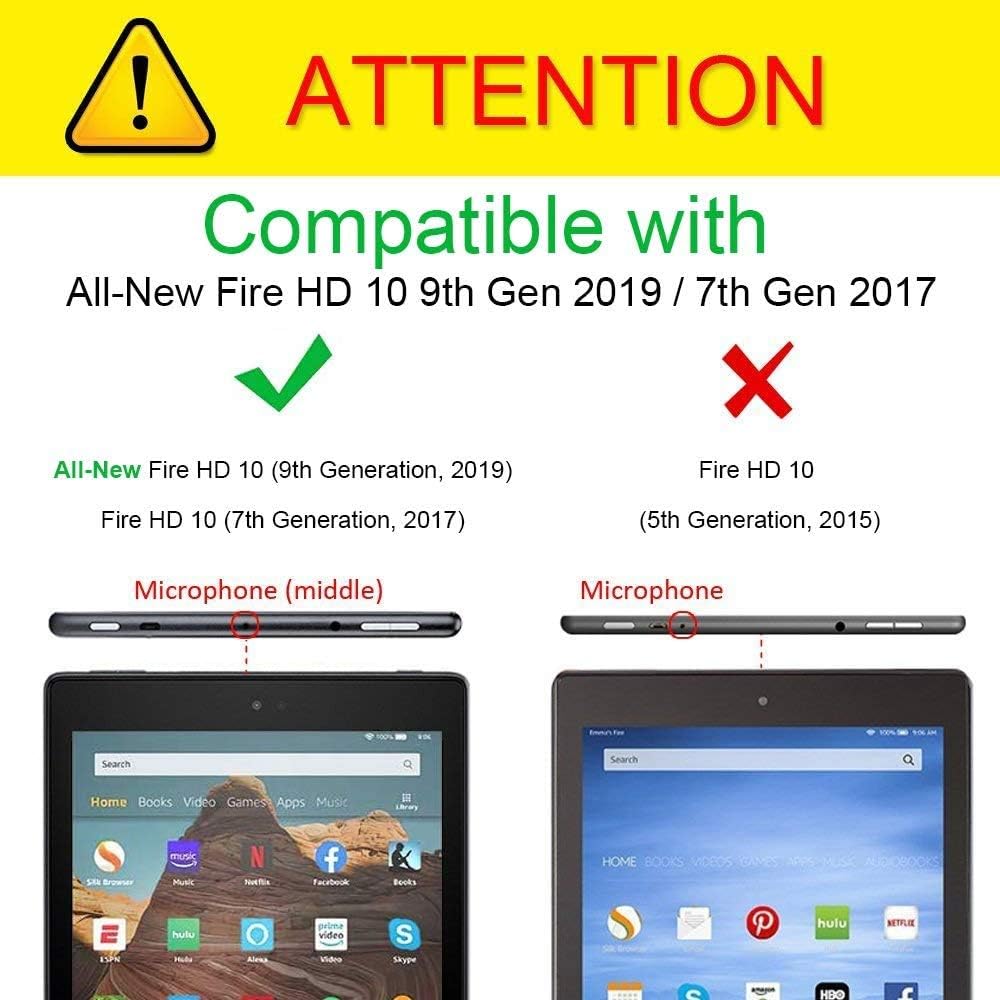
Image: Visual guide for tablet compatibility, highlighting microphone placement differences between compatible and incompatible models.
4. Key Features
- 2-in-1 Design: Combines a protective case with a detachable Bluetooth keyboard.
- Premium Protection: Constructed with premium PU leather exterior, sturdy PC backshell, and anti-slip soft lining to protect against bumps, abrasions, and scratches.
- Multiple Viewing Angles: Integrated stand feature allows for various viewing positions.
- Magnetically Detachable Keyboard: The wireless keyboard can be easily attached or removed from the case.
- Scissor-Switch Keys: Provides a comfortable and responsive typing experience.
- Slim and Lightweight: Designed for portability without adding significant bulk.
- Long-Life Battery: The keyboard features an extended battery life.

Image: Front and back view of the Fintie Keyboard Case in its closed state, showcasing its design and material quality.

Image: The 2-in-1 design, showing the tablet securely in the case with the detachable keyboard positioned for use.

Image: The case configured as a stand, providing multiple viewing angles for the tablet, with the keyboard in front.

Image: Detail of the keyboard's magnetic integration with the case, showing how it securely attaches.

Image: Diagram illustrating the scissor-switch key mechanism and highlighting features like long battery life and thin design.

Image: Exploded view showing the layers of the case construction, including premium PU leather, PC backshell, and soft lining.
5. Setup Instructions
5.1. Inserting Your Tablet into the Case
- Align your Fire HD 10 tablet with the hard shell frame of the case.
- Gently press the tablet into the frame, ensuring all corners and edges are securely seated. The sturdy PC backshell is designed to hold your tablet firmly in place.
- Verify that all ports, buttons, and cameras are accessible and unobstructed.
5.2. Charging the Keyboard
Before initial use, fully charge the Bluetooth keyboard.
- Locate the micro USB charging port on the side of the keyboard.
- Connect the included USB charging cable to the keyboard's charging port.
- Connect the other end of the USB cable to a USB power adapter (not included) or a computer's USB port.
- The charging indicator light on the keyboard will illuminate (usually red) during charging.
- Once fully charged, the indicator light will typically change color (e.g., turn off or turn green/blue). A full charge usually takes 2-3 hours.
Note: The keyboard can be used for several weeks on a single charge with moderate use.
5.3. Pairing the Bluetooth Keyboard with Your Fire HD 10
- Turn on the keyboard: Slide the power switch on the keyboard to the "ON" position. The power indicator light will briefly illuminate.
- Activate Bluetooth on the keyboard: Press the Connect button (or Fn + C, depending on keyboard model) on the keyboard. The Bluetooth indicator light will start blinking, indicating it is in pairing mode.
- Enable Bluetooth on your Fire HD 10:
- Go to your tablet's Settings.
- Tap on Wireless & Bluetooth or Connected Devices.
- Tap on Bluetooth and ensure it is turned On.
- Search for devices: Your tablet will automatically search for available Bluetooth devices.
- Select the keyboard: Look for "Bluetooth Keyboard" or a similar name in the list of available devices and tap on it.
- Confirm pairing: Your tablet may display a pairing code. Type this code on the Fintie keyboard and press Enter.
- Pairing successful: Once paired, the Bluetooth indicator light on the keyboard will stop blinking and turn off, and your tablet will show the keyboard as "Connected."
Note: If pairing fails, turn off both the keyboard and your tablet's Bluetooth, then repeat the steps.
6. Operating Instructions
6.1. Using the Stand Feature
The case is designed to convert into a stand for hands-free viewing.
- Open the case and detach the keyboard if desired, or slide it down to the edge of the case.
- Fold the front cover back to create a triangular stand. The anti-slip soft lining helps secure the tablet at various angles.
- Position your tablet in the grooves or against the folded cover for your preferred viewing angle.

Image: Rear view of the Fintie Keyboard Case configured as a stand, demonstrating its stability.
6.2. Keyboard Functions
The keyboard features standard QWERTY layout keys and several function keys for quick access to tablet features.
- Function Keys (Fn): Many keys have secondary functions accessible by holding down the Fn key and pressing the desired function key (e.g., volume control, media playback, screen lock). Refer to the key legends for specific functions.
- Special Keys: Dedicated keys for Home, Search, Back, and other tablet-specific commands may be present.
6.3. Power Management
- Auto-Sleep: The keyboard will automatically enter sleep mode after a period of inactivity to conserve battery. Press any key to wake it up.
- Power Off: For extended periods of non-use, slide the power switch to "OFF" to completely power down the keyboard and save battery.
7. Maintenance
7.1. Cleaning the Case and Keyboard
- Case: Wipe the exterior PU leather with a soft, damp cloth. Avoid harsh chemicals or abrasive cleaners.
- Keyboard: Use a soft, dry cloth to clean the keys. For dust between keys, use compressed air. Do not immerse the keyboard in liquids.
7.2. Battery Care
- Charge the keyboard regularly, even if not in constant use, to maintain battery health.
- Avoid fully discharging the battery frequently.
- Store the keyboard in a cool, dry place when not in use for extended periods.
8. Troubleshooting
8.1. Keyboard Not Pairing
- Ensure keyboard is on: Check if the power switch is in the "ON" position and the battery is charged.
- Activate pairing mode: Press the Connect button (or Fn + C) on the keyboard until the Bluetooth indicator blinks.
- Tablet Bluetooth: Verify that Bluetooth is enabled on your Fire HD 10 tablet.
- Restart devices: Turn off the keyboard and turn off/on Bluetooth on your tablet. Then attempt pairing again.
- Forget device: If the keyboard was previously paired but isn't connecting, go to your tablet's Bluetooth settings, "forget" or "unpair" the keyboard, and then attempt to pair it as a new device.
- Distance: Ensure the keyboard is within 10 meters (33 feet) of your tablet.
8.2. Keys Not Responding
- Check connection: Ensure the keyboard is properly paired and connected to your tablet.
- Battery level: A low battery can cause keys to become unresponsive. Charge the keyboard.
- Restart: Turn the keyboard off and then on again.
- Interference: Move away from other wireless devices that might cause interference.
8.3. Tablet Screen Goes to Sleep When Case is Folded Back
- This can occur due to the strong magnets in the case interacting with the tablet's sleep/wake function.
- To prevent this, slightly adjust the tablet's position within the case or ensure the front cover is not folded directly behind the tablet in a way that triggers the magnetic sensor.
9. Specifications
| Feature | Detail |
|---|---|
| Brand | FINTIE |
| Compatible Devices | Fire HD 10 (7th and 9th Generations) |
| Connectivity Technology | Bluetooth |
| Keyboard Description | Physical, Bluetooth, Slim (7mm), Laptop-style, ABS material |
| Special Feature | Bluetooth, Wireless |
| Material | Acrylonitrile Butadiene Styrene, Faux Leather, Polycarbonate |
| Included Components | USB Cable |
| Power Source | USB Power |
| Number of Keys | 78 |
| Switch Type | Tactile (Scissor-Switch) |
| Keyboard Layout | QWERTY |
| Item Weight | 1.41 Pounds (approximately 640 grams) |
| Manufacturer | DRONAR (for FINTIE) |
10. Warranty & Support
10.1. Warranty Information
Specific warranty details for this product are not provided in the available information. Please refer to the product packaging or the official FINTIE website for the most current warranty policy.
10.2. Customer Support
For technical assistance, troubleshooting beyond this manual, or warranty claims, please contact FINTIE customer support through their official website or the retailer where the product was purchased.
Visit the FINTIE Store: FINTIE Official Store on Amazon


