Introduction
This manual provides essential information for setting up, operating, maintaining, and troubleshooting your Samsung Galaxy Note 8 SM-N950U smartphone. Please read through these instructions carefully to ensure optimal performance and longevity of your device.
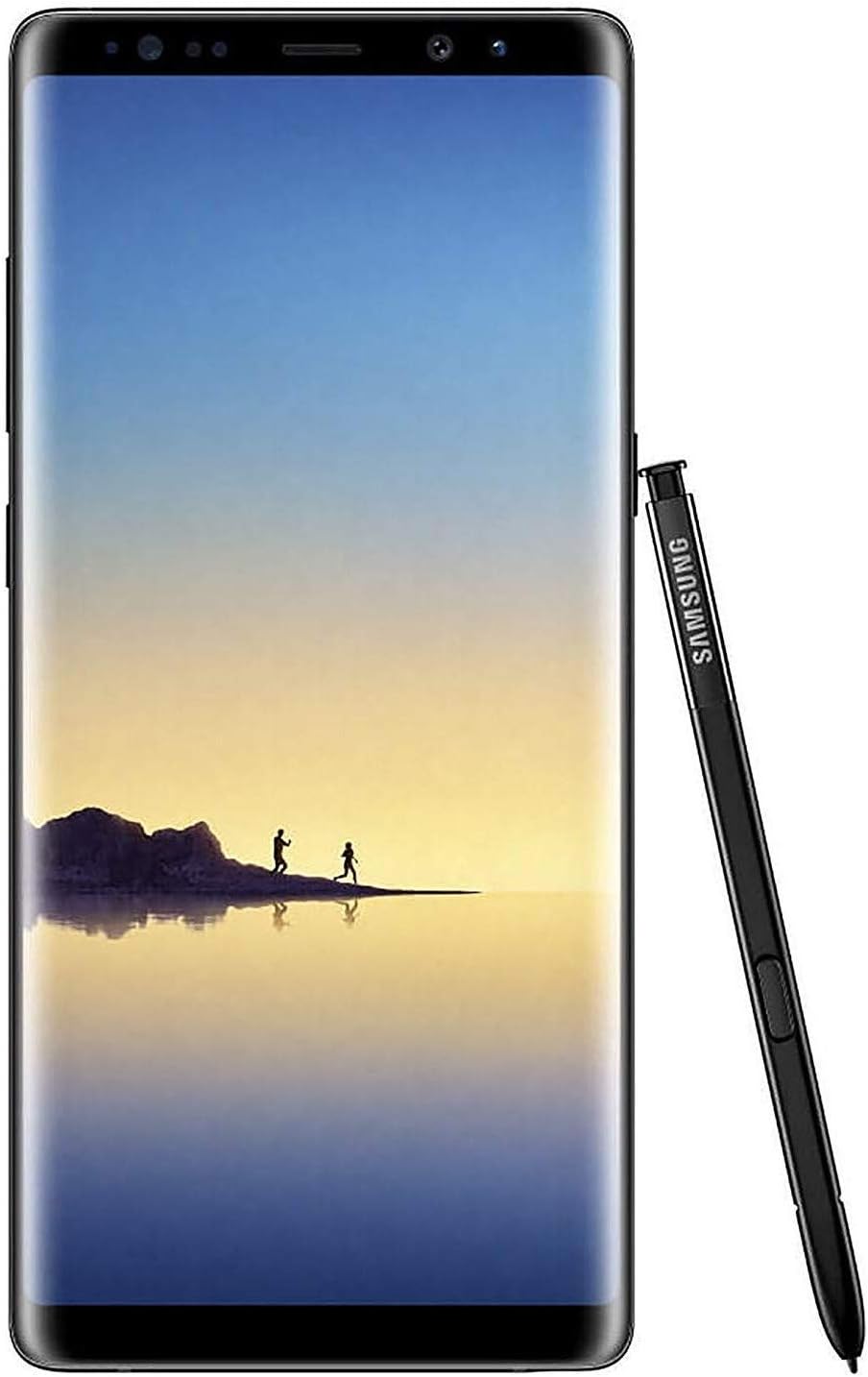
Image: Front view of the Samsung Galaxy Note 8, showcasing its large display and the S Pen stylus.
1. Setup
1.1 Package Contents
Verify that your package contains the following items:
- Samsung Galaxy Note 8 SM-N950U device
- S Pen
- USB Type-C Cable
- Travel Adapter (Charger)
- SIM Ejection Tool
- Earbuds (AKG Tuned)
- USB Connector (USB Type-C to USB Type-A)
- Micro USB Connector (USB Type-C to Micro USB)
- S Pen Nibs and Tweezer
1.2 Inserting SIM Card and MicroSD Card
- Locate the SIM/microSD card tray on the top edge of the device.
- Insert the SIM ejection tool into the small hole on the tray to eject it.
- Place your Nano-SIM card into the designated slot with the gold contacts facing down.
- (Optional) If using a microSD card for expanded storage, place it into the microSD card slot.
- Carefully reinsert the tray into the device until it clicks into place.
1.3 Powering On and Initial Configuration
- Press and hold the Power/Bixby key on the right side of the device until the Samsung logo appears.
- Follow the on-screen prompts to complete the initial setup, including language selection, Wi-Fi connection, Google account setup, and security settings.
2. Operating Your Device
2.1 Display and Navigation
The Galaxy Note 8 features a 6.3-inch Quad HD+ Super AMOLED Infinity Display. Navigate using touch gestures, the navigation bar at the bottom of the screen, or the S Pen.
2.2 S Pen Functionality
The S Pen is integrated into the device for enhanced productivity and creativity.
- Air Command: Remove the S Pen to automatically launch Air Command, providing quick access to features like Create Note, Smart Select, Screen Write, Live Message, and Translate.
- Screen Off Memo: Jot down notes directly on the black screen without unlocking your phone.
- Drawing and Writing: Use the S Pen for precise drawing, writing, and editing.
2.3 Camera Features
The device is equipped with a dual 12MP rear camera system (wide-angle and telephoto) and an 8MP front camera.
- Live Focus: Adjust background blur before or after taking a photo.
- Dual Capture: Take a wide-angle and a close-up shot simultaneously.
- Optical Image Stabilization (OIS): Reduces blur in photos and videos.

Image: Rear view of the Samsung Galaxy Note 8, highlighting the dual camera setup and fingerprint sensor, with the S Pen detached.
2.4 Battery Management
The Galaxy Note 8 features a 3300 mAh battery. To optimize battery life:
- Adjust screen brightness and screen timeout settings.
- Enable Power Saving Mode from the Quick Settings panel.
- Close unused apps running in the background.
- Use Wi-Fi instead of mobile data when available.
2.5 Storage
The device comes with 64GB of internal storage, expandable via microSD card up to 256GB (card sold separately).
3. Maintenance
3.1 Software Updates
Regularly check for and install software updates to ensure your device has the latest features, security patches, and performance improvements. Go to Settings > Software update > Download and install.
3.2 Cleaning Your Device
Use a soft, lint-free cloth to clean the screen and body of your phone. Avoid harsh chemicals or abrasive materials.
4. Troubleshooting
4.1 Device Not Powering On
- Ensure the battery is charged. Connect the device to its charger for at least 10 minutes before attempting to power on.
- Perform a soft reset by holding the Power key and Volume Down key simultaneously for about 10 seconds.
4.2 Apps Crashing or Freezing
- Clear the cache and data for the problematic app via Settings > Apps > [App Name] > Storage.
- Uninstall and reinstall the app.
- Ensure your device software is up to date.
4.3 Poor Battery Life
- Review battery usage in Settings > Device care > Battery to identify power-hungry apps.
- Reduce screen brightness and disable unnecessary features like Always On Display.
- Consider a factory reset if the issue persists after trying other solutions (back up your data first).
5. Specifications
| Feature | Detail |
|---|---|
| Model Number | SM-N950U |
| Display | 6.3-inch Quad HD+ Super AMOLED (1440 x 2960) |
| Operating System | Android |
| Processor | Snapdragon |
| RAM | 6 GB |
| Internal Storage | 64 GB |
| Expandable Storage | microSD up to 256 GB |
| Rear Camera | Dual 12 MP (Wide-angle, Telephoto) with OIS |
| Front Camera | 8 MP |
| Battery Capacity | 3300 mAh |
| Dimensions | 6 x 8 x 2 inches |
| Weight | 10.6 ounces |
| Connectivity | Wi-Fi, 4G, Bluetooth, GPS |
| Audio Jack | 3.5 mm |
6. Warranty and Support
For warranty information, technical support, or service inquiries, please refer to the official Samsung website or contact Samsung customer service. Keep your proof of purchase for warranty claims.
You can visit the official Samsung Store for additional resources and product information: Samsung Store


