
AC Infinity CLOUDPLATE T1
AC Infinity CLOUDPLATE T1 Rack Mount Fan Panel Instruction Manual
Model: CLOUDPLATE T1
1. Introduction
The AC Infinity CLOUDPLATE T1 is an intelligent cooling fan system designed for mounting into 19-inch equipment racks. It provides quiet and efficient airflow to maintain optimal operating temperatures for audio/video, home theater, network, and IT equipment. Proper cooling prevents overheating, ensures consistent performance, and extends the lifespan of your valuable rack-mounted devices.
This system features a solid aluminum construction, taking up one rack unit (1U) of space. It includes six custom-engineered dual-ball bearing fans configured for exhaust airflow, intended for placement near the top of the rack. The integrated programmable thermostat controller offers automated speed control and various smart features to adapt to changing temperature conditions.

Figure 1.1: AC Infinity CLOUDPLATE T1 Rack Mount Fan Panel.
Video 1.1: Official product video demonstrating the features and benefits of the CLOUDPLATE Series rack mount cooling fan systems.
2. Package Contents
Verify that all components listed below are included in your package:
- 1x CLOUDPLATE T1 1U Fan Unit
- 1x Corded 6-ft Thermal Probe
- 1x User's Manual (this document)
- 4x Rack Mount Screws
- 4x Cage Nuts
- 1x Corded 6-ft Power Supply

Figure 2.1: Included components for the CLOUDPLATE T1 system.
3. Installation
Follow these steps to properly install your CLOUDPLATE T1 fan panel:
- Rack Mounting: The CLOUDPLATE T1 is designed for standard 19-inch equipment racks and occupies 1U of space. Position the fan unit in your rack, ideally near the top, as it is configured for exhaust airflow. Secure the unit using the provided rack mount screws and cage nuts.
- Thermal Probe Placement: Connect the corded 6-ft thermal probe to the designated port on the fan unit. Route the probe to a location within your rack where temperature monitoring is critical, such as near the hottest equipment or at the top of the rack where hot air accumulates. Ensure the probe is not obstructed.
- Power Connection: Connect the corded 6-ft power supply to the fan unit and then plug it into a standard electrical outlet. The unit will power on and display the current temperature.

Figure 3.1: CLOUDPLATE T1 fan panel installed in a rack.
4. Operation
The CLOUDPLATE T1 features an intuitive programmable LCD controller for managing cooling performance.
4.1 Controller Overview
The front panel display shows current temperature, set temperature, and fan speed. Buttons allow for mode selection, setting adjustments, and display brightness control.

Figure 4.1: Intelligent Programming display of the CLOUDPLATE T1.
4.2 Operating Modes
- SMART Mode: This mode automatically adjusts fan speed based on the detected temperature and your set temperature threshold. Fans will increase speed as the temperature rises above the set point and decrease as it falls below, optimizing cooling and noise levels.
- Manual Mode: Allows you to set a constant fan speed from 1 to 6, regardless of temperature.
4.3 Settings and Features
- Temperature Threshold: Set your desired maximum temperature. In SMART mode, fans will activate or increase speed when this threshold is exceeded.
- Fan Speeds: Six fan speeds are available, ranging from minimal noise to maximum airflow (20 to 60 CFM).
- Alarm Alerts: The system can trigger an alarm if the temperature exceeds a critical level or if a fan failure is detected.
- Power Savings: An energy-efficient setting helps reduce power consumption when maximum cooling is not required.
- Display Lock: Prevents accidental changes to settings.
- Backup Memory: Retains your settings even after power loss.
- Display Brightness: Three screen brightness settings are available.
4.4 Fan Technology
The CLOUDPLATE T1 utilizes custom-engineered dual-ball bearing fans with PWM motors. This design minimizes noise while maximizing airflow, ensuring efficient and quiet operation.
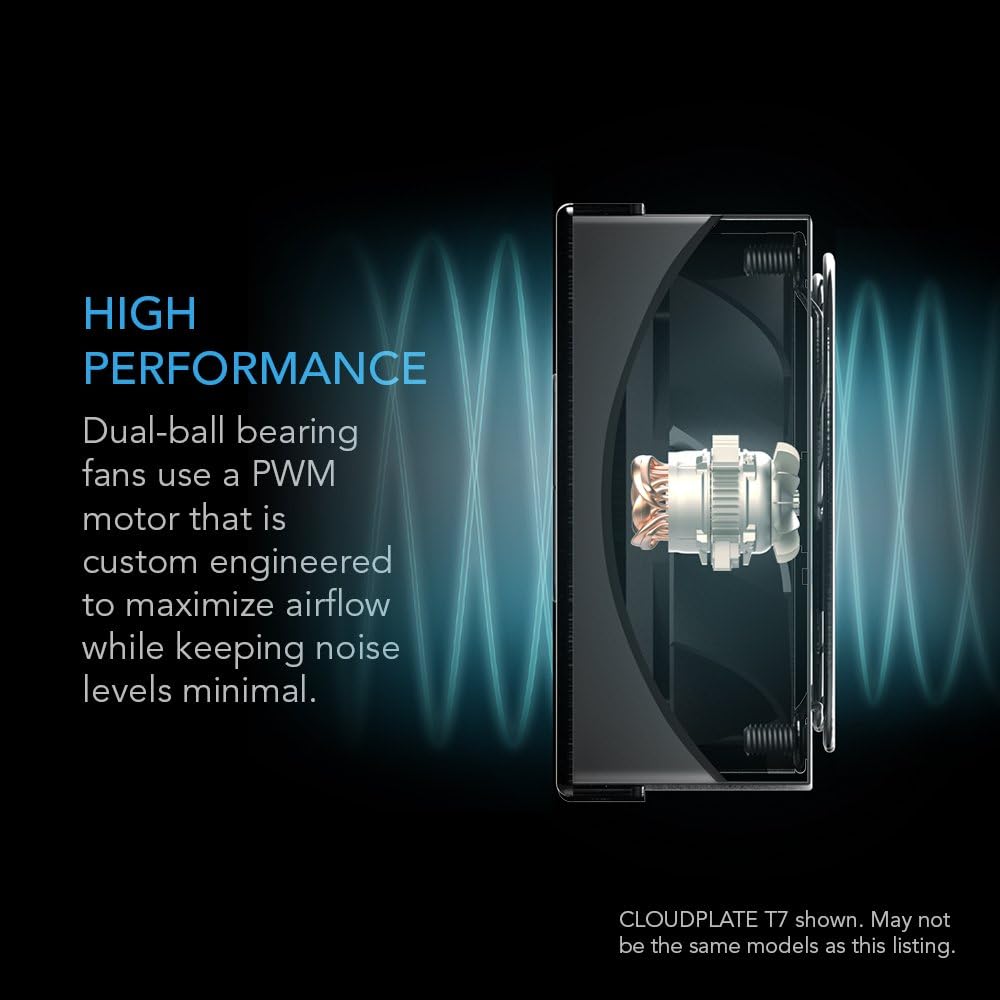
Figure 4.2: High-performance fan design for optimal airflow and minimal noise.
4.5 Expansion Port
An expansion port located at the rear of the unit allows for controlling additional CLOUDPLATE units or AC Infinity rack roof dual-fan kits, enabling synchronized cooling across multiple devices.
5. Specifications
| Feature | Specification |
|---|---|
| Model | CLOUDPLATE T1 |
| Rack Space | 1U |
| Design | Exhaust Airflow |
| Airflow | 20 to 60 CFM (Cubic Feet Per Minute) |
| Noise Level | 8 to 28 dBA |
| Power | 8 Watts |
| Voltage | 120 Volts |
| Bearings | Dual Ball |
| Material | Aluminum |
| Product Dimensions (L x W x H) | 19" x 1.5" x 1.75" (48.2 cm x 3.8 cm x 4.4 cm) |
| Item Weight | 2.5 Pounds |
| Compatible Devices | Server, AV, Home Theater, Network, IT Equipment |

Figure 5.1: CLOUDPLATE T1 dimensions and key specifications.
6. Troubleshooting
If you encounter issues with your CLOUDPLATE T1, refer to the following common solutions:
- Fan Not Running:
- Ensure the power supply is securely connected and plugged into a working outlet.
- Check the operating mode. In SMART mode, fans will only activate when the temperature exceeds the set threshold.
- Verify that the display is not locked. Unlock it to adjust settings.
- Temperature Not Dropping:
- Increase the fan speed setting in Manual Mode, or lower the temperature threshold in SMART Mode.
- Ensure the thermal probe is correctly positioned to accurately measure the hottest area.
- Check for obstructions to airflow within the rack.
- Confirm that the fan unit is installed for exhaust airflow (hot air out) and that there is adequate intake (cool air in) at the bottom of the rack.
- Alarm Alert:
- An alarm indicates either a high-temperature condition or a fan failure. Address the underlying cause (e.g., increase cooling, replace a faulty fan).
- Display Issues:
- Adjust display brightness settings.
- If the display is unresponsive, try power cycling the unit.
7. Warranty & Support
AC Infinity products are designed with quality and reliability in mind. For specific warranty information, please refer to the warranty card included with your product or visit the official AC Infinity website. If you require technical assistance or have questions regarding your CLOUDPLATE T1, please contact AC Infinity customer support through their official channels.
AC Infinity Official Website: www.acinfinity.com
Related documentsCLOUDPLATE T1


Ask a question about this manual
Ask about setup, troubleshooting, compatibility, parts, safety, or missing instructions. Manuals+ will review the question and use this page’s manual context to help answer it.