
1. Introduction
Thank you for choosing the FINTIE Keyboard Case for your Amazon Fire HD 10 tablet. This product combines a protective folio case with a detachable wireless Bluetooth keyboard, enhancing your tablet's functionality for typing and media consumption. This manual provides detailed instructions for setup, operation, maintenance, and troubleshooting.
Compatibility: This keyboard case is designed for the Amazon Fire HD 10 (7th Generation, 2017 Release) and Amazon Fire HD 10 (9th Generation, 2019 Release).

Image 1.1: Front and back view of the FINTIE Keyboard Case, showcasing its sleek design and textured exterior.
2. Package Contents
Please check the package for the following items:
- FINTIE Folio Case
- Removable Wireless Bluetooth Keyboard
- USB Charging Cable
- User Manual (this document)
3. Setup Guide
3.1. Charging the Keyboard
- Locate the micro USB charging port on the side of the keyboard.
- Connect the small end of the provided USB charging cable to the keyboard's charging port.
- Connect the larger end of the USB cable to a USB power adapter (not included) or a computer's USB port.
- The charging indicator light on the keyboard will illuminate (usually red) during charging. It will turn off or change color (e.g., blue) when fully charged.
- A full charge typically takes 2-3 hours.
3.2. Installing Your Amazon Fire HD 10
- Open the FINTIE folio case.
- Align your Amazon Fire HD 10 tablet with the designated frame within the case.
- Gently press the tablet into the frame, ensuring all edges are securely seated. The case features precise cutouts for all ports, buttons, and the camera.
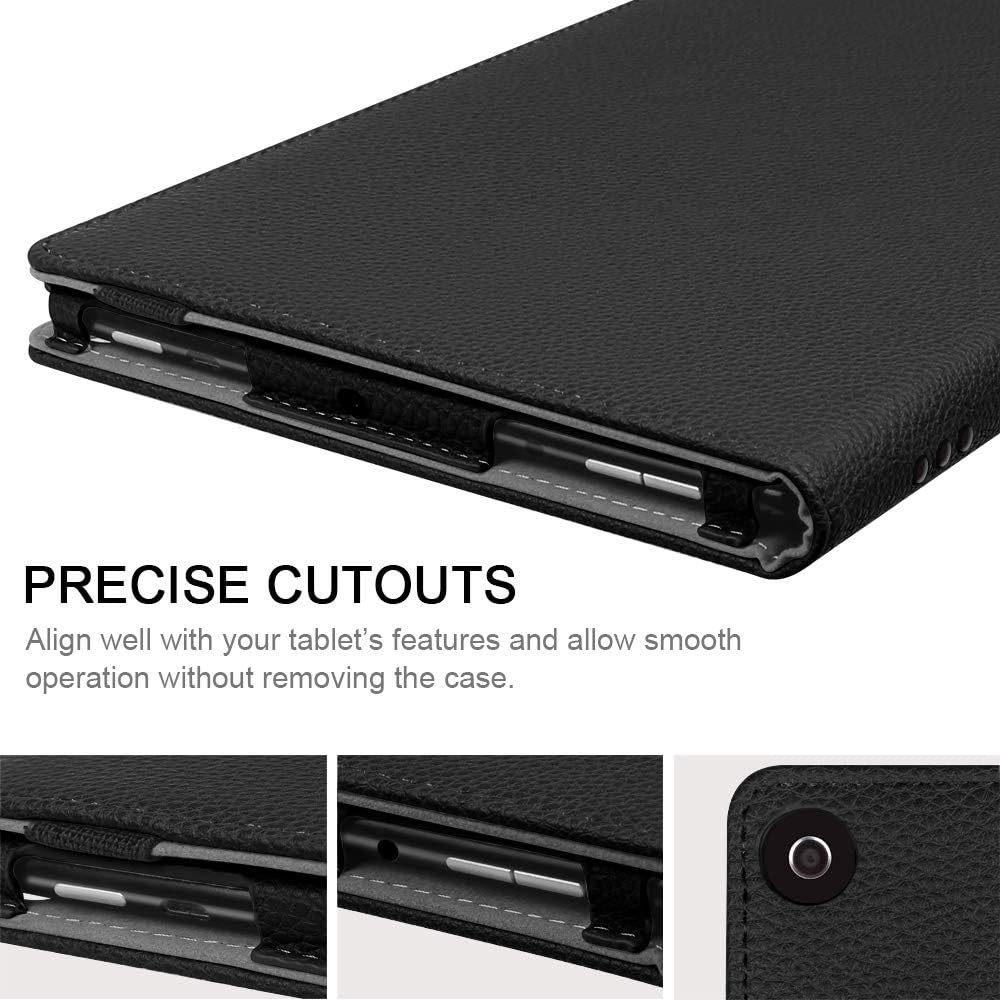
Image 3.1: Detailed view of the precise cutouts on the case, ensuring full access to tablet features without removal.
3.3. Pairing the Bluetooth Keyboard
- Turn on the Keyboard: Slide the power switch on the keyboard to the 'ON' position. The power indicator light will briefly illuminate.
- Activate Pairing Mode: Press the 'Connect' button (usually located near the power switch) on the keyboard. The Bluetooth indicator light will start blinking, indicating it is in pairing mode.
- Enable Bluetooth on Your Fire HD 10:
- Go to 'Settings' on your Amazon Fire HD 10.
- Tap on 'Connected Devices' or 'Wireless & Bluetooth'.
- Ensure Bluetooth is turned 'On'.
- Select the Keyboard: Your Fire HD 10 will search for available Bluetooth devices. Look for 'Bluetooth Keyboard' or a similar name in the list and tap on it.
- Confirm Pairing: If prompted, enter the displayed pairing code on the Bluetooth keyboard and press 'Enter'.
- Pairing Successful: The Bluetooth indicator light on the keyboard will stop blinking and turn off, indicating a successful connection. The keyboard will now be listed as a connected device on your tablet.
4. Operating Instructions
4.1. Using the Detachable Keyboard
The keyboard is magnetically attached to the case, allowing for easy removal and reattachment. This provides flexibility for different usage scenarios.

Image 4.1: The keyboard shown magnetically attached to the case, highlighting its detachable feature.
4.2. Keyboard Functions
The keyboard features a standard QWERTY layout with additional function keys accessible via the 'Fn' key.
| Key Combination | Function |
|---|---|
Fn + Home | Go to Home screen |
Fn + Search | Open Search |
Fn + Brightness Down | Decrease screen brightness |
Fn + Brightness Up | Increase screen brightness |
Fn + Previous Track | Go to previous media track |
Fn + Play/Pause | Play or pause media |
Fn + Next Track | Go to next media track |
Fn + Mute | Mute/unmute audio |
Fn + Volume Down | Decrease volume |
Fn + Volume Up | Increase volume |
Fn + Lock | Lock the tablet screen |
4.3. Using the Stand Feature
The case is designed to fold into a stand, allowing for comfortable viewing and typing angles.
- Position the tablet within the case.
- Fold the back cover of the case to create a triangular support.
- Adjust the angle as desired for optimal viewing or typing.

Image 4.2: The FINTIE case configured as a stand, providing a stable viewing angle for the tablet.
5. Maintenance
5.1. Cleaning the Case
- Wipe the exterior of the PU leather case with a soft, damp cloth.
- For stubborn stains, use a mild soap solution on the cloth, then wipe with a clean, damp cloth.
- Do not use harsh chemicals, solvents, or abrasive cleaners, as these can damage the material.
- The interior microfiber lining can be gently wiped with a dry, lint-free cloth.

Image 5.1: View of the soft microfiber interior and integrated stylus loop (stylus not included).
5.2. Cleaning the Keyboard
- Ensure the keyboard is turned off before cleaning.
- Use a soft, dry, lint-free cloth to wipe the keys and surface.
- For dust between keys, use compressed air.
- Avoid getting liquids into the keyboard.
5.3. Battery Care
- Charge the keyboard regularly, even if not used frequently, to maintain battery health.
- Avoid fully discharging the battery for extended periods.
- Store the keyboard in a cool, dry place when not in use.
6. Troubleshooting
6.1. Keyboard Not Pairing
- Check Battery: Ensure the keyboard is fully charged. Low battery can prevent pairing.
- Restart Devices: Turn off the keyboard and your Fire HD 10, then turn them back on and try pairing again.
- Forget Device: On your Fire HD 10, go to Bluetooth settings, find the keyboard (if listed), and select 'Forget Device'. Then, attempt the pairing process from step 3.3 again.
- Proximity: Ensure the keyboard and tablet are within close range (e.g., 10 meters or 33 feet).
- Interference: Move away from other devices that might cause Bluetooth interference (e.g., Wi-Fi routers, other Bluetooth devices).
6.2. Keys Not Responding
- Check Connection: Verify that the keyboard is still paired and connected to your Fire HD 10. The Bluetooth indicator light should not be blinking.
- Recharge: The keyboard battery might be low. Charge it fully.
- Restart: Turn the keyboard off and on.
- Re-pair: If the issue persists, unpair and re-pair the keyboard as described in section 6.1.
6.3. Tablet Not Fitting in Case
- Ensure your tablet is an Amazon Fire HD 10 (7th Generation, 2017 Release) or Amazon Fire HD 10 (9th Generation, 2019 Release). This case is not compatible with other Fire HD 10 generations or other tablet models.
- Remove any existing screen protectors or thin films that might prevent a snug fit.
7. Specifications
| Feature | Description |
|---|---|
| Brand | FINTIE |
| Model Number | CKAJ085US |
| Connectivity Technology | Bluetooth |
| Keyboard Layout | QWERTY |
| Number of Keys | 78 |
| Switch Type | Tactile (Scissor Switch) |
| Compatible Devices | Amazon Fire HD 10 (7th Gen, 2017), Amazon Fire HD 10 (9th Gen, 2019) |
| Power Source | Battery Powered (Rechargeable via USB) |
| Included Components | USB Cable |

Image 7.1: The FINTIE keyboard highlighting its scissor switch mechanism and key features like long battery life and magnetic detachability.
8. Warranty and Support
FINTIE products are designed for quality and reliability. This product is covered by a manufacturer's warranty against defects in materials and workmanship. For specific warranty terms, duration, and to obtain support, please refer to the warranty information provided at the time of purchase or visit the official FINTIE website.
If you encounter any issues or have questions regarding your FINTIE Keyboard Case, please contact FINTIE customer support through their official channels for assistance.