
Introduction
This manual provides comprehensive instructions for the ORICO 6218US3 Hard Drive Dock. This device is designed to connect 2.5-inch or 3.5-inch SATA III SSD/HDD drives to your computer via a USB 3.0 interface, enabling efficient data transfer and access. Please read this manual carefully to ensure proper installation and operation.
Package Contents
Please verify that all items are present in your package:
- ORICO 6218US3 Hard Drive Dock
- 12V-2A Power Adapter
- USB 3.0 Data Cable (approximately 2 feet)

Image: The ORICO 6218US3 Hard Drive Dock, a black rectangular device with two top-loading slots for hard drives.
Setup Instructions
Follow these steps to set up your ORICO 6218US3 Hard Drive Dock:
- Connect the provided 12V-2A power adapter to the DC input port on the back of the ORICO 6218US3 dock and then to a functional power outlet.
- Connect one end of the USB 3.0 data cable to the USB 3.0 port on the back of the dock and the other end to an available USB 3.0 port on your computer.
- Insert your 2.5-inch or 3.5-inch SATA HDD/SSD vertically into the appropriate slot on the top of the docking station. Ensure the drive is firmly seated.
- Power on the docking station using the ON/OFF button located on the device.

Image: A diagram illustrating the connection points of the ORICO 6218US3 Hard Drive Dock, showing the power adapter, USB cable to computer, and the insertion of an HDD/SSD, along with the ON/OFF button.
Operating Instructions
Once the hard drive is inserted and the dock is connected to your computer, the operating system (Windows, macOS, Linux) should automatically detect the drive.
You can then access the drive as an external storage device for reading, writing, and managing files. The dock supports USB 3.0 with UASP (USB Attached SCSI Protocol), which can provide up to 70% faster read speeds and 40% faster write speeds compared to conventional USB 3.0 docking stations, depending on your system and drive capabilities.
Important: To prevent data loss or corruption, always safely eject the hard drive through your computer's operating system before physically removing the drive from the dock or disconnecting the dock from the computer.

Image: The ORICO 6218US3 Hard Drive Dock connected to a laptop, demonstrating its use with a 2.5-inch hard drive inserted.
Maintenance
- Keep the docking station in a clean, dry, and well-ventilated environment.
- Avoid exposing the device to extreme temperatures, humidity, or direct sunlight.
- Do not drop the device or subject it to strong impacts.
- Clean the exterior of the dock with a soft, dry, anti-static cloth. Do not use liquid cleaners or solvents.
- Ensure the ventilation slots are not obstructed to prevent overheating.
Troubleshooting
- Drive Not Detected:
- Verify that the power adapter is securely connected to both the dock and a functional power outlet.
- Ensure the USB 3.0 cable is firmly connected to both the dock and a working USB port on your computer.
- Try connecting the dock to a different USB port on your computer.
- Confirm that the hard drive is correctly inserted into the dock's slot.
- For new drives, ensure they are initialized and formatted through your operating system's Disk Management (Windows) or Disk Utility (macOS).
- Test with a different hard drive to rule out a drive issue.
- Slow Data Transfer Speeds:
- Ensure the dock is connected to a USB 3.0 port on your computer. USB 2.0 ports will operate at slower speeds.
- Verify that your operating system and computer hardware support UASP for optimal performance.
- The actual transfer speed can be affected by the hard drive's performance and your computer's specifications.
- Dock Not Powering On:
- Check the power adapter connection to the dock and the wall outlet.
- Ensure the power outlet is active.
- Press the ON/OFF button on the dock to ensure it is in the 'On' position.
Specifications
| Feature | Detail |
|---|---|
| Brand | ORICO |
| Model | 6218US3 |
| Form Factor | 2.5-inch, 3.5-inch |
| Hardware Interface | Solid State Drive, USB 3.0 |
| Compatible Devices | Desktop, Laptop |
| Compatible OS | Mac, Windows (Windows 7/8/8.1/10 & Mac OS 10.X) |
| Max Capacity (3.5" HDD) | Up to 6 TB |
| Max Capacity (2.5" HDD/SSD) | Up to 2 TB |
| Total USB Ports | 1 |
| Colour | Black |
| Item Weight | 146 g |
| Package Dimensions | 16.6 x 14.6 x 8.2 cm |
| Certifications | CE & RoHS |
Warranty and Support
The ORICO 6218US3 Hard Drive Dock comes with a 2-year warranty from the date of purchase. This warranty covers manufacturing defects and ensures product reliability.
For technical support, warranty claims, or further assistance, please contact ORICO customer care:
- Website: www.oricoindia.in
- Customer Care Number: 022-24118805
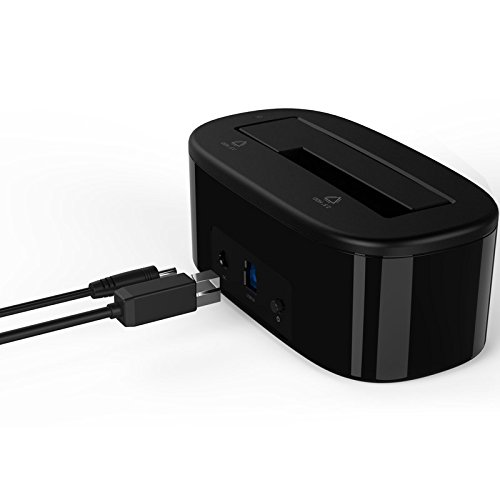
Image: A graphic indicating "1 Year Warranty" and providing the ORICO India website and customer care number. Please note the product features a 2-year warranty as per product specifications.


