
1. Introduction
This manual provides essential information for the safe and efficient operation of your Forza SL-601UL Smart UPS Battery Backup & Surge Protector. This device is designed to provide reliable power protection for your electronic equipment, safeguarding against power outages, surges, and voltage fluctuations. Please read this manual thoroughly before installation and use, and retain it for future reference.
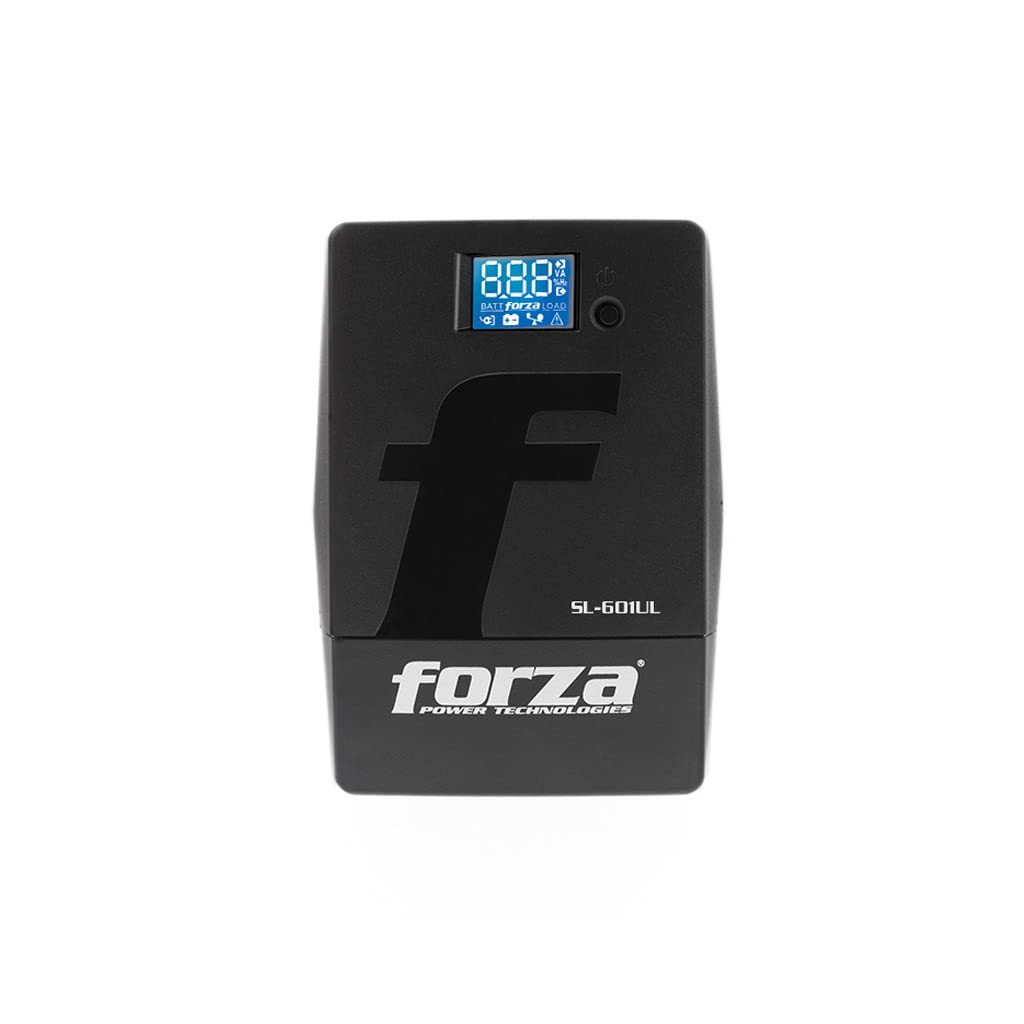
Figure 1: Forza SL-601UL Smart UPS Unit
2. Safety Information
Observe the following safety precautions to prevent injury and damage to the UPS or connected equipment:
- Placement: Install the UPS in a well-ventilated indoor area, away from direct sunlight, heat sources, and moisture. Ensure adequate clearance around the unit for proper airflow.
- Power Source: Connect the UPS to a properly grounded AC power outlet. Do not remove the grounding prong from the power cord.
- Load Capacity: Do not overload the UPS. Ensure the total power consumption of connected devices does not exceed the UPS's rated capacity (360W for SL-601UL).
- Battery: The UPS contains a sealed, maintenance-free lead-acid battery. Do not attempt to open or service the battery yourself. Refer to qualified service personnel for battery replacement.
- Liquid and Foreign Objects: Do not allow liquids or foreign objects to enter the UPS.
- Emergency Shutdown: In an emergency, press the power button to turn off the UPS and disconnect it from the AC power source.
3. Product Overview
Key Features
- 6 NEMA outlets (5 with battery backup and surge protection, 1 with surge protection only).
- 600VA (360W) capacity for reliable power backup.
- Automatic Voltage Regulator (AVR) to maintain stable voltage.
- LCD touchscreen for real-time monitoring and control.
- USB port for communication with monitoring software (Forza Tracker).
- Data line protection (RJ-11/RJ-45) for network and phone lines.
- Thermofuse protection and Cold Start function.
Components

Figure 2: Rear Panel with Outlets and Ports
The rear panel features 6 NEMA outlets. Five outlets provide both battery backup and surge protection, while one outlet offers surge protection only. A USB communication port allows connection to a computer for monitoring, and RJ-11/RJ-45 ports provide data line protection.

Figure 3: LCD Touchscreen Display
The front-panel LCD touchscreen provides real-time status updates, including input/output voltage, battery charge level, and load capacity. It allows for simplified monitoring and management of the UPS.

Figure 4: Communication Ports
The USB port enables communication with a computer for advanced monitoring and automatic shutdown functions. The RJ-45 ports offer protection for data signals across network lines, preventing damage to connected communication equipment.
4. Setup
Initial Placement and Connection
- Unpack the UPS and inspect it for any shipping damage.
- Place the UPS in a cool, dry, and well-ventilated area. Avoid placing it near windows or areas with excessive dust or humidity.
- Connect the UPS power cord to a grounded wall outlet.
- Connect your critical electronic devices (computer, monitor, router, etc.) to the battery backup and surge protected outlets. Connect non-critical devices to the surge-only protected outlet if desired.
- For advanced monitoring and automatic shutdown features, connect the USB cable from the UPS to your computer.
- Allow the UPS to charge for at least 4 hours before initial use to ensure optimal battery performance.

Figure 5: UPS in a typical office setup
The UPS is designed to be discreetly placed under a desk or in a similar location, providing power protection without obstructing your workspace.
Software Installation (Forza Tracker)
To utilize the remote management and automatic shutdown features, install the Forza Tracker software on your computer. The software can typically be downloaded from the Forza Power Technologies official website. Follow the on-screen instructions for installation.

Figure 6: Forza Tracker Software Interface
The Forza Tracker software allows for remote monitoring of UPS status and enables safe system shutdown in the event of an extended power outage or other computer-generated problems.
Setup Video Guide
Video 1: Forza SL Series UPS Battery Backup Overview
This video provides a visual guide to the features and basic setup of the Forza SL Series UPS, including the SL-601UL model.
5. Operating Instructions
Powering On/Off
- To Power On: Press and hold the power button on the front panel for approximately 2 seconds until the LCD screen illuminates.
- To Power Off: Press and hold the power button for approximately 2 seconds until the LCD screen turns off.
LCD Display
The LCD touchscreen provides real-time information about the UPS status. You can cycle through different display modes by briefly touching the screen. Information typically includes:
- Input Voltage
- Output Voltage
- Battery Charge Level
- Load Capacity (in VA or Watts)
- Operating Mode (AC, Battery, AVR)
Automatic Voltage Regulation (AVR)
The built-in AVR function automatically corrects minor voltage fluctuations (sags and surges) without switching to battery power. This ensures a stable and clean power supply to your connected devices, prolonging their lifespan and preventing data loss. The UPS will emit a sound signal during AVR operation.

Figure 7: AVR and Battery Self-Test
AVR provides continuous protection against voltage irregularities, ensuring stable power. The battery self-test feature helps maintain UPS health by identifying potential battery weaknesses.
Battery Backup Mode
During a power outage, the UPS automatically switches to battery backup mode, providing power to connected devices. An alarm will sound every 10 seconds to indicate battery operation. The LCD will display the remaining battery charge level. When the battery is low, the alarm will sound more frequently. During an extended outage, the UPS will safely shut down connected computers if the Forza Tracker software is installed and configured.
Cold Start Function
The Cold Start function allows you to power on the UPS and connected devices using battery power even when there is no AC utility power available. To activate, ensure the UPS is off, then press and hold the power button until the UPS powers on and enters battery mode.
6. Maintenance
Battery Care
- Initial Charge: Fully charge the UPS for at least 4 hours before first use.
- Regular Use: To maintain battery health, allow the UPS to discharge and recharge periodically.
- Storage: If storing the UPS for an extended period, ensure it is fully charged and recharge it every 3-6 months to prevent battery degradation.
- Battery Replacement: The battery is not user-replaceable. Contact qualified service personnel for battery replacement.

Figure 8: Intelligent Battery Management
The UPS features intelligent battery management for dependable and precise control of the battery charging current, contributing to longer battery life.
Cleaning
Use a soft, dry cloth to clean the exterior of the UPS. Do not use liquid or aerosol cleaners. Ensure the UPS is turned off and disconnected from the power source before cleaning.
Self-Test
The UPS can perform a self-test to check the battery and internal components. Refer to the LCD display or Forza Tracker software for instructions on initiating a self-test. Regular self-tests help ensure the UPS is functioning correctly.
7. Troubleshooting
If you encounter issues with your UPS, refer to the following common problems and solutions:
| Problem | Possible Cause | Solution |
|---|---|---|
| UPS does not turn on | No AC power; Low battery; UPS fault | Check AC power connection; Charge battery for 4 hours; Contact support if issue persists. |
| UPS beeps continuously or frequently | On battery mode; Low battery; Overload | Save work and shut down; Reduce connected load; Allow battery to recharge. |
| Connected devices lose power during outage | Devices connected to surge-only outlets; Overload; Battery depleted | Ensure critical devices are on battery backup outlets; Reduce load; Allow battery to recharge. |
| Burning plastic smell | Overheating; Internal fault | Immediately disconnect UPS from power and all devices. Do not use. Contact support. |
Thermofuse Protection
The UPS is equipped with thermofuse protection, which is a power disconnection function that activates if transformer temperatures become too high. This feature increases reliability and provides peace of mind by preventing damage from overheating.

Figure 9: Thermofuse Protection and Cold Start
Thermofuse protection enhances safety by disconnecting power if internal temperatures are too high. The Cold Start function provides ultimate power reserve for less downtime, allowing the UPS to start on battery power without AC utility.
8. Specifications
| Specification | Value |
|---|---|
| Model Number | SL-601UL |
| Capacity | 600VA / 360 Watts |
| Input Voltage | 120 Volts |
| Output Voltage | 12 Volts (DC) |
| Number of Outlets | 6 (NEMA) |
| Connector Type | NEMA, USB |
| Battery Charge Time | 4 Hours (to 90%) |
| Typical Runtime (Half Load) | 10 minutes |
| Material | Plastic |
| Color | Black |
| Item Dimensions (L x W x H) | 3.9 x 11.8 x 5.6 inches |
| Smart Home Compatibility | Smart Home Compatible |
| Certification | UL Certified |
| UPC | 798302107564 |
9. Warranty and Support
Warranty Information
This Forza SL-601UL UPS is covered by a 3-year warranty. Please retain your proof of purchase for warranty claims. For detailed warranty terms and conditions, refer to the documentation included with your product or visit the Forza Power Technologies official website.
Customer Support
For technical assistance, troubleshooting, or service inquiries, please contact Forza Power Technologies customer support. Contact information can be found on the manufacturer's website or in the product packaging.
Manufacturer: Forza Power Technologies
Website: Forza Power Technologies Store