1. Introduction
The ANNKE 1080P Indoor Wireless Security Camera (Model 41CJ) provides high-definition video surveillance for your home or business. Featuring pan and tilt capabilities, two-way audio, motion detection, and night vision, this camera offers comprehensive monitoring. It is designed for easy setup and remote access via mobile and desktop applications.

Image 1.1: The ANNKE 1080P Indoor Wireless Security Camera, a compact device for indoor surveillance.
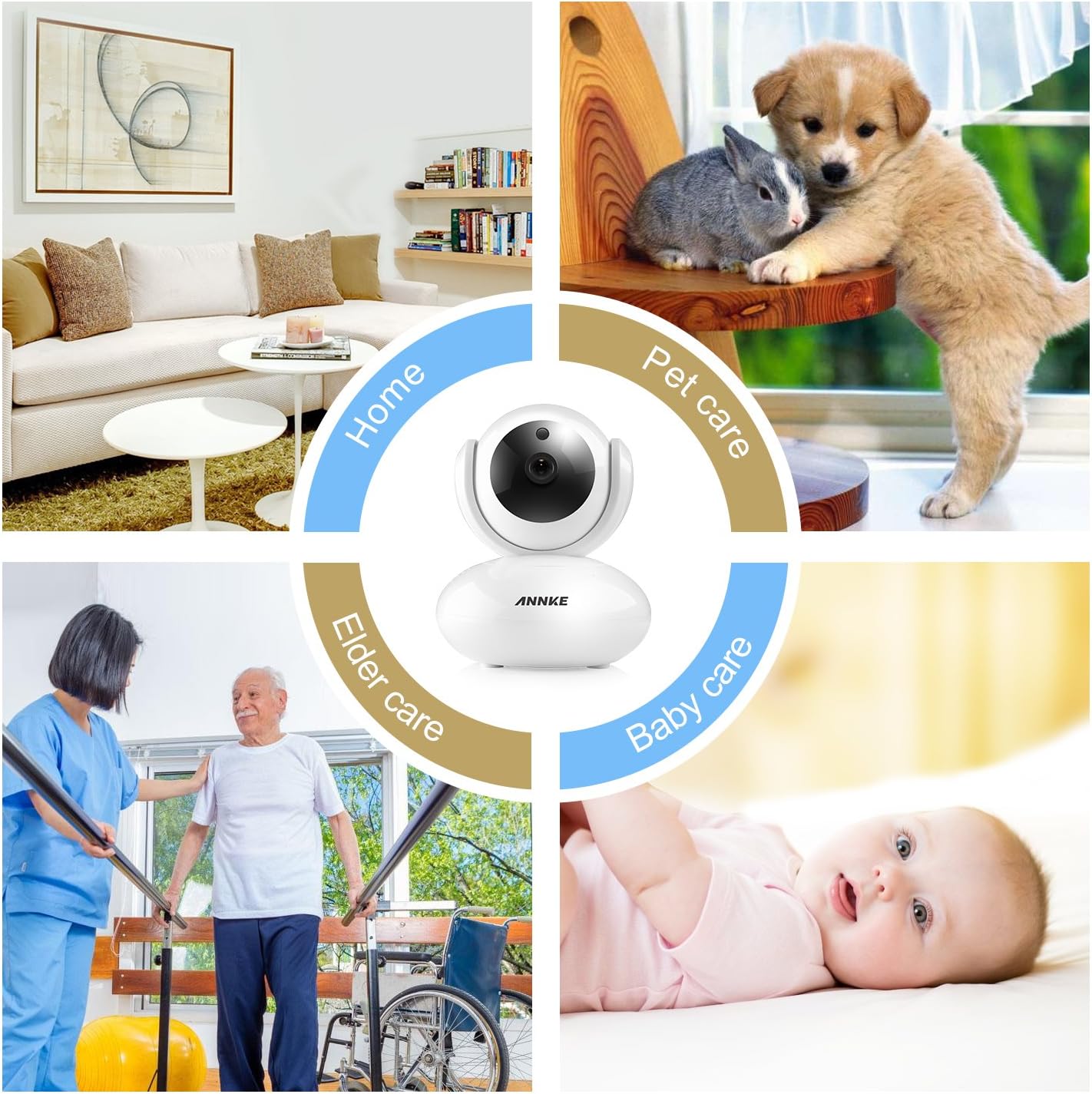
Image 1.2: The camera is suitable for various indoor applications including home security, pet monitoring, elder care, and baby monitoring.
2. Package Contents
Verify that all items listed below are included in your package. If any items are missing or damaged, please contact customer support.
- 1x Wireless Security Camera
- 1x User Manual
- 1x Power Adapter
- 1x CD Software
- 1x Mounting Screws
- 1x Drill Template Sticker
- 1x Ethernet Cable
- 1x Mounting Bracket
3. Product Features
- 1080P HD Video: Experience clear video quality with smooth on-screen movements.
- Pan & Tilt Functionality: The camera offers 350° horizontal pan and 100° vertical tilt for a wide monitoring area, eliminating blind spots.
- Two-Way Audio: Built-in microphone and speaker with noise reduction allow for clear communication.
- Night Vision: Automatic night vision with IR LEDs provides clear visibility up to 33ft (10m) in low-light conditions.
- Motion Detection & Push Alerts: Receive instant alarm push notifications with snapshots and email alerts when unexpected movements are detected.
- Remote Access: Access and control the camera remotely using free desktop and mobile applications for smartphones, tablets, and PCs.
- H.264 Compression: Efficient video compression reduces storage space requirements without significant loss of quality.
- Micro SD Card Support: Supports up to 64GB Micro SD card for local video storage, useful during network interruptions.
- Online Firmware Upgrade: The camera automatically detects and allows for firmware upgrades via your smartphone.

Image 3.1: The camera features 350° horizontal rotation and 100° vertical rotation for comprehensive coverage.

Image 3.2: The camera provides clear 1080P video quality during both day and night conditions.

Image 3.3: Smart motion-triggered push notifications keep you informed of detected activity.
4. Setup Guide
Follow these steps to set up your ANNKE 1080P Indoor Wireless Security Camera.
4.1 Initial Setup
- Power On: Plug in the power adapter to the camera and a power outlet.
- App Download: Download and install the free 'My ANNKE' app from your device's app store (iOS or Android).
- Account Registration/Login: Register a new account or log in if you already have one.
- Add Camera: In the app, tap the '+' icon to add a new camera. Select 'PTC cameras'.
- Scan QR Code: Scan the QR code located on the label at the bottom of the camera to obtain its ID and password.

Image 4.1: The camera is designed for quick and straightforward setup without complicated configurations.
4.2 Network Connection (Wireless or Wired)
The camera supports both wireless (Wi-Fi) and wired (Ethernet) connections. Choose the method that best suits your needs.
Video 4.2: This video demonstrates the process of connecting your ANNKE camera to a Wi-Fi network and via an Ethernet cable.
4.2.1 Wireless Connection
- Ensure your smartphone is connected to a 2.4GHz Wi-Fi network (5GHz Wi-Fi is not supported by the camera).
- In the app, select 'Wireless Connection'.
- Check the camera's indicator lights and confirm they are blinking as instructed by the app.
- Press the reset button on the camera for 1-2 seconds to enter Wi-Fi connection mode. You will hear a voice prompt.
- Input your Wi-Fi password into the app.
- Move your phone close to the camera, ensuring your phone's speaker is turned on. The app will transmit a sound to pair the camera.
- Wait for the camera to connect to the network.
- Once connected, change the default password (admin) for security purposes.
- Edit the device name as desired.
4.2.2 Wired Connection
- Connect one end of the provided Ethernet cable to the camera and the other end to your router.
- In the app, after scanning the QR code, select 'Ethernet Connection'.
- Check the camera's indicator lights as prompted by the app.
- Change the default password (admin) for security.
- Choose an available Wi-Fi network for the camera and configure it if you wish to use Wi-Fi after initial wired setup.
- Edit the device name.
- You can now unplug the Ethernet cable if Wi-Fi was configured, or keep it connected for a more stable network connection.

Image 4.3: The camera can be accessed and controlled remotely via free desktop and mobile applications.
5. Operation Instructions
5.1 Live View and Remote Control
Once connected, open the 'My ANNKE' app to view live footage from your camera. You can control various functions directly from the app.
- Pan and Tilt: Use the directional controls within the app to remotely adjust the camera's horizontal (pan) and vertical (tilt) viewing angles.
- Two-Way Audio: Tap the microphone icon in the app to speak through the camera's speaker, and listen to audio from the camera's environment.
- Snapshots and Video Recording: Capture still images or record video clips directly from the live view interface.
- HD/SD Quality: Switch between High Definition (HD) and Standard Definition (SD) video quality based on your network conditions.
5.2 Motion Detection Settings
Configure motion detection to receive alerts for activity in the camera's view.
- Navigate to the camera settings within the 'My ANNKE' app.
- Locate the 'Motion Detection' or 'Alarm Settings' section.
- Enable motion detection and adjust sensitivity levels as needed.
- Set up notification preferences, such as push alerts to your phone or email alerts.
5.3 Micro SD Card Recording
To record video footage locally, insert a Micro SD card (up to 64GB, not included) into the camera's designated slot. The camera will automatically begin recording based on your settings (e.g., continuous recording, motion-triggered recording).
6. Maintenance
- Firmware Updates: The camera app will notify you of available firmware updates. It is recommended to keep your camera's firmware updated for optimal performance and security. Follow the in-app instructions to perform updates.
- Cleaning: Gently wipe the camera lens and body with a soft, dry cloth. Avoid using harsh chemicals or abrasive materials.
- Placement: Ensure the camera is placed in a stable, dry indoor environment, away from direct sunlight, heat sources, and excessive moisture.
7. Troubleshooting
If you encounter issues with your camera, refer to the following common solutions:
- Camera Not Connecting to Wi-Fi:
- Ensure your Wi-Fi network is 2.4GHz. The camera is not compatible with 5GHz Wi-Fi connections.
- Verify your Wi-Fi password is correct.
- Try pairing the camera via a wired Ethernet connection first, then configure Wi-Fi through the app.
- Ensure your phone is connected to the same 2.4GHz Wi-Fi network during setup.
- Reset the camera by pressing the reset button for 1-2 seconds and try the setup process again.
- Intermittent Signal or Connection Breaks:
- Inspect your router status and ensure it is functioning correctly.
- Check the network range and signal strength where the camera is placed. Move the camera closer to the router or consider a Wi-Fi extender.
- If possible, use an Ethernet cable for a more stable connection.
- No Video Recording:
- Ensure a Micro SD card (max 64GB) is properly inserted into the camera.
- Check the recording settings in the app to confirm continuous or motion-triggered recording is enabled.
- Format the SD card through the app if it's a new card or if you're experiencing issues.
- Poor Image Quality:
- Ensure the camera lens is clean and free from dust or smudges.
- Check your network bandwidth. A stable and sufficient internet connection is required for optimal 1080P streaming.
- Switch to HD quality in the app if it's currently set to SD.
8. Technical Specifications
| Specification | Detail |
|---|---|
| Model Name | I41CJ-OP |
| Item Model Number | 41CJ |
| Indoor/Outdoor Usage | Indoor |
| Video Capture Resolution | 1080p |
| Effective Video Resolution | 1080 Pixels |
| Connectivity Technology | Wireless (Wi-Fi), Wired (Ethernet) |
| Wireless Communication Technology | Wi-Fi (2.4GHz only) |
| Pan/Tilt Range | 350° Horizontal Pan, 100° Vertical Tilt |
| Night Vision Range | 33 Feet (10m) |
| Storage Support | Micro SD Card (up to 64GB) |
| Control Method | App |
| Compatible Devices | Desktop, Smartphone, Tablet |
| Product Dimensions | 4.7 x 3.6 x 4 inches (119.4 x 91.4 x 101.6 mm) |
| Item Weight | 1.21 pounds (0.55 kg) |
| Mounting Type | Wall Mount |
| Color | White |
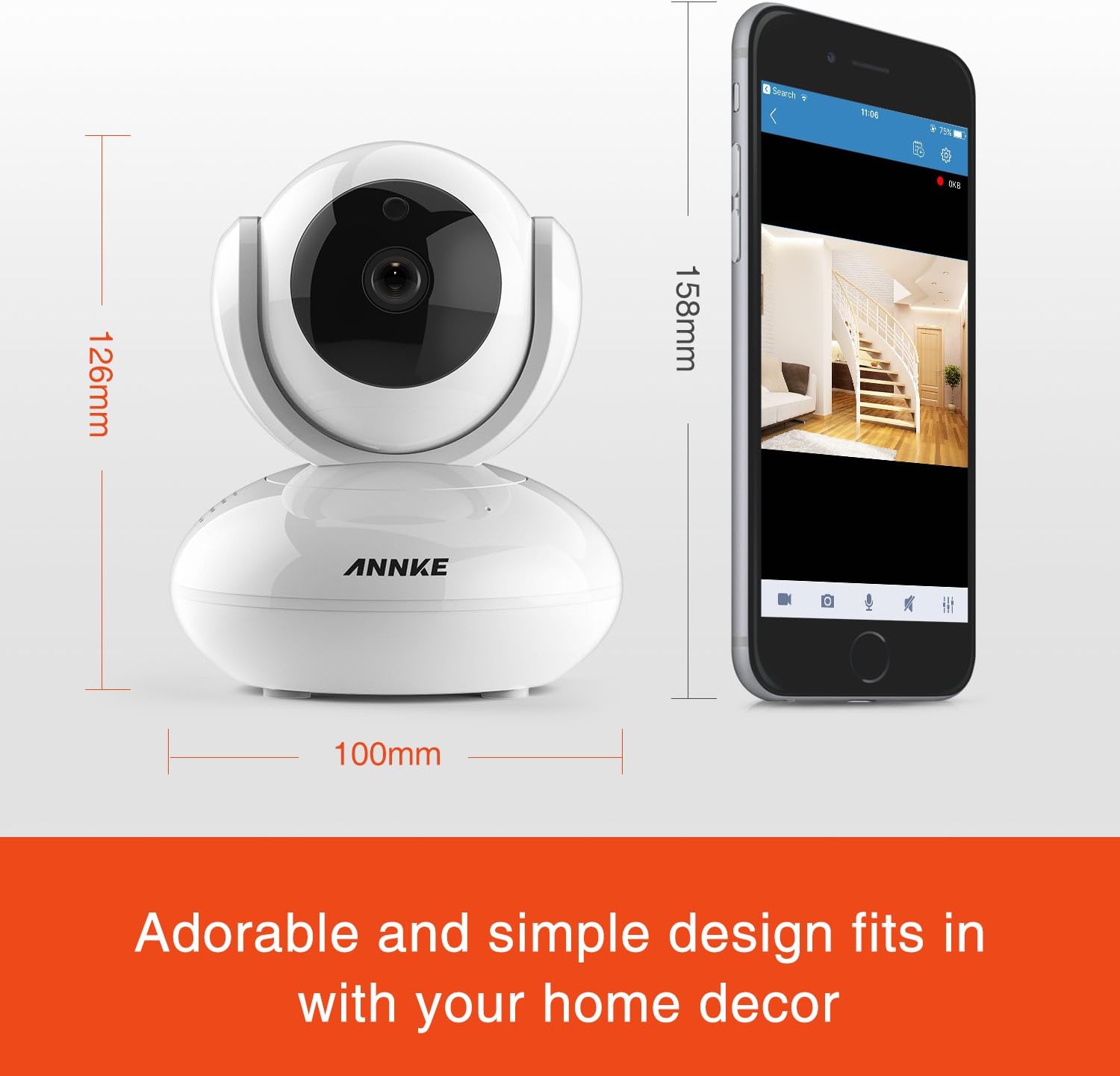
Image 8.1: Detailed dimensions of the ANNKE 1080P Indoor Wireless Security Camera.
9. Customer Support
For technical assistance, warranty information, or any other inquiries, please contact ANNKE customer service:

Image 9.1: ANNKE Customer Service contact details.
- E-mail: support@annke.com
- Facebook: @annke.system
- US Number: 404-620-4370 (EST 07:00-11:00 and 20:00-24:00)


