
RGBZONE FB5010AUSWHO
RGBZONE WS2812B RF LED Controller User Manual
Model: FB5010AUSWHO
1. Introduction
This manual provides detailed instructions for the RGBZONE WS2812B RF LED Controller. This controller is designed for use with WS2811 and WS2812B dream color LED strip lights, offering a wide range of dynamic lighting effects and easy wireless control.
2. Package Contents
- 1 x RF LED Controller
- 1 x RF Remote Control
- 1 x User Manual
3. Product Overview
The RGBZONE RF LED Controller system consists of a compact receiver unit and a 14-key RF wireless remote control. The receiver connects directly to your compatible LED strip lights and power supply, while the remote allows for convenient control of lighting modes, speed, and brightness from a distance.
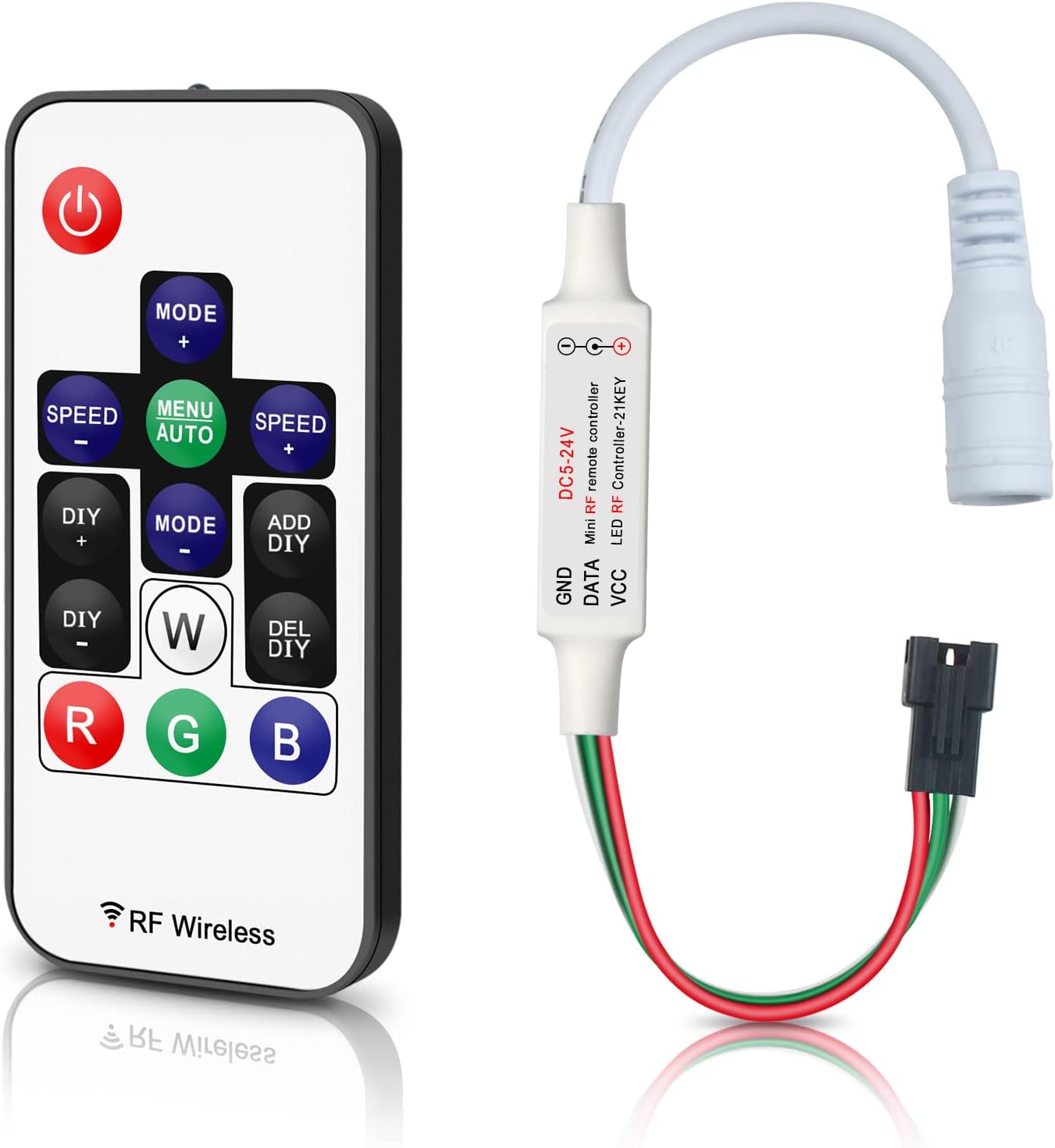
Figure 3.1: RGBZONE RF LED Controller and Remote Control.
This image displays the compact RF LED controller unit alongside its 14-key wireless remote control, which is used to manage the LED strip light functions.

Figure 3.2: Dimensions of Controller and Remote.
This image illustrates the physical dimensions of both the RF LED controller and its remote, showing measurements in millimeters and inches for reference.
3.1. Connectors
The controller features a 3-PIN JST connector for connecting to the LED strip and a DC female connector for power input.

Figure 3.3: Controller Connectors.
A close-up view of the controller's 3-PIN JST connector for LED strips and the DC female connector for power input.
3.2. Remote Control Battery Installation
The remote control uses a CR2025 coin cell battery. Ensure to remove the protective film from the battery before first use.

Figure 3.4: Battery Compartment.
This image shows the battery compartment of the remote control, indicating the CR2025 battery type and the need to remove the protective film before use.
4. Specifications
| Feature | Detail |
|---|---|
| Model Number | FB5010AUSWHO |
| Input Voltage | DC 5V-24V |
| Compatible LED Types | WS2811, WS2812B (Dream Color LED Strip Lights) |
| Max Control Pixels | Total 2048 pixels (Factory default: 300 pixels) |
| Remote Type | RF Wireless (14-Key) |
| Wireless Range | 10-30 meters (through walls, doors, cabinets) |
| Controller Dimensions | Approx. 3.39 x 1.57 x 0.01 inches (8.6 x 4 x 0.025 cm) |
| Item Weight | 1.06 ounces (30 grams) |
| Power Source | Battery Powered (Remote), DC Power (Controller) |
| Max Power Load | 5V<30W, 12V<72W, 24V<144W |
Note: The controller's output voltage matches the input voltage. Ensure your power supply voltage matches your LED strip's voltage (e.g., 5V LED strip requires a 5V power supply).
5. Setup and Installation
Follow these steps to properly connect your RGBZONE RF LED Controller:
- Prepare Components: Ensure you have the RF LED controller, RF remote control, compatible WS2811/WS2812B LED strip lights, and a suitable DC power adapter (not included).
- Connect LED Strip: Connect the 3-PIN JST connector from the LED strip to the corresponding 3-PIN JST connector on the RF LED controller. Ensure the pins are aligned correctly (VCC, DATA, GND).
- Connect Power Supply: Connect the DC female connector of the RF LED controller to your DC power adapter. Important: The input voltage of the power supply must match the operating voltage of your LED strip (e.g., for a 5V LED strip, use a 5V power supply). The controller does not regulate voltage.
- Power On: Plug in the power adapter to an electrical outlet. The LED strip should light up according to the controller's default settings.

Figure 5.1: Connection Diagram.
This diagram illustrates the correct connection sequence: Power Adapter to RF Receiver (Controller), and RF Receiver to LED Strip Lights. The remote controller is shown separately, indicating its wireless function.

Figure 5.2: Detailed Connection with Voltage Note.
A more detailed connection diagram emphasizing the importance of matching the power supply voltage (DC5-24V POWER) to the LED strip's voltage (DC5-24V LED Strip).
6. Operation
The 14-key RF remote control allows for comprehensive management of your LED strip lights. The RF signal provides a working distance of 10-30 meters, even through walls and obstacles.
6.1. Remote Control Functions

Figure 6.1: Remote Control Layout and Functions.
This image labels the functions of each button on the 14-key RF remote control, including Mode, Speed, DIY, and RGB color buttons.

Figure 6.2: Advanced Remote Functions.
A detailed diagram of the remote control, explaining functions like Mode+ (358 modes), Speed/Brightness adjustment, Custom Mode, and the process for adjusting LED pixel points and RGB order.
- Power On/Off: Press the Power button to turn the lights on or off.
- Mode + / -: Cycle through 300+ (up to 358) dynamic color modes.
- Speed + / -: Adjust the speed of the current dynamic mode.
- MENU AUTO: Activates auto-play mode, cycling through 358 modes.
- DIY + / -: Navigate through custom play lists or effect programs.
- ADD DIY: Adds the current effect to the custom mode list.
- DEL DIY: Removes the current effect from the custom mode list.
- W (White): Activates static white color.
- R (Red), G (Green), B (Blue): Activates static Red, Green, or Blue colors respectively.
6.2. Adjusting Pixel Count and RGB Order
The controller supports up to 2048 pixels, with a factory default of 300 pixels. To adjust the number of LED pixel points or the RGB order:
- Ensure the LED strip is powered off.
- Press and hold the MENU AUTO button for 5 seconds to enter the setup menu.
- Use MODE + and MODE - to adjust the number of LED pixel points.
- Press the R, G, or B keys to adjust the RGB order. For example, press R until the LED strip shows red, G until it shows green, and B until it shows blue.
- Press the Power button to exit and save settings.

Figure 6.3: Pixel Adjustment Guidance.
This image visually prompts the user on how to adjust the controller to manage up to 2048 pixels, referencing the remote control for the necessary button presses.
6.3. Remote Control ID Matching
- Match Remote ID: Long press the G key for 5 seconds. The LED strip will flash green 3 times, indicating successful matching.
- Cancel Remote ID: Press and hold the W key for 5 seconds. The LED strip will flash white 3 times, indicating the ID has been canceled.
7. Supported Products
This controller is specifically designed for and compatible with the following LED types:
- WS2811 LED Strip Lights
- WS2812B LED Strip Lights
Note: This controller cannot control SK6812 RGBW LED lights or regular RGB LED strips without a driver IC.

Figure 7.1: Examples of Supported LED Products.
This image displays various forms of compatible LED products, including WS2812B strips, WS2811 strings, and WS2812B panels, illustrating the types of lights this controller can manage.

Figure 7.2: Supported Products Overview.
An overview showing the controller alongside examples of supported LED products like WS2812B and WS2811 strips and strings, reinforcing compatibility.
8. Troubleshooting
| Problem | Possible Cause | Solution |
|---|---|---|
| LED strip does not light up. | Incorrect power supply voltage. Loose connections. Remote battery depleted or protective film not removed. | Ensure power supply voltage matches LED strip voltage. Check all connections are secure. Replace remote battery or remove protective film. |
| LED colors are incorrect (e.g., pressing Green shows Red). | Incorrect RGB order setting. | Adjust the RGB order using the setup menu (refer to Section 6.2). |
| Controller becomes very hot during use. | Overload due to too many pixels or high power consumption. | Ensure total pixel count does not exceed 2048. For high power consumption, consider using a separate power supply for the LED strips or adding amplifiers. |
| Remote control does not respond. | Remote not paired with controller. Battery issue. | Perform remote control ID matching (refer to Section 6.3). Check or replace the CR2025 battery. |
| Limited control range. | Interference or excessive obstacles. | Ensure no major metallic obstructions. While RF penetrates walls, extreme interference can reduce range. |
9. Maintenance
The RGBZONE RF LED Controller requires minimal maintenance. Keep the controller and remote clean and dry. Avoid exposing them to extreme temperatures, humidity, or direct sunlight. Do not attempt to disassemble the units, as this will void any potential warranty.
10. Warranty and Support
For warranty information or technical support, please refer to the product packaging or contact RGBZONE customer service through the retailer where the product was purchased. Keep your purchase receipt as proof of purchase.
Ask a question about this manual
Ask about setup, troubleshooting, compatibility, parts, safety, or missing instructions. Manuals+ will review the question and use this page’s manual context to help answer it.