
1. Introduction
Welcome to the user manual for your Sades S-16 Gunblade Gaming Mouse. This high-performance wired gaming mouse is designed to provide precision, comfort, and customization for an enhanced gaming experience. Please read this manual carefully to ensure proper setup and operation of your device.
2. Package Contents
Please verify that all items are present in your package:
- Sades S-16 Gunblade Gaming Mouse
- Instruction Manual
- Driver CD
3. Product Features
- Avago Optical Sensor: Provides accurate and reliable tracking for precise control.
- Adjustable DPI Levels: Cycle through 4 preset DPI settings to match your gaming style and preference.
- 7 Control Buttons: Includes programmable buttons for enhanced functionality.
- Customizable LED Lighting: Features 8 customizable LED color options for personalized aesthetics.
- Ergonomic Design: Shaped for comfortable use during extended gaming sessions.
- Durable Construction: Built with quality materials for longevity.
4. Setup
4.1 Connecting the Mouse
To connect your Sades S-16 Gunblade Gaming Mouse:
- Locate an available USB port on your computer.
- Plug the USB connector of the mouse firmly into the USB port.
- Your computer should automatically detect the mouse.
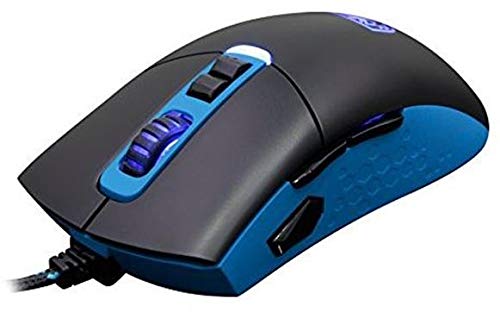
Figure 1: Sades S-16 Gunblade Gaming Mouse connected to a computer.
4.2 Driver Installation
For full customization and advanced features, driver installation is recommended:
- Insert the provided Driver CD into your computer's optical drive.
- Follow the on-screen instructions to install the Sades S-16 software.
- If you do not have an optical drive, or for the latest version, visit the official Sades website to download the drivers.
Note: Some users may experience compatibility issues with the included software on newer operating systems. The mouse functions as a standard plug-and-play device without the software, but customization of buttons and LEDs requires the software. The mouse features an in-built memory module to save configurations.
5. Operating Instructions
5.1 Button Functions
The Sades S-16 Gunblade Gaming Mouse features 7 control buttons:
- Left Click Button: Primary action.
- Right Click Button: Secondary action/context menu.
- Scroll Wheel: Scrolls content up/down. Also functions as a clickable middle button.
- DPI Up Button: Increases DPI sensitivity.
- DPI Down Button: Decreases DPI sensitivity.
- Forward Side Button: Navigates forward in web browsers or applications.
- Backward Side Button: Navigates backward in web browsers or applications.
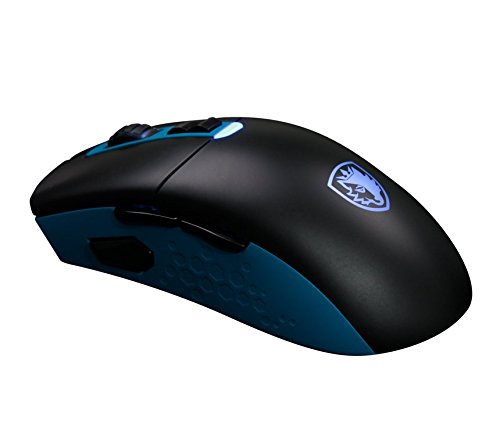
Figure 2: Side view illustrating the forward and backward thumb buttons.
5.2 DPI Adjustment
Use the dedicated DPI Up and DPI Down buttons, typically located below the scroll wheel, to cycle through the 4 available DPI sensitivity levels. The mouse's LED lighting may change to indicate the currently selected DPI setting.
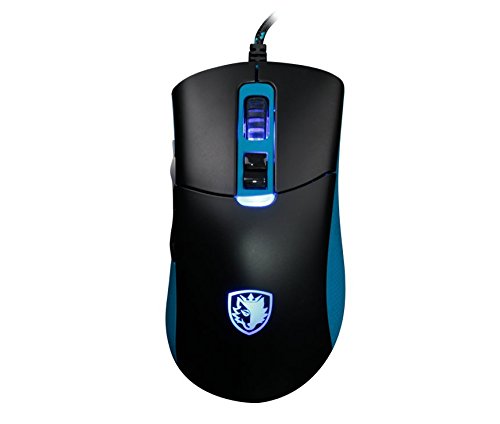
Figure 3: Top view highlighting the scroll wheel and DPI adjustment buttons.
5.3 LED Customization
If the Sades S-16 software is installed, you can customize the LED lighting effects and choose from 8 different colors. Refer to the software's interface for detailed instructions on personalization.
5.4 Ergonomics and Grip
The Sades S-16 is designed with an ergonomic shape. It is a relatively large mouse, which may be particularly comfortable for users with larger hands or those who prefer a fingertip grip style.
6. Maintenance
6.1 Cleaning
- Use a soft, dry, lint-free cloth to clean the surface of the mouse.
- For the optical sensor, gently clean with a cotton swab lightly dampened with isopropyl alcohol. Ensure no liquid enters the mouse.
- Avoid using harsh chemicals or abrasive materials, as these can damage the mouse's finish.
6.2 Storage and Cable Care
- Store the mouse in a clean, dry environment away from extreme temperatures when not in use.
- Avoid sharp bends, kinks, or excessive pulling on the USB cable to prevent internal wire damage.
7. Troubleshooting
7.1 Mouse Not Responding
- Ensure the USB cable is securely plugged into a functioning USB port on your computer.
- Try connecting the mouse to a different USB port.
- Restart your computer.
7.2 Jerky Movement or Inaccurate Tracking
- Check the underside of the mouse for any plastic protectors on the mouse skates and remove them if present.
- Ensure the optical sensor on the bottom of the mouse is clean and free from dust or debris.
- Use the mouse on a clean, uniform surface or a high-quality mouse mat.
7.3 Software Issues
- Verify that you have installed the correct drivers for your operating system.
- If experiencing issues on newer Windows versions, try running the software in compatibility mode.
- Check the official Sades website for updated software or firmware.
7.4 Scroll Wheel Issues
- If the scroll wheel feels loose or unresponsive, inspect it for any obstructions or debris that might be affecting its movement.
8. Specifications
| Brand | Sades |
| Model | S-16 |
| Connectivity | Wired (USB) |
| Sensor Type | Optical (Avago Sensor) |
| DPI Levels | 4 Adjustable Levels |
| Buttons | 7 Control Buttons |
| LED Lighting | Customizable (8 colors) |
| Operating System Compatibility | Linux, Windows 7, Windows XP (and newer versions) |
| Hardware Platform | Laptop, Personal Computer |
9. Warranty and Support
The Sades S-16 Gunblade Gaming Mouse comes with a standard manufacturer's warranty. Please refer to the warranty card included in your product packaging for detailed terms and conditions, or visit the official Sades website for more information.
For technical support, troubleshooting assistance, or any other inquiries, please contact Sades customer service through their official website or designated support channels.


