
1. Introduction
The mkzea Hunter PRO-HC PHC-1200i is an advanced 12-zone indoor Wi-Fi irrigation controller designed for residential and professional applications. This controller integrates with Hydrawise web-based software, allowing for remote management via internet, Android, and iPhone applications. It provides intelligent watering based on local weather data, optimizing water usage and promoting plant health.
2. Safety Information
- Ensure the power supply is disconnected before installation or maintenance.
- This device is designed for indoor use only. Do not expose to rain or moisture.
- All wiring should be performed by a qualified individual in accordance with local electrical codes.
- Use only the specified 24 Volts (AC) power supply.
3. Package Contents
Verify that all items are present in the package:
- Hunter PRO-HC PHC-1200i Wi-Fi Controller
- Power Adapter
- Mounting Hardware (screws, anchors)
- Quick Start Guide (this manual)
4. Installation
Follow these steps for proper installation of your PRO-HC PHC-1200i controller:
- Mounting: Select a suitable indoor location away from direct sunlight and moisture. Securely mount the controller to the wall using the provided mounting hardware.
- Wiring Preparation: Before disconnecting any existing controller, take a photograph of all current wiring connections and label each wire (zone, common, pump, sensor) to ensure correct re-connection.
- Wire Entry: If wires enter through the back of the controller, a knockout space is provided. A 1-inch drill bit may be required to create the opening for wire passage.
- Connecting Wires: Connect the irrigation zone wires, common wire, and any sensor wires to the corresponding screw terminals inside the controller. The screw terminals offer ample space for organized wiring.
- Power Connection: Once all irrigation wires are connected, plug the power adapter into the controller and then into a suitable electrical outlet.

5. Setup
After physical installation, configure your controller for Wi-Fi connectivity and Hydrawise software integration:
- Wi-Fi Connection: Power on the controller. The touchscreen will guide you through a setup wizard to connect to your home Wi-Fi network. Ensure a strong Wi-Fi signal at the controller's location.
- Hydrawise Account: Once connected to Wi-Fi, the controller's touchscreen will display a serial ID. Use this ID to create or log in to your Hydrawise account via the Hydrawise app on your smartphone (Android or iPhone) or through the web interface on a computer.
- Location Setup: Within the Hydrawise app or web interface, set up your geographical location. This is crucial for the controller to access appropriate local weather data for smart watering features.
- Initial Programming: The Hydrawise wizard will guide you through initial programming, including setting up zones and basic watering schedules.
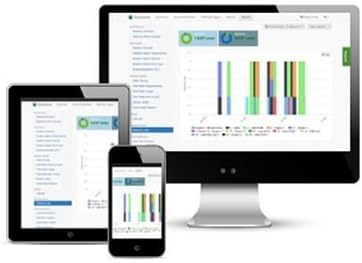
6. Operating Instructions
The PRO-HC PHC-1200i offers flexible control options:
6.1 Control Methods
- Hydrawise App: The most preferred method for comprehensive control and monitoring from your smartphone.
- Web Interface: Access your Hydrawise account via a web browser for detailed programming and reporting.
- Controller Touchscreen: Direct control and programming are available via the integrated touchscreen. The controller can operate based on the last programmed schedule even if internet connectivity is lost.
6.2 Programming Schedules
- Defined Schedules: Set specific run times per zone and configured start times. You can choose between set days of the week or interval-based watering.
- Smart Watering: Utilize weather-based adjustments. The system can automatically increase or decrease watering run times based on real-time and forecasted conditions such as temperature, rainfall, and wind.
- Weather Data: For the free plan, you can select a National Weather Service station. Paid plans offer local Weather Underground stations. If you have a personal weather station broadcasting to Weather Underground, you can submit it to Hunter for integration without a paid plan.
- Watering Suspension: Implement date-driven zone watering suspension for specific periods, such as during vacation or off-season.
- Review History: The Hydrawise platform allows you to review watering history by date and by zone, providing insights into water usage.
6.3 Manual Control
- You can manually run individual zones or all zones from the Hydrawise app, web interface, or the controller's touchscreen.
- When initiating manual control from the app, there may be a slight delay (several seconds to a minute) for the command to be processed and executed by the controller.
6.4 Schedule Updates
- With the free Hydrawise plan, schedule updates made online are pushed to the controller once a day.
- The paid Hydrawise plan offers more frequent updates, typically hourly.
7. Maintenance
- Keep the controller clean and free from dust. Use a soft, dry cloth for cleaning.
- Periodically check all wiring connections to ensure they are secure.
- Ensure the controller is not exposed to extreme temperatures or humidity, as it is designed for indoor use.
8. Troubleshooting
- No Power: Check the power adapter connection and the electrical outlet. Ensure the power supply is 24 Volts AC.
- Wi-Fi Connectivity Issues: Verify your Wi-Fi network is active and the signal strength at the controller is adequate. Re-run the Wi-Fi setup wizard on the controller's touchscreen if necessary.
- Zones Not Watering: Check wiring connections for the affected zones and the common wire. Ensure the schedule is active and not suspended. Verify that smart watering features are not preventing watering due to weather conditions.
- App/Web Interface Not Responding: Check your internet connection. Ensure the controller's serial ID is correctly linked to your Hydrawise account.
- Incorrect Weather Data: Confirm your location settings within the Hydrawise app or web interface are accurate.
9. Specifications
| Feature | Specification |
|---|---|
| Model Number | PHC-1200I |
| Number of Zones | 12 |
| Installation Environment | Indoor |
| Connectivity | Wi-Fi |
| Software Integration | Hydrawise Web-Based Software |
| Control Interface | Touchscreen or App-Based |
| Operating Voltage | 24 Volts (AC) |
| Operating Temperature | 15 Degrees Celsius |
| Item Weight | 4.36 pounds (1.98 Kilograms) |
| Package Dimensions | 13.27 x 8.62 x 4.02 inches |
| UPC | 793713585017 |
| Manufacturer | SPW |
10. Warranty and Support
For warranty information and technical support, please refer to the official mkzea or Hunter website, or contact your authorized dealer. Keep your purchase receipt for warranty claims.