
1. Introduction
This manual provides comprehensive instructions for the i-tec USB 3.0/USB-C 5K Universal Dual Display Docking Station. It covers setup, operation, maintenance, and troubleshooting to ensure optimal performance and longevity of your device.
This docking station is designed to expand the connectivity of your notebook or tablet, supporting a wide range of operating systems including Windows, macOS, Linux, and Android.
2. Key Features
- Universal Compatibility: Compatible with USB 3.0, USB-C, and Thunderbolt 3 notebooks. Supports Windows 7/8/8.1/10 (32/64 bit), macOS X, Linux Ubuntu 14.04/16.04, and Android 6 and later.
- Single Cable Solution: Connect all peripherals via a single USB 3.0, USB-C, or Thunderbolt 3 port.
- Display Connectivity: Supports dual 4K/60Hz external displays or a single 5K/60Hz display via 2x HDMI and 2x DisplayPort. Lower resolution displays are also supported.
- USB Ports: Six USB 3.0 ports (USB 2.0 compatible) for connecting various USB devices, supporting USB hot-swap.
- Audio Jacks: Separate audio input and output jacks on the front panel for speakers or microphones.
- Gigabit Ethernet: RJ-45 port for reliable 10/100/1000 Mbps internet connection with Wake-on-LAN (WoL) S3/S4 support.
- Security: Kensington lock slot for physical security. Optional i-tec Docker Pro software for MAC address cloning (Windows 7/10).
- Plug & Play: Includes a 40W (20V, 2A) power supply and a 100 cm USB-C 3.1 cable with USB-C and USB 3.0 plugs for immediate use.

Figure 2.1: Universal compatibility with notebooks and tablets running different operating systems.

Figure 2.2: Outstanding graphics support for up to two 4K resolution monitors.

Figure 2.3: Connectivity options including 6 USB 3.0 ports and an Ethernet connection.
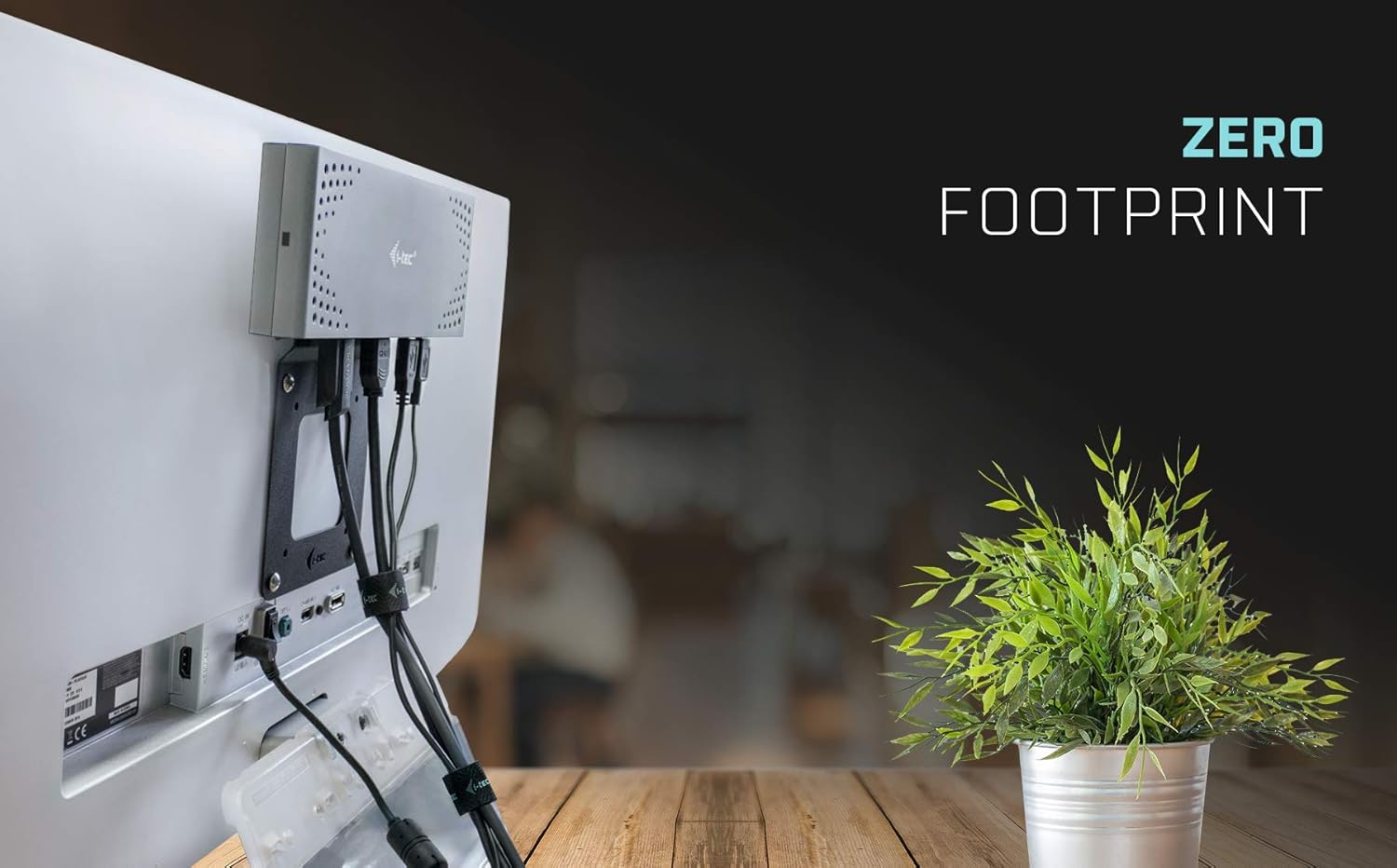
Figure 2.4: Compact design allowing for a zero footprint setup behind a monitor.
3. Package Contents
Verify that all items are present in the package:
- i-tec USB 3.0/USB-C 5K Universal Dual Display Docking Station
- USB-C cable with USB-C to USB-A adapter (100cm)
- Power adapter (DC cable 120cm)
- Quick Start Guide

Figure 3.1: All components included in the product package.
4. Setup Instructions
Follow these steps to set up your i-tec docking station:
- Connect Power: Connect the provided power adapter to the docking station's power input port, then plug the adapter into a power outlet.
- Connect to Host Device: Use the included USB-C cable. If your notebook or tablet has a USB-C or Thunderbolt 3 port, connect the USB-C end directly. If your device has a standard USB 3.0 (Type-A) port, attach the USB-C to USB-A adapter to the cable and then connect it to your device.
- Install Drivers: For optimal functionality, especially for display output, ensure the necessary drivers are installed. In most cases, your operating system will automatically install the required drivers upon connection. If not, please visit the official i-tec support website for the latest drivers specific to your operating system.
- Connect Displays: Connect your external monitors to the docking station using HDMI or DisplayPort cables. The docking station supports up to two 4K/60Hz displays or one 5K/60Hz display.
- Connect Peripherals: Connect your USB devices (e.g., keyboard, mouse, external drives), Ethernet cable, and audio devices (headphones, speakers, microphone) to the respective ports on the docking station.

Figure 4.1: Connection diagram for the docking station and peripherals.

Figure 4.2: Example of a fully connected workstation setup using the docking station.
5. Operating the Docking Station
Once connected and drivers are installed, your operating system should automatically detect the docking station and all connected peripherals. You can configure display settings and other device preferences through your operating system's control panel or system preferences.
5.1. Display Configuration
The docking station supports various display configurations:
- Dual 4K Displays: Connect two monitors via HDMI or DisplayPort for resolutions up to 4096x2160@60Hz each.
- Single 5K Display: Connect one monitor for a resolution up to 5120x2880@60Hz.
- Extended Desktop Mode: Extend your desktop across multiple screens for increased workspace and productivity.
- Mirror Mode: Duplicate your primary display on external monitors, useful for presentations.
5.2. USB Ports
The six USB 3.0 ports provide high-speed data transfer for your peripherals such as external hard drives, flash drives, keyboards, and mice. These ports are backward compatible with USB 2.0 devices.
5.3. Network Connection
The Gigabit Ethernet port provides a stable and fast wired network connection, supporting 10/100/1000 Mbps speeds. It also supports Wake-on-LAN (WoL) S3/S4, allowing you to remotely wake up your computer.
5.4. Audio
Use the front-panel audio input and output jacks to connect headphones, speakers, or a microphone for your audio needs.
6. Maintenance and Care
To ensure the longevity and proper functioning of your docking station, follow these maintenance guidelines:
- Keep the docking station in a dry, well-ventilated area to prevent overheating.
- Avoid exposing the device to extreme temperatures, humidity, or direct sunlight.
- Clean the exterior with a soft, dry, lint-free cloth. Do not use liquid cleaners, aerosols, or abrasive materials.
- Ensure all cables are securely connected and not under excessive strain, which could damage the ports or cables.
- Periodically check for and install any available firmware or driver updates from the i-tec website to maintain optimal performance and compatibility.
7. Troubleshooting
If you encounter issues with your docking station, refer to the following troubleshooting steps:
7.1. No Display Output
- Verify all display cables (HDMI/DisplayPort) are securely connected to both the docking station and the monitors.
- Ensure the docking station is powered on and correctly connected to your host device's USB 3.0, USB-C, or Thunderbolt 3 port.
- Check your operating system's display settings to ensure external monitors are detected and configured correctly (e.g., extended or mirrored mode).
- Update display drivers for your graphics card and the docking station. Visit the i-tec support website for the latest drivers.
- If experiencing a delay in graphics display after re-connection (especially on Linux systems), try restarting your host device.
7.2. USB Devices Not Working
- Ensure the USB device is properly plugged into a USB 3.0 port on the docking station.
- Try connecting the USB device to a different port on the docking station or directly to your host device to rule out device issues.
- Check your host device's Device Manager (Windows) or System Information (macOS) to see if the USB device is recognized.
7.3. No Network Connection
- Verify the Ethernet cable is securely connected to both the docking station and your router/modem.
- Check network settings on your host device.
- Ensure the network adapter drivers for the docking station are installed and up to date.
7.4. Audio Issues
- Confirm your speakers/headphones are correctly plugged into the audio output jack.
- Check your operating system's sound settings to ensure the docking station's audio output is selected as the default device.
7.5. Docking Station Not Recognized
- Ensure the docking station is connected to a compatible USB 3.0, USB-C, or Thunderbolt 3 port on your host device.
- Try connecting the docking station to a different port or a different host device to isolate the issue.
- Reinstall the docking station drivers from the i-tec support website.
8. Technical Specifications
| Feature | Detail |
|---|---|
| Brand | i-tec |
| Model | USB 3.0/USB-C 5K Universal Dual Display Docking Station |
| Color | Black |
| Hardware Interface | USB Type C |
| Compatible Devices | Notebooks, Tablets, Speakers |
| Total USB Ports | 6 (USB 3.0, backward compatible with USB 2.0) |
| HDMI Ports | 2 |
| DisplayPort | 2 |
| Ethernet | 1x Gigabit Ethernet RJ-45 (10/100/1000 Mbps) |
| Audio | 1x Audio Input, 1x Audio Output |
| Max Display Resolution | Dual 4K (4096x2160@60Hz) or Single 5K (5120x2880@60Hz) |
| Power Supply | 40W (20V, 2A) |
| Item Weight | 338 Grams |
| Operating Systems | Windows 7/8/8.1/10 (32/64 bit), macOS X, Linux Ubuntu 14.04/16.04, Android 6 and later |
| Kensington Lock | Yes |
9. Warranty and Technical Support
For detailed warranty information and technical assistance, please refer to the official i-tec website or contact their customer support directly. It is recommended to keep your purchase receipt for any warranty claims.
Online resources, driver downloads, and frequently asked questions may be available at the official i-tec website: i-tec.cz.