
1. Introduction
This manual provides detailed instructions for the proper setup, operation, and maintenance of the Hantek 365B PC Based USB Digital Data Logger. Please read this manual thoroughly before using the device to ensure safe and efficient operation.
2. Product Overview
The Hantek 365B is a PC-based USB digital data logger designed for long-term recording of various electrical parameters. It measures voltage, current, resistance, and capacitance, providing true RMS measurements. The device requires connection to a personal computer for operation and data visualization.
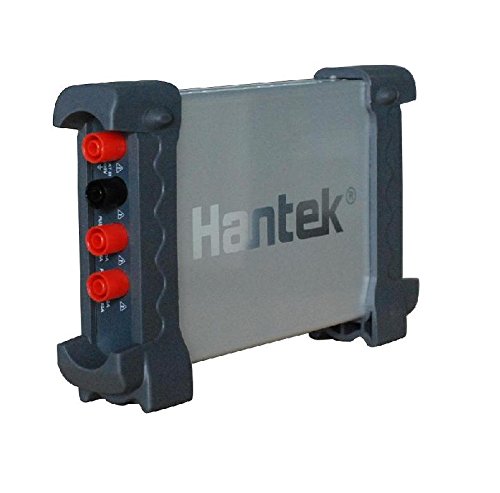
Figure 2.1: Hantek 365B Digital Data Logger. This image shows the compact design of the Hantek 365B data logger, highlighting its USB port and overall form factor.
3. Key Features
- Long-term recording of voltage, current, resistance, and capacitance.
- Real-time trend curve generation.
- Safe electrical isolation for reliable measurements.
- True RMS measurement capability.
- Plug-and-play USB interface for easy connectivity.
- Compatible with Windows 2000, Windows 7, Windows XP, and Windows 8 operating systems.
4. Package Contents
Verify that all items listed below are present in your package:
- Hantek 365B Digital Data Logger Unit
- USB Connection Cable
- Test Leads (Red and Black)
- Software Installation CD (or download instructions)

Figure 4.1: USB Connection Cable. This cable is used to connect the Hantek 365B data logger to your computer.

Figure 4.2: Test Leads. These red and black test leads are essential for making electrical measurements with the device.
5. Setup
5.1 Software and Driver Installation
- Insert the provided software CD into your computer's CD-ROM drive, or download the latest software and drivers from the official Hantek website.
- Follow the on-screen instructions to install the Hantek 365B software and necessary USB drivers. Ensure that the installation completes successfully.
- Restart your computer if prompted.
5.2 Hardware Connection
- Connect one end of the USB cable to the Hantek 365B device.
- Connect the other end of the USB cable to an available USB port on your computer.
- The operating system should detect the device and confirm driver installation.
- Attach the red and black test leads to the appropriate input terminals on the Hantek 365B for your desired measurement type.

Figure 5.1: Hantek 365B connected to a laptop. This image illustrates the data logger connected via USB to a laptop, with the software interface visible on the screen.
6. Operating Instructions
6.1 Launching the Software
Double-click the Hantek 365B software icon on your desktop or find it in the Start Menu to launch the application.
6.2 Selecting Measurement Parameters
- Within the software interface, navigate to the "Measurement" or "Settings" menu.
- Select the desired parameter to measure: Voltage, Current, Resistance, or Capacitance.
- Adjust range settings as necessary for accurate readings. The device supports True RMS measurements for AC signals.
6.3 Starting and Stopping Data Logging
- Once parameters are set, click the "Start" or "Record" button in the software to begin data logging.
- The software will display real-time readings and generate trend curves.
- To stop logging, click the "Stop" button.
- Logged data can typically be saved to a file for later analysis.
6.4 Viewing Trend Curves
The software provides a graphical interface to view real-time and recorded trend curves. Use the zoom and pan functions to analyze specific data points or time intervals.
7. Maintenance
7.1 Cleaning
Wipe the device with a soft, dry cloth. Do not use abrasive cleaners or solvents. Ensure the device is disconnected from the computer and any power source before cleaning.
7.2 Storage
Store the Hantek 365B in a cool, dry place, away from direct sunlight and extreme temperatures. Keep it in its original packaging or a protective case when not in use to prevent damage.
7.3 Battery Information
The Hantek 365B is battery-powered. Ensure batteries are replaced when low to maintain optimal performance. Refer to the device's battery compartment for specific battery type and replacement instructions. Dispose of used batteries according to local regulations.
8. Troubleshooting
| Problem | Possible Cause | Solution |
|---|---|---|
| Device not recognized by PC. | Drivers not installed or corrupted. USB cable faulty. USB port issue. | Reinstall drivers. Try a different USB cable. Connect to a different USB port. Ensure the device is powered on (if applicable). |
| Software not launching or crashing. | Software installation error. Incompatible operating system. | Reinstall the software. Verify OS compatibility (Windows 2000, 7, XP, 8). Run as administrator. |
| Inaccurate readings. | Incorrect measurement range selected. Faulty test leads. External interference. | Adjust measurement range. Check test leads for damage. Minimize electromagnetic interference. |
| Data logging stops unexpectedly. | PC power saving settings. Software conflict. | Disable PC power saving modes. Close other demanding applications. Ensure sufficient disk space for data storage. |
If you encounter issues not covered here, please refer to the software's help documentation or contact Hantek customer support.
9. Specifications
The following table outlines the key specifications for the Hantek 365B Digital Data Logger:
| Feature | Detail |
|---|---|
| Model | Hantek 365B |
| Measurement Type | Electrical (Voltage, Current, Resistance, Capacitance) |
| True RMS | Yes |
| Interface | USB |
| Power Source | Battery Powered |
| Operating System Support | Windows 2000, Windows 7, Windows XP, Windows 8 |
| Color | Black |
| UPC | 732140172667 |

Figure 9.1: Hantek 365 series comparison table. This table provides a comparison of features across different models in the Hantek 365 series, including True RMS, battery power, Bluetooth, and iPad support.
10. Warranty and Support
Hantek products are typically covered by a manufacturer's warranty. For specific warranty terms and conditions, please refer to the documentation included with your product or visit the official Hantek website. For technical support, software updates, or service inquiries, please contact Hantek customer service through their official channels.
Official Hantek Store: Hantek Store on Amazon

