
Epson EB-X41 (V11H843040)
Contents
Epson EB-X41 Projector User Manual
Model: EB-X41 (V11H843040)
1. Introduction
This manual provides essential information for the safe and efficient operation of your Epson EB-X41 Projector. Please read it thoroughly before using the product and keep it for future reference. The Epson EB-X41 is a versatile portable projector designed for both home entertainment and professional presentations, offering bright, clear images with 3LCD technology.
2. What's in the Box
Upon unboxing your Epson EB-X41 Projector, please ensure all the following components are present:
- Epson EB-X41 Projector
- Remote control
- Carrying case
- AC power cable
- User Manual (this document)
If any items are missing or damaged, please contact your retailer or Epson customer support.
3. Product Overview
Familiarize yourself with the various parts and controls of your Epson EB-X41 Projector.

Figure 3.1: Front View. This image displays the front of the Epson EB-X41 projector, highlighting the lens, ventilation grille, and the Epson logo. The lens is centrally located, protected by a sliding cover, and the large grille on the left ensures proper airflow for cooling.
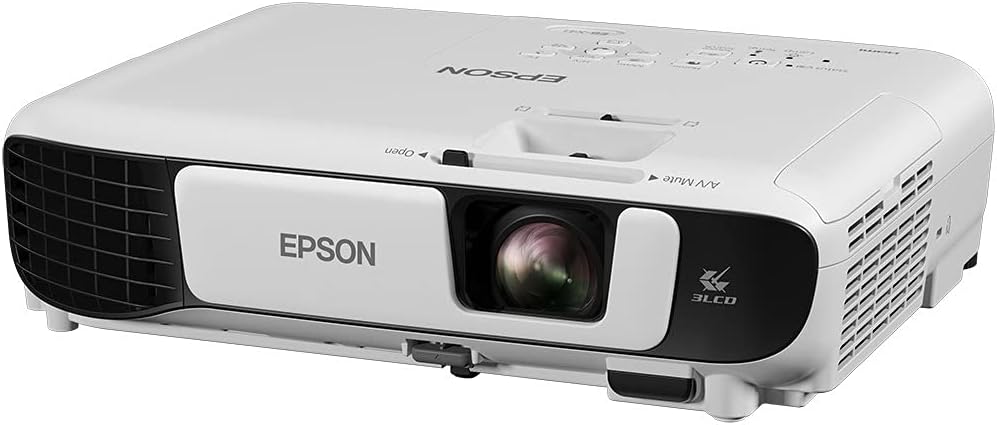
Figure 3.2: Angled Front-Right View. This perspective shows the projector from the front-right, providing a better view of its compact form factor and the side ventilation. The focus and zoom rings around the lens are visible, along with the 3LCD branding.

Figure 3.3: Top View with Control Panel. This image provides an overhead view of the projector, clearly showing the integrated control panel. Buttons for power, menu navigation, source selection, and keystone correction are visible, along with indicator lights for lamp and temperature status.

Figure 3.4: Rear View with Input Ports. The back of the projector is shown, detailing the various connectivity options. This includes ports for HDMI, VGA, USB-A, USB-B, and audio input/output, alongside the power input and an exhaust vent.

Figure 3.5: Dimensions. This image illustrates the physical dimensions of the Epson EB-X41 projector, indicating its length (30cm), width (24cm), and height (9cm). This provides a clear understanding of its compact and portable design.
4. Setup
4.1 Placement
- Place the projector on a stable, flat surface.
- Ensure adequate ventilation around the projector. Do not block air vents.
- Position the projector at an appropriate distance from the screen to achieve the desired image size.
4.2 Power Connection
- Connect the supplied AC power cable to the projector's power inlet.
- Plug the other end of the power cable into a grounded electrical outlet.
4.3 Connecting to Devices
The EB-X41 offers multiple connectivity options:
- HDMI: For high-definition video and audio. Connect an HDMI cable from your source device (e.g., laptop, Blu-ray player) to the projector's HDMI port.
- VGA: For computer connections. Connect a VGA cable from your computer's VGA output to the projector's VGA port.
- USB-A: For connecting USB storage devices or the optional Wi-Fi adapter (ELPAP10).
- USB-B: For connecting to a computer for display and control functions.
- Audio In/Out: For external audio sources or connecting to external speakers.
5. Operating Instructions
5.1 Powering On/Off
- To Power On: Press the power button on the projector or remote control. The power indicator light will turn blue.
- To Power Off: Press the power button twice. The projector will go through a cool-down cycle before shutting down completely.
5.2 Adjusting the Image
- Focus: Rotate the focus ring on the lens until the image is sharp.
- Zoom: Adjust the zoom ring on the lens to change the image size without moving the projector.
- Keystone Correction: Use the keystone correction buttons on the projector or remote to correct trapezoidal distortion, ensuring a rectangular image.
5.3 Selecting Input Source
Press the "Source Search" button on the projector or the corresponding input button (e.g., HDMI, Computer) on the remote control to cycle through available input sources.
5.4 Menu Navigation
Press the "Menu" button to access the projector's on-screen display (OSD) menu. Use the arrow buttons to navigate and "Enter" to select options. Adjust settings such as image mode, color, brightness, and network settings.
6. Maintenance
6.1 Cleaning the Projector
- Wipe the exterior with a soft, dry cloth. For stubborn dirt, use a slightly damp cloth with a mild detergent, then wipe dry.
- Do not use abrasive cleaners, waxes, or solvents.
- Clean the lens gently with a lens cleaning cloth or lens paper. Do not use liquid cleaners directly on the lens.
6.2 Lamp Replacement
The projector lamp has a finite lifespan. When the lamp indicator light turns orange or the image becomes dim, it's time to replace the lamp. Refer to the full service manual for detailed lamp replacement instructions. Always use genuine Epson replacement lamps.
6.3 Air Filter Cleaning/Replacement
Regularly clean the air filter to maintain optimal performance and prevent overheating. The air filter is typically located on the side or bottom of the projector. Clean it with a small vacuum cleaner or replace it if heavily soiled. Refer to the full service manual for location and procedure.
7. Troubleshooting
| Problem | Possible Cause | Solution |
|---|---|---|
| No image projected |
|
|
| Image is blurry |
|
|
| Image is distorted (trapezoid) |
|
|
| Projector overheats and shuts down |
|
|
For more detailed troubleshooting, please refer to the comprehensive user guide available on the Epson support website or contact customer service.
8. Specifications
| Feature | Detail |
|---|---|
| Model Number | V11H843040 |
| Projection Technology | 3LCD |
| Native Resolution | XGA (1024x768) |
| Brightness | 3600 ANSI lumens |
| Contrast Ratio | 15,000:1 |
| Lamp Life | 6000 hours (Normal mode) |
| Lamp Type | UHE 210 W |
| Connectivity | HDMI, VGA, USB-A, USB-B, Audio In/Out, (Optional Wi-Fi with ELPAP10) |
| Dimensions (W x D x H) | 30.2 x 23.7 x 8.2 cm |
| Weight | 2.5 kg |
| Power Consumption | 282 watts |
9. Warranty and Support
Epson provides a limited warranty for the EB-X41 projector. Please refer to the warranty card included with your product for specific terms and conditions, including warranty period and coverage details. Keep your proof of purchase for warranty claims.
For technical support, product registration, or to download the latest drivers and software, please visit the official Epson support website or contact Epson customer service. Contact information can typically be found on the Epson website or in the product packaging.
Epson Support Website: https://www.epson.co.uk/support
Ask a question about this manual
Ask about setup, troubleshooting, compatibility, parts, safety, or missing instructions. Manuals+ will review the question and use this page’s manual context to help answer it.