1. Introduction
The Corsair RGB LED Fan Hub Controller is designed to centralize and manage the RGB illumination of compatible Corsair fans. This hub acts as an intermediary, connecting up to six Corsair RGB fans to a compatible Corsair lighting controller, such as the Commander Pro RGB LED Controller, or directly to a JCORSAIR header on an appropriately equipped motherboard. It provides power to the RGB LEDs via an integrated SATA connector, ensuring synchronized and customizable lighting effects across your system.
2. What's in the Box
- CORSAIR RGB Fan LED Hub
3. Product Overview


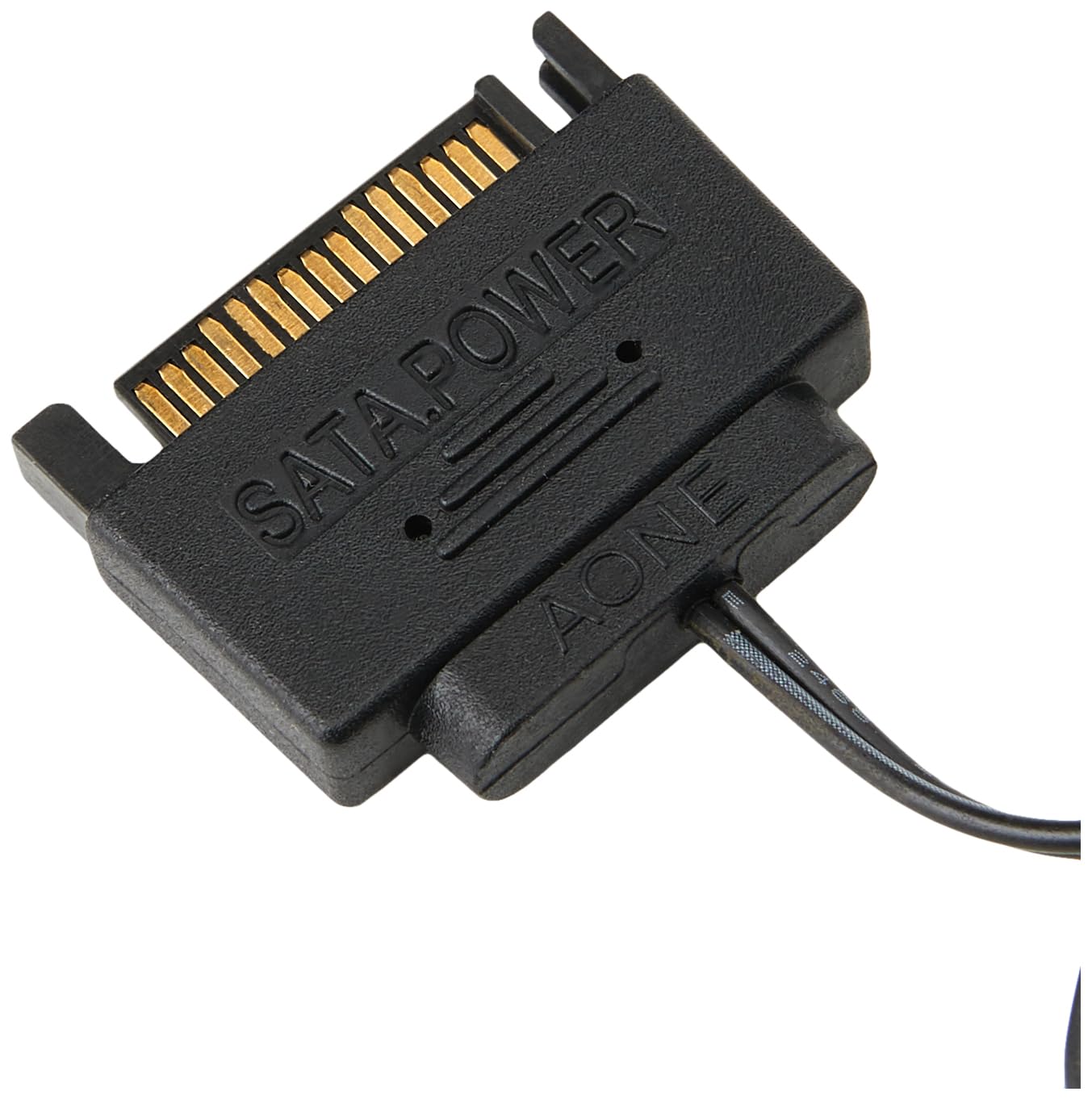
Key Features:
- Supports up to six 4-pin RGB fan connections for Corsair HD, LL, ML, or SP-RGB series fans.
- Integrated SATA connector for reliable power delivery to RGB LEDs.
- 3-pin slot for connection to a Corsair Commander Pro RGB LED Controller or a JCORSAIR header on compatible motherboards.
- Compact design with M3 adhesive strip on the back for flexible mounting within a PC case.
4. Setup and Installation
- Prepare Your System: Ensure your computer is powered off and unplugged from the wall outlet before beginning installation.
- Mount the Hub: Select a suitable location within your PC case for the RGB Fan Hub. The back of the hub features an M3 adhesive strip for secure mounting. Choose a location that allows easy access for cable routing and is within reach of your Corsair Commander Pro or motherboard's JCORSAIR header.
- Connect RGB Fans: Plug the 4-pin RGB cables from your Corsair HD, LL, ML, or SP-RGB series fans into the numbered ports (1-6) on the RGB Fan Hub. Ensure each connection is secure.
- Provide Power: Connect the integrated SATA power connector from the RGB Fan Hub to an available SATA power cable from your power supply unit (PSU). This connection powers the RGB LEDs.
- Connect to Controller/Motherboard:
- For Corsair Commander Pro: Connect the 3-pin cable (not included) from the RGB Fan Hub to an available RGB LED channel on your Corsair Commander Pro RGB LED Controller.
- For JCORSAIR Header: If your motherboard has a JCORSAIR header, connect the 3-pin cable (not included) from the RGB Fan Hub to this header.
Note: A separate Corsair lighting controller (e.g., Lighting Node Pro or Commander Pro) or a compatible motherboard JCORSAIR header is required to control the lighting effects. The RGB Fan Hub itself does not provide lighting control functionality. Cables for connecting to these controllers are typically not included with the hub.
- Cable Management: Route all cables neatly to ensure proper airflow and a clean build.
5. Operating the RGB Fan Hub
The Corsair RGB LED Fan Hub Controller is a passive component that distributes RGB signals and power to your fans. Its operation is entirely dependent on the connected Corsair lighting controller (e.g., Commander Pro) or motherboard's JCORSAIR header and the associated software.
Lighting Control:
- Once connected to a compatible controller, use Corsair's iCUE software (or your motherboard's RGB software if using a JCORSAIR header) to configure and customize the RGB lighting effects for your connected fans.
- The software allows you to select various lighting modes, colors, and synchronize effects across multiple Corsair RGB components.
6. Maintenance
The Corsair RGB LED Fan Hub Controller requires minimal maintenance. Follow these guidelines to ensure its longevity:
- Cleaning: Periodically clean the hub and its connections using a soft, dry, lint-free cloth. Avoid using liquid cleaners or abrasive materials.
- Environment: Ensure the hub is installed in a well-ventilated area within your PC case to prevent excessive heat buildup.
- Connections: Regularly check all cable connections to ensure they are secure and free from dust or debris.
7. Troubleshooting
If you encounter issues with your Corsair RGB LED Fan Hub Controller, refer to the following common problems and solutions:
| Problem | Possible Cause / Solution |
|---|---|
| RGB lighting not working or inconsistent. |
|
| Hub not detected by software. |
|
| Fans are spinning but no RGB. |
|
8. Specifications
| Attribute | Value |
|---|---|
| Model Number | CO-8950020 |
| Dimensions (L x W x H) | 2.01" x 3.5" x 1.38" (approx. 70 x 50 x 38 mm) |
| Weight | 1.41 ounces (approx. 45 g) |
| Color | Black |
| Power Connector Type | SATA |
| Voltage | 12 Volts |
| Wattage | 10 watts |
| Material | Plastic |
| Compatible Devices | Desktop (with compatible Corsair RGB fans and controller/motherboard) |
| UPC | 843591094382 |
9. Warranty and Support
For warranty information and technical support, please visit the official Corsair website. You can find detailed warranty terms, product registration, and access to support resources including FAQs, drivers, and contact information.
Official Corsair Support: www.corsair.com/support


