Product Overview
The Portta 4-Port HDMI Switcher Box v2.0 is designed to expand your HDMI input capabilities, allowing you to connect multiple HDMI source devices to a single HDMI display. This device supports advanced video and audio features, ensuring high-quality signal transmission.

Front view of the Portta 4-Port HDMI Switcher Box v2.0, showcasing its compact design and front panel controls.
Key Features
- Supports HDMI 2.0 Specification, including 4K@60Hz resolution.
- Compatible with HDCP 2.2, 12-bit Deep Color, Full 3D, and HDR.
- Features Audio Return Channel (ARC) functionality.
- Audio separation via Optical (TOSLINK) and Coaxial outputs.
- Automatic switching to the active input source.
- Includes an infrared remote control for convenient operation.
- Supports uncompressed (LPCM 7.1) and compressed audio formats (DTS/DTS-HD Master Audio, Dolby TrueHD).
Package Contents
Please verify that all items are present in the package before proceeding with installation.
- Portta 4x1 HDMI Intelligent Switch x 1
- 5V DC Power Adaptor x 1
- Remote Control x 1
- User Manual x 1 (This document)
- Warranty Card x 1
Product Diagram
Familiarize yourself with the ports and indicators on your Portta HDMI Switcher.

Detailed diagram showing the front and back panels of the Portta HDMI Switcher, with labels for all inputs, outputs, and controls.
Front Panel
- INPUT 1: Front HDMI input port for quick connections.
- IR: Infrared receiver for the remote control.
- POWER LED: Indicates power status.
- 1, 2, 3, 4 LEDs: Indicate the currently selected HDMI input.
- SELECT Button: Press to cycle through HDMI inputs.
- ARC Button: Activates/deactivates Audio Return Channel.
- 2CH/5.1CH Button: Selects audio output mode (Stereo or 5.1 Channel).
Rear Panel
- DC/5V In: Power input port for the included 5V DC power adaptor.
- TOSLINK: Optical audio output for connecting to an audio receiver or soundbar.
- COAXIAL: Coaxial audio output for connecting to an audio receiver or soundbar.
- STEREO: 3.5mm stereo audio output.
- HDMI Output: Connects to your display (TV, monitor, projector).
- HDMI Input 2, 3, 4: Rear HDMI input ports for source devices.
Setup and Connection
Follow these steps to set up your Portta HDMI Switcher.

Diagram illustrating various connection scenarios for the Portta HDMI Switcher, including gaming consoles, media players, and computers connected to a TV, monitor, or projector.
- Power Off Devices: Ensure all HDMI source devices (e.g., PS4, Xbox, Blu-ray player) and your display are powered off before making connections.
- Connect HDMI Sources: Connect your HDMI source devices to the HDMI Input ports (INPUT 1, INPUT 2, INPUT 3, INPUT 4) on the Portta HDMI Switcher using high-quality HDMI 2.0 cables.
- Connect to Display: Connect the HDMI Output port of the Portta HDMI Switcher to the HDMI input of your display (TV, monitor, projector) using an HDMI 2.0 cable.
- Connect Audio (Optional): If you wish to extract audio, connect the TOSLINK or COAXIAL output of the switcher to your audio receiver, soundbar, or amplifier. For stereo audio, use the STEREO 3.5mm output.
- Connect Power: Plug the included 5V DC Power Adaptor into the DC/5V In port on the switcher, then plug the adaptor into a power outlet. The POWER LED on the front panel will illuminate.
- Power On Devices: Power on your display first, then power on your HDMI source devices.
Operating Instructions
Learn how to use your Portta HDMI Switcher for seamless operation.
Switching Inputs
- Manual Switching: Press the SELECT button on the front panel to cycle through the connected HDMI input sources (1, 2, 3, 4). The corresponding LED will light up to indicate the active input.
- Remote Control Switching: Use the numbered buttons (1, 2, 3, 4) on the remote control to directly select the desired HDMI input.
- Automatic Switching: The switcher has a pre-programmed automatic switch function. It will automatically switch to the next active input source when the current one is powered off. It also switches to the last selected source input upon restart. To disable this feature, press and hold the "SELECT" button on the product for 5 seconds.
Audio Features (ARC & Separation)
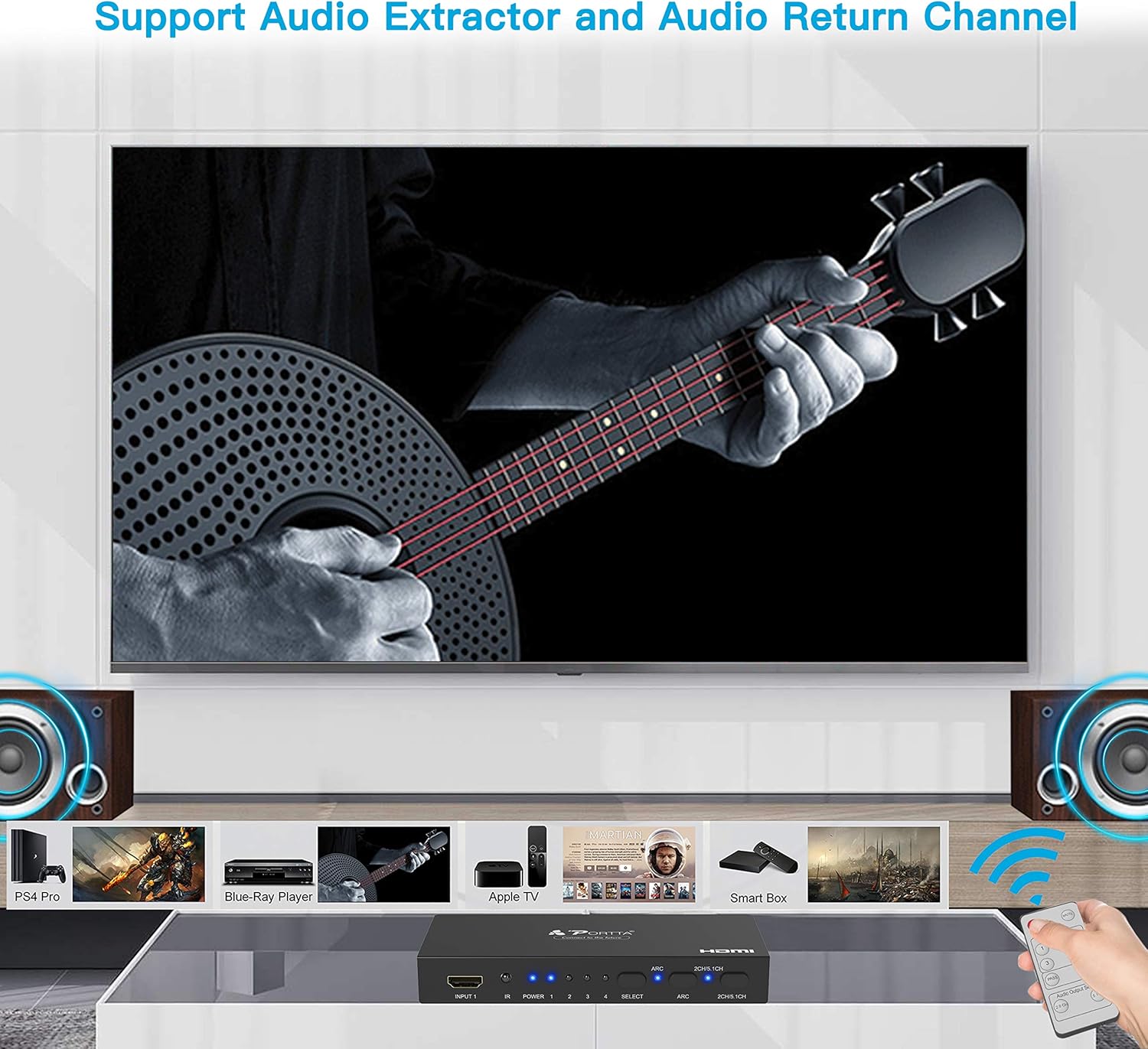
Illustration of the Portta HDMI Switcher's audio extraction capabilities, showing how audio can be routed to external speakers or sound systems via TOSLINK or Coaxial outputs.
- Audio Return Channel (ARC): If your display supports ARC, connect its ARC-enabled HDMI port to the HDMI Output of the switcher. Press the ARC button on the front panel or remote to enable/disable ARC. When enabled, audio from your TV's built-in tuner or smart apps can be sent back to the switcher and then output via the TOSLINK or Coaxial ports to your audio system.
- Audio Separation: The switcher can extract audio from the HDMI signal and output it simultaneously via the TOSLINK, Coaxial, or STEREO ports. This allows you to connect your audio system independently of your display.
- Audio Mode Selection: Use the 2CH/5.1CH button on the front panel or remote to select between 2-channel stereo audio or 5.1 channel surround sound output for the extracted audio. Ensure your source content and audio system support the selected mode.
Maintenance
To ensure the longevity and optimal performance of your Portta HDMI Switcher, follow these maintenance guidelines:
- Cleaning: Use a soft, dry cloth to clean the exterior of the device. Do not use liquid cleaners or aerosol sprays, as they may damage the unit.
- Ventilation: Ensure the device is placed in a well-ventilated area to prevent overheating. Do not block any ventilation openings.
- Environment: Keep the device away from direct sunlight, heat sources, excessive humidity, and dust.
- Handling: Avoid dropping or subjecting the device to strong impacts.
- Power: Always use the provided 5V DC power adaptor. Disconnect power during lightning storms or when unused for long periods.
Troubleshooting
If you encounter issues with your Portta HDMI Switcher, refer to the following common problems and solutions:
| Problem | Possible Cause | Solution |
|---|---|---|
| No picture or distorted picture on display. | Loose cable connections; Incorrect input selection; Incompatible resolution/refresh rate; HDCP handshake issue; Low quality HDMI cables. |
|
| No audio or distorted audio. | Incorrect audio settings; Loose audio cable; Incompatible audio format; ARC not enabled/configured. |
|
| Remote control not working. | Dead battery; Obstruction; IR receiver blocked. |
|
| Automatic switching not working as expected. | Feature disabled; Source device not fully powering off. |
|
Specifications
Detailed technical specifications for the Portta 4-Port HDMI Switcher Box v2.0.

Image showing the dimensions of the Portta HDMI Switcher (154mm x 69mm x 23mm) and highlighting the 5-year warranty.
| Feature | Detail |
|---|---|
| Model | N2SW4PT |
| HDMI Version | HDMI 2.0 |
| HDCP Version | HDCP 2.2 |
| Max Resolution | 4K@60Hz |
| Color Depth | 12-bit per channel (36-bit all channels) Deep Color |
| Bandwidth | 600MHz/6Gbps per channel (18Gbps all channels) |
| 3D Support | Yes |
| HDR Support | Yes |
| Audio Return Channel (ARC) | Yes |
| Audio Outputs | Optical (TOSLINK), Coaxial, 3.5mm Stereo |
| Supported Audio Formats | DTS, Dolby Digital (including DTS-HD Master Audio and Dolby TrueHD), LPCM 7.1 |
| Power Supply | 5V DC Power Adaptor (included) |
| Dimensions (L x W x H) | 15.4 x 6.9 x 2.3 cm (approx. 6.06 x 2.72 x 0.91 inches) |
| Weight | 286 grams (approx. 0.63 lbs) |
| Compatible Devices | Television, DVD Player, PS3/4/4 PRO, Xbox One, Roku, Apple TV, Fire TV, PC/Notebook, Macbook, STB, Blu-ray Player, Chromecast |
Warranty and Support
Portta provides comprehensive support for its products.
Warranty Information
This Portta HDMI Switcher comes with a 5-Year Worry-Free Warranty. Please refer to the included Warranty Card for detailed terms and conditions. Retain your proof of purchase for warranty claims.
Customer Support
If you have any questions, require technical assistance, or experience issues not covered in this manual, please contact Portta customer support. Contact information can typically be found on the Portta website or on the Warranty Card included with your product.


