
Introduction
The ROCCAT KONE AIMO is a high-performance gaming mouse engineered for precision, speed, and extensive customization. Featuring advanced RGBA lighting, a powerful optical sensor, and a suite of programmable buttons, it is designed to elevate your gaming and productivity experience. This manual provides essential information for setting up, operating, maintaining, and troubleshooting your KONE AIMO gaming mouse.
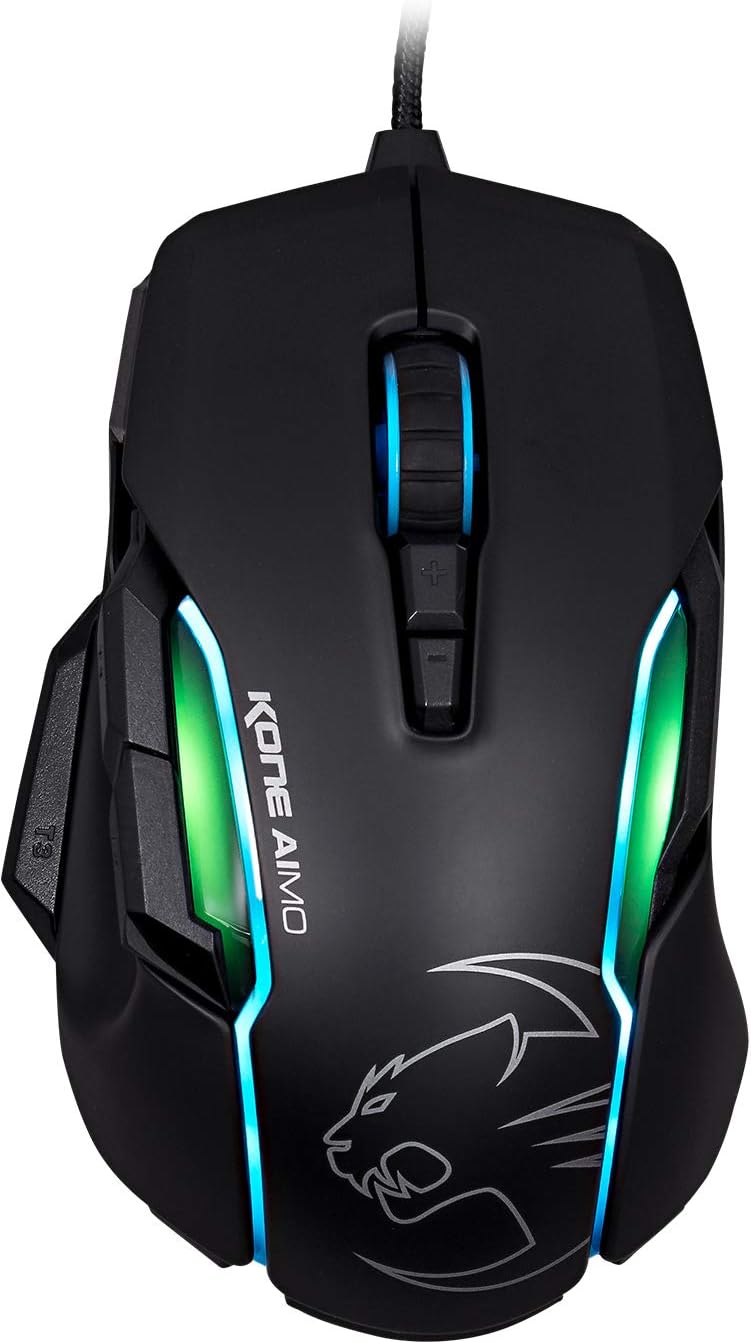
The ROCCAT KONE AIMO gaming mouse, viewed from the top, highlighting its sleek black finish and illuminated RGB zones.

The ROCCAT KONE AIMO mouse is available in multiple color variants, including black, white, and grey, each featuring customizable RGB lighting.
Setup
Follow these steps to set up your ROCCAT KONE AIMO gaming mouse:
- Unboxing: Carefully remove the ROCCAT KONE AIMO mouse and its braided USB cable from the packaging.
- Connection: Plug the USB connector of the mouse into an available USB port on your computer. The mouse is designed for plug-and-play functionality for basic use.
- Software Installation: For full customization, including button remapping, macro creation, and advanced lighting effects, download and install the ROCCAT Swarm software from the official ROCCAT website. This software unlocks the full potential of your KONE AIMO.
- System Requirements: Ensure your computer runs a compatible operating system such as Linux, Windows 7, or Windows XP for optimal performance and software compatibility.

The ROCCAT KONE AIMO mouse packaging, indicating the product's branding and key features.
Operating the Mouse
The ROCCAT KONE AIMO offers a range of features for enhanced control and personalization:
- Basic Functions: The mouse includes standard left and right click buttons, and a robust 4D Titan Wheel for vertical and horizontal scrolling.
- Programmable Buttons: The KONE AIMO features 12 programmable buttons, including the main clicks, scroll wheel functions, and dedicated thumb buttons (T1, T2, T3). These can be assigned custom functions, macros, or shortcuts via the ROCCAT Swarm software.
- Easy-Shift[+]™ Technology: This innovative feature allows you to assign a secondary function to each programmable button, effectively doubling the number of available commands. Activate Easy-Shift[+]™ by holding down the designated Easy-Shift[+]™ button (typically the T3 thumb button).
- RGBA Lighting: Experience dynamic and intelligent RGBA lighting with multiple customizable zones. Use the Swarm software to select from various lighting effects, colors, and synchronize them with other ROCCAT AIMO-compatible devices for a cohesive setup.
- Owl-Eye Optical Sensor: Equipped with the ROCCAT Owl-Eye optical sensor, the mouse provides exceptional tracking precision. The DPI (dots per inch) can be adjusted from 100 to 16,000 DPI, allowing for fine-tuned sensitivity to match your preferences and game requirements.

A side profile of the KONE AIMO, highlighting the textured scroll wheel and the primary left and right click buttons.

This view emphasizes the KONE AIMO's ergonomic shape and the vibrant RGB lighting emanating from its various zones.

A detailed view of the KONE AIMO's scroll wheel and the dedicated DPI adjustment buttons located behind it.

A user's hand demonstrates the natural grip on the KONE AIMO, with the thumb positioned comfortably over the side buttons.

A close-up of the KONE AIMO's strategically placed thumb buttons (T1, T2, T3), designed for quick and intuitive access during gameplay.
Maintenance
Proper care will ensure the longevity and performance of your ROCCAT KONE AIMO mouse:
- Cleaning the Surface: Use a soft, dry, lint-free cloth to gently wipe the surface of the mouse. For more persistent dirt, slightly dampen the cloth with water. Avoid using harsh chemicals, abrasive cleaners, or solvents, as these can damage the mouse's finish.
- Sensor Care: Keep the optical sensor on the underside of the mouse clean and free from dust, hair, or debris. A soft brush or a can of compressed air can be used to clear any obstructions, ensuring accurate tracking.
- Cable Management: Avoid sharp bends, kinks, or excessive pulling on the braided USB cable. Proper cable management helps prevent internal wire damage and extends the cable's lifespan.
Troubleshooting
If you encounter issues with your ROCCAT KONE AIMO mouse, consider the following troubleshooting steps:
- Mouse Not Responding:
- Ensure the USB cable is securely plugged into a working USB port on your computer. Try a different USB port.
- Restart your computer.
- Check your operating system's device manager to confirm the mouse is recognized and drivers are installed correctly.
- Lighting Issues:
- Verify that the ROCCAT Swarm software is installed and running.
- Check the lighting settings within the Swarm software to ensure desired effects are enabled and brightness is set appropriately.
- Update the mouse firmware via the Swarm software, as lighting issues can sometimes be resolved with firmware updates.
- Button Malfunction or Inaccurate Tracking:
- Ensure the mouse drivers are up to date through the ROCCAT Swarm software.
- Recalibrate the sensor or reset button assignments to default settings within the Swarm software.
- Clean the optical sensor on the underside of the mouse as described in the Maintenance section.
- If issues persist, consider reinstalling the ROCCAT Swarm software.
For further assistance, please refer to the ROCCAT support website or contact their customer service.

The underside of the KONE AIMO mouse, displaying the Owl-Eye optical sensor and the product information label.
Specifications
| Feature | Detail |
|---|---|
| Brand | ROCCAT |
| Model Number | ROC-11-815-BK |
| Colour | Black |
| Connectivity Technology | USB (Corded Electric) |
| Movement Detection Technology | Optical (Owl-Eye Sensor) |
| DPI Range | 100 to 16,000 DPI |
| Number of Buttons | 12 (Programmable) |
| Hand Orientation | Right |
| Special Features | RGBA Intelligent Lighting, Easy-Shift[+]™ |
| Item Dimensions (L x W x H) | 20 x 6.7 x 16.2 cm |
| Item Weight | 130 Grams |
| Hardware Platform | Gaming Console, PC |
| Operating System Compatibility | Linux, Windows 7, Windows XP |
| Voltage | 5 Volts |
Warranty and Support
Warranty Information: The ROCCAT KONE AIMO gaming mouse is covered by a manufacturer's warranty. Please refer to the warranty card included with your product or visit the official ROCCAT website for detailed terms, conditions, and registration information.
Customer Support: For technical assistance, driver and firmware updates, or any other inquiries regarding your ROCCAT KONE AIMO, please visit the ROCCAT support website. You can find FAQs, troubleshooting guides, and contact information for their customer service team there.

