
Introduction
The Gamevice GV160 transforms your compatible iOS device into a dedicated mobile gaming console. By integrating your Apple iOS device with the Gamevice controller, you gain precise physical controls for an enhanced gaming experience. This manual provides essential information for setting up, operating, maintaining, and troubleshooting your Gamevice GV160.
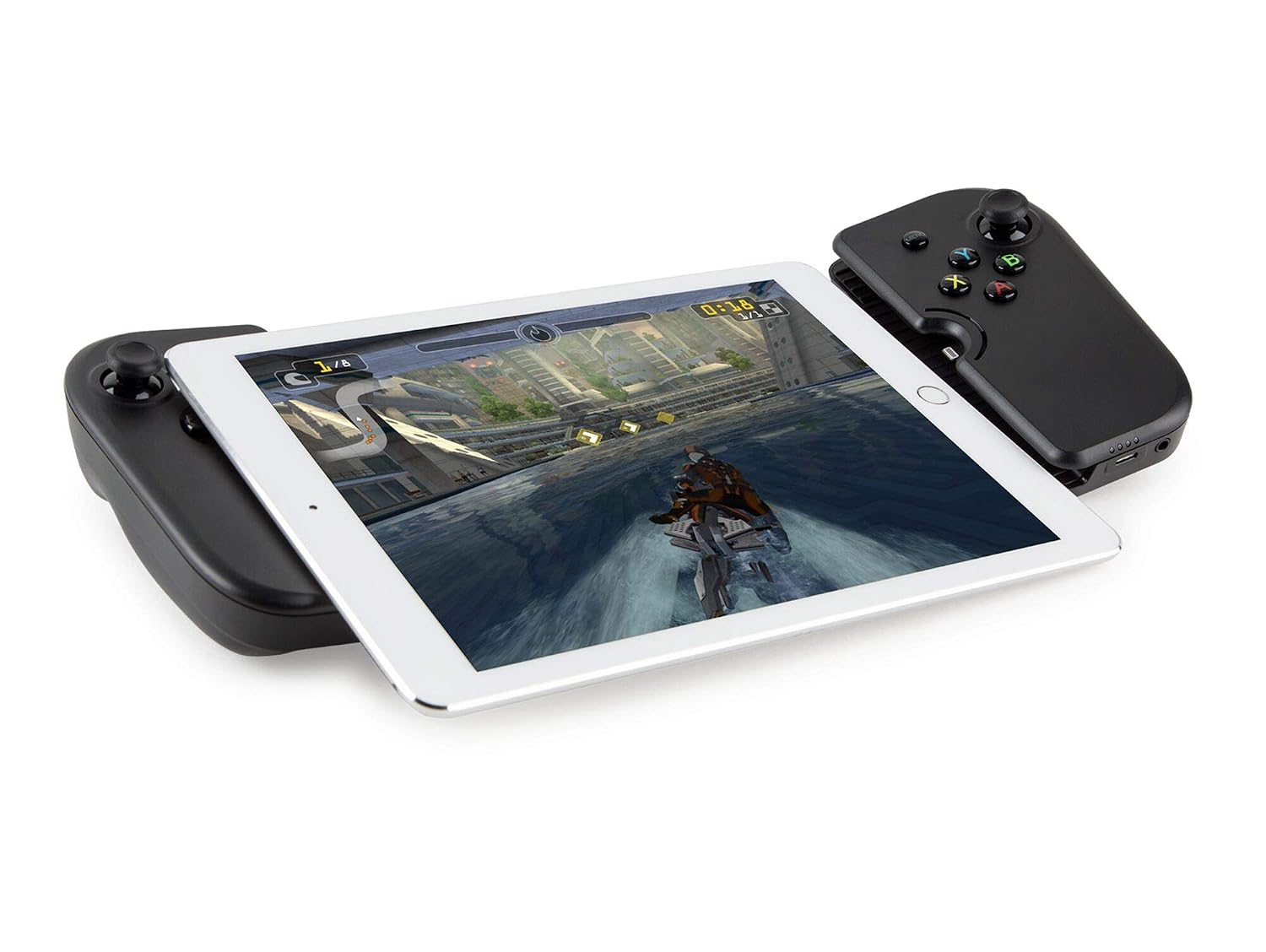
Image: The Gamevice GV160 controller shown with an iPad securely docked, ready for gameplay.
Setup
- Compatibility Check: Ensure your iOS device is compatible with the Gamevice GV160. Compatible devices include iPhone 6, 6s, 7, 8, and iPhone 7 Plus. This model is also widely used with various iPad models, as depicted in product imagery and user feedback.
- Prepare Your Device: Carefully align your iPad or iPhone with the Gamevice controller's Lightning connector. Users have noted that fitting the device, especially with a screen protector, may require careful positioning to ensure proper connection.
- Secure Connection: Gently slide your iOS device into the controller until the Lightning port is fully engaged. The controller draws power directly from your iOS device via this connection, eliminating the need for separate batteries.
- Install Gamevice Live App: Download the official Gamevice Live application from the App Store. This application helps identify compatible games and manage your gaming experience.

Image: A detailed view of the right side of the Gamevice GV160, highlighting the Lightning port for device connection and power, along with the audio jack.
Operating Instructions
- Power On/Off: The Gamevice GV160 powers on automatically when a compatible iOS device is securely connected and powers off when disconnected. No separate power button is present.
- Controls: The controller features 16 buttons, including dual analog sticks, a D-pad, face buttons (A, B, X, Y), and shoulder buttons (L1, L2, R1, R2). Note that the analog sticks are not clickable (L3/R3 functionality is not available), and dedicated menu/pause buttons may be limited, which can affect compatibility with some modern games or PC remote play.
- Button Layout: The button layout generally follows an Xbox-style configuration, though the colors on the face buttons may not match standard Xbox color schemes.
- Passthrough Charging: The controller supports passthrough charging, allowing you to charge your iOS device while it is connected to the Gamevice.
- LED Indicators: The device includes four LED indicators. Specific functions for these LEDs are not detailed in available documentation, but they typically indicate connection status or power.
- Game Compatibility: The Gamevice GV160 is primarily designed to work with games supported by its dedicated application. Some users report limited functionality or incompatibility with games outside of the Gamevice Live ecosystem.

Image: A close-up of the right shoulder buttons (R1 and R2) on the Gamevice GV160, illustrating their design and placement.
Maintenance
- Cleaning: Use a soft, dry cloth to clean the surface of the controller. Avoid using abrasive cleaners or solvents.
- Storage: Store the Gamevice GV160 in a clean, dry place away from extreme temperatures and direct sunlight. While the controller is designed to be compact, its back strip does not fully retract, so consider its size when storing.
- Handling: Handle the controller with care, especially when inserting or removing your iOS device, to prevent damage to the Lightning connector or the device itself.
Troubleshooting
- Controller Not Connecting/Responding:
- Ensure your iOS device is properly seated and the Lightning connector is fully engaged. If using a screen protector, especially a tempered glass one, it might interfere with the connection. Try removing the screen protector or rubber pads if present, though this may not always resolve the issue and could potentially scratch your device.
- Buttons/Triggers Not Functioning Correctly:
- Some users have reported issues with analog stick functionality (e.g., non-clickable) or inconsistent trigger sensitivity. If buttons do not register presses, ensure the controller is firmly connected and try restarting the game or your iOS device. If issues persist, it may indicate a hardware fault.
- Limited Game Compatibility:
- The Gamevice GV160 is designed for specific games listed within the Gamevice Live app. If a game is not responding to the controller, verify its compatibility through the app. The controller may not support all games or applications that expect different input methods.
Specifications
| Model Name: | GV160 |
| Model Number: | GV160 |
| Compatible Devices: | iOS devices (e.g., iPad, iPhone 6, 6s, 7, 8, iPhone 7 Plus) |
| Controller Type: | Joy Pad Controller |
| Button Quantity: | 16 |
| Power Source: | Powered directly by the connected iOS device via Lightning port |
| Item Weight: | 330 Grams |
| Item Dimensions: | 4.72 x 3.15 x 0.83 inches |
| UPC: | 850771004512 |
Warranty and Support
Specific warranty information for the Gamevice GV160 is not provided in this manual. For details regarding warranty coverage, technical support, or service, please refer to the official Gamevice website or contact their customer support directly.
You can often find additional resources, FAQs, and contact information on the manufacturer's support pages.
