
1. Introduction
The FSP Champ 1K RM is a high-density, double-conversion online Uninterruptible Power Supply (UPS) designed to provide reliable power protection for critical equipment. It features an output power factor of 0.9 and includes an ECO mode for energy saving. This UPS is designed with a microprocessor controller and offers standard USB and RS-232 communication ports, along with a built-in intelligent slot for additional adapters and protocol converters.
Key Features
- True double-conversion for high-quality power output
- Output power factor of 0.9
- Wide input voltage range (120 V – 300 V)
- Eco-mode operation for energy saving (ECO)
- SNMP + USB + RS-232 communication interfaces
2. Important Safety Instructions
Please read all instructions carefully before installing or operating the UPS. Keep this manual for future reference.
- Electrical Safety: The UPS contains hazardous voltages. Do not attempt to disassemble the unit. Servicing should only be performed by qualified personnel.
- Battery Safety: Batteries can present a risk of electrical shock and high short-circuit current. Observe the following precautions:
- Do not dispose of batteries in a fire; they may explode.
- Do not open or mutilate batteries. Released electrolyte is harmful to the skin and eyes.
- Replace batteries only with the same type and number of batteries as originally installed.
- Environment: Install the UPS in a controlled environment, free from excessive dust, humidity, and extreme temperatures. Ensure adequate ventilation around the unit.
- Grounding: The UPS must be connected to a grounded AC power outlet.
3. Product Overview
Front Panel
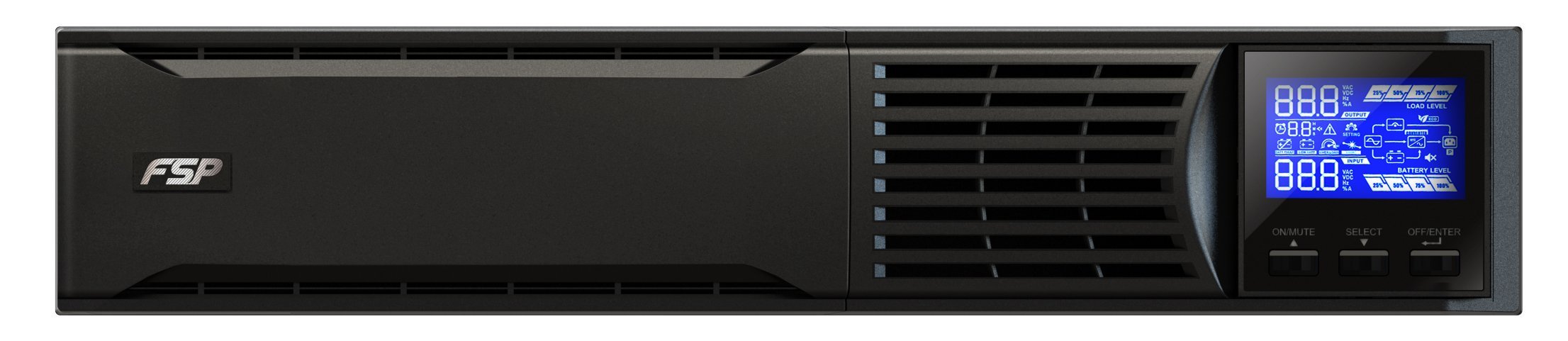
Figure 3.1: Front view of the FSP PPF9001401 UPS, showing the main chassis and display area.
Rear Panel Connections

Figure 3.2: Rear panel of the FSP PPF9001401 UPS, illustrating various input, output, and communication ports.
- Circuit Breaker: Provides overcurrent protection for the UPS.
- AC Input: Connects the UPS to the utility power supply.
- Ventilation Grille: Ensures proper airflow for cooling the internal components.
- Intelligent Slot: For optional SNMP cards or other communication accessories.
- USB Port: For connecting to a computer for monitoring and management.
- RS-232 Port: Serial communication port for monitoring and management.
- Output Sockets: Provides protected power output to connected devices.
- Ground Terminal: For additional grounding if required.
4. Installation and Setup
4.1 Unpacking
Carefully unpack the UPS and inspect it for any shipping damage. Retain the original packaging for future transport or storage.
4.2 Battery Connection
For safety, the UPS is shipped with battery wires disconnected. Follow these steps to connect the batteries before initial use:

Figure 4.1: Step-by-step guide for connecting the internal battery wires of the UPS.
- Step 1: Remove the front panel of the UPS.
- Step 2: Connect the internal battery wires. Ensure a secure connection.
- Step 3: Reinstall the front panel onto the unit.
4.3 Connecting to Power and Devices
- Connect the UPS AC input cable to a grounded utility power outlet.
- Connect your critical devices (computers, monitors, network equipment) to the UPS output sockets.
- For monitoring, connect the USB or RS-232 cable from the UPS to your computer.
5. Operation
5.1 Turning On/Off
- To Turn On: Press and hold the power button on the front panel for a few seconds until the display illuminates.
- To Turn Off: Press and hold the power button again until the display turns off and the unit powers down.
5.2 Understanding the Display Panel
The LCD display provides real-time status and operational information. Refer to the diagram below for an explanation of the indicators:

Figure 5.1: Detailed view of the UPS display panel, highlighting various indicators for status, load, and battery levels.
- O/P & Battery Voltage Information: Displays output voltage, frequency, and battery charge.
- Backup Time: Shows estimated remaining backup time in hours and minutes.
- Low Battery Warning: Indicates when the battery charge is critically low.
- I/P & Battery Voltage Information: Displays input voltage, frequency, and battery status.
- Overload Warning: Alerts if the connected load exceeds the UPS capacity.
- Short Circuit Warning: Indicates a short circuit condition.
- Load Level: Bar graph indicating the percentage of the UPS's capacity being used.
- Mode Operation Information: Icons indicating current operating mode (e.g., Line mode, Battery mode, ECO mode).
- Mute Operation: Indicates if audible alarms are silenced.
- Battery Level: Bar graph showing the current battery charge percentage.
5.3 Monitoring Software
The FSP UPS comes with intelligent multi-language monitoring software to manage and monitor the UPS status from your computer. Install the software from the provided CD or download it from the FSP website.

Figure 5.2: Screenshot of the FSP intelligent multi-language UPS monitoring software interface.
The software allows you to:
- Monitor input/output voltage, frequency, and load.
- View battery status and estimated backup time.
- Configure UPS settings and schedule shutdowns.
- Receive alerts and notifications.
6. Maintenance
6.1 Battery Care
- Regular Charging: Keep the UPS connected to AC power to ensure the batteries remain fully charged.
- Battery Replacement: Batteries typically last 3-5 years. Replace them when their capacity significantly diminishes. Only use FSP-approved replacement batteries.
- Storage: If storing the UPS for an extended period, ensure it is fully charged and recharge it every 3 months to prevent battery degradation.
6.2 Cleaning
- Ensure the UPS is turned off and disconnected from all power sources before cleaning.
- Use a soft, dry cloth to wipe the exterior of the unit.
- Do not use liquid or aerosol cleaners, as they may damage the unit.
- Periodically clean the ventilation grilles to prevent dust buildup, which can affect cooling performance.
7. Troubleshooting
This section provides solutions to common issues you might encounter with your UPS. If the problem persists, contact customer support.
| Problem | Possible Cause | Solution |
|---|---|---|
| UPS does not turn on | Battery not connected; No AC input; Low battery charge | Ensure battery wires are connected; Check AC power cable and outlet; Allow UPS to charge for several hours. |
| UPS beeps continuously | Overload; Low battery; Fault condition | Reduce connected load; Allow battery to charge; Check display for fault codes and refer to manual. |
| Short backup time | Overloaded; Battery nearing end of life; Battery not fully charged | Reduce load; Consider battery replacement; Ensure UPS is connected to AC power for sufficient charging. |
| Software not connecting | Incorrect cable; Driver issue; Software not installed correctly | Verify USB/RS-232 cable connection; Install correct drivers; Reinstall monitoring software. |
8. Technical Specifications
The following table outlines the key technical specifications for the FSP PPF9001401 UPS Champ 1K RM.

Figure 8.1: Summary table of key technical specifications for the UPS.
| Feature | Specification |
|---|---|
| Brand | FSP |
| Model Number | PPF9001401 |
| Product Type | Tower |
| Maximum Power | 900 Watt |
| Input Voltage | 230 Volts |
| Voltage | 230 Volts |
| Amperage | 3.91 A |
| Connections | RS-232, USB |
| Battery Composition | Sealed Lead-Acid |
| Rechargeable Battery | No (refers to user-replaceable, internal battery is rechargeable) |
| Item Weight | 10.4 Kilograms |
| Color | Black |
| Material | Plastic |
| Language | English |
| Manufacturer | FSP |
| Spare Parts Availability | Information not available |
| Guaranteed Software Updates Until | Information not available |
9. Warranty and Support
9.1 Warranty Information
This FSP UPS product is covered by a manufacturer's warranty. Please refer to the warranty card included with your product or visit the official FSP website for detailed warranty terms and conditions specific to your region. Keep your purchase receipt as proof of purchase.
9.2 Customer Support
For technical assistance, troubleshooting, or service inquiries, please contact FSP customer support. You can typically find contact information (phone numbers, email, support portals) on the official FSP website. When contacting support, please have your product model number (PPF9001401) and serial number ready.


