
1. Introduction
This user manual provides detailed instructions for the installation, configuration, and operation of your Mercusys 300Mbps Wireless N Router, Model MW305R. This device is designed to provide high-speed wireless connectivity for your home or small office network. Please read this manual thoroughly before using the product to ensure proper setup and optimal performance.
2. Safety Information
To prevent damage to the product or injury to yourself and others, please observe the following safety precautions:
- Do not expose the device to water or excessive humidity.
- Do not attempt to disassemble or repair the device yourself. Refer all servicing to qualified personnel.
- Use only the power adapter provided with the device.
- Ensure proper ventilation around the router to prevent overheating.
- Keep the device away from heat sources and direct sunlight.
3. Package Contents
Verify that all items are present in your package:
- Mercusys 300Mbps Wireless N Router (MW305R)
- Power Adapter
- Ethernet Cable
- Quick Installation Guide
4. Product Overview
Familiarize yourself with the physical features of your router.
4.1 Front View

Figure 4.1: Front view of the MW305R router, showing the Mercusys logo and a single status LED indicator in the center.
4.2 Rear Panel
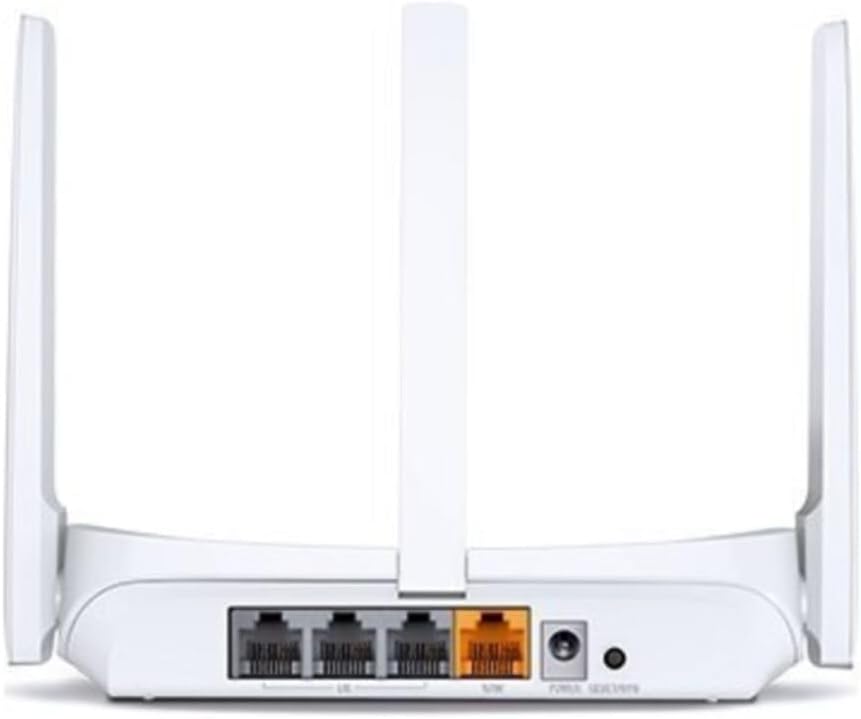
Figure 4.2: Rear view of the MW305R router, displaying the WAN port (yellow), three LAN ports (grey), power input, and reset button.
4.3 LED Indicators
- System LED: Indicates the router's operational status.
- Solid Green: Router is operating normally.
- Flashing Green: Router is starting up or performing an action.
- Off: Router is powered off.
5. Setup
5.1 Hardware Connection
- Power Off: Disconnect the power from your modem and router (if applicable).
- Connect WAN Port: Connect one end of the Ethernet cable to the WAN (yellow) port on your MW305R router and the other end to your modem's Ethernet port.
- Connect LAN Port (Optional): For wired devices, connect an Ethernet cable from a LAN (grey) port on the router to your computer or other network device.
- Power On: Connect the power adapter to the router's power input and plug it into a power outlet. Power on your modem, then power on the router. Wait for the System LED to turn solid green.
5.2 Initial Configuration
To configure your router, you can use a wired or wireless connection.
- Connect to the Router:
- Wired: Ensure your computer is connected to a LAN port on the router.
- Wireless: Connect your wireless device to the router's default Wi-Fi network. The default SSID (network name) and password are printed on the label at the bottom of the router.
- Access Web Management Page: Open a web browser and type mwlogin.net or 192.168.1.1 into the address bar and press Enter.
- Create Login Password: The first time you access the page, you will be prompted to create a login password. Set a strong password and click Let's Get Started.
- Follow Quick Setup: The Quick Setup wizard will guide you through the basic internet and wireless settings. Select your connection type (e.g., Dynamic IP, Static IP, PPPoE) and configure your Wi-Fi network name (SSID) and password.
- Save Settings: After completing the wizard, save your settings. Your router should now be connected to the internet.
6. Operating the Router
6.1 Connecting Devices
Once the router is set up, you can connect your devices:
- Wireless Devices: Search for your Wi-Fi network name (SSID) on your smartphone, tablet, or laptop, and enter the Wi-Fi password you configured during setup.
- Wired Devices: Connect an Ethernet cable from your device to any of the available LAN ports on the router.
6.2 Advanced Settings
Access the web management page (mwlogin.net) to configure advanced features:
- Network: Configure WAN settings, LAN IP, DHCP server.
- Wireless: Change Wi-Fi name/password, enable guest network, set up MAC filtering.
- Parental Controls: Manage internet access for specific devices.
- Bandwidth Control: Allocate bandwidth to different devices.
- Security: Configure firewall settings, port forwarding, DMZ.
- System Tools: Update firmware, backup/restore configuration, change login password, reboot.
7. Maintenance
7.1 Firmware Update
Regularly updating the router's firmware can improve performance, add new features, and fix bugs. Visit the official Mercusys website to download the latest firmware for your MW305R model. Navigate to System Tools > Firmware Upgrade on the web management page to perform the update.
7.2 Factory Reset
If the router is not functioning correctly or you forget the login password, you can perform a factory reset. This will revert all settings to their default values.
- Method 1 (Hardware Button): With the router powered on, press and hold the Reset button on the rear panel for approximately 5-8 seconds until the System LED flashes rapidly. Release the button and wait for the router to restart.
- Method 2 (Web Management Page): Log in to the web management page, navigate to System Tools > Factory Defaults, and click Restore.
8. Troubleshooting
This section addresses common issues you might encounter.
- Cannot access the web management page:
- Ensure your device is correctly connected to the router.
- Verify that mwlogin.net or 192.168.1.1 is typed correctly in the browser.
- Clear your browser's cache and cookies, or try a different browser.
- Disable any VPN or proxy software.
- No Internet access:
- Check if the WAN port LED is lit. If not, ensure the Ethernet cable from the modem is securely connected.
- Restart your modem and router.
- Verify your internet connection type and settings in the router's web management page.
- Contact your Internet Service Provider (ISP) to confirm your service status.
- Weak Wi-Fi signal or frequent disconnections:
- Relocate the router to a central location, away from obstacles and interference sources (e.g., cordless phones, microwaves).
- Adjust the router's antennas for optimal signal.
- Reduce the number of connected devices or upgrade your internet plan if bandwidth is an issue.
- Consider updating the router's firmware.
9. Specifications
| Feature | Description |
|---|---|
| Model Name | MW305R |
| Wireless Standard | IEEE 802.11n, IEEE 802.11g, IEEE 802.11b |
| Frequency Band | 2.4 GHz |
| Wireless Speed | 300 Mbps |
| Antennas | 3 Fixed Omni-Directional Antennas |
| Interfaces | 3 × 10/100Mbps LAN Ports, 1 × 10/100Mbps WAN Port |
| Buttons | Reset Button |
| Power Supply | 5VDC/0.6A |
| Dimensions (W x D x H) | 4.49 x 3.7 x 1.02 inches (114 x 94 x 26 mm) |
| Operating Temperature | 0°C~40°C (32°F~104°F) |
| Storage Temperature | -40°C~70°C (-40°F~158°F) |
| Operating Humidity | 10%~90% non-condensing |
| Storage Humidity | 5%~90% non-condensing |
10. Warranty and Support
Mercusys products come with a limited warranty. For detailed warranty information, technical support, and frequently asked questions, please visit the official Mercusys website or contact their customer support. Keep your purchase receipt for warranty claims.
Website: www.mercusys.com


