
NETGEAR R6230-100NAS
Contents
NETGEAR AC1200 WiFi Router (R6230) User Manual
Dual Band Wireless Router for Enhanced Home Connectivity
Product Overview
The NETGEAR AC1200 Smart Wi-Fi Router (Model R6230) is designed to provide reliable and fast wireless connectivity for your home. With dual-band Gigabit speeds, it offers up to 1200 Mbps (300 + 900 Mbps) and covers up to 1200 square feet, supporting up to 20 devices simultaneously. Its advanced features, including an 880MHz processor and amplified antennas, ensure smooth streaming, gaming, and smart home device connectivity.
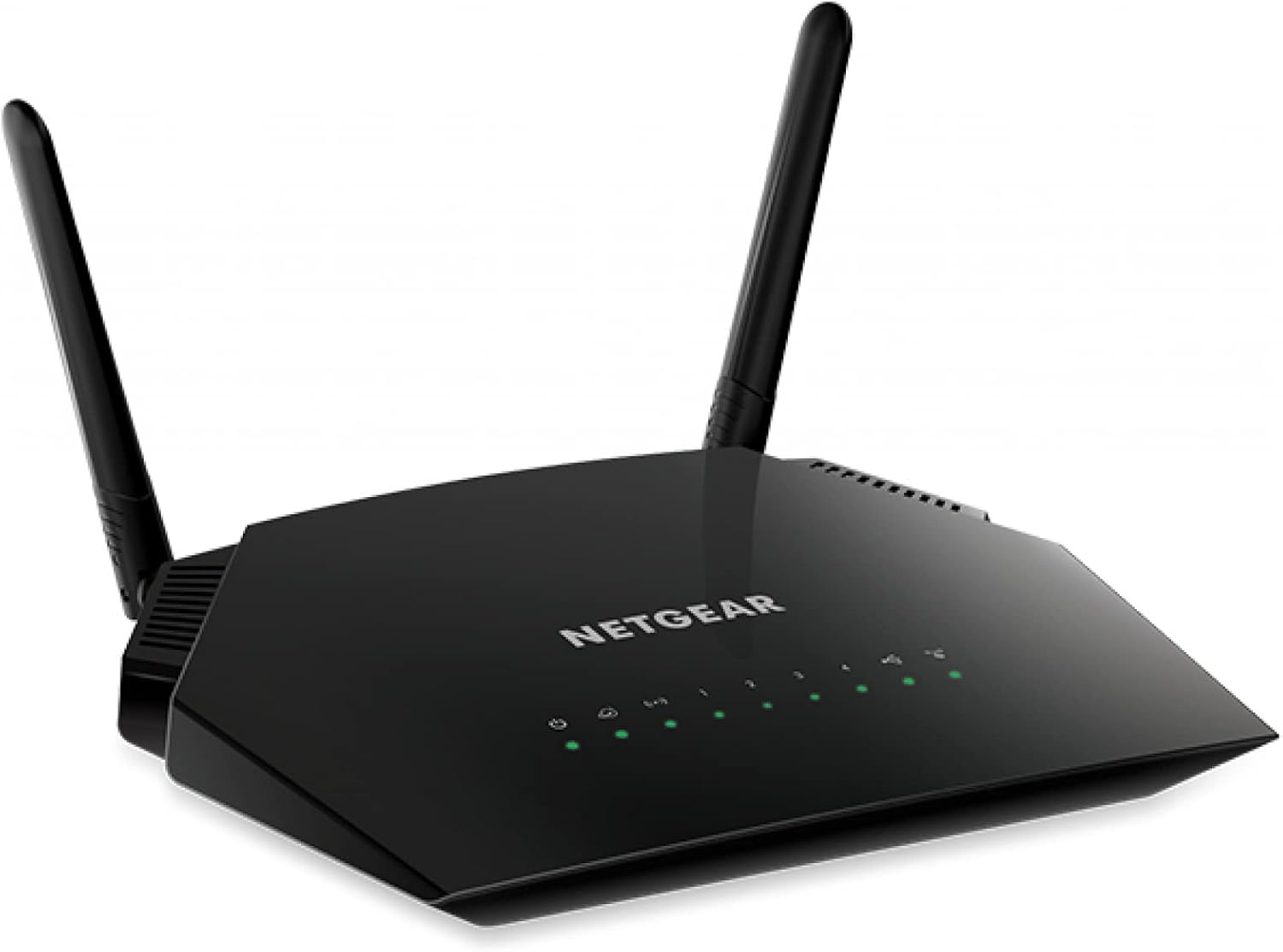
Figure 1: Front view of the NETGEAR AC1200 WiFi Router, showcasing its sleek black design and two external antennas. The front panel features LED indicators for power, internet, Wi-Fi bands, and Ethernet ports.
Key Features:
- Fast Wi-Fi Performance: Delivers AC1200 speed (300 + 900 Mbps) for up to 1200 square feet of wireless coverage.
- Device Support: Recommended for connecting up to 20 devices, ensuring reliable streaming, gaming, and internet browsing.
- Wired Ethernet Ports: Equipped with 4 x 1 Gigabit Ethernet ports for connecting computers, game consoles, and other wired devices.
- Advanced Technology: Features an 880MHz processor, 2 amplified antennas, and advanced Quality of Service (QoS) for optimized performance.
- USB Connectivity: Includes 1 x 2.0 USB port for sharing storage drives or printers across your network.
Setup Guide
Follow these steps to set up your NETGEAR AC1200 WiFi Router:
- Unpack the Router: Carefully remove the router and all accessories from the packaging. Ensure you have the router, power adapter, and an Ethernet cable.
- Position the Router: Place the router in a central location in your home, away from obstructions and other electronic devices that may cause interference.
- Connect to Modem:
- Power off your modem.
- Connect one end of the provided Ethernet cable to the yellow Internet port on the router.
- Connect the other end of the Ethernet cable to an Ethernet port on your modem.
- Power On:
- Connect the power adapter to the router's power port and plug it into a wall outlet.
- Power on your modem, then wait for its indicator lights to stabilize.
- Power on the router. Wait for the Power LED on the router to turn solid green.
- Connect to Network:
- Wireless Connection: On your computer or mobile device, search for available Wi-Fi networks. Select the NETGEAR network name (SSID) found on the router's label. Enter the Wi-Fi password (Network Key) also found on the label.
- Wired Connection: Connect an Ethernet cable from one of the router's LAN ports (1-4) to your computer's Ethernet port.
- Access Router Settings: Open a web browser and type routerlogin.net or 192.168.1.1 into the address bar. Follow the on-screen instructions to complete the setup, including changing the default admin password and Wi-Fi name/password for security.

Figure 2: Rear view of the NETGEAR AC1200 WiFi Router, highlighting the USB 2.0 port, four Gigabit Ethernet LAN ports, the yellow Internet (WAN) port, power button, and DC power input.
Operating Instructions
Once your router is set up, here are some basic operating guidelines:
- LED Indicators: The front panel LEDs provide status information.
- Power LED: Solid green indicates the router is powered on.
- Internet LED: Solid green indicates a successful internet connection. Blinking green indicates activity.
- Wi-Fi LEDs (2.4GHz & 5GHz): Solid green indicates Wi-Fi is enabled. Blinking green indicates data transfer.
- Ethernet LEDs (1-4): Solid green indicates a device is connected to that port. Blinking green indicates activity.
- USB LED: Solid green indicates a USB device is connected. Blinking green indicates data transfer.
- Connecting Devices: Connect new wireless devices by selecting your Wi-Fi network (SSID) and entering the password. For wired devices, use an Ethernet cable to connect to any available LAN port.
- Guest Network: For enhanced security, enable the guest network feature through the router's web interface to provide internet access to visitors without sharing your main network password.
- Parental Controls: Utilize the parental control features to manage internet access and content filtering for connected devices.
Maintenance
Regular maintenance helps ensure optimal performance and longevity of your router:
- Firmware Updates: Periodically check for and install firmware updates through the router's web interface. Firmware updates often include performance improvements, security patches, and new features.
- Restarting the Router: If you experience slow speeds or connectivity issues, try restarting the router by unplugging the power adapter for 10 seconds and then plugging it back in.
- Cleaning: Keep the router clean and free from dust. Use a soft, dry cloth to wipe the exterior. Ensure ventilation openings are not blocked.
- Password Management: Regularly change your Wi-Fi password and router admin password to maintain network security.
Troubleshooting
Here are solutions to common issues you might encounter:
| Problem | Possible Cause | Solution |
|---|---|---|
| No Internet Connection | Modem or router not powered on; incorrect cable connections; ISP issue. |
|
| Slow Wi-Fi Speed | Interference; too many devices; outdated firmware; router placement. |
|
| Cannot Connect to Wi-Fi Network | Incorrect Wi-Fi password; Wi-Fi disabled; device issue. |
|
Specifications
| Feature | Detail |
|---|---|
| Model Name | R6230-100NAS |
| Wireless Type | 802.11ac (Wi-Fi 5) |
| Frequency Band Class | Dual-Band (2.4GHz and 5GHz) |
| Wireless Speed | Up to 1200 Mbps (300 + 900 Mbps) |
| Coverage Area | Up to 1200 sq ft |
| Ethernet Ports | 4 x 1 Gigabit Ethernet LAN ports |
| USB Ports | 1 x USB 2.0 port |
| Processor | 880MHz |
| Antennas | 2 amplified external antennas |
| Dimensions (LxWxH) | 9.27 x 5.94 x 2.14 inches |
| Weight | 1.64 pounds |
| Color | Black |
| Operating System | Linux |
| Included Components | NETGEAR AC1200 Smart WiFi Router – Dual Band Gigabit (R6230) |
Warranty Information
NETGEAR products typically come with a limited hardware warranty. For specific details regarding the warranty period and terms for your R6230-100NAS router, please refer to the warranty card included in your product packaging or visit the official NETGEAR support website. Keep your proof of purchase for warranty claims.
Support
For further assistance, technical support, or to download the latest user manuals and firmware, please visit the official NETGEAR support website:
You can also find additional resources and community forums on the NETGEAR website to help with common questions and advanced configurations.
Ask a question about this manual
Ask about setup, troubleshooting, compatibility, parts, safety, or missing instructions. Manuals+ will review the question and use this page’s manual context to help answer it.