1. Introduction
This manual provides detailed instructions for the setup, operation, and maintenance of your Grundig Auto Design M5 GPS Navigation System. Please read this manual thoroughly before using the device to ensure proper functionality and to maximize your navigation experience. Keep this manual for future reference.
2. Product Overview
The Grundig Auto Design M5 is a portable GPS navigation system designed for automotive use. It features a 5-inch (12.7 cm) touchscreen display, pre-installed map material for 46 European countries, and offers free map updates. Key functionalities include 2D and 3D map views, a speed assistant, and intuitive navigation controls.

Image 2.1: The packaging for the Grundig Auto Design M5 GPS Navigation System, showing the brand logo, model name, and key features like free updates.
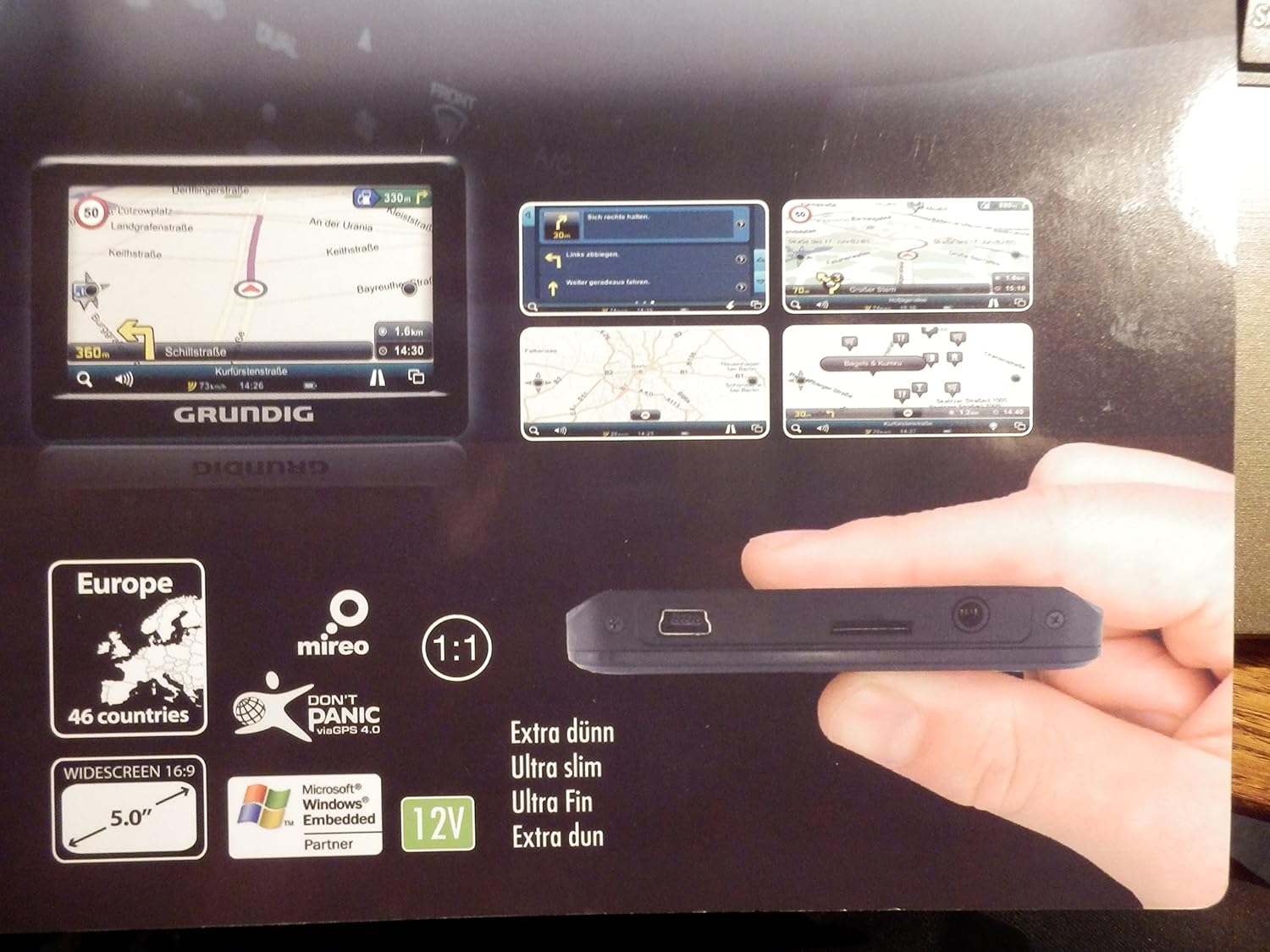
Image 2.2: The Grundig M5 GPS navigation device, highlighting its slim profile and various ports, including a USB port and a Micro SD card slot. The screen displays example navigation views.

Image 2.3: The main menu screen of the Grundig M5 GPS navigation system, showing options for Navigation, Multimedia, System, and Applications.
3. Setup
3.1 Unpacking and Checking Contents
Carefully unpack all items from the box. Ensure the following components are present:
- Grundig M5 GPS Navigation Device
- GPS Navigation Holder
- Car Charging Cable
- Quick Start Guide
3.2 Initial Charging
Before first use, fully charge the device using the provided car charging cable. Connect the cable to the device and your vehicle's 12V power outlet. The charging indicator will typically show the charging status.
3.3 Mounting the Device
Attach the GPS navigation holder to your vehicle's dashboard or windshield according to the instructions in the Quick Start Guide. Ensure the mount is securely fastened and does not obstruct your view of the road. Insert the Grundig M5 device into the holder until it clicks into place.
3.4 First Power-On
Press and hold the power button (usually located on the side or top of the device) until the Grundig logo appears on the screen. Follow any on-screen prompts for initial setup, such as language selection and time zone settings.
4. Operating Instructions
4.1 Basic Navigation
From the main menu (refer to Image 2.3), tap on 'Navigation' to access the map interface. You can enter a destination by:
- Address Search: Enter street name, house number, city, and country.
- Point of Interest (POI) Search: Search for gas stations, restaurants, hotels, etc.
- Recent Destinations: Select from previously entered locations.
Once a destination is set, the device will calculate the route and provide turn-by-turn voice guidance and visual instructions.
4.2 Map Views
The Grundig M5 supports both 2D and 3D map views. You can switch between these views through the map settings menu. The 3D view provides a more realistic representation of the terrain and buildings, while the 2D view offers a top-down perspective.
4.3 Speed Assistant
The integrated speed assistant displays the current speed limit for the road you are on and your current driving speed. It can provide visual or audible warnings if you exceed the speed limit. This feature is designed to assist safe driving and should not replace driver vigilance.
4.4 Map Updates
The Grundig M5 comes with free map updates for the pre-installed 46 European countries. To update your maps, connect the device to a computer with internet access and follow the instructions provided in the Quick Start Guide or on the official Grundig GPS website (www.grundiggps.com, as seen on packaging).
4.5 Multimedia and System Settings
The main menu also provides access to 'Multimedia' functions (e.g., for playing audio files from an SD card) and 'System' settings, where you can adjust display brightness, volume, language, and other device preferences.
5. Maintenance
5.1 Cleaning the Device
To clean the touchscreen and the device casing, use a soft, lint-free cloth. For stubborn marks, slightly dampen the cloth with water or a screen-cleaning solution. Avoid using abrasive cleaners, alcohol, or solvents, as these can damage the device.
5.2 Software and Map Updates
Regularly check for and install available map and software updates to ensure optimal performance and the most current road information. Refer to section 4.4 for map update instructions.
5.3 Storage
When not in use, store the device in a cool, dry place, away from direct sunlight and extreme temperatures. If using a Micro SD card, ensure it is properly inserted or removed according to the device's instructions to prevent data loss or damage.
6. Troubleshooting
- Device does not turn on: Ensure the battery is charged. Connect the device to the car charger and try again. If the issue persists, perform a soft reset by pressing and holding the power button for an extended period (e.g., 10-15 seconds).
- No GPS signal: Ensure the device has a clear view of the sky. Avoid using it in enclosed spaces or areas with tall buildings that may block the signal. It may take a few minutes to acquire a signal after initial power-on or after being moved a long distance.
- Map updates fail: Verify your internet connection and ensure the correct software is installed on your computer for map updates. Check the Grundig GPS website for specific troubleshooting steps or updated instructions.
- Touchscreen unresponsive: Try restarting the device. If the screen remains unresponsive, ensure it is clean and free of debris.
For further assistance, consult the Quick Start Guide or contact Grundig customer support.
7. Specifications
| Feature | Specification |
|---|---|
| Model Name | M5 |
| Model Number | 01500 |
| Display Size | 5 Inch (12.7 cm) |
| Display Resolution | 480 x 272 pixels |
| Display Type | TFT/LCD |
| Processor | MSB2531, 800 MHz |
| GPS Chipset | SR211 |
| Internal Memory | 4 GB |
| Micro SD Card Support | Up to 16 GB |
| Pre-installed Maps | 46 European Countries |
| Special Features | Touchscreen, 2D/3D Map View, Speed Assistant, Free Map Updates |
| Connectivity Technology | GPS |
| Mounting Type | Dashboard Mount |
| Vehicle Service Type | Car |
8. Warranty and Support
Warranty information for the Grundig Auto Design M5 GPS Navigation System is typically provided in the Quick Start Guide included with your product or can be found on the official Grundig website. Please retain your proof of purchase for warranty claims.
For customer support, technical assistance, or further inquiries, please refer to the contact information provided in your product documentation or visit the official Grundig website. You can also find more information about Grundig products on their Amazon store: Grundig Store on Amazon.


