
1. Product Overview
The LG 32MA70HY-P is a 32-inch class (31.5" measured diagonally) Full HD IPS monitor designed for professional use. It offers a 16:9 aspect ratio, true color reproduction, and a fast response time, enhancing visual clarity from various viewing angles. Key features include On-Screen Control for easy settings optimization, Reader Mode for comfortable extended viewing, and Screen Split 2.0 for efficient multi-tasking with up to four windows in 14 possible configurations. The monitor features a refined Arcline design and provides multiple input options.

Figure 1: Front view of the LG 32MA70HY-P monitor.
Key Features:
- 32-inch Full HD (1920x1080) IPS Display
- Inputs: DisplayPort, HDMI, D-Sub
- On-Screen Control for intuitive monitor settings management
- Screen Split 2.0 for enhanced multi-tasking
- Reader Mode for reduced eye strain
- VESA-compatible for wall mounting (7.9 x 3.9 inches / 200 x 100 mm)
- Windows 10 compatible
2. Package Contents
Please check that all components are included in your product box. If any components are missing, contact your retailer.
- LG 32MA70HY-P Monitor
- Monitor Stand (Base and Neck)
- Power Cable
- HDMI Cable
- User Manual (this document)
3. Setup
3.1 Assembling the Stand
- Carefully place the monitor face down on a soft, clean surface to prevent scratches.
- Attach the stand neck to the back of the monitor until it clicks into place.
- Attach the stand base to the stand neck and secure it with the provided screw.
The monitor is also VESA-compatible (200 x 100 mm) for wall mounting. Refer to your wall mount instructions for proper installation.
3.2 Connecting the Monitor
Connect the monitor to your computer or other devices using the appropriate cables.
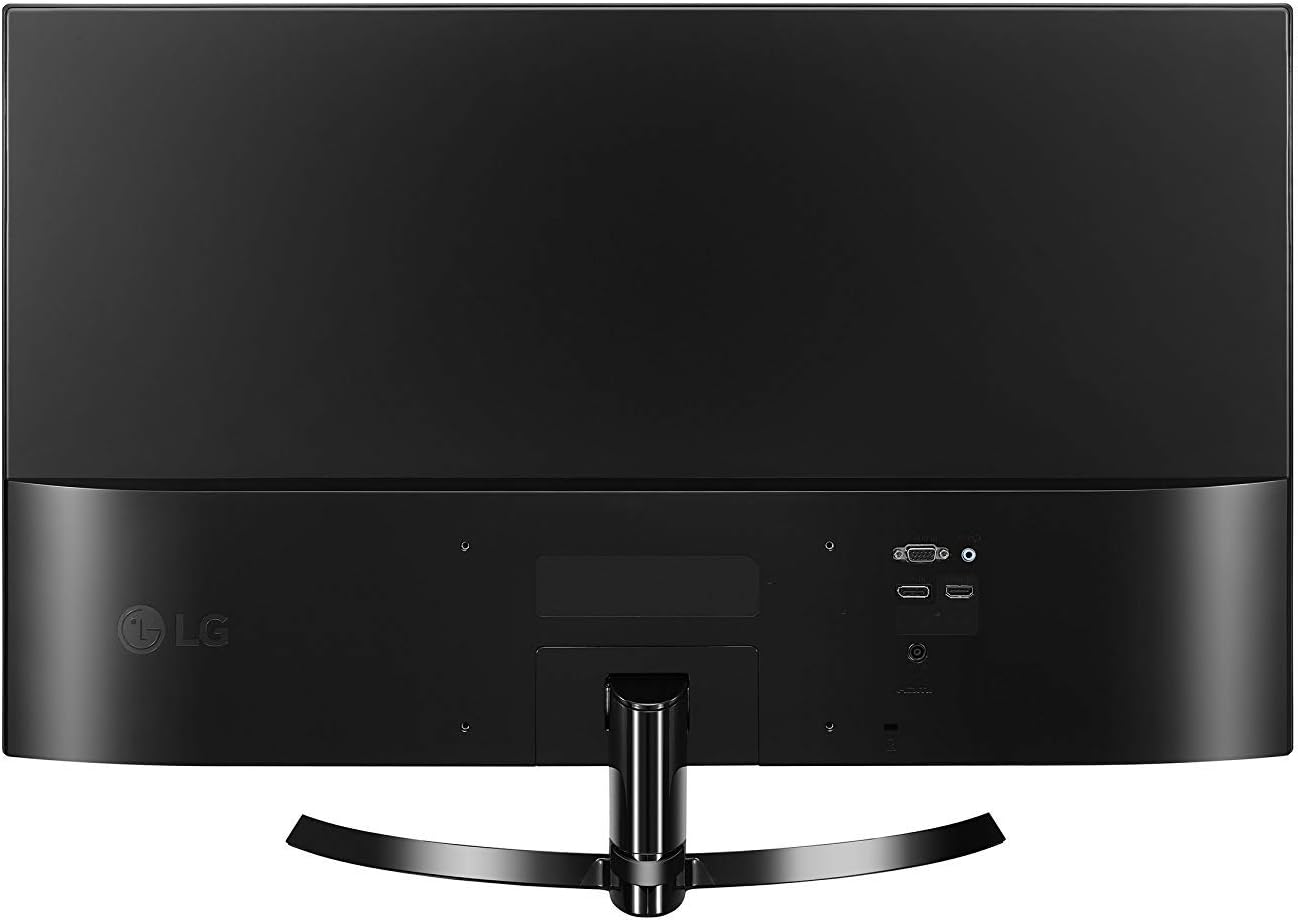
Figure 2: Rear view of the monitor with input ports.
- Power Connection: Connect the power cable to the monitor's DC-IN port and then to a power outlet.
- HDMI Connection: Use the provided HDMI cable to connect the monitor's HDMI IN port to your computer's HDMI output.
- DisplayPort Connection: Connect a DisplayPort cable (not included) from the monitor's DP-IN port to your computer's DisplayPort output.
- D-Sub Connection: Connect a D-Sub (VGA) cable (not included) from the monitor's D-SUB IN port to your computer's VGA output.
4. Operating the Monitor
4.1 Power On/Off
Press the joystick button located at the bottom center of the monitor to turn it on or off.
4.2 On-Screen Control (OSC)
The monitor settings can be adjusted using the joystick button. Move the joystick up, down, left, or right to navigate through the On-Screen Control menu.
- Joystick Up: Accesses the main menu.
- Joystick Down: Turns off the monitor.
- Joystick Left: Adjusts volume or accesses specific functions.
- Joystick Right: Selects input source or accesses specific functions.
4.3 Input Selection
To switch between input sources (HDMI, DisplayPort, D-Sub), move the joystick to the right to access the input selection menu, then navigate and select your desired input.
4.4 Screen Split 2.0
Screen Split 2.0 is a software feature that allows you to divide your screen into multiple sections for efficient multi-tasking. Install the On-Screen Control software from the LG website to utilize this feature. It supports displaying up to four different windows in 14 possible configurations.
4.5 Reader Mode
Activate Reader Mode through the On-Screen Control menu to adjust the screen's color temperature and brightness, reducing blue light emissions for comfortable viewing during extended work sessions.
5. Maintenance
5.1 Cleaning the Monitor
- Always unplug the monitor from the power outlet before cleaning.
- Use a soft, lint-free cloth slightly dampened with water or a mild, non-abrasive screen cleaner.
- Do not spray cleaner directly onto the screen. Apply it to the cloth first.
- Avoid using benzene, thinner, or any volatile substances, as they may damage the screen surface.
5.2 General Care
- Avoid placing heavy objects on the monitor or its cables.
- Do not expose the monitor to direct sunlight, high temperatures, or high humidity.
- Ensure adequate ventilation around the monitor to prevent overheating.
6. Troubleshooting
If you encounter issues with your monitor, refer to the following troubleshooting tips:
- No Power: Ensure the power cable is securely connected to both the monitor and the power outlet. Check if the power outlet is functioning.
- No Signal: Verify that the video cable (HDMI, DisplayPort, or D-Sub) is securely connected to both the monitor and your computer. Ensure the correct input source is selected on the monitor using the On-Screen Control menu.
- Screen Flickering (HDMI 1080i): If the selected resolution is HDMI 1080i 60/50 Hz and the screen is flickering, change the resolution to the recommended 1080P.
- Image Quality Issues: Adjust brightness, contrast, and other display settings through the On-Screen Control menu. Ensure your computer's display resolution matches the monitor's native resolution (1920x1080).
7. Specifications
Detailed technical specifications for the LG 32MA70HY-P monitor:
| Feature | Specification |
|---|---|
| Screen Size | 32 Inches (31.5" Diagonal) |
| Panel Type | IPS |
| Resolution | 1920 x 1080 (Full HD) |
| Aspect Ratio | 16:9 |
| Brightness | 250 cd/m² |
| Inputs | 1x DisplayPort, 1x HDMI, 1x D-Sub |
| Item Weight | 1 pounds (approx. 0.45 kg) |
| Product Dimensions (with stand) | 28.61 x 8.06 x 19.37 inches (WxDxH) |
| Product Dimensions (without stand) | 28.6 x 3.7 x 16.9 inches (WxDxH) |
| VESA Mount Compatibility | 200 x 100 mm (7.9 x 3.9 inches) |
| Color | Black |
| Power Source | AC |

Figure 3: Monitor dimensions with stand.
8. Warranty and Support
For detailed warranty information and technical support, please refer to the warranty card included with your product or visit the official LG website. The LG support website provides comprehensive resources, including FAQs, driver downloads, and contact information for customer service.
Online Support: www.lg.com/us/support