
1. Introduction
This manual provides detailed instructions for the installation, operation, and maintenance of your ATOTO A6 PF 9-inch Double DIN Android Car Stereo. Please read this manual thoroughly before using the product to ensure proper functionality and safety. The ATOTO A6 PF is designed to enhance your in-car entertainment and navigation experience with its advanced features.

Figure 1.1: ATOTO A6 PF Main Interface
The A6 PF features an Android 10.0 operating system, an 8-core ARM Cortex A55 processor, a 9-inch IPS display with 1280x720 resolution, and a 178° full viewing angle. It supports wireless CarPlay, Android Auto, MirrorLink, dual Bluetooth connectivity, and multiple internet access options.
2. Safety Information
- Installation: Professional installation is recommended. Ensure the vehicle's power is disconnected before installation.
- Operation: Do not operate the device in a manner that distracts you from driving. Always prioritize road safety.
- Power Supply: Use only the specified power supply and wiring provided with the unit. Incorrect wiring can cause damage or fire.
- Temperature: Avoid exposing the unit to extreme temperatures or direct sunlight for extended periods.
- Moisture: Keep the unit dry. Exposure to moisture can cause malfunction.
3. Setup and Installation
3.1 Standard Double DIN Installation
The ATOTO A6 PF is designed for standard Double DIN installation. Ensure your vehicle's dashboard opening is compatible. Additional dash kits may be required for a seamless fit.

Figure 3.1: Standard Double DIN Installation Steps and Packaging Contents
The packaging includes various cables and accessories for installation, such as power cables, rear camera input, RCA connectors, USB extension cables, a GPS antenna, an external microphone, double-DIN brackets, mounting brackets, adaptive cage, mounting screws, and screen protectors.
3.2 Wiring Diagram
Refer to the following diagram for proper wiring connections. Incorrect wiring can damage the unit or vehicle electronics.
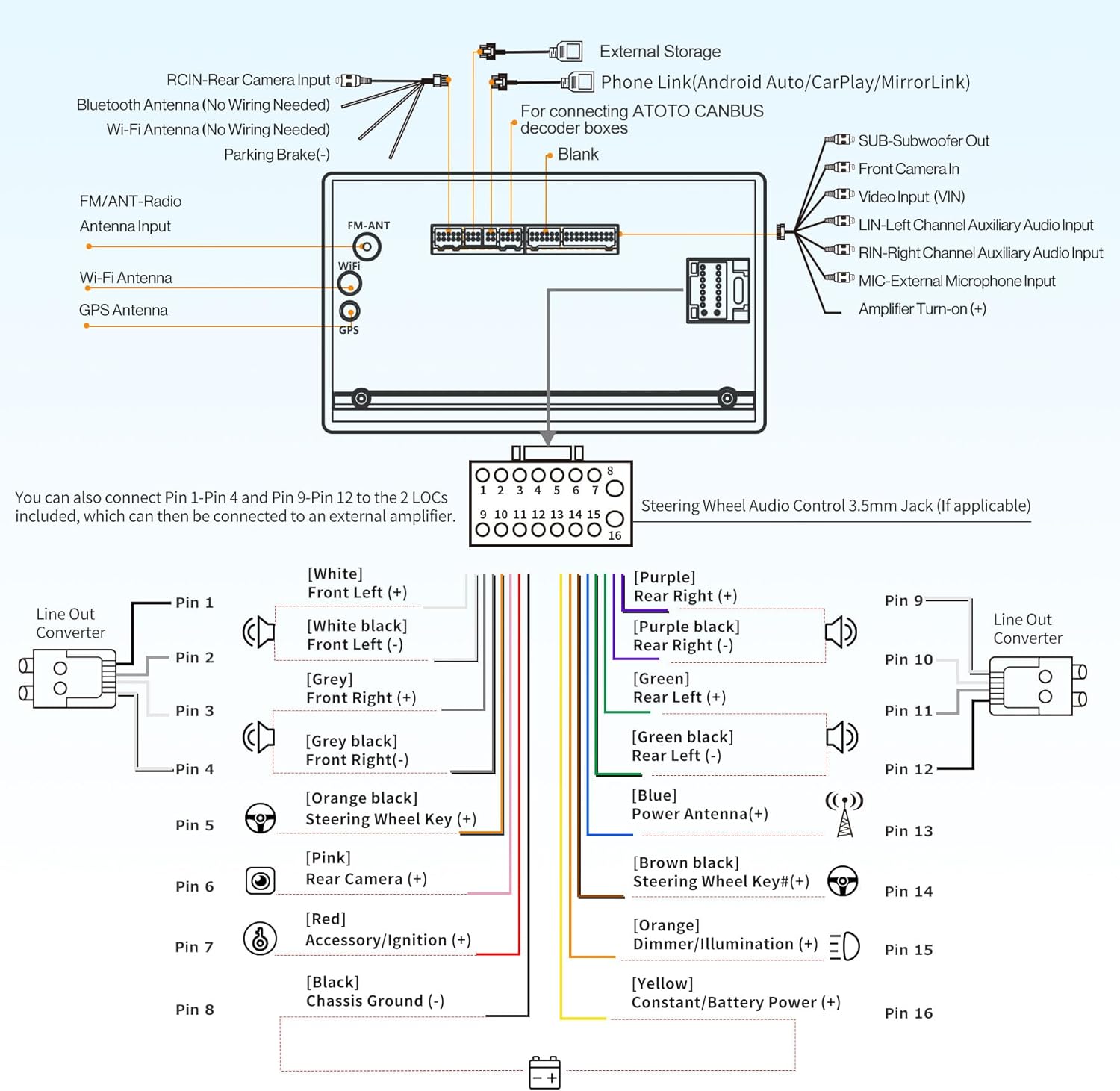
Figure 3.2: ATOTO A6 PF Wiring Diagram
Key Connections:
- Power: Connect to vehicle's constant power, accessory/ignition, and chassis ground.
- Speakers: Connect front left, front right, rear left, and rear right speaker wires.
- Antennas: Connect FM/AM radio antenna, Wi-Fi antenna, and GPS antenna.
- Camera Inputs: Dedicated inputs for rear camera (RCIN) and front camera.
- USB Ports: For external storage, phone link (CarPlay, Android Auto, MirrorLink).
- External Microphone: Connect the provided external microphone for improved call quality.
- Steering Wheel Controls: Connect to vehicle's steering wheel key wires (if applicable).
- CANBUS: For connecting ATOTO CANBUS decoder boxes (sold separately).
4. Operating Instructions
4.1 Initial Power On and System Overview
Upon first power-on, the system will boot to the Android home screen. You can customize the interface and download applications from the Google Play Store.
4.2 Internet Access Options
The A6 PF offers three methods for internet connectivity:
- Wi-Fi Hotspot: Connect to a stable and fast Wi-Fi network.
- Bluetooth Tethering: Use your smartphone's Bluetooth connection for internet access, consuming less power.
- USB Tethering: Connect your smartphone via USB for internet access, which may slightly charge your phone's battery.

Figure 4.1: Internet Access Options and App Ecosystem
4.3 Wireless CarPlay and Android Auto
Connect your iPhone or Android phone wirelessly for seamless integration. After initial pairing via Bluetooth and Wi-Fi, the connection will be automatic. This allows access to navigation, calls, messages, and media directly from the car stereo display.
4.4 MirrorLink
Use MirrorLink to display applications from your smartphone that are not natively supported by CarPlay or Android Auto. This feature works with both wireless and wired connections.

Figure 4.2: Smartphone Integration Features
4.5 Digital Signal Processor (DSP) and Equalizer
The integrated DSP allows for advanced audio customization. Utilize the 36-band equalizer to fine-tune sound frequencies to your preference. Features include:
- Time Alignment: Adjust sound delivery from each speaker to reach your ears simultaneously, creating a harmonious soundstage.
- Speed Compensated Volume Control (SCVC): The system automatically adjusts volume based on vehicle speed to counteract external noise.
- Crossover Frequencies: Adjust crossover points for smooth transitions between low and high tones.

Figure 4.3: Digital Signal Processor (DSP) Features
4.6 GPS Tracking with TrackHU
The ATOTO A6 PF supports GPS tracking via the exclusive TrackHU app. This feature provides 5-second real-time tracking, OsmAnd satellite positioning, speed-controlled playback, detailed reports, online/offline status, and geofence alerts.
4.7 Dual Bluetooth Functionality
The unit features two independent Bluetooth modules:
- BT1: Manages hands-free calls and audio streaming from your smartphone. It also enables automatic unlocking/locking of the unit based on proximity to your vehicle.
- BT2: Connects to external Bluetooth devices such as OBDII scanners (ATOTO OBDII AC-4450) or Bluetooth gamepads.
4.8 Rear View Camera Input (LRV HD)
The A6 PF supports HD 720P rear view camera input with a Live Rear View (LRV) feature. This allows you to check the live traffic condition behind your vehicle while driving forward, enhancing safety. The ATOTO AC-HD02LR camera (sold separately) is recommended.

Figure 4.4: IPS Display and Rear View Camera Features
4.9 AI Voice Control
The unit supports AI voice control, allowing for hands-free operation of various functions. You can use custom wake-up words and interact with multiple AI chatbots for tasks like finding music or getting information.
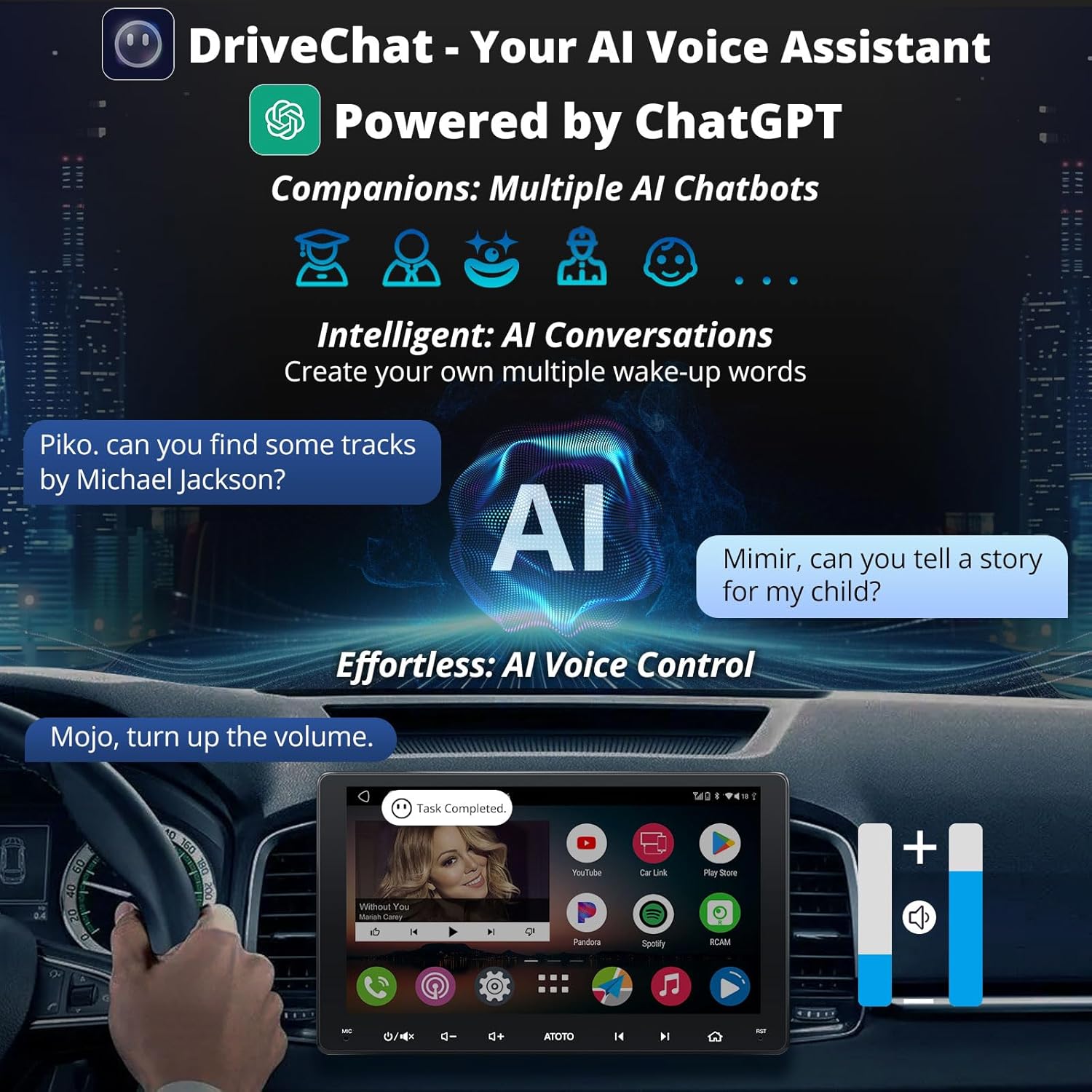
Figure 4.5: AI Voice Assistant Functionality
5. Maintenance
- Screen Cleaning: Use a soft, lint-free cloth to clean the screen. Do not use abrasive cleaners or solvents.
- Software Updates: Regularly check for and install software updates provided by ATOTO to ensure optimal performance and access to new features.
- General Care: Keep the unit free from dust and debris. Avoid spilling liquids on the device.
6. Troubleshooting
This section addresses common issues you might encounter with your ATOTO A6 PF. For more complex problems, please contact customer support.
| Problem | Possible Cause | Solution |
|---|---|---|
| Unit does not power on. | Incorrect wiring, blown fuse, vehicle battery issue. | Check power connections, inspect fuses, verify vehicle battery voltage. |
| No sound from speakers. | Speaker wiring issues, volume too low, audio settings. | Verify speaker connections, increase volume, check audio output settings. |
| CarPlay/Android Auto not connecting. | Bluetooth/Wi-Fi not enabled, phone not paired, app issues. | Ensure Bluetooth/Wi-Fi is on, re-pair phone, update phone OS and apps. |
| GPS signal is weak or lost. | GPS antenna placement, environmental interference. | Ensure GPS antenna has a clear view of the sky, check antenna connection. |
| Touchscreen unresponsive. | System freeze, screen protector issue. | Perform a system reset (refer to specific reset button location), check screen protector for proper application. |
7. Specifications
| Feature | Specification |
|---|---|
| Brand | ATOTO |
| Model Number | A6G209PF-EU |
| Operating System | Android 10.0 |
| Processor | 8-core ARM Cortex A55 |
| Screen Size | 9 Inches |
| Display Type | IPS Display |
| Resolution | 1280x720 |
| Viewing Angle | 178° Full Viewing Angle |
| Connectivity | Dual Bluetooth, USB, Wi-Fi 2.4G/5G |
| Special Features | Wireless CarPlay, Android Auto, MirrorLink, GPS Tracking (TrackHU App), 36-band Equalizer (DSP), Speed Compensated Volume Control (SCVC), Time Alignment |
| Compatible Devices | ATOTO TPMS Device AC-UTP1, ATOTO OBDII AC-4450, Amplifier, Speaker, Smartphone |
| Audio Output Mode | Mono, Stereo |
| Surround Sound | 4.1 Channel Configuration |
| Video Encoding | H.263, H.264, DIVX4-6, XVID Decoder |
| Amplifier Output | Max 4*45W, 4*24W RMS |
8. Warranty and Support
ATOTO is committed to providing professional pre-sales and after-sales support, along with continuous software updates. For any inquiries, technical assistance, or warranty claims, please contact ATOTO support.
Contact Information:
- Email: support@myatoto.com
- Responses are typically provided within 24 hours on business days.


