
1. Product Overview
The Roland DJ-202 is a two-channel, four-deck DJ controller designed for use with Serato DJ Lite and Serato DJ Pro software. It integrates iconic Roland drum machine sounds (TR-808, TR-909, TR-606) and a 16-step sequencer, offering a blend of traditional DJ control with modern beat-making capabilities. Its compact and lightweight design ensures portability without compromising on professional features like large, low-latency platters and a mic input with vocal effects.

Figure 1.1: Top view of the Roland DJ-202 Compact DJ Controller, showcasing its two decks, central mixer, and performance pads.
Video 1.1: An official overview of the Roland DJ-202 Controller, demonstrating its key features and performance capabilities.
2. Initial Setup
2.1 System Requirements
Ensure your computer meets the minimum requirements for Serato DJ Lite or Serato DJ Pro. The DJ-202 is compatible with devices featuring a USB port and RCA input.
- Operating System: PC/Mac compatible.
- Connectivity: USB port for computer connection, RCA input for audio.
- Software: Serato DJ Lite (included), Serato DJ Pro (upgrade ready).
2.2 Connecting the DJ-202
- Install Serato DJ Software: Download and install Serato DJ Lite or Pro on your computer.
- Connect USB: Connect the DJ-202 to your computer using a USB cable.
- Connect Audio Output: Connect the master RCA outputs of the DJ-202 to your amplifier or powered speakers.
- Connect Headphones: Plug your headphones into the dedicated headphone jack for monitoring.
- Power On: Turn on the DJ-202 and launch the Serato DJ software.

Figure 2.1: Rear view of the Roland DJ-202, illustrating the various input and output ports for connecting to a computer, audio system, and microphone.
3. Controls and Functions
3.1 Top Panel Layout
The DJ-202 features an intuitive layout designed for seamless DJ performance and beat creation. Familiarize yourself with the main control areas:

Figure 3.1: A detailed view of the Roland DJ-202's top panel, highlighting the mixer section, jog wheels, and performance pads.
- Jog Wheels: Large, low-latency platters for scratching, cueing, and track navigation.
- Mixer Section: Central controls for master level, cue mixing, headphone level, and individual channel EQs (High, Mid, Low) and trims.
- Performance Pads: Eight dedicated pads per deck for Hot Cue, Loop, Sequencer, and Sampler modes.
- FX Controls: Dedicated buttons and knobs for applying and adjusting effects.
- Transport Controls: Play/Pause, Cue, Sync, and Shift buttons for precise track control.
4. Operating the DJ-202
4.1 Basic DJ Functions
- Loading Tracks: Use the 'LOAD' buttons and browse knob to select and load tracks onto Deck 1 or Deck 2 in Serato DJ Lite.
- Cueing: Press the 'CUE' button to set a temporary cue point. Hold 'SHIFT' and press 'CUE' to return to the beginning of the track.
- Mixing: Adjust the channel faders, crossfader, and EQ knobs to blend tracks smoothly.
- Scratching: Utilize the large, low-latency jog wheels for precise scratching.
- Looping: Use the 'LOOP' pads to create and adjust loops on the fly.
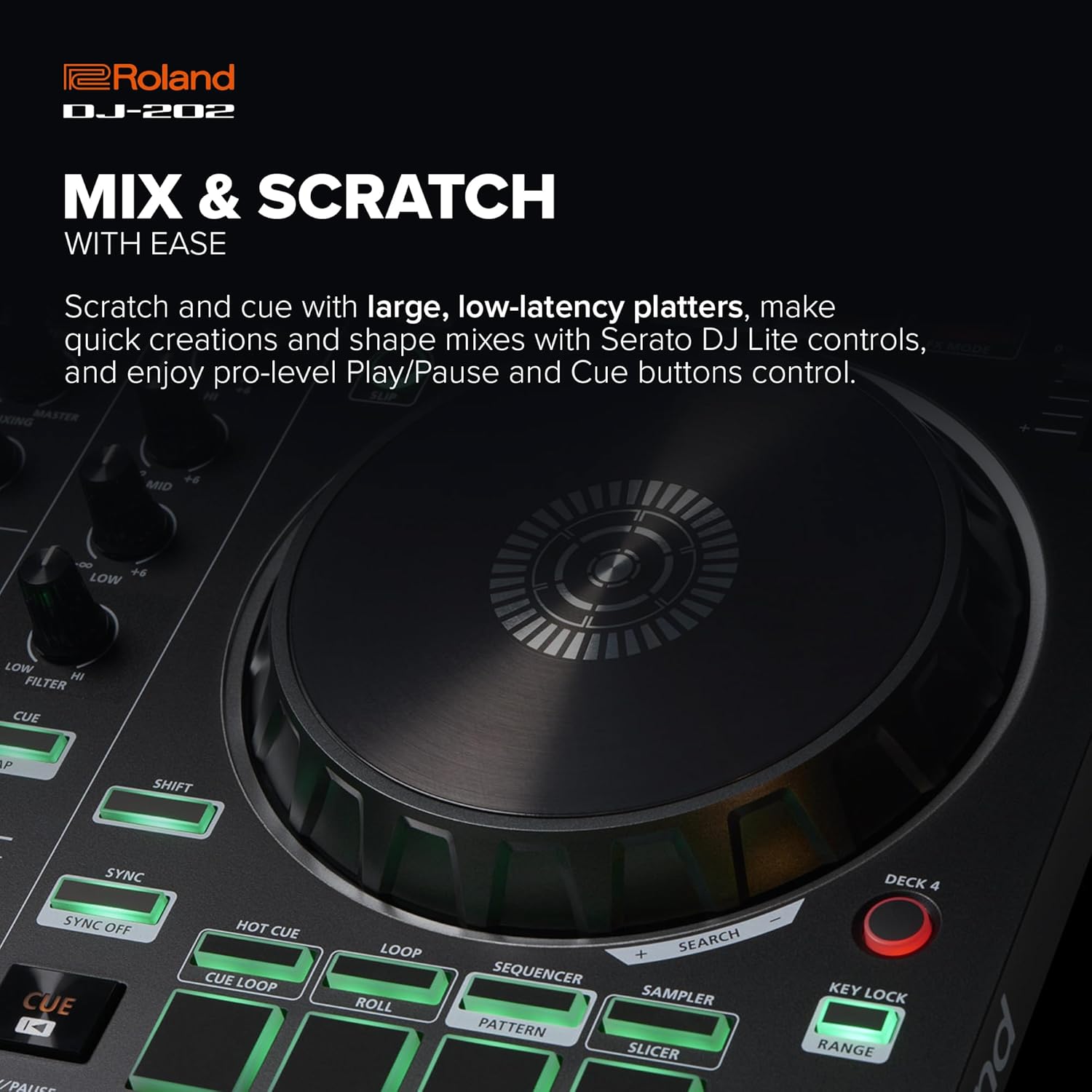
Figure 4.1: Close-up of a Roland DJ-202 jog wheel, highlighting its responsive surface for precise track manipulation and scratching.
5. TR Drum Machine and Sequencer
The DJ-202 features built-in drum kits from Roland's legendary TR-808, TR-909, and TR-606, powered by advanced ACB (Analog Circuit Behavior) technology. This allows for on-the-fly beat creation and sequencing.
5.1 Using the 16-Step Sequencer
- Activate Sequencer Mode: Press the 'SEQUENCER' button to enter sequencer mode. The performance pads will illuminate to represent the 16 steps.
- Select Drum Sound: Use the 'SAMPLER' or 'SLICER' modes to select different drum sounds from the TR kits.
- Input Steps: Tap the pads to input drum hits into the 16-step sequence.
- Play/Stop Sequence: Use the 'START/STOP' button to play or stop the sequence.
- Inst-Rec Mode: Engage 'Inst-Rec' mode for real-time Serato Sampler sequencing.
- MIDI Output: Use the MIDI output to sync external MIDI-supported devices and instruments with your sequencer and Serato DJ Lite.

Figure 5.1: Close-up of the Roland DJ-202's performance pads, illustrating their use for sequencing, hot cues, loops, and sampler functions.
6. Serato DJ Software Integration
The Roland DJ-202 is designed for seamless integration with Serato DJ Lite, with a free upgrade to Serato DJ Pro included for purchases in the U.S. This software provides comprehensive tools for managing your music library and enhancing your performances.
- Music Library Management: Organize and build your music libraries within Serato DJ Lite.
- Streaming Integration: Integrate songs from streaming services like Spotify (where supported by Serato).
- Performance Features: Easily drag tracks to decks, set and trigger cues, loops, and samples, and apply basic effects directly from the controller.
7. Maintenance and Care
To ensure the longevity and optimal performance of your Roland DJ-202, follow these maintenance guidelines:
- Cleaning: Use a soft, dry cloth to wipe down the controller. Avoid abrasive cleaners or solvents.
- Storage: Store the unit in a cool, dry place away from direct sunlight and extreme temperatures.
- Protection: When transporting, use a protective case to prevent damage to knobs, faders, and jog wheels.
- Power: Always disconnect the power adapter when the unit is not in use for extended periods.
8. Troubleshooting
Refer to the table below for common issues and their solutions:
| Problem | Possible Cause | Solution |
|---|---|---|
| No power | USB cable not connected or faulty. | Ensure USB cable is securely connected to both the controller and computer. Try a different USB port or cable. |
| No sound output | Incorrect audio connections or software settings. | Check RCA connections to speakers/amplifier. Verify audio output settings in Serato DJ software. Adjust master and channel levels. |
| Software not recognizing controller | Drivers not installed or software not updated. | Install the latest drivers from the Roland website. Update Serato DJ software to the latest version. Restart computer and controller. |
| Lag or latency during performance | Computer performance issues or incorrect buffer settings. | Close unnecessary applications on your computer. Adjust the USB buffer size (latency) in Serato DJ software settings. Ensure your computer meets minimum system requirements. |
9. Technical Specifications
- Model Name: DJ-202
- Item Weight: 4.6 pounds (2.09 kg)
- Product Dimensions: 18.8 x 11.7 x 2.4 inches (478 x 297 x 62 mm)
- Connectivity Technology: USB
- Connector Type: RCA
- Hardware Interface: USB
- Supported Software: Serato DJ Lite, Serato DJ Pro
- Mixer Channel Quantity: 4 (virtual decks in software)
- Hardware Platform: PC/Mac
- Material Type: Stainless Steel (for certain components, main body is composite)
- Special Feature: Lightweight, Built-in TR Drum Kits, 16-step Sequencer
10. What's in the Box
Upon unboxing your Roland DJ-202, you should find the following items:
- Roland DJ-202 Controller
- Setup Guide
- USB Cable
- Serato DJ Lite software download information
- RCA stereo cables
- 1/4 inch microphone jack

Figure 10.1: An illustration detailing the contents typically found in the Roland DJ-202 packaging, along with its physical dimensions.
11. Support and Warranty
For further assistance, technical support, or detailed warranty information, please visit the official Roland website. Product registration may be required to activate your warranty and access full support resources.
Online Support: www.roland.com/us/support/
Warranty: Refer to the warranty card included with your product or the Roland website for specific terms and conditions applicable to your region.


