Product Overview
The ASUS RT-AC86U is a high-performance dual-band Gigabit wireless internet router designed for optimal network performance, especially for gaming and 4K UHD streaming. It incorporates advanced technologies such as 802.11AC MU-MIMO, WTFast game accelerator, Adaptive QoS, and built-in network security powered by Trend Micro.

Figure 1: Front-side view of the ASUS RT-AC86U router, showcasing its sleek black design with red accents and three external antennas.
This router is equipped with a 1.8GHz dual-core processor, 256 MB Flash, and 512 MB RAM, ensuring efficient handling of network traffic. It supports dual-band operation (2.4 GHz and 5 GHz) for data transfer speeds up to 2900 Mbps, making it suitable for demanding online activities.
Package Contents
Before you begin, ensure all items are present in your package:
- ASUS RT-AC86U Networking Router
- RJ-45 Cable
- Power Adapter
- Quick Start Guide
Setup Instructions
Follow these steps to set up your ASUS RT-AC86U router for the first time.
1. Hardware Connection
- Connect Antennas: Attach the three external detachable antennas to the designated ports on the rear of the router. Ensure they are securely tightened.
- Connect to Modem: Connect one end of the provided RJ-45 cable to the WAN port (blue) on the back of the RT-AC86U router and the other end to your modem's Ethernet port.
- Connect to Computer: Connect another RJ-45 cable from any of the LAN ports (yellow) on the router to your computer's Ethernet port.
- Power On: Plug the power adapter into the router's DC-in port and then into a power outlet. The power LED indicator on the front of the router should illuminate.
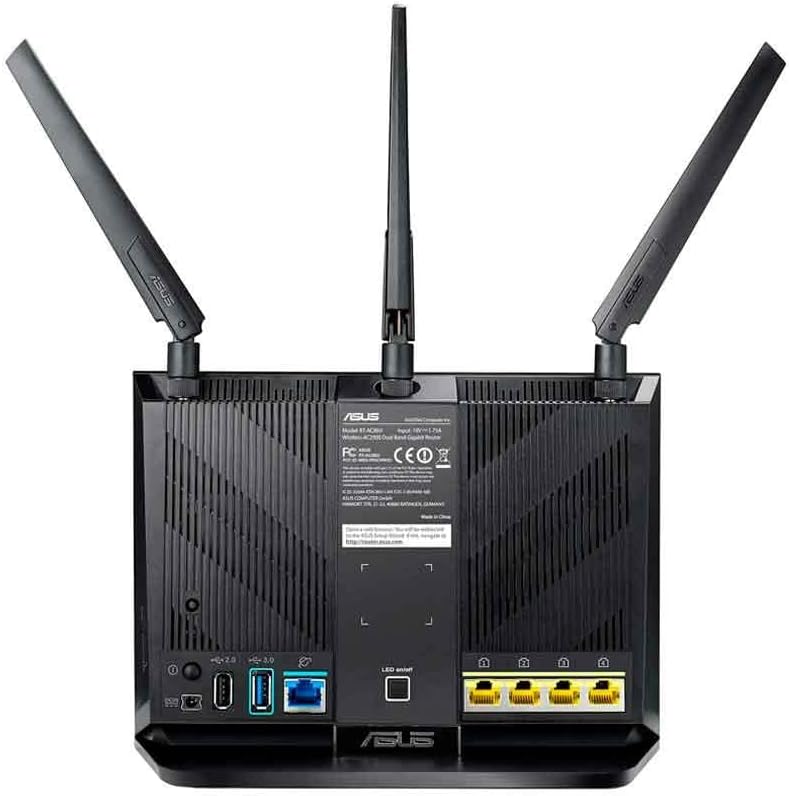
Figure 2: Rear panel of the ASUS RT-AC86U router, highlighting the WAN port (blue), four Gigabit LAN ports (yellow), USB 3.1 Gen1 port (blue), and USB 2.0 port (black).
Ensure all necessary LED indicators on the front of the router are lit, including LAN, Internet, Wi-Fi (2.4GHz and 5GHz), and Power, indicating proper connection and operation.
2. Initial Configuration (Web Interface)
- Access Router: Open a web browser on your connected computer and type
router.asus.cominto the address bar. - Login: Enter your router's login name and password. The default credentials are often "admin" for both username and password. If you have changed them, use your custom credentials.
- Quick Internet Setup: Follow the on-screen instructions of the Quick Internet Setup wizard to configure your internet connection. This typically involves selecting your connection type (e.g., DHCP, Static IP, PPPoE) and entering any required ISP details.
- Wi-Fi Settings: Set up your Wi-Fi network name (SSID) and password for both 2.4 GHz and 5 GHz bands. It is recommended to use strong, unique passwords.
- Complete Setup: Once the wizard is complete, your router should be connected to the internet, and your Wi-Fi networks will be active.
Operating the Router
The ASUS RT-AC86U offers various features to enhance your network experience.
Key Features:
- Dual-Band AC2900 Wi-Fi: Provides high-speed wireless connectivity across 2.4 GHz and 5 GHz bands, ideal for multiple devices.
- WTFast Game Accelerator: Optimizes gaming connections for reduced lag and improved online gaming experience.
- Adaptive QoS (Quality of Service): Prioritizes network traffic for specific applications like gaming or streaming, ensuring smooth performance.
- AiProtection (Trend Micro): Offers built-in network security to protect against external threats and malicious websites.
- AiMesh Compatibility: Allows you to create a whole-home Wi-Fi system by connecting multiple AiMesh-compatible ASUS routers.
- USB 3.1 Gen1 & Gigabit LAN Ports: Provides high-speed wired connections for devices and external storage.
Using the ASUS Router App:
Manage your network conveniently from your smartphone or tablet using the ASUS Router App. The app allows you to:
- Set up your network.
- Monitor network usage.
- Configure parental controls.
- Receive instant notifications about network events.

Figure 3: The ASUS RT-AC86U router integrated into a gaming and streaming environment, demonstrating its capability to support high-bandwidth activities.
Maintenance
Regular maintenance ensures optimal performance and security for your router.
Firmware Updates:
Keeping your router's firmware up-to-date is crucial for security, stability, and new features. ASUS provides regular firmware updates.
Video 1: This video demonstrates how to update the firmware of your ASUS WiFi Router to the latest version, covering both live and manual update methods.
You can update the firmware via the router's web interface (Administration > Firmware Upgrade) or by downloading the latest firmware from the ASUS support website and manually uploading it. Always ensure a stable power connection during firmware updates to prevent data corruption.
Regular Reboot:
Periodically rebooting your router (e.g., once a month) can help clear its memory, resolve minor network issues, and improve overall performance.
Troubleshooting
Here are some common issues and their solutions:
| Problem | Possible Solution |
|---|---|
| No Internet Connection |
|
| Slow Wi-Fi Speed |
|
| Cannot connect to 5 GHz Network |
|
| Router Web Interface Inaccessible |
|
For more detailed troubleshooting, refer to the official ASUS support website or contact customer support.
Specifications
| Feature | Detail |
|---|---|
| Model Name | RT-AC86U |
| Brand | ASUS |
| Wireless Standard | 802.11ac (Wi-Fi 5) |
| Frequency Band Class | Dual-Band (2.4 GHz & 5 GHz) |
| Data Transfer Rate | Up to 2900 Mbps (750 Mbps on 2.4 GHz, 2167 Mbps on 5 GHz) |
| Processor | 1.8GHz 32-bit Dual-Core |
| Memory | 256 MB Flash, 512 MB RAM |
| Antennas | 3 External Detachable Antennas, 1 Internal Antenna |
| Ports | 1x WAN (Gigabit), 4x LAN (Gigabit), 1x USB 3.1 Gen1, 1x USB 2.0 |
| Product Dimensions | 6.2 x 3.3 x 8.66 inches |
| Item Weight | 2 pounds |
| Power Input | AC Input: 110V~240V (50~60Hz) |
| Power Output | DC Output: 19 V with max. 1.75 A current |
Warranty Information
The ASUS RT-AC86U WiFi Gaming Router typically comes with a 3-year limited warranty from the date of purchase. This warranty covers defects in materials and workmanship under normal use. Additionally, the product includes lifetime internet security powered by Trend Micro.
For specific warranty terms and conditions, please refer to the warranty card included in your product packaging or visit the official ASUS support website.
Support
For further assistance, technical support, or to download the latest drivers and firmware, please visit the official ASUS support website:
You can also find additional resources and FAQs on the ASUS support portal.