
EinCar BR.AN60218GNN1
EinCar Android 10 Car Stereo User Manual
Model: BR.AN60218GNN1
Brand: EinCar
Introduction
This manual provides detailed instructions for the installation, operation, and maintenance of your EinCar Android 10 Car Stereo. Please read this manual thoroughly before using the product to ensure proper functionality and safety. Keep this manual for future reference.
Safety Information
- Do not operate the device in a manner that distracts you from driving. Always prioritize road safety.
- Ensure all wiring is correctly connected to prevent short circuits or damage. Consult a professional for installation if unsure.
- Avoid exposing the unit to extreme temperatures, direct sunlight for prolonged periods, or excessive moisture.
- Do not attempt to disassemble or modify the unit. This may void the warranty and cause damage.
- Keep the volume at a level that allows you to hear external traffic sounds.
Package Contents
Verify that all items are present in the package:
- EinCar Android 10 Car Stereo Head Unit (10.1-inch display)
- GPS Antenna
- Power Harness
- USB Cables
- RCA Cables
- External Microphone (if included)
- Rear View Camera (with necessary cables)
- Mounting Brackets and Screws
- User Manual
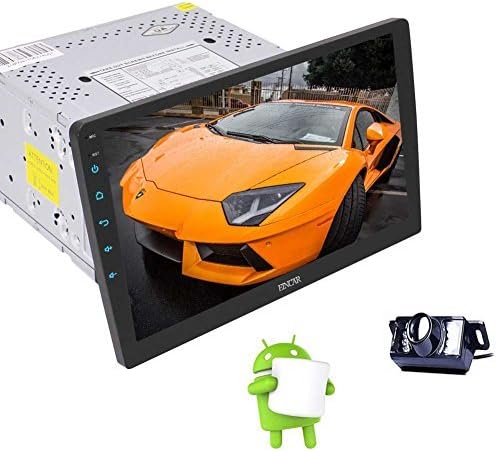
Image: The EinCar Android 10 Car Stereo head unit, featuring a 10.1-inch display, shown alongside a backup camera and the Android operating system logo, representing the main components of the product.
Installation Guide
1. Pre-Installation Checks
- Disconnect the vehicle's negative battery terminal before starting installation.
- Ensure the mounting space in your dashboard is compatible with a double DIN unit.
- Test all functions of the unit before final installation.
2. Wiring Connections
Connect the power harness, speaker wires, and other accessory wires according to your vehicle's wiring diagram and the stereo's labels. Common connections include:
- Yellow: 12V Constant Power
- Red: 12V Accessory Power (Ignition Switched)
- Black: Ground
- Orange: Illumination/Dimmer
- Blue: Power Antenna/Amplifier Remote Turn-On
- Brown: Steering Wheel Control (SWC)
- Reverse Gear Wire: Connect to vehicle's reverse light signal for automatic camera display.
3. GPS Antenna Installation
Mount the GPS antenna in a location with a clear view of the sky, such as on the dashboard or under the windshield, away from metal obstructions.
4. Rear View Camera Installation
Install the rear view camera at the back of your vehicle, ensuring it has a clear view. Connect its power to the reverse light circuit and the video signal to the dedicated camera input on the head unit.
5. Mounting the Head Unit
Secure the head unit into the dashboard using the provided mounting brackets and screws. Ensure the display is positioned correctly and can be adjusted if it features a rotating mechanism.
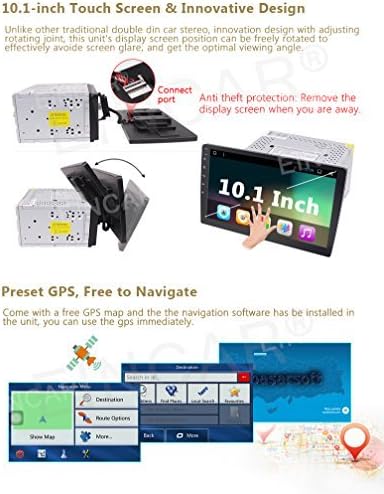
Image: The 10.1-inch display of the EinCar car stereo, demonstrating its rotating screen capability and the anti-theft feature where the display can be detached from the main unit.
Initial Setup and Configuration
1. First Power On
After installation, reconnect the vehicle's battery. The unit should power on automatically or by pressing the power button. Follow any on-screen prompts for initial language and time zone settings.
2. Network Connection (Wi-Fi)
To access online features and download apps, connect the unit to a Wi-Fi hotspot (e.g., from your smartphone). Go to Settings > Network & Internet > Wi-Fi, select your network, and enter the password.
3. GPS Configuration
Ensure the GPS antenna is properly connected. Open the pre-installed navigation application. The system will acquire satellite signals. You may need to download map data for offline use if not already pre-loaded.

Image: A visual representation of the EinCar car stereo's Android operating system interface, highlighting the quick settings menu accessible by swiping down from the top of the screen.
Operating Instructions
1. Basic Interface Navigation
The 10.1-inch touchscreen allows for intuitive control. Swipe, tap, and drag just like a smartphone. The home screen provides access to frequently used applications. Swipe down from the top of the screen to access quick settings and notifications.
2. GPS Navigation
Tap the "Navigation" icon on the home screen to launch the GPS application. Enter your destination, and the system will provide turn-by-turn voice guidance and visual map directions. Ensure map data is up-to-date for optimal performance.
3. Bluetooth Connectivity
Pairing a Device:
- Go to Settings > Connected devices > Pair new device.
- Enable Bluetooth on your mobile device and search for available devices.
- Select "EinCar" or a similar name from the list on your phone.
- Confirm the pairing code on both devices.
4. FM/AM Radio
Tap the "Radio" icon. Use the on-screen controls to scan for stations, save presets, and switch between FM and AM bands. Ensure the radio antenna is properly connected for clear reception.
5. Media Playback (USB/SD/Mirrorlink)
- USB/SD: Insert a USB drive or SD card into the designated port/slot. The system will automatically detect media files. Use the "Music" or "Video" app to browse and play content.
- Mirrorlink: Connect your smartphone via USB and follow the on-screen instructions to enable screen mirroring. This allows your phone's display to be shown on the car stereo screen.
6. Rear View Camera
When the vehicle is shifted into reverse gear, the display will automatically switch to the rear view camera feed, providing a clear view of the area behind your vehicle.
7. Wi-Fi and App Installation
Once connected to Wi-Fi, you can access the Google Play Store to download and install various applications, including navigation apps, music streaming services, and more.
8. Steering Wheel Control (SWC)
If your vehicle supports it and the SWC wires are connected, you can configure the steering wheel buttons to control functions like volume, track skipping, and mode switching. Access the SWC settings in the system menu to program the buttons.
Maintenance
- Cleaning the Screen: Use a soft, lint-free cloth to gently wipe the touchscreen. For stubborn smudges, slightly dampen the cloth with water or a screen cleaner designed for electronics. Avoid harsh chemicals.
- Software Updates: Periodically check for system software updates via the settings menu to ensure optimal performance and access to new features. A stable Wi-Fi connection is required for updates.
- General Care: Keep the unit free from dust and debris. Avoid placing heavy objects on the unit or exposing it to direct impacts.
Troubleshooting
| Problem | Possible Cause | Solution |
|---|---|---|
| Unit does not power on. | Incorrect wiring (power/ground), blown fuse, vehicle battery disconnected. | Check power and ground connections. Inspect vehicle fuses. Ensure battery is connected. |
| No sound from speakers. | Speaker wires incorrectly connected, volume too low, mute activated, amplifier issue. | Verify speaker wiring. Increase volume. Check if mute is active. Ensure external amplifier (if used) is powered. |
| GPS signal not found. | GPS antenna not connected, antenna obstructed, unit in an area with poor satellite reception. | Ensure GPS antenna is securely connected and placed with a clear view of the sky. Move to an open area. |
| Bluetooth device cannot pair. | Bluetooth not enabled on unit or phone, device already paired, incorrect pairing code. | Ensure Bluetooth is active on both devices. Delete previous pairings and try again. Verify pairing code. |
| Rear view camera not displaying. | Camera not powered, video cable loose, reverse trigger wire not connected. | Check camera power and video connections. Ensure the reverse trigger wire is correctly connected to the vehicle's reverse light signal. |
Specifications
| Feature | Detail |
|---|---|
| Operating System | Android 10.0 |
| Processor | Quad-Core |
| RAM | 2GB |
| Internal Storage (ROM) | 16GB |
| Screen Size | 10.1 Inches |
| Display Type | LCD, Touchscreen |
| Chassis Size | Double DIN (Note: Product title and description indicate Double DIN, while one spec entry states Single DIN. Double DIN is assumed based on primary product description.) |
| GPS Navigation | Built-in, Satellite Map Type |
| Bluetooth | Yes (Hands-free calling, music streaming, OBD2, SWC support) |
| Wi-Fi | Built-in module for hotspot connection |
| Radio Tuner | FM/AM Receiver |
| Media Playback | USB, SD, Mirrorlink, AAC, FLAC, MP3, WMA |
| Video Output | Support for headrest monitors |
| Rear View Camera | Included, IP67 waterproof, night vision |
| Item Weight | 6.46 pounds |
| Package Dimensions | 12.95 x 9.76 x 9.29 inches |
Ask a question about this manual
Ask about setup, troubleshooting, compatibility, parts, safety, or missing instructions. Manuals+ will review the question and use this page’s manual context to help answer it.