1. Introduction
This manual provides detailed instructions for the installation, operation, and troubleshooting of the avedio links HDMI Extender. This device allows for the extension of HDMI audio and video signals over a single Cat5e/6/7 Ethernet cable, supporting resolutions up to 1080P Full HD and 3D, over distances up to 196 feet (60 meters).
The extender consists of a Transmitter (TX) unit and a Receiver (RX) unit, designed for reliable signal transmission in various environments such as home entertainment, digital signage, and conference rooms.
2. Package Contents
- 1x HDMI Extender Transmitter (TX) Unit
- 1x HDMI Extender Receiver (RX) Unit
- 2x DC 5V Power Adapters
- 1x User Manual

Ensure all items are present and undamaged. Contact customer support if any components are missing or faulty.
3. Product Features
- Extends HDMI signal up to 196 feet (60 meters) using a single Cat6/7 cable.
- Supports Cat5e cable up to 165 feet (50 meters).
- Supports Full HD 1080P resolution (1920x1080@60Hz) and 3D.
- Compatible with HDMI 1.4a and HDCP 1.4.
- Supports deep color up to 36 bits.
- Supports uncompressed digital audio formats including DTS-HD, Dolby TrueHD, DTS, Dolby-AC3, and DSD.
- Features EDID copy/reset functionality for display compatibility.
- Plug and play operation, no driver installation required.
- Built-in automatic adjustment system for stable signal transmission.
4. Component Identification
4.1 Transmitter (TX) Unit
- Status LED: Indicates power and signal status.
- HDMI Input: Connects to the HDMI source device.
- DC/5V: Power input port.
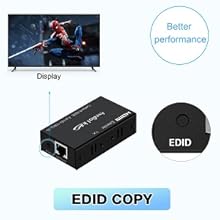
- EDID Button: For EDID management.
- CAT5e/6/7 Output (RJ45): Connects to the Receiver unit via Ethernet cable.
4.2 Receiver (RX) Unit
- Status LED: Indicates power and signal status.
- HDMI Output: Connects to the HDMI display device.
- DC/5V: Power input port.
- CAT5e/6/7 Input (RJ45): Connects to the Transmitter unit via Ethernet cable.

5. Setup Instructions
Follow these steps to set up your avedio links HDMI Extender:
- Power Off Devices: Ensure all HDMI source devices (e.g., PC, Blu-ray player, Fire Stick) and display devices (e.g., HDTV, projector) are powered off before making connections.
- Connect HDMI Source to TX: Use a high-quality HDMI cable to connect your HDMI source device to the HDMI Input port on the Transmitter (TX) unit.
- Connect TX to RX via Ethernet: Connect one end of a Cat5e/6/7 Ethernet cable to the CAT5e/6/7 Output (RJ45) port on the Transmitter (TX) unit. Connect the other end of the Ethernet cable to the CAT5e/6/7 Input (RJ45) port on the Receiver (RX) unit.
- For optimal performance, a Cat6 or Cat7 cable is recommended.
- Maximum length for Cat6/7 is 196 feet (60 meters).
- Maximum length for Cat5e is 165 feet (50 meters).
- Avoid using flat Ethernet cables or Cat5 cables, as they may not provide stable transmission.
- Connect RX to HDMI Display: Use a high-quality HDMI cable to connect your HDMI display device to the HDMI Output port on the Receiver (RX) unit.
- Apply Power: Connect the included DC 5V power adapters to the DC/5V ports on both the Transmitter (TX) and Receiver (RX) units. Plug the power adapters into a power outlet. The Status LEDs on both units should illuminate.
- Power On Devices: Power on your HDMI display device first, then power on your HDMI source device. The video and audio signal should now be extended to your display.


6. EDID Management
The EDID (Extended Display Identification Data) function ensures compatibility between the source and display devices. The avedio links HDMI Extender features an EDID button on the Transmitter (TX) unit for managing display information.
- EDID Copy Mode:
- Connect your primary display directly to the HDMI source device.
- Connect the HDMI Extender as described in Section 5, ensuring the display is connected to the RX unit's HDMI output.
- With all devices powered on and a signal present, press the EDID button on the Transmitter (TX) unit once. The extender will copy the EDID information from the connected display to ensure optimal compatibility.
- EDID Reset Mode:
- If you encounter display issues or wish to revert to a default EDID setting, press and hold the EDID button on the Transmitter (TX) unit for 3 seconds. This will reset the EDID to a default 1080p 3D stereo setting.
7. Troubleshooting
If you experience issues with the HDMI Extender, refer to the following troubleshooting steps:
- No Picture or Signal:
- Ensure both the TX and RX units are powered on and their Status LEDs are illuminated.
- Verify all HDMI and Ethernet cables are securely connected.
- Test the HDMI cables directly between the source and display to confirm they are functional.
- Ensure the Ethernet cable is a Cat5e, Cat6, or Cat7 cable and is within the recommended length limits (165ft for Cat5e, 196ft for Cat6/7). Avoid Cat5 cables.
- Try a different Ethernet cable, preferably a high-quality Cat6 or Cat7 UTP cable. Flat cables may cause issues.
- Perform an EDID copy (refer to Section 6) to ensure compatibility with your display.
- Try resetting the EDID to default (refer to Section 6).
- Power cycle all devices (source, extender units, display) in the correct order: display first, then source.
- Flickering or Intermittent Signal:
- This often indicates a poor quality or excessively long Ethernet cable. Replace the Ethernet cable with a shorter, higher-quality Cat6 or Cat7 cable.
- Ensure there are no strong electromagnetic interference sources near the Ethernet cable.
- Check power connections for stability.
- No Audio:
- Verify audio settings on your source device and display.
- Ensure the HDMI cables support audio transmission.
- Perform an EDID copy or reset.
- Picture Quality Issues (e.g., blurry, color distortion):
- Check the resolution settings on your source device. Ensure it is compatible with the extender and display.
- Use shorter, higher-quality HDMI and Ethernet cables.
8. Specifications
| Feature | Specification |
|---|---|
| HDMI Version | HDMI 1.4a |
| HDCP Version | HDCP 1.4 |
| Supported Resolutions | 1080p/1080i/720p/576p/576i/480p/480i (24/50/60fs) |
| 3D Support | Yes |
| Deep Color Support | 36 bit |
| Max Transmission Bandwidth | 6.75 Gbps |
| Supported Audio Formats | DTS-HD/Dolby-true HD/DTS/Dolby-AC3/DSD |
| Ethernet Cable Requirement | Cat5e/6/7 (UTP recommended) |
| Max Extension Distance (Cat5e) | 165 feet (50 meters) |
| Max Extension Distance (Cat6/7) | 196 feet (60 meters) |
| Input/Output HDMI Cable Distance | Up to 49 feet (15 meters) AWG26 HDMI standard cable |
| Power Supply | DC 5V/1A (2 units included) |
| Operating Temperature | 0°C to 40°C (32°F to 104°F) |
| Operating Humidity | 5% to 90% RH (non-condensing) |
| Dimensions (each unit) | Approximately 5.31 x 3.94 x 2.76 inches (Package Dimensions) |
| Weight (each unit) | Approximately 8.8 ounces (Item Weight) |
9. Safety Information
- Do not expose this unit to water, moisture, or excessive humidity.
- Do not place the unit in direct sunlight or near heat sources.
- Use only the provided power adapters. Using unauthorized power adapters may damage the device and void the warranty.
- Do not attempt to open or repair the unit yourself. Refer all servicing to qualified personnel.
- Keep the device away from children.
- Ensure proper ventilation around the units to prevent overheating.
10. Customer Support
For technical assistance or product inquiries, please contact avedio links customer support. Refer to the product packaging or the official avedio links website for contact information.
Please have your product model number (HDMI Extender 196FT) and purchase details ready when contacting support.


