
1. Introduction
The Cambridge Audio DacMagic 100 is a high-performance Digital-to-Analogue Converter (DAC) designed to significantly enhance the audio quality from your digital devices. It processes digital audio signals from sources such as computers, TVs, and game consoles, delivering a clearer, more detailed, and deeper sound experience to your amplifier or active speakers. This manual provides essential information for setup, operation, and maintenance of your DacMagic 100.
2. Key Features
- Versatile Compatibility: Works with Mac, PC, and virtually any device equipped with a digital audio output.
- Multiple Digital Inputs: Features 1 x USB, 2 x Coaxial Digital (S/P DIF), and 1 x Optical (Toslink) input for broad connectivity.
- High-Resolution Audio: Supports audio playback up to 24-bit/192kHz via Coaxial and Optical inputs, and 24-bit/96kHz via USB.
- Premium DAC Chip: Utilizes a Wolfson WM8742 24-bit DAC for precise digital-to-analogue conversion.
- Wide Frequency Response: Delivers a frequency response of 20Hz to 20kHz (+/-0.1dB) for accurate sound reproduction.

This image displays the front panel of the DacMagic 100, illustrating its core features including 2x S/PDIF connections, Toslink connection, 24-bit/96kHz USB Audio capability, and the integrated Wolfson 24-bit DAC.

An internal view of the DacMagic 100's circuit board, showcasing the electronic components and the quality of internal design.
3. Connections
Familiarize yourself with the input and output connections on the rear panel of your DacMagic 100.
- Audio Output (RCA L/R): Connect these to the analogue input of your amplifier or active speakers using RCA cables.
- Toslink Optical Input: For connecting digital audio sources via an optical cable.
- S/P DIF 1 & 2 Inputs (Coaxial): For connecting digital audio sources via coaxial cables.
- USB Audio Input: For connecting to a computer (PC or Mac) to use the DacMagic 100 as an external sound card.
- Ground Lift Switch: Helps eliminate hum or ground loop noise. Set to 'Lift' if you experience hum, otherwise leave at 'Ground'.
- +12V DC 2A Power Input: Connect the supplied power adapter here.

The rear panel of the DacMagic 100 is shown, detailing the Audio Output (RCA L/R), Toslink Optical Input, S/P DIF 1 and 2 Inputs (Coaxial), USB Audio Input, Ground Lift Switch, and the +12V DC 2A power input.
4. Setup Instructions
- Positioning: Place the DacMagic 100 on a stable, flat surface away from heat sources and direct sunlight. Ensure adequate ventilation.
- Connect to Amplifier: Connect the RCA Audio Output (L/R) of the DacMagic 100 to an available analogue input on your amplifier or active speakers using high-quality RCA cables.
- Connect Digital Source(s):
- USB: Connect a USB cable from your computer to the USB Audio Input on the DacMagic 100.
- Optical: Connect an optical cable from your digital source (e.g., TV, CD player) to the Toslink Optical Input.
- Coaxial: Connect coaxial cables from your digital source(s) to the S/P DIF 1 or S/P DIF 2 Inputs.
- Ground Lift Switch: Set the Ground Lift switch to 'Ground' for normal operation. If you experience a persistent hum, switch it to 'Lift'.
- Power Connection: Connect the supplied +12V DC 2A power adapter to the power input on the DacMagic 100, then plug the adapter into a wall outlet.
- Power On: Press the Standby/On button on the front panel to power on the unit. The selected source indicator will illuminate.
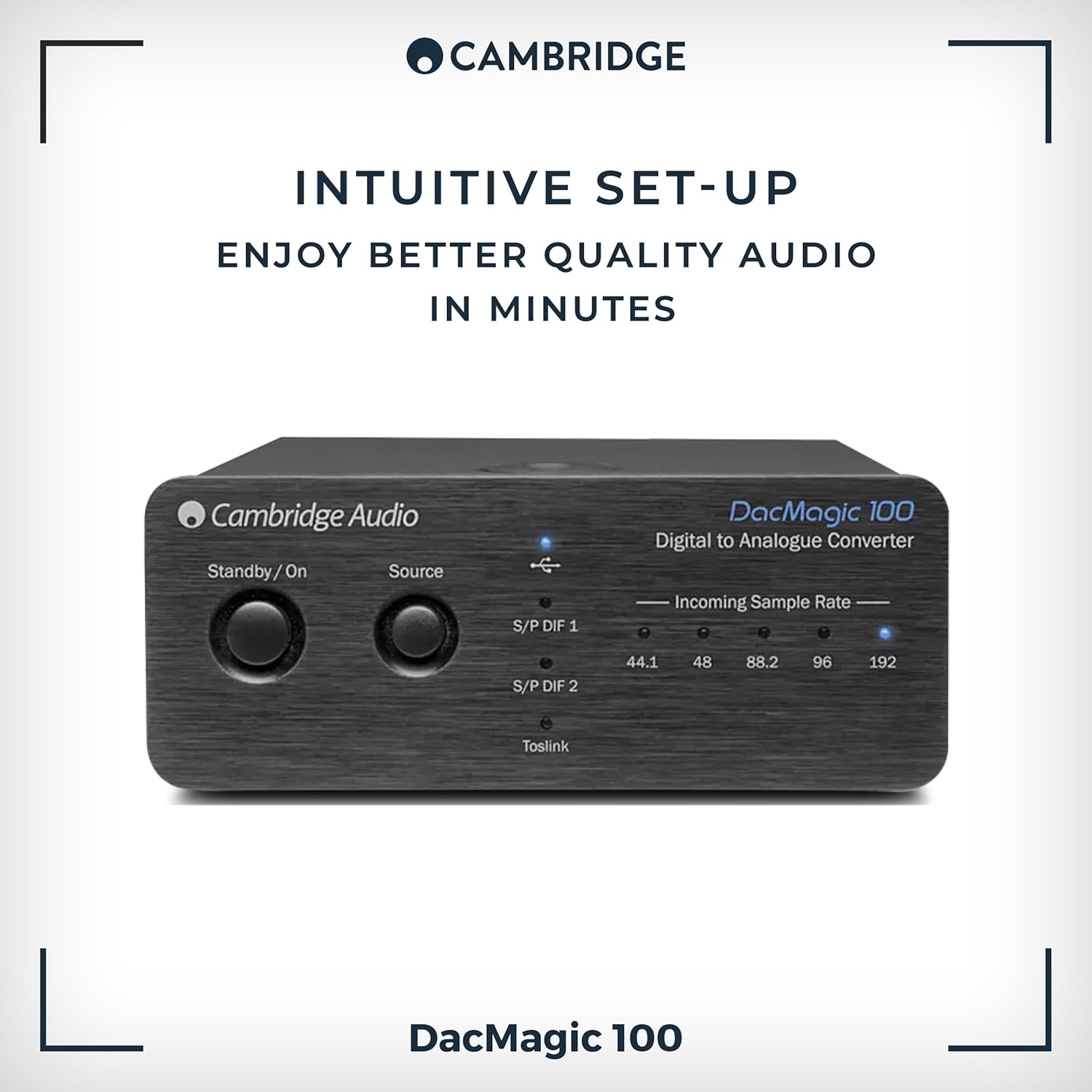
The front panel of the DacMagic 100, indicating its straightforward setup process.
5. Operating Instructions
- Power On/Off: Press the Standby/On button on the front panel to toggle the unit between standby and operational modes.
- Source Selection: Press the 'Source' button on the front panel to cycle through the available digital inputs: S/P DIF 1, S/P DIF 2, Toslink, and USB. The active input will be indicated by an illuminated LED.
- Incoming Sample Rate Indicators: The LEDs labeled 44.1, 48, 88.2, 96, and 192 indicate the sample rate of the incoming digital audio signal. This helps confirm that your source device is sending the expected audio resolution.
- Volume Control: The DacMagic 100 does not have its own volume control. Adjust the volume using your connected amplifier or active speakers.
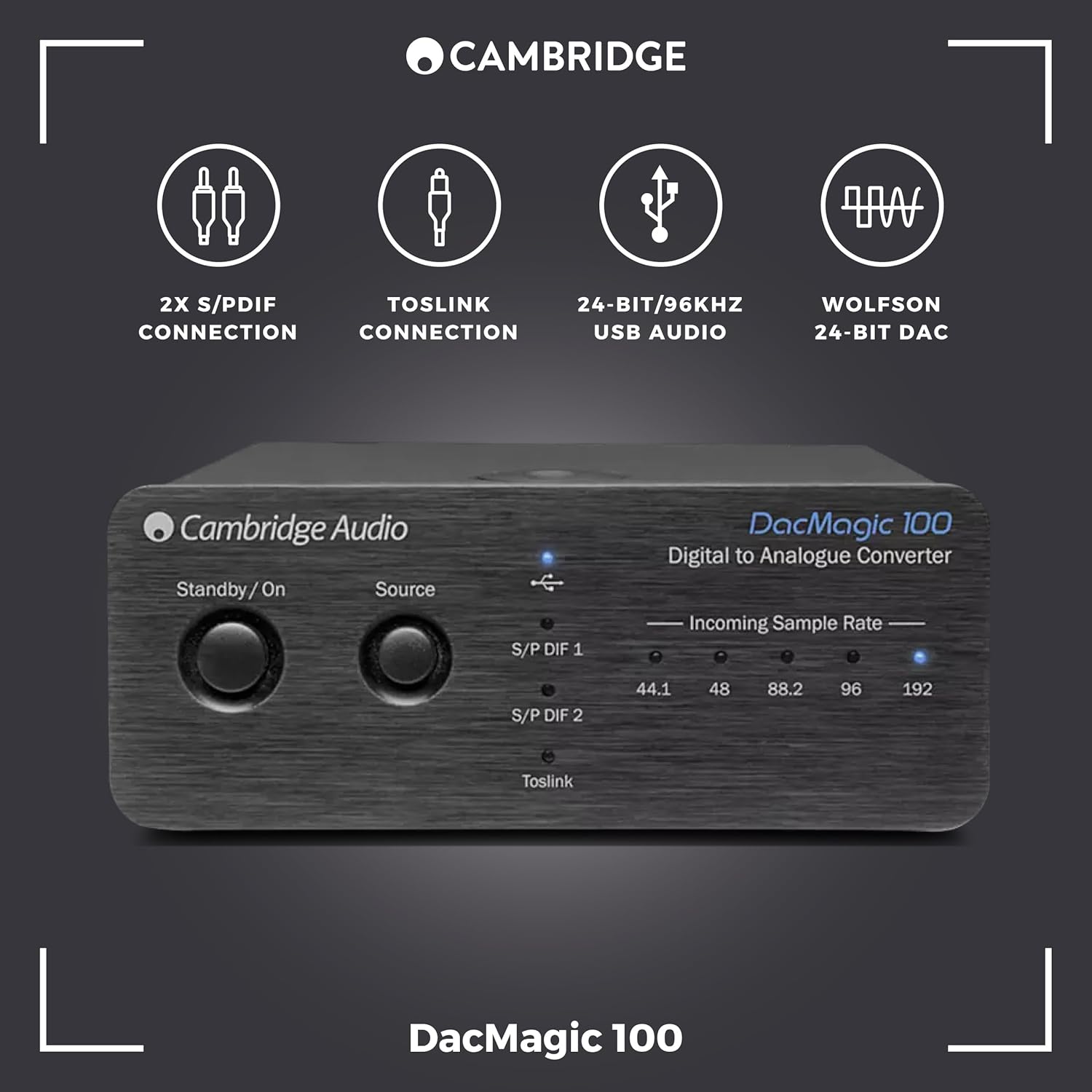
This image highlights the front controls of the DacMagic 100, including the Standby/On button, Source selection button, and LED indicators for incoming sample rates (44.1, 48, 88.2, 96, 192 kHz).
6. USB Audio Driver Installation (for High-Resolution Playback)
For optimal performance and high-resolution audio playback (above 96kHz) via the USB input on Windows PCs, a dedicated driver may be required. Mac OS X typically supports USB Audio Class 1.0 and 2.0 natively without additional drivers.
- Check Cambridge Audio Website: Visit the official Cambridge Audio support website for the latest USB audio drivers specific to the DacMagic 100.
- Download and Install: Download the appropriate driver for your operating system and follow the on-screen installation instructions.
- Restart Computer: After installation, restart your computer.
- Select DacMagic 100: In your computer's sound settings or audio playback software, select the Cambridge Audio DacMagic 100 as the default audio output device.
Note: If you experience issues with ASIO high-resolution playback, ensure your drivers and firmware are up to date. Consult Cambridge Audio technical support for assistance with firmware updates.
7. Troubleshooting
| Problem | Possible Cause | Solution |
|---|---|---|
| No sound output | Incorrect source selected Loose cable connections Amplifier input not selected DacMagic 100 not powered on | Press 'Source' to select correct input Check all audio and power cables Select correct input on your amplifier Press Standby/On button |
| Distorted or intermittent sound | Poor quality cables Ground loop hum Incorrect sample rate settings USB driver issues | Use high-quality shielded cables Toggle Ground Lift switch Verify source device output settings Install/update USB drivers (see Section 6) |
| USB input not recognized by computer | Missing or outdated USB drivers Incorrect computer sound settings | Install/update USB drivers (see Section 6) Select DacMagic 100 as default audio device in computer settings |
| Humming noise | Ground loop interference | Toggle the Ground Lift switch on the rear panel to 'Lift'. Ensure all components are properly grounded. |
8. Specifications
- D-A Converters: Wolfson WM8742 24-bit DAC
- Frequency Response: 20Hz to 20kHz (+/-0.1dB)
- Digital Inputs: 1 x USB, 2 x Coaxial Digital (S/P DIF), 1 x Optical (Toslink)
- Analogue Outputs: RCA L/R
- USB Audio Support: Up to 24-bit/96kHz
- Coaxial/Optical Audio Support: Up to 24-bit/192kHz
- Number of Channels: 1 (Stereo output)
- Interface: USB
- Item Weight: 0.5 Kilograms
- Manufacturer: Cambridge Audio
- Model: DacMagic 100
- UPC: 813371024205
9. Care and Maintenance
- Cleaning: Use a soft, dry, lint-free cloth to clean the unit. Do not use abrasive cleaning agents, waxes, or solvents.
- Environment: Avoid placing the unit in direct sunlight, near heat sources, or in areas with high humidity or excessive dust.
- Ventilation: Ensure proper ventilation around the unit to prevent overheating. Do not block ventilation openings.
- Power: Disconnect the unit from the power outlet if it will be unused for extended periods.
10. Warranty and Support
Your Cambridge Audio DacMagic 100 is covered by a manufacturer's warranty. Please refer to the warranty card included with your product or visit the official Cambridge Audio website for detailed warranty terms and conditions specific to your region.
For technical support, troubleshooting assistance, or service inquiries, please contact Cambridge Audio customer support through their official website or authorized service centers. Keep your proof of purchase for warranty claims.


