
Hikvision IPC-T221H 2.8mm
Contents
Hikvision IPC-T221H 2.8mm HiLook Series 2 MP CMOS Indoor IP Network CCTV Turret Camera User Manual
Model: IPC-T221H 2.8mm | Brand: Hikvision (HiLook Series)
1. Introduction
This user manual provides comprehensive instructions for the installation, configuration, operation, and maintenance of the Hikvision IPC-T221H 2.8mm HiLook Series 2 MP CMOS Indoor IP Network CCTV Turret Camera. The HiLook series, developed by Hikvision, is designed to meet the surveillance needs of residential and small business environments, offering ease of use and intuitive setup.
Please read this manual thoroughly before operating the device to ensure proper use and to prevent damage.
2. Safety Information
Observe the following safety precautions to prevent injury or damage to the device:
- Use only power adapters specified by the manufacturer.
- Ensure the installation surface is strong enough to support the camera's weight.
- Avoid exposing the camera to extreme temperatures, humidity, or direct sunlight.
- Do not attempt to disassemble or modify the camera. Refer all servicing to qualified personnel.
- Keep the camera away from water and other liquids.
3. Package Contents
Verify that all items are present in your package:
- 1 x Hikvision IPC-T221H Turret Camera
- Quick Start Guide
- Self-adhesive Drilling Template
- Wall Plugs and Screws
- Driver Mini-CD (may contain software and additional documentation)
4. Product Overview
The Hikvision IPC-T221H is an indoor IP network turret camera designed for reliable surveillance. It features a 2.8mm fixed focal lens and a 2 MP progressive scan CMOS sensor, providing clear video footage.
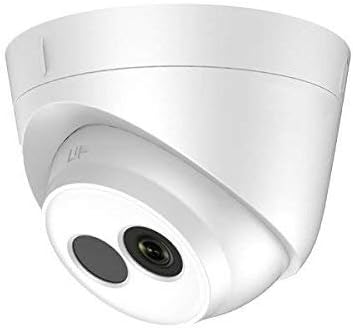
Figure 4.1: Front view of the IPC-T221H Turret Camera. This image displays the compact, white dome-shaped camera with its central lens and two infrared (IR) illuminators for night vision capabilities.

Figure 4.2: Angled view of the IPC-T221H Turret Camera. This perspective shows the camera's overall form factor, including the base for mounting, emphasizing its suitability for discreet indoor installation.
Key Features:
- 1/2.8-inch Progressive Scan CMOS Sensor for up to 2.0 Megapixel resolution.
- 2.8 mm Fixed Focal Lens with up to 10m IR range for clear night vision.
- Dual Stream Digital WDR (Wide Dynamic Range) for balanced images in varying light conditions.
- 3D DNR (Digital Noise Reduction) for cleaner images in low light.
- PoE (Power over Ethernet) support for simplified installation and power delivery.
- Mobile monitoring via dedicated mobile application.
5. Setup
5.1. Installation
- Prepare the Mounting Surface: Choose a suitable indoor location for wall mounting. Ensure the surface is flat and sturdy.
- Use the Drilling Template: Affix the self-adhesive drilling template to the desired installation spot.
- Drill Holes: Drill pilot holes according to the marks on the template. Insert the provided wall plugs if necessary.
- Secure the Camera: Align the camera's base with the drilled holes and secure it using the provided screws.
- Adjust Angle: Loosen the adjustment ring to position the camera lens to the desired viewing angle. Tighten the ring once adjusted.
5.2. Wiring
The IPC-T221H supports Power over Ethernet (PoE), simplifying wiring by delivering both power and data through a single Ethernet cable.
- Ethernet Connection: Connect a standard RJ45 Ethernet cable from your PoE-enabled network switch or PoE injector to the camera's Ethernet port.
- Alternative Power (if no PoE): If PoE is not available, connect a 12V DC power adapter (not included) to the camera's power input.
5.3. Initial Configuration
After physical installation and wiring, configure the camera for network access and video streaming.
- Network Discovery: Use the Hikvision SADP (Search Active Devices Protocol) tool or a similar network discovery utility on your computer to find the camera's IP address on your network.
- Activate and Set Password: For first-time use, the camera will require activation by setting a strong password.
- Access via Web Browser: Enter the camera's IP address into a web browser (e.g., Chrome, Firefox) to access its web interface. Log in with your newly set password.
- Mobile App Setup: Download the Hik-Connect or HiLook Vision mobile application. Register an account and add your camera by scanning its QR code or manually entering its serial number.
6. Operating Instructions
6.1. Live View and Recording
- Web Interface: Access the live view through the camera's web interface. You can adjust video parameters like resolution (up to 1920x1080), frame rate, brightness, contrast, and saturation.
- Mobile App: Use the mobile application for convenient live viewing on your smartphone or tablet.
- NVR/DVR Integration: Connect the camera to a compatible Network Video Recorder (NVR) or Digital Video Recorder (DVR) for continuous recording and centralized management. The camera supports ONVIF protocol for broad compatibility.
6.2. Advanced Features
- Motion Detection: Configure motion detection zones and sensitivity through the web interface. Set up notifications (e.g., email alerts) upon detection.
- Digital WDR: Enable Wide Dynamic Range to improve image quality in scenes with both very bright and very dark areas.
- 3D DNR: Digital Noise Reduction helps to clean up grainy images, especially in low-light conditions.
- Dual Stream: The camera supports dual streams (main stream and sub stream) for flexible bandwidth management and viewing options.
- Privacy Masking: Define specific areas within the camera's view to be masked for privacy protection.
7. Maintenance
- Cleaning: Gently wipe the camera lens and body with a soft, dry cloth. Do not use harsh chemicals or abrasive cleaners.
- Firmware Updates: Regularly check the Hikvision or HiLook official website for firmware updates. Updating firmware can improve performance, add new features, and enhance security.
- Network Security: Ensure your network is secure to prevent unauthorized access to the camera. Use strong passwords and consider network segmentation.
8. Troubleshooting
| Problem | Possible Cause | Solution |
|---|---|---|
| No Power | Incorrect power supply; PoE issue. | Verify power adapter (12V DC) or PoE connection. Check network switch/injector. |
| No Image/Offline | Network connectivity issue; incorrect IP address; camera not activated. | Check Ethernet cable. Use SADP tool to find IP. Activate camera and set password. Ensure firewall allows camera traffic. |
| Poor Image Quality | Dirty lens; low light; incorrect settings. | Clean the lens. Adjust brightness, contrast, WDR, and DNR settings in the web interface. Ensure adequate lighting. |
| Cannot Access Web Interface | Incorrect IP address; network conflict; browser compatibility. | Verify IP address. Ensure your computer is on the same network segment. Try a different web browser. |
9. Specifications
Detailed technical specifications for the Hikvision IPC-T221H 2.8mm camera:

Figure 9.1: Technical Specifications Sheet. This image provides a comprehensive overview of the camera's capabilities, including sensor type, resolution, lens details, network protocols, and power requirements.
| Feature | Specification |
|---|---|
| Model Number | IPC-T221H 2.8mm |
| Image Sensor | 1/2.8-inch Progressive Scan CMOS |
| Video Resolution | 2 MP (1920 x 1080) |
| Lens | 2.8 mm Fixed Focal Lens |
| IR Range | Up to 10 meters |
| Digital WDR | Supported |
| 3D DNR | Supported |
| Video Compression | H.264+, H.264, MJPEG |
| Network Interface | 1 RJ45 10M/100M self-adaptive Ethernet port |
| Power Supply | 12V DC ± 25% or PoE (802.3af) |
| Power Consumption | Max. 5W |
| Operating Conditions | -10 °C to 40 °C (14 °F to 104 °F), Humidity 95% or less (non-condensing) |
| Dimensions (L x W x H) | 11 x 11 x 9.3 cm (4.33 x 4.33 x 3.66 inches) |
| Weight | 380 g (0.84 lbs) |
| Mounting Type | Wall Mount |
| Connectivity Protocol | ONVIF |
| Recommended Application | Indoor Security |
10. Warranty and Support
For warranty information, please refer to the warranty card included with your product or visit the official Hikvision/HiLook website. Technical support can be obtained through your authorized dealer or the manufacturer's support channels.
Always ensure you are using official software and firmware from Hikvision or HiLook to maintain product integrity and security.
Documents and downloads
Ask a question about this manual
Ask about setup, troubleshooting, compatibility, parts, safety, or missing instructions. Manuals+ will review the question and use this page’s manual context to help answer it.