
1. Introduction
The StarTech.com DK30A2DH is a versatile dual-4K docking station designed to enhance your workstation by providing extensive connectivity options for both USB-C and USB-A port laptops. It supports dual Ultra HD 4K DisplayPort and HDMI monitors, offering flexibility for various display configurations. This docking station integrates a 6-port USB 3.0 (Type-A) hub, a Gigabit Ethernet port, and separate 3.5 mm audio and microphone ports, all accessible via a single cable connection to your laptop. It is compatible with Windows, macOS, Chrome OS, and Ubuntu operating systems.
Note: This docking station does not provide USB-C Power Delivery to charge your laptop.
2. Package Contents
Verify that your package contains the following items:
- 1x DK30A2DH Dual 4K Hybrid USB-C/USB-A Docking Station
- 1x Universal Power Adapter (NA/JP plug included)
- 1x USB-C to USB-A Host Cable
- 1x USB-C to USB-C Host Cable
- 1x Quick Start Guide (Manual)
- International Power Adapters (UK, EU, ANZ)
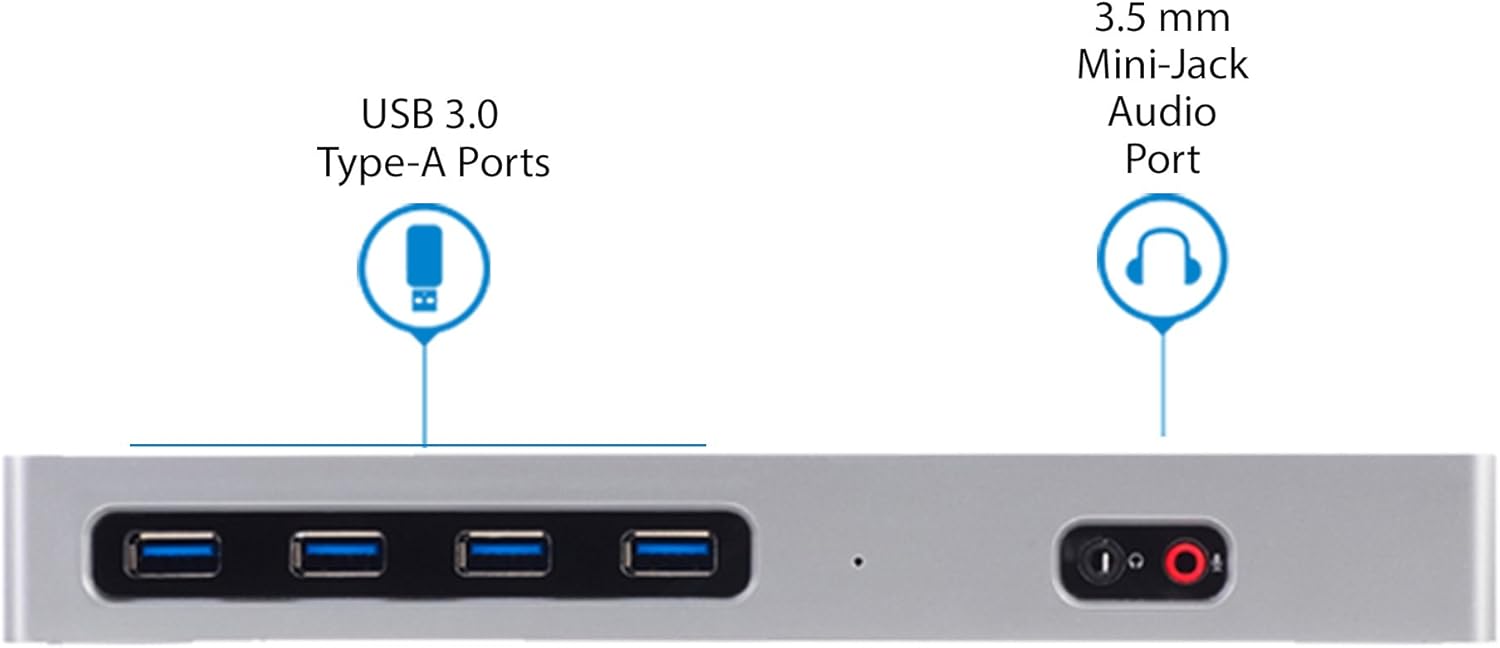
Figure 1: Package Contents. The image displays the docking station, universal power adapter, USB-A to USB-C cable, USB-C to USB-C cable, a printed manual, and various international power plug adapters.
3. Product Overview
3.1 Front Panel

Figure 2: Front Panel. This image highlights the front-facing ports of the docking station, including four USB 3.0 Type-A ports and a 3.5mm mini-jack audio port for headphones/headsets.
3.2 Rear Panel
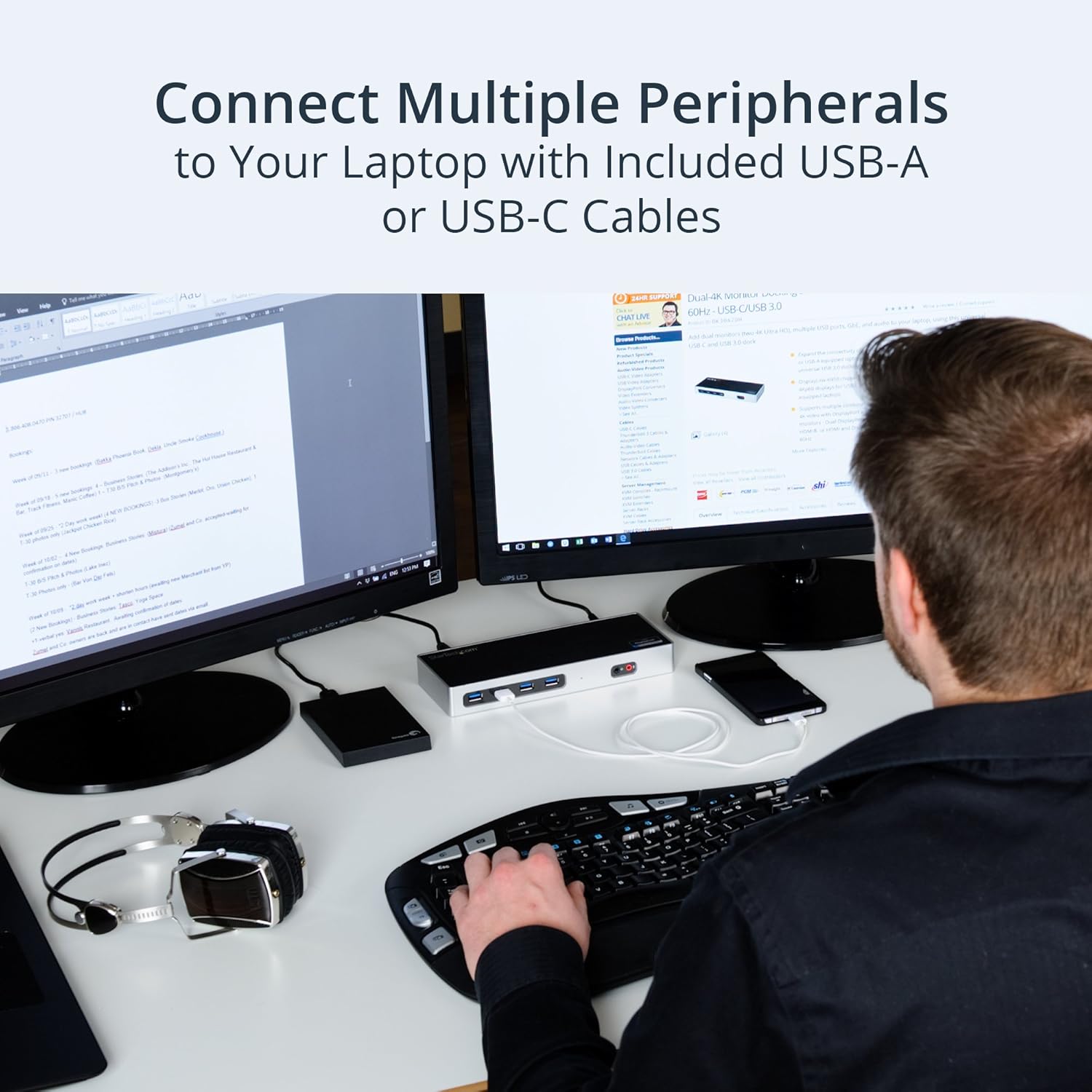
Figure 3: Rear Panel. This image shows the rear ports of the docking station, including the DC power input, RJ-45 Gigabit Ethernet port, two HDMI ports, two DisplayPort outputs, two USB 3.0 Type-A ports, and the USB Type-C host connection port.
3.3 Dimensions
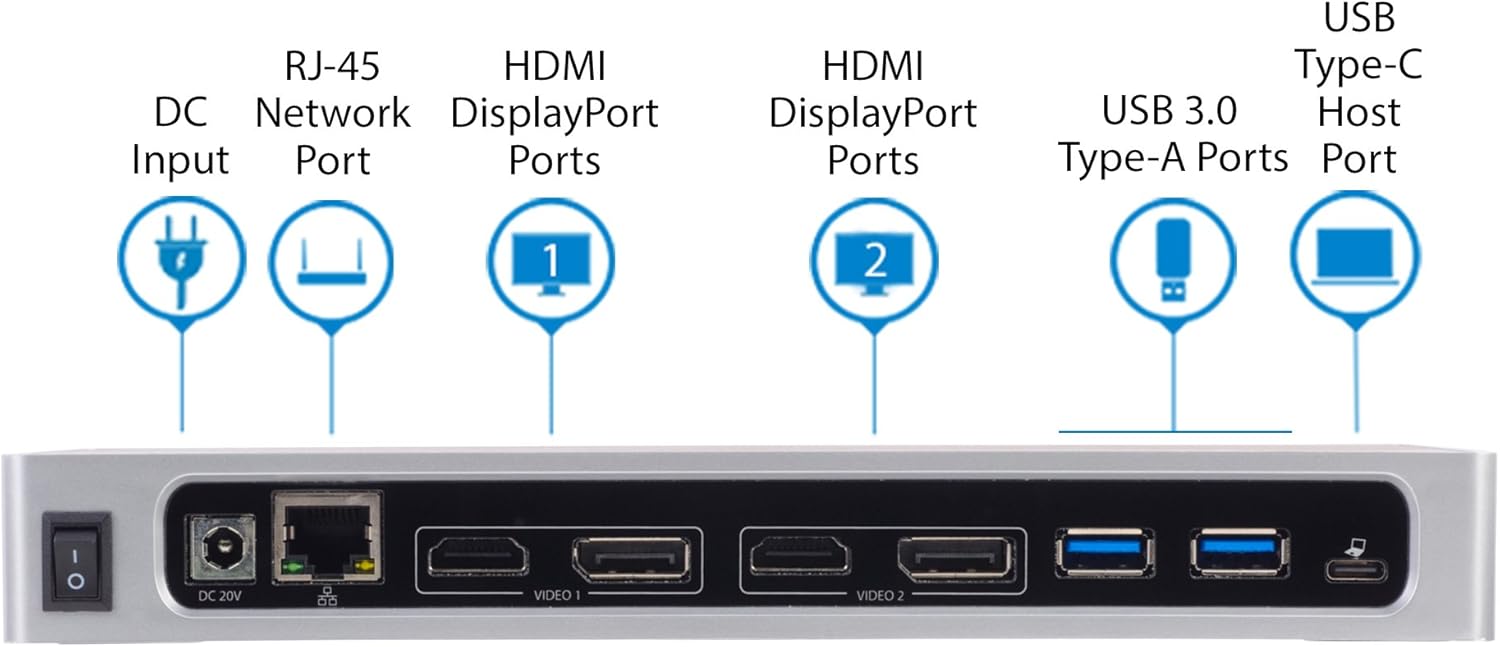
Figure 4: Product Dimensions. The docking station measures approximately 8.9 inches (226 mm) in length, 3.4 inches (87 mm) in width, and 1.1 inches (28 mm) in height.
4. Setup Instructions
- Connect Power: Connect the universal power adapter to the DC Input port on the rear of the docking station and plug it into an available power outlet.
- Connect to Laptop: Use the provided USB-C to USB-C cable or USB-C to USB-A cable to connect the docking station to an available USB port on your laptop.
- Connect Displays: Connect your external monitors to the DisplayPort and/or HDMI ports on the rear of the docking station using appropriate video cables (not included). The dock supports up to two 4K 60Hz displays.
- Connect Peripherals: Connect your USB devices (keyboard, mouse, external drives, etc.) to the USB 3.0 Type-A ports on the front and rear of the docking station. Connect an Ethernet cable to the RJ-45 port for wired network access. Connect headphones or a microphone to the 3.5mm audio jacks on the front panel.
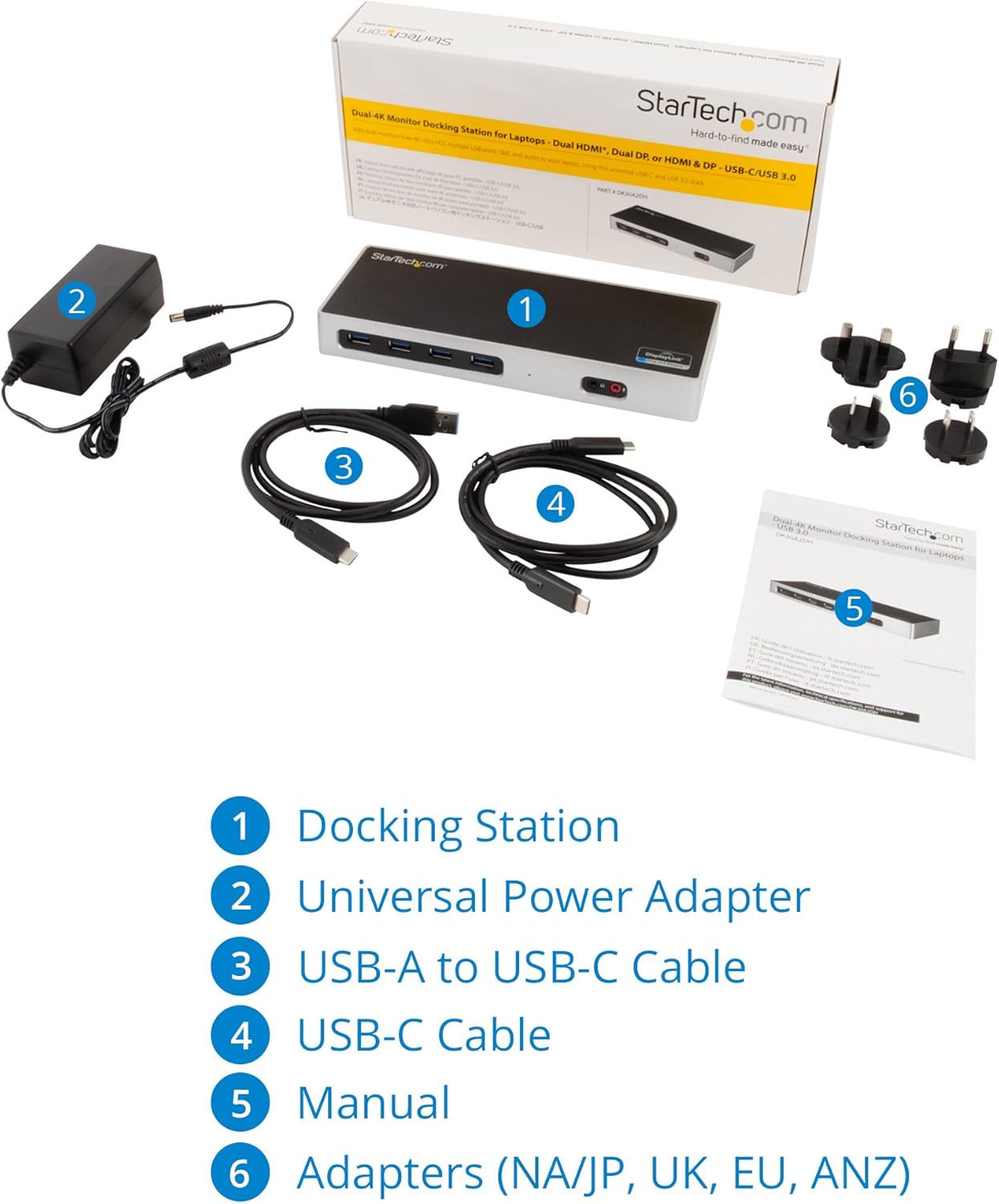
Figure 5: Typical Workstation Setup. This image illustrates a laptop connected to the docking station, which in turn is connected to two external monitors, a keyboard, mouse, and other USB peripherals, creating an extended desktop environment.
5. Operating Instructions
5.1 Driver Installation
The StarTech.com DK30A2DH docking station utilizes DisplayLink technology, which requires specific drivers for full functionality. In most cases, drivers will install automatically upon connecting the device to an internet-connected computer. If automatic installation does not occur, manual installation is required.
5.1.1 Windows Driver Installation
For Windows 10/11 systems, drivers may install automatically. If not, follow these steps:
- Ensure the docking station is not connected to your computer.
- Visit the StarTech.com support website.
- Search for model DK30A2DH and navigate to the 'Drivers & Downloads' section.
- Download the 'DisplayLink Windows USB Display Adapter' driver package.
- Extract the contents of the downloaded ZIP file.
- Run the executable driver file (e.g., 'DisplayLink USB Graphics Software for WindowsXX.X.exe') as an administrator.
- Follow the on-screen prompts to complete the installation.
- Once the installation is complete, connect the docking station to your computer.
Video 1: How to Install DisplayLink Video Adapters (Windows). This video provides a step-by-step guide on how to install DisplayLink USB Video Adapters on Windows 10 and Windows 11 systems, covering both automatic and manual driver installation processes.
5.1.2 macOS Driver Installation
For macOS systems, manual driver installation and specific privacy settings are often required:
- Ensure the docking station is not connected to your Mac.
- Visit the StarTech.com support website.
- Search for model DK30A2DH and navigate to the 'Drivers & Downloads' section.
- Download the 'DisplayLink Mac USB Display Adapter' driver package.
- Open the downloaded DMG file and run the installer package associated with your macOS version.
- Follow the on-screen prompts to complete the installation.
- After installation, navigate to Finder > Applications and open the DisplayLink Manager app.
- From the menu bar, click the DisplayLink Manager app icon and enable 'Launch automatically after login'.
- For macOS 10.15 (Catalina) and greater, you must grant 'Screen Recording' permissions:
- Go to System Preferences > Security & Privacy > Privacy tab.
- Scroll down and select Screen Recording.
- Click the lock icon to make changes and enter your password.
- Check the box next to 'DisplayLink Manager' to allow it to record the contents of your screen.
- You may be prompted to 'Quit & Reopen' DisplayLink Manager. Confirm this action.
- Connect the docking station to your Mac.
Video 2: How to Install DisplayLink Video Adapters (macOS). This video demonstrates the installation process for DisplayLink USB Video Adapters on macOS systems, including steps for macOS 10.15 and greater, and configuring screen recording permissions.
5.2 Display Configuration
After driver installation, your external monitors should display an image. You can configure your displays for duplicate (mirror) or extended desktop modes.
5.2.1 Windows Display Settings
- Right-click on an empty area of your desktop and select Display settings.
- In the 'Rearrange your displays' section, you can drag and drop the display icons to match your physical setup.
- Scroll down to the 'Multiple displays' section to choose between:
- Duplicate these displays: Shows the same content on all screens.
- Extend these displays: Expands your desktop across multiple screens.
- Adjust resolution and orientation as needed for each display.
5.2.2 macOS Display Settings
- Go to System Preferences > Displays.
- In the 'Arrangement' tab, you can drag and drop the display icons to match your physical setup.
- To mirror displays, check the 'Mirror Displays' box. To extend, uncheck it.
- Adjust resolution and rotation as needed for each display.
5.3 Audio Configuration
If you wish to route audio through your monitors' speakers (if equipped) via the DisplayPort or HDMI connection, you may need to change the default audio output device.
5.3.1 Windows Audio Settings
- Right-click the speaker icon in the system tray and select Open Sound settings or Sound settings.
- Under 'Output', select your desired monitor (e.g., 'Speakers (DisplayLink Audio)') as the output device.
5.3.2 macOS Audio Settings
- Go to System Preferences > Sound.
- In the 'Output' tab, select your desired monitor (e.g., 'DisplayLink Audio') as the output device.
6. Maintenance
To ensure optimal performance and longevity of your docking station, follow these maintenance guidelines:
- Cleaning: Use a soft, dry cloth to clean the exterior of the docking station. Avoid using liquid cleaners or aerosol sprays, which may damage the device.
- Ventilation: Ensure the docking station is placed in a well-ventilated area to prevent overheating. Do not block any ventilation openings.
- Cable Management: Keep cables organized and free from kinks or excessive bends to prevent damage to the cables and ports.
- Firmware/Driver Updates: Periodically check the StarTech.com support website for any available firmware or driver updates to ensure compatibility and performance.
7. Troubleshooting
If you encounter issues with your StarTech.com DK30A2DH docking station, refer to the following common troubleshooting steps:
- No Display on External Monitors:
- Ensure the docking station is properly connected to power and your laptop.
- Verify that the video cables (HDMI/DisplayPort) are securely connected to both the docking station and the monitors.
- Check that your monitors are powered on and set to the correct input source.
- Confirm that the DisplayLink drivers are correctly installed and updated for your operating system. Refer to Section 5.1.
- For macOS 10.15 and later, ensure 'Screen Recording' permissions are granted to DisplayLink Manager (Section 5.1.2).
- Try restarting your computer with the docking station connected.
- No Audio from External Monitors/Headphones:
- Check your operating system's sound settings to ensure the correct audio output device (e.g., 'DisplayLink Audio' or your monitor's name) is selected. Refer to Section 5.3.
- Verify that the volume levels on your computer and monitors are not muted or set too low.
- Ensure headphones/speakers are properly connected to the 3.5mm audio jack.
- USB Devices Not Functioning:
- Ensure the docking station is properly connected to your laptop.
- Try connecting the USB device to a different port on the docking station or directly to your laptop to rule out a device issue.
- Verify that the DisplayLink drivers are installed correctly.
- Network Connectivity Issues:
- Ensure the Ethernet cable is securely connected to the RJ-45 port on the docking station and your network router/switch.
- Check your computer's network settings to ensure the Ethernet adapter is recognized and configured correctly.
- Verify that the DisplayLink drivers are installed correctly.
8. Specifications
| Feature | Specification |
|---|---|
| Model Number | DK30A2DH |
| Brand | StarTech.com |
| Connectivity Technology | USB 3.0 (USB 3.1 Gen 1) with DisplayLink DL-6950 chipset |
| Video Output | 2x DisplayPort, 2x HDMI (Supports Dual 4K @ 60Hz) |
| USB Ports | 6x USB 3.0 Type-A (5Gbps) |
| Network | 1x Gigabit Ethernet (RJ-45) |
| Audio | 1x 3.5mm Headphone/Speaker, 1x 3.5mm Microphone |
| Host Connection | USB-C (compatible with USB-A via included cable) |
| Operating System Compatibility | Windows XP (32-bit), Vista, 7, 8, 8.1, 10, 11; macOS 10.6 - 10.12, 10.14 - 10.15, 11.0, 12.0, 13.0, 14.0; Ubuntu 18.04, 20.04; Chrome OS v55+ |
| Dimensions (L x W x H) | 8.9" x 3.4" x 1.1" (226 x 87 x 28 mm) |
| Item Weight | 10.6 ounces (0.3 kg) |
| Power Source | AC Adapter Included (20 Volts, 40 Watts) |
9. Warranty Information
StarTech.com products are backed by a manufacturer's warranty. For specific warranty terms and conditions applicable to the DK30A2DH, please refer to the warranty information included with your product or visit the official StarTech.com Warranty Policy page.
10. Technical Support
StarTech.com offers comprehensive technical support to assist you with any questions or issues regarding your DK30A2DH docking station. You can access various support resources:
- Online Support: Visit the StarTech.com Support website for drivers, manuals, FAQs, and troubleshooting guides.
- Live Chat: Connect with a technical advisor via live chat on the support website.
- Telephone Support: Contact StarTech.com technical support by phone. Refer to the support website for regional contact numbers.


