
1. Introduction
This manual provides detailed instructions for the setup, operation, maintenance, and troubleshooting of your Epson WorkForce ET-4750 EcoTank Wireless Color All-in-One Supertank Printer. This device integrates printing, scanning, copying, and faxing functionalities, designed for efficiency and ease of use.
The ET-4750 features a cartridge-free ink system with large, refillable ink tanks, offering a cost-effective printing solution. It also includes a 2.4-inch color touchscreen for intuitive navigation and supports various connectivity options.
2. Setup Guide
2.1 Unpacking and Initial Inspection
Carefully remove the printer from its packaging. Ensure all components listed in the 'What's in the Box' section are present. Remove all protective tapes and packing materials from the printer's exterior and interior.
2.2 Filling the Ink Tanks
The Epson WorkForce ET-4750 utilizes an EcoTank system, eliminating the need for traditional ink cartridges. Follow these steps to fill the ink tanks:
- Open the ink tank unit cover on the right side of the printer.
- Open the cap for each color tank (Black, Cyan, Magenta, Yellow).
- Uncap the corresponding ink bottle (Epson 502 series). The bottles are designed with unique keys to prevent incorrect filling.
- Insert the ink bottle into the filling port. The ink will automatically start flowing into the tank and stop when full.
- Once the tank is full, remove the bottle and securely close the tank cap and the ink tank unit cover.
- Repeat for all colors.

Image: Refilling the ink tanks on the Epson ET-4750. The unique key system ensures each color bottle fits only its designated tank, preventing accidental mixing.
Video: Demonstrates the process of filling the ink tanks and highlights the printer's multi-function capabilities including scanning and copying.
2.3 Loading Paper
The printer features a high-capacity 250-sheet paper tray. To load paper:
- Pull out the paper cassette from the front of the printer.
- Adjust the paper guides to match the size of your paper.
- Load up to 250 sheets of plain paper, print-side down.
- Gently push the paper cassette back into the printer until it clicks into place.
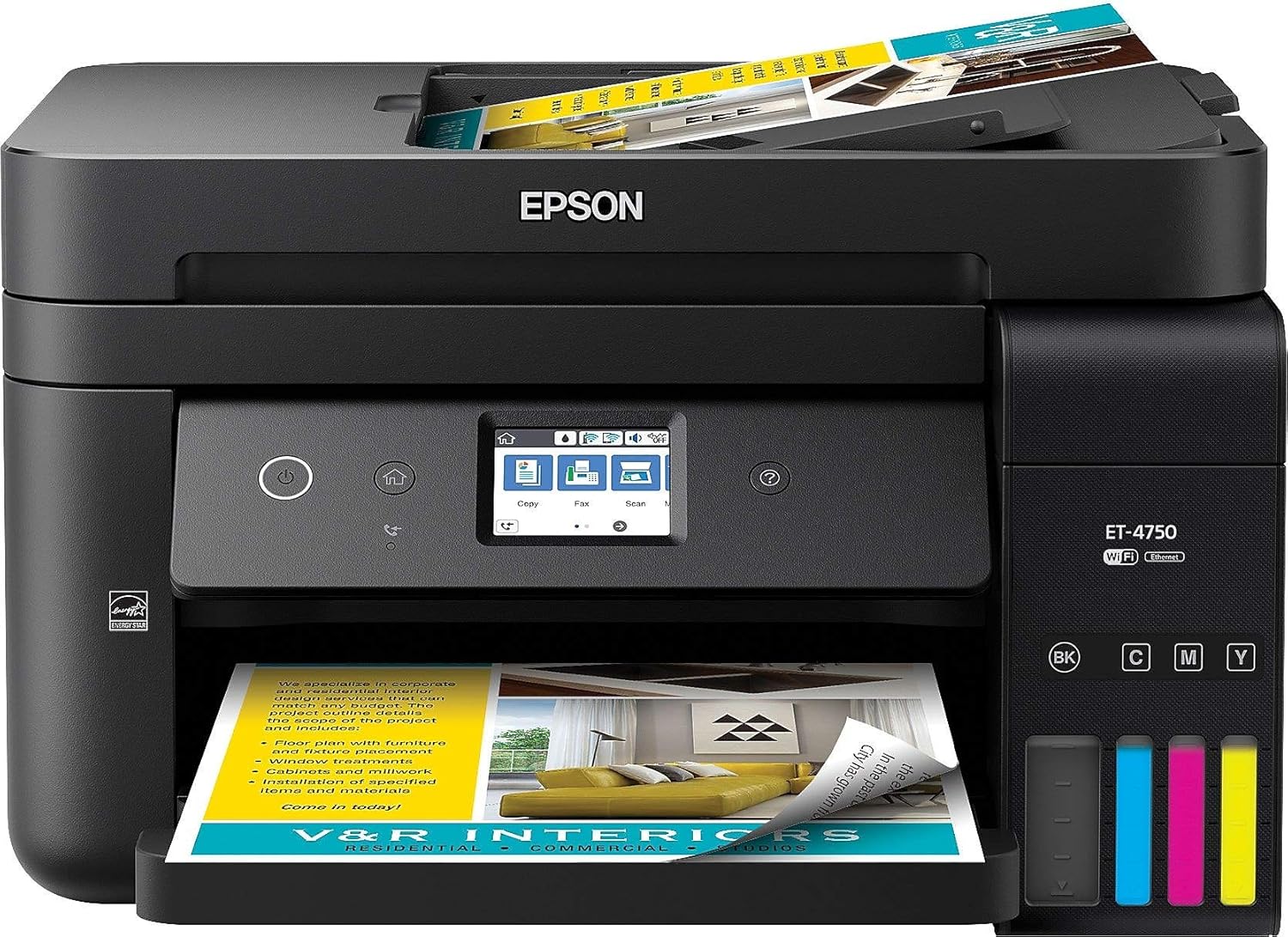
Image: The Epson ET-4750 printer with its paper tray extended and paper loaded, showcasing its readiness for printing tasks.
Video: Illustrates loading paper into the 250-sheet capacity tray and using the 30-sheet auto document feeder for scanning.
2.4 Connecting Your Printer
The ET-4750 offers multiple connectivity options:
- Wireless (Wi-Fi): Use the 2.4-inch color touchscreen to navigate to the Wi-Fi setup wizard and connect to your wireless network.
- Ethernet: Connect an Ethernet cable from your router to the printer's Ethernet port.
- USB: Connect a USB cable (not included) from your computer to the printer's USB port.

Image: Wireless printing from a smartphone to the Epson ET-4750, demonstrating its mobile connectivity features.
3. Operating the Printer
3.1 Using the Control Panel
The printer features a 2.4-inch color touchscreen for easy navigation and control of all functions. Use the touch-and-swipe interface to select options for printing, scanning, copying, and faxing, as well as to access settings and troubleshooting information.
3.2 Printing Documents
To print, ensure the printer is connected to your device and paper is loaded. Select the print option from your computer or mobile device. The ET-4750 supports automatic two-sided (duplex) printing to save paper.
3.3 Scanning Documents
The printer offers two methods for scanning:
- Automatic Document Feeder (ADF): For scanning multiple pages, place your documents face-up in the ADF tray. The ADF can hold up to 30 sheets.
- Flatbed Scanner: For single pages, books, or irregular items, lift the scanner lid and place the item on the glass.
Select the 'Scan' option on the control panel or from your computer's scanning software to initiate the scan.
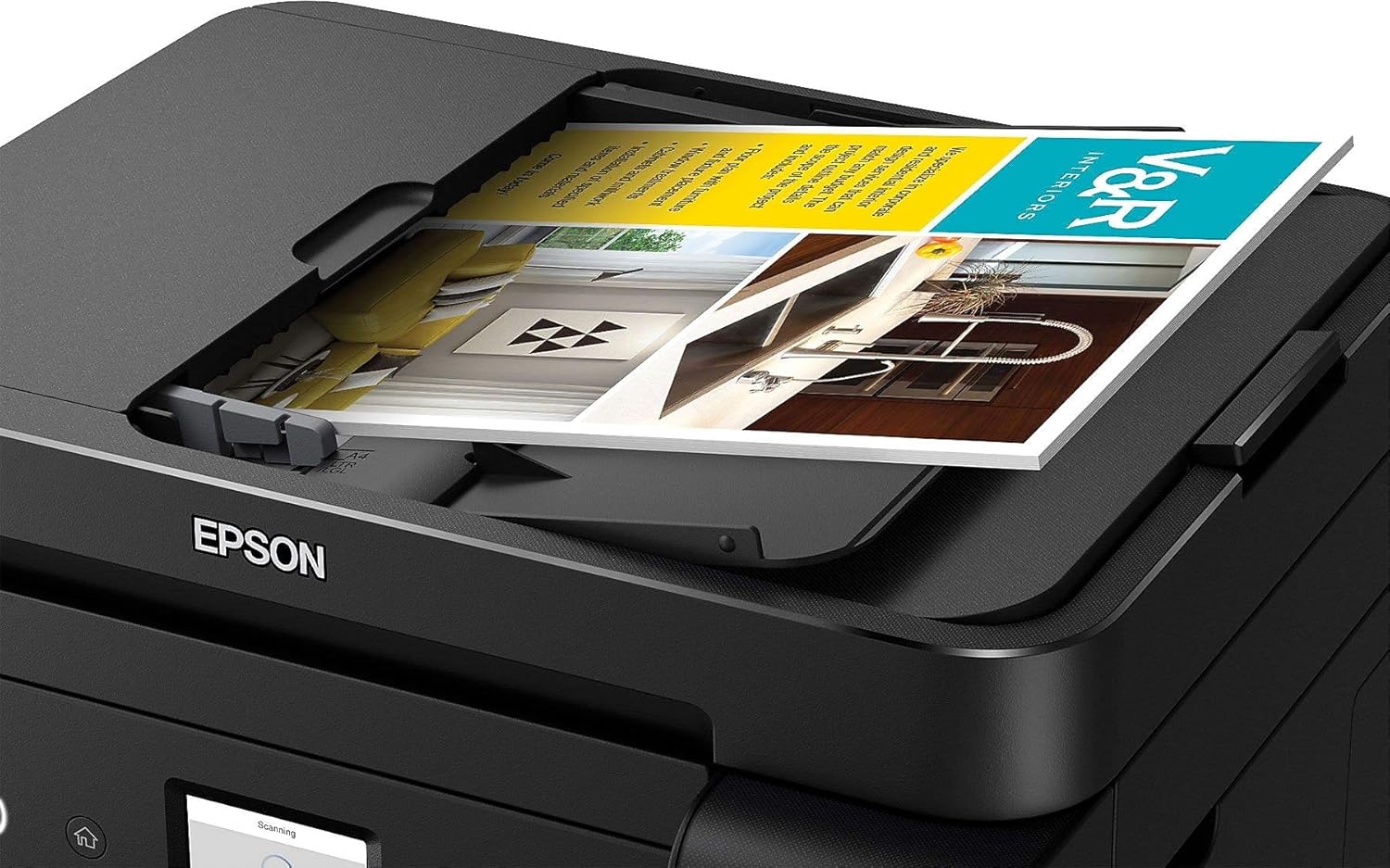
Image: The Automatic Document Feeder (ADF) in action on the Epson ET-4750, ready to process multiple pages for scanning or copying.
3.4 Copying Documents
To make copies, place your original document on the flatbed scanner or in the ADF. Use the control panel to select 'Copy', adjust settings such as number of copies, color/black & white, and then press the start button.
3.5 Faxing Documents
The ET-4750 includes fax functionality. Connect a phone line to the printer's fax port. Use the control panel to enter the recipient's fax number and send your document.
4. Maintenance
4.1 Monitoring Ink Levels
The transparent ink tanks on the front of the printer allow for easy visual monitoring of ink levels. Refill tanks promptly when levels are low to ensure continuous operation and prevent air from entering the ink system.

Image: The transparent ink tanks on the side of the Epson ET-4750, allowing users to easily monitor ink levels for each color.
4.2 Print Head Cleaning and Alignment
If print quality declines (e.g., missing lines, streaking), perform a print head cleaning or alignment using the printer's control panel or the printer software on your computer. Refer to the on-screen instructions for detailed steps.
4.3 Replacing the Maintenance Box
The printer has a user-replaceable maintenance box that collects waste ink. When the printer indicates that the maintenance box is full, replace it according to the instructions provided on the printer's screen or in the full user guide.
5. Troubleshooting
For common issues, consult the printer's 2.4-inch color touchscreen, which often provides guided troubleshooting steps. Below are general tips for frequent problems:
- Paper Jams: Follow the on-screen instructions to clear paper jams. Always turn off the printer before attempting to remove jammed paper.
- Print Quality Issues: Perform a nozzle check, print head cleaning, or print head alignment. Ensure you are using genuine Epson ink.
- Connectivity Problems: Verify Wi-Fi or Ethernet cable connections. Restart your router and printer. Ensure printer drivers are up to date.
6. Specifications
| Feature | Specification |
|---|---|
| Product Dimensions (D x W x H) | 16.4" x 19.8" x 10" |
| Item Weight | 15 pounds |
| Maximum Media Size | 8.5 x 14 inch |
| Max Input Sheet Capacity | 250 sheets |
| Max Print Speed (Monochrome) | 11 ppm |
| Max Print Speed (Color) | 5.5 ppm |
| Maximum Color Print Resolution | 2400 dpi |
| Maximum Black and White Print Resolution | 1200 dpi |
| Dual-sided Printing | Automatic |
| Scanner Type | Sheetfed |
| Connectivity Technology | Hi-Speed USB 2.0, Wi-Fi (802.11n only), Wi-Fi Direct, Ethernet |
| Ink Color | Cyan, Magenta, Yellow, Black (Epson 502 series) |
| Control Method | Voice (Amazon Alexa, Vera), Touchscreen |
7. Warranty and Support
The Epson WorkForce ET-4750 EcoTank printer comes with a 12-month standard limited warranty or 50,000 plain paper sheets (whichever comes first). An additional 12 months of warranty (total of 24 months or 50,000 sheets) may be available upon product registration and exclusive use of genuine Epson ink bottles.
For detailed warranty information, technical support, driver downloads, and additional resources, please visit the official Epson support website. Using non-Epson inks or inks not formulated for your specific printer may cause damage not covered by the Epson warranty.


