
DAREU EM925 RGB
DAREU EM925 RGB Diamond Edition Gaming Mouse
User Manual
Introduction
This manual provides detailed instructions for the installation, operation, and maintenance of your DAREU EM925 RGB Diamond Edition Gaming Mouse. Please read this manual thoroughly before using the product to ensure optimal performance and longevity.
Product Overview
The DAREU EM925 RGB Diamond Edition Gaming Mouse is designed for professional gaming, featuring a high-precision optical sensor, customizable RGB lighting, and programmable buttons.
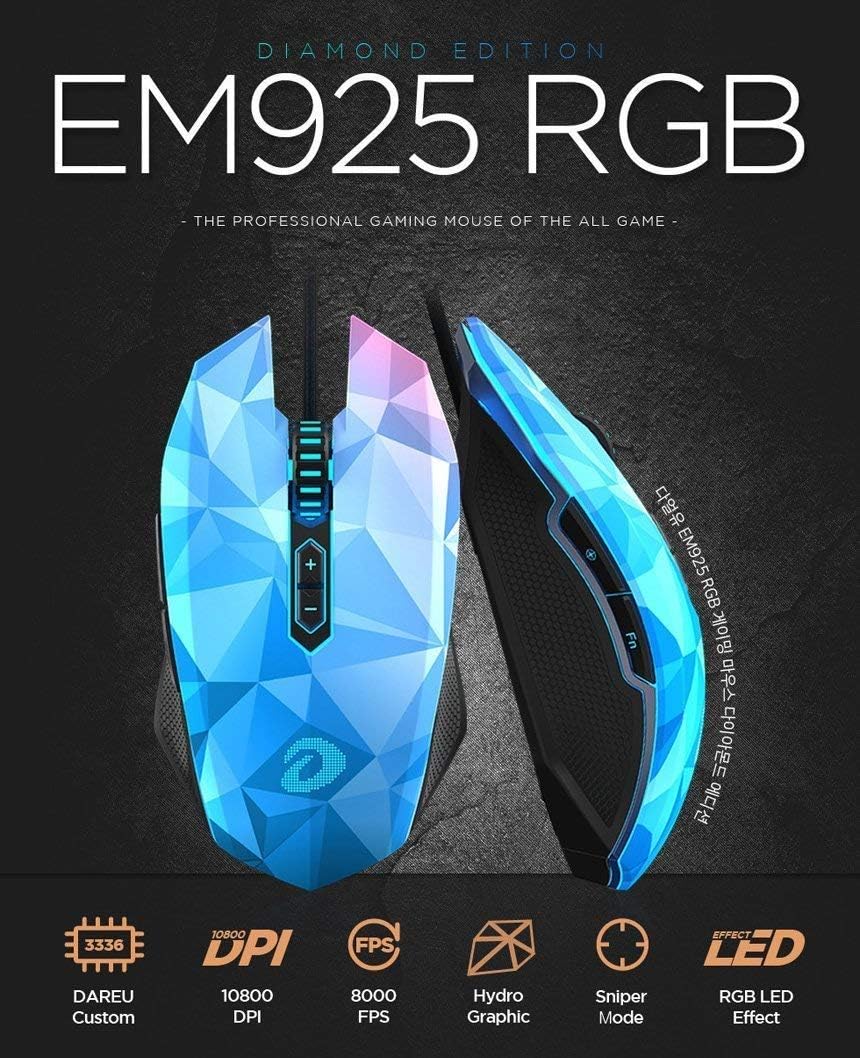
Image: DAREU EM925 RGB Diamond Edition Gaming Mouse highlighting its main features such as 10800 DPI, 8000 FPS, Hydro Graphic design, Sniper Mode, and RGB LED effects.
Key Features
- High-Precision Sensor: Equipped with a 3rd Gen Pixart3366 (DAREU Custom Optical Sensor) offering up to 10,800 DPI.
- Customizable RGB Lighting: Multiple LED effects including On/Off, Breathing, Neon, and Click Scan Rate.
- Durable Switches: OMRON switches rated for 10 million clicks.
- Programmable Buttons: 7 customizable buttons for personalized control.
- Sniper Mode: Instant DPI shift for precise aiming in FPS games.
- Hydrographic Design: Unique aesthetic finish with UV coating.
- Lightweight Design: Ergonomic and balanced design weighing approximately 106g (excluding cable).
Button Functions
The DAREU EM925 RGB mouse features 7 programmable buttons. The default functions are as follows:

Image: Diagram illustrating the 7 buttons of the DAREU EM925 RGB mouse and their default assignments: Left Click, Right Click, Mouse Wheel, Sniper Mode, FN Key, DPI+, and DPI-.
| Button Number | Default Function |
|---|---|
| 01 | Left Click |
| 02 | Right Click |
| 03 | Mouse Wheel (Scroll Up/Down, Middle Click) |
| 04 | Sniper Mode |
| 05 | FN Key |
| 06 | DPI + |
| 07 | DPI - |
Setup
Connecting the Mouse
- Unpack the DAREU EM925 RGB Gaming Mouse from its packaging.
- Locate an available USB port on your computer (PC, Mac, or Linux system).
- Plug the USB connector of the mouse into the USB port.
- The operating system will automatically detect and install the necessary drivers. This process may take a few moments.
- Once installed, the mouse is ready for basic use. For advanced customization, please refer to the "Customization Software (Mouseware)" section.
Operating Instructions
DPI Adjustment
The DAREU EM925 RGB mouse allows for on-the-fly DPI (Dots Per Inch) adjustment, which controls cursor sensitivity. Use the dedicated DPI buttons (06 and 07) to cycle through preset DPI levels or adjust them via the Mouseware software.
- Press button 06 (DPI+) to increase the DPI sensitivity.
- Press button 07 (DPI-) to decrease the DPI sensitivity.
- The current DPI level is often indicated by the mouse's LED lighting color, which can be configured in the Mouseware software.
RGB Lighting Effects
The mouse features customizable RGB LED lighting. Various effects can be selected and configured.
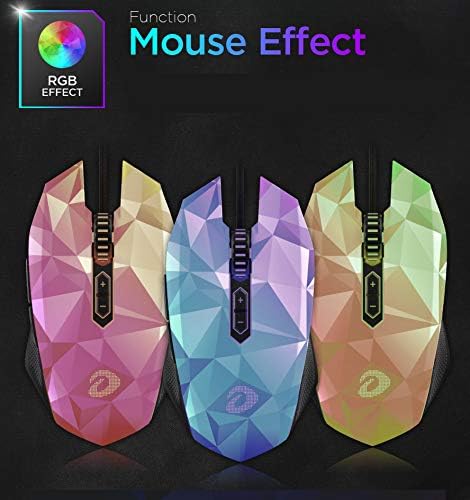
Image: Three DAREU EM925 RGB mice showcasing different RGB lighting effects, demonstrating the customizable illumination options.
Lighting effects include:
- On/Off: Toggle the lighting.
- Breathing: Lights fade in and out.
- Neon: Cycles through a spectrum of colors.
- Click Scan Rate: Lighting reacts to mouse clicks.
These effects and their parameters (speed, brightness, color) can be fully customized using the DAREU Mouseware software.
Sniper Mode
Sniper Mode (Button 04) is a specialized function for FPS games that temporarily lowers the DPI to a very low setting for precise aiming, allowing for more accurate shots. Releasing the button returns the DPI to its previous setting.

Image: Visual explanation of Sniper Mode, showing how it provides fine DPI adjustment for precise aiming in FPS games compared to standard high DPI movement.
The specific DPI level for Sniper Mode can be configured within the Mouseware software.
Customization Software (Mouseware)
To unlock the full potential of your DAREU EM925 RGB mouse, including button remapping, advanced DPI settings, polling rate adjustments, and detailed RGB lighting control, install the DAREU Mouseware software.
Installing Mouseware
- Visit the official DAREU website to download the latest Mouseware software for the EM925 RGB model.
- Run the downloaded installer and follow the on-screen instructions.
- Once installation is complete, launch the Mouseware application.
Using Mouseware
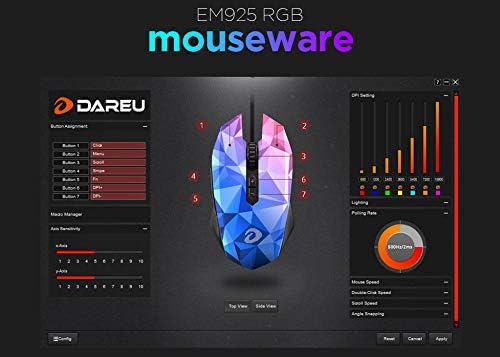
Image: Screenshot of the DAREU Mouseware software interface, showing options for button assignment, DPI settings, lighting control, and polling rate adjustments.
Within the Mouseware software, you can:
- Button Assignment: Remap any of the 7 buttons to perform different functions, macros, or media controls.
- DPI Settings: Create multiple DPI profiles, set specific DPI values from 50 to 10,800, and assign colors to each profile for visual identification.
- Polling Rate: Adjust the polling rate (125Hz, 250Hz, 500Hz, 1000Hz) to suit your preference and game requirements.
- Lighting Effects: Fine-tune RGB lighting effects, colors, brightness, and speed.
- Macro Editor: Create and assign complex macro sequences to buttons.
- Profile Management: Save and load different profiles for various games or applications.
Remember to click "Apply" or "Save" within the software to ensure your changes are saved to the mouse's onboard memory.
Maintenance
Proper maintenance ensures the longevity and optimal performance of your gaming mouse.
- Cleaning: Use a soft, dry cloth to wipe the mouse surface. For stubborn dirt, slightly dampen the cloth with water or a mild cleaning solution. Avoid harsh chemicals.
- Sensor Cleaning: Occasionally, use a cotton swab or compressed air to gently clean the optical sensor area on the underside of the mouse to prevent tracking issues.
- Cable Care: Avoid sharp bends or excessive pulling on the USB cable to prevent damage.
- Storage: Store the mouse in a clean, dry environment when not in use.
Troubleshooting
If you encounter issues with your DAREU EM925 RGB Gaming Mouse, refer to the following common problems and solutions:
| Problem | Possible Solution |
|---|---|
| Mouse not responding |
|
| Cursor movement is erratic or jumpy |
|
| RGB lighting is not working or incorrect |
|
| Buttons are not responding or performing incorrect actions |
|
Technical Specifications
Detailed specifications for the DAREU EM925 RGB Diamond Edition Gaming Mouse:
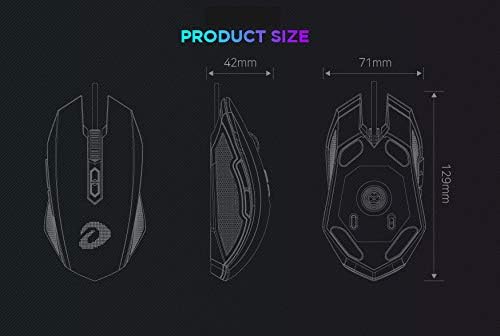
Image: Technical drawing showing the dimensions of the DAREU EM925 RGB mouse: 129mm length, 42mm height, and 71mm width.
| Feature | Specification |
|---|---|
| Sensor | 3rd Gen Pixart3366 (DAREU Custom Optical Sensor) |
| DPI Range | 50 - 10,800 DPI |
| Tracking Speed | 150 IPS (Inches Per Second) |
| Acceleration | 30G |
| Scan Rate | 8,000 FPS (Frames Per Second) |
| Polling Rate | 125Hz, 250Hz, 500Hz, 1000Hz |
| Lift-Off Distance (LOD) | 1 - 4mm |
| Switches | OMRON (10 Million Clicks) |
| Buttons | 7 (Programmable) |
| LED Effect | RGB (On/Off, Breathing, Neon, Click Scan Rate) |
| Surface Finish | Hydrographics Printing + UV Coating |
| Interface | USB |
| Cable Length | 1.8 meters |
| Dimensions (LxWxH) | 129mm x 71mm x 42mm |
| Weight | 106g (excluding cable) |
| Compatible Operating Systems | Windows XP, Windows 7, Linux, Mac (basic functionality) |

Image: Side profile of the DAREU EM925 RGB mouse, emphasizing its balanced ergonomic design and light weight of 106g.
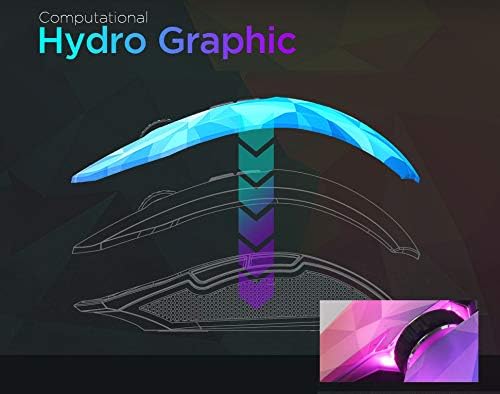
Image: An exploded view illustrating the "Computational Hydro Graphic" process, showing how the unique patterned surface is applied to the mouse shell.
Related documentsEM925 RGB


Ask a question about this manual
Ask about setup, troubleshooting, compatibility, parts, safety, or missing instructions. Manuals+ will review the question and use this page’s manual context to help answer it.