
Introduction
This manual provides detailed instructions for the setup, operation, maintenance, and troubleshooting of your DIGITNOW! M503 Multi-Function Turntable System. Please read this manual thoroughly before using the product to ensure proper function and longevity.
Key Features
- 3-speed turntable (33, 45, and 78 RPM) with Bluetooth connectivity and built-in stereo speakers (3W RMS x 2).
- Integrated CD player, MP3 player, cassette deck, and analog AM/FM stereo tuner.
- USB port, SD/MMC card reader, and Aux-in for versatile audio input.
- Direct recording function (from turntable, CD, USB, SD, MMC) and encoding feature for digital conversion of songs to MP3 format.
Package Contents
Ensure all items are present upon unboxing:
- DIGITNOW! M503 Multi-Function Turntable System
- Power Cable
- Remote Control
- User Manual
- External Speakers (if included with your specific model)
Product Overview
Familiarize yourself with the components and controls of your M503 system.

Figure 1: Front view of the DIGITNOW! M503 Multi-Function Turntable System, showcasing the turntable, control panel, and CD tray.
Front Panel Controls and Inputs

Figure 2: Close-up of the front panel, showing the display, control buttons, USB port, SD/MMC slot, and volume/tuning knobs.
- AUX IN: 3.5mm input for external audio devices.
- USB Port: For USB flash drives (playback and recording).
- SD/MMC Slot: For SD or MMC memory cards (playback and recording).
- Headphone Jack: 3.5mm output for private listening.
- Display Screen: Shows current mode, track information, and radio frequency.
- Control Buttons: Play/Pause, Stop, Skip Forward/Backward, Mode selection, Folder navigation, Delete, Record.
- Tuning Knob: Adjusts radio frequency.
- Power/Volume Knob: Turns the unit on/off and adjusts volume.
- CD Tray: For inserting audio CDs.
Input/Output Overview

Figure 3: Visual representation of various input and output options, including Aux In, USB, Headphone, SD Card, CD Tray, and Cassette Holder.
Setup
- Unpacking: Carefully remove the unit from its packaging. Retain the packaging for future transport or storage.
- Placement: Place the system on a stable, level surface away from direct sunlight, heat sources, and excessive dust or moisture. Ensure adequate ventilation around the unit.
- Power Connection: Connect the power cable to the AC inlet on the rear of the unit and then to a standard wall outlet.
- Speaker Connection (if applicable): If your model includes external speakers, connect them to the speaker output jacks on the rear of the main unit.
- Dust Cover: Ensure the dust cover is properly seated on the turntable.
Operating Instructions
Turntable Operation
- Open the dust cover.
- Place a vinyl record on the turntable platter.
- Select the appropriate speed (33, 45, or 78 RPM) using the speed selector switch. For 45 RPM records, place the included 45 RPM adapter on the center spindle.
- Release the tone arm lock.
- Gently lift the tone arm using the cue lever and position the stylus over the desired track on the record.
- Lower the tone arm slowly using the cue lever. The record will begin to play.
- Adjust the volume using the Power/Volume knob.
- To stop playback, lift the tone arm using the cue lever and return it to the tone arm rest. Secure the tone arm lock.
CD Player Operation
- Press the MODE button until "CD" appears on the display.
- Press the OPEN/CLOSE button to open the CD tray.
- Place an audio CD into the tray with the label side facing up.
- Press the OPEN/CLOSE button again to close the tray. The system will read the CD and begin playback automatically.
- Use the Play/Pause, Stop, and Skip buttons to control playback.
Cassette Player Operation
- Insert a cassette tape into the cassette holder on the side of the unit.
- Press the MODE button until "TAPE" appears on the display.
- Press the Play button on the cassette deck to begin playback.
- Use the Fast Forward and Rewind buttons as needed. Note that advanced controls like pause or track skip may not be available on all cassette decks.
AM/FM Radio Operation
- Press the MODE button until "RADIO" appears on the display.
- Select AM or FM band using the band selector switch (if available, otherwise it might cycle through modes).
- Rotate the TUNING knob to search for radio stations.
- Extend the FM antenna (if applicable) for better reception.
USB/SD/MMC Playback
- Insert a USB flash drive into the USB port or an SD/MMC card into the corresponding slot.
- Press the MODE button until "USB" or "SD" appears on the display. The system will automatically detect and begin playing compatible audio files (e.g., MP3).
- Use the Play/Pause, Stop, Skip, and Folder buttons to navigate and control playback.
Bluetooth Connectivity

Figure 4: The M503 system wirelessly connected to a smartphone via Bluetooth, enabling audio streaming.
- Press the MODE button until "BLUETOOTH" or "BT" appears on the display. The unit will enter pairing mode.
- On your smartphone or other Bluetooth-enabled device, enable Bluetooth and search for available devices.
- Select "DIGITNOW M503" (or similar) from the list of devices to pair.
- Once paired, you can stream audio from your device to the M503 system.
Aux-In Connection
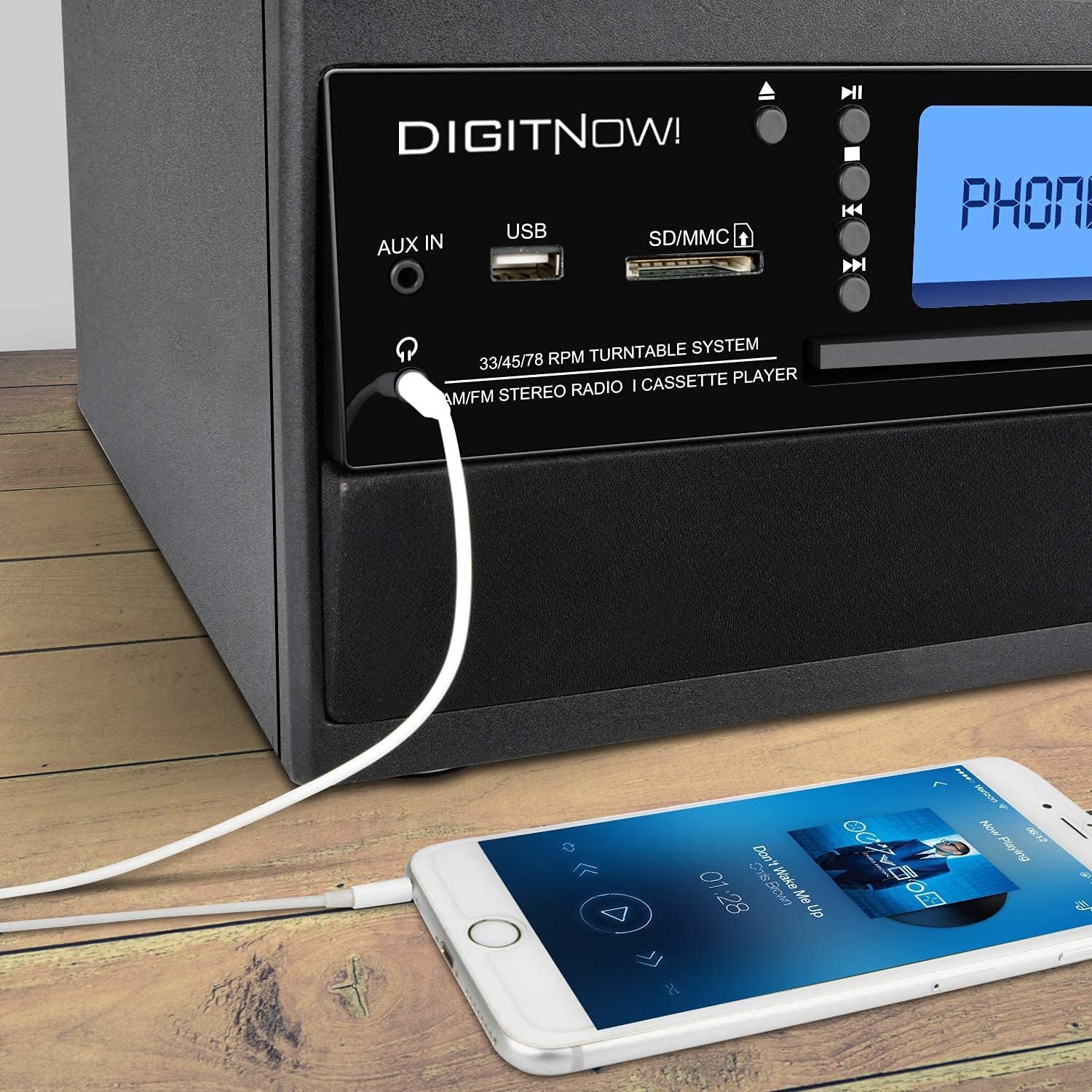
Figure 5: A smartphone connected to the M503 system using a 3.5mm Aux-In cable for wired audio playback.
- Connect one end of a 3.5mm audio cable (not included) to the AUX IN jack on the front panel of the M503.
- Connect the other end of the cable to the headphone jack or audio output of your external device (e.g., smartphone, MP3 player).
- Press the MODE button until "AUX" appears on the display.
- Start playback on your external device and adjust the volume on both the device and the M503.
Direct Recording (Encoding to MP3)
The M503 allows you to record audio from the turntable, CD, or cassette directly to a USB flash drive or SD/MMC card in MP3 format.
- Insert a USB flash drive or SD/MMC card into the respective slot.
- Select the desired source (Turntable, CD, or Cassette) using the MODE button and prepare it for playback (e.g., place a record, insert a CD/cassette).
- Press the REC button on the front panel. The display will indicate recording mode.
- Start playback on your chosen source. The system will begin recording the audio to the USB drive or SD/MMC card.
- Press the REC button again to stop recording. The recorded file will be saved as an MP3.
Maintenance
- Cleaning the Unit: Use a soft, dry cloth to wipe the exterior of the unit. Do not use abrasive cleaners or solvents.
- Stylus Care: Gently clean the stylus regularly with a soft brush designed for turntable styli. Avoid touching the stylus with your fingers.
- Dust Cover: Keep the dust cover closed when the turntable is not in use to prevent dust accumulation.
- CD/Cassette Care: Handle CDs by the edges and store them in their cases. Keep cassette tapes away from magnetic fields.
Troubleshooting
| Problem | Possible Cause | Solution |
|---|---|---|
| No power | Power cable not connected; outlet not active. | Ensure power cable is securely connected and the outlet is functional. |
| No sound | Volume too low; incorrect mode selected; external speakers not connected. | Increase volume; select correct input mode; check speaker connections. |
| Turntable not spinning or playing slowly | Incorrect speed selected; drive belt issue; stylus dirty or damaged. | Verify speed setting (33/45/78 RPM); check drive belt; clean or replace stylus. |
| Bluetooth pairing failed | Device too far; Bluetooth not enabled on external device; unit not in pairing mode. | Ensure devices are close; enable Bluetooth on external device; set M503 to Bluetooth mode. |
| CD/USB/SD not reading | Disc/media dirty or damaged; incompatible file format. | Clean disc/media; try different media; ensure files are compatible (e.g., MP3). |
Specifications
| Model Number | M503 |
| Brand | DIGITNOW |
| Dimensions (L x W x H) | 31.7 x 20 x 29 cm |
| Weight | 3.71 kg |
| Power Source | Electric Cable (220 Volts) |
| Turntable Speeds | 33 / 45 / 78 RPM |
| Audio Output | Built-in Stereo Speakers (3W RMS x 2), Headphone Jack |
| Connectivity | Bluetooth Receiver, USB, SD/MMC Card Reader, Aux-In |
| Supported Media | Vinyl Records, Audio CDs, Cassette Tapes, USB drives, SD/MMC cards |
| Special Features | MP3 Encoding (from Vinyl, CD, Cassette to USB/SD) |
Warranty and Support
For warranty information, technical support, or service inquiries, please refer to the warranty card included with your product or contact DIGITNOW! customer service directly. Keep your proof of purchase for warranty claims.
This product is designed for home use. Any unauthorized modifications or repairs will void the warranty.