
1. Introduction
Thank you for purchasing the Coby CSB04 Bluetooth Soundbar Speaker. This manual provides important information regarding the setup, operation, and maintenance of your new soundbar. Please read this manual thoroughly before using the device and retain it for future reference.
The Coby CSB04 is a sleek and compact soundbar designed to enhance your audio experience. It features wireless Bluetooth connectivity, an RCA line input, and comes with a remote control for convenient operation.
2. Safety Information
Please observe the following safety precautions to prevent damage to the device or injury to yourself:
- Do not expose the soundbar to rain, moisture, or extreme temperatures.
- Do not open the casing. Refer all servicing to qualified personnel.
- Ensure the power adapter is compatible with your local power supply.
- Keep the soundbar away from heat sources and direct sunlight.
- Clean only with a dry cloth.
3. Package Contents
Carefully unpack your Coby CSB04 Soundbar and check that all items are present and in good condition. If any items are missing or damaged, contact your retailer.
- Coby CSB04 Bluetooth Soundbar Speaker
- AC Power Adapter
- RCA Cable
- Remote Control
- User Manual (this document)

Image 3.1: Coby CSB04 Soundbar packaging. The box displays the Coby logo and "Slim 2.0 Sound Bar" text.
4. Product Overview
Familiarize yourself with the components and controls of your Coby CSB04 Soundbar.
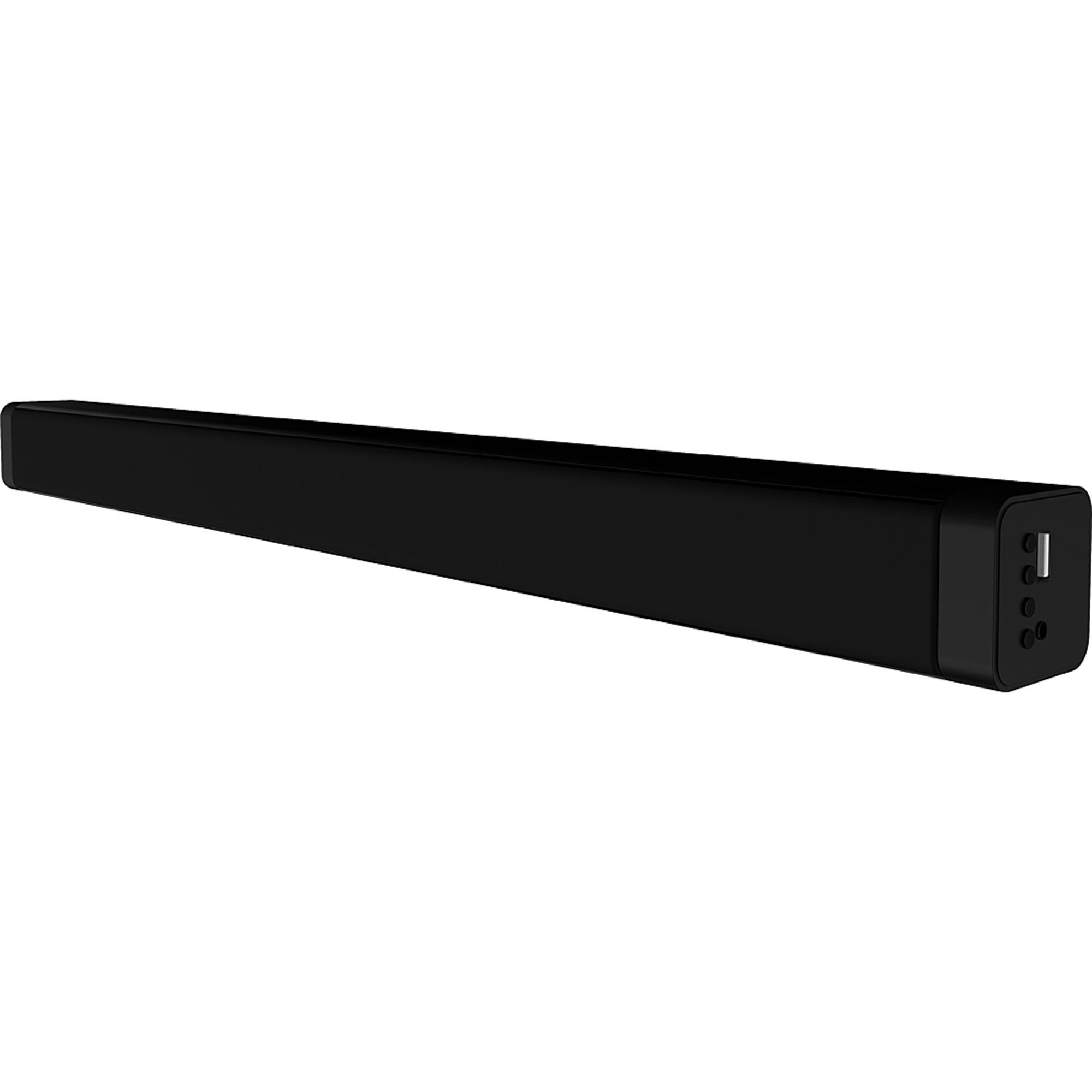
Image 4.1: Front view of the Coby CSB04 Bluetooth Soundbar. The soundbar is black and rectangular.

Image 4.2: Side view of the Coby CSB04 Soundbar, showing a USB port and other connection points.
4.1. Front Panel / Top Panel Controls
- Power Button: Turns the soundbar on or off.
- Volume Up/Down: Adjusts the volume level.
- Mode Button: Switches between input modes (Bluetooth, RCA).
- LED Indicator: Shows current status (e.g., Bluetooth pairing, input mode).
4.2. Rear Panel Connections
- DC IN: Connect the AC power adapter here.
- RCA L/R Input: Connect external audio devices using the RCA cable.
- USB Port: For potential firmware updates or specific media playback (functionality may vary).
4.3. Remote Control
The included remote control allows for convenient operation of the soundbar from a distance. Functions typically include Power, Volume Up/Down, Mode Selection, Mute, and Playback controls for Bluetooth mode.
5. Setup
5.1. Power Connection
- Connect the AC power adapter to the DC IN port on the rear of the soundbar.
- Plug the other end of the AC power adapter into a wall outlet.
- The soundbar will enter standby mode.
5.2. Audio Connection
You can connect audio sources to the soundbar via Bluetooth or RCA cable.
5.2.1. Bluetooth Connection
- Power on the soundbar using the Power button on the unit or remote control.
- Press the Mode button repeatedly until the LED indicator shows Bluetooth mode (usually a blinking blue light).
- On your smartphone or other Bluetooth-enabled device, enable Bluetooth and search for available devices.
- Select "CSB04" (or similar name) from the list of devices.
- Once paired, the LED indicator will turn solid blue, and you will hear a confirmation tone.
- You can now play audio from your device through the soundbar.
5.2.2. RCA Connection
- Connect one end of the RCA cable to the RCA L/R Input ports on the soundbar.
- Connect the other end of the RCA cable to the audio output ports (usually "Audio Out" or "L/R Out") of your TV, DVD player, or other audio source.
- Power on the soundbar.
- Press the Mode button repeatedly until the LED indicator shows RCA mode (e.g., a green light).
- Play audio from your connected device.
6. Operating Instructions
6.1. Power On/Off
Press the Power button on the soundbar or the remote control to turn the unit on or off.
6.2. Adjusting Volume
Use the Volume Up (+) and Volume Down (-) buttons on the soundbar or remote control to adjust the audio level.
6.3. Changing Input Mode
Press the Mode button on the soundbar or remote control to cycle through available input sources: Bluetooth, RCA.
6.4. Bluetooth Playback
Once paired, your Bluetooth device will automatically connect to the soundbar when both are powered on and within range. Use your device's controls or the soundbar's remote control (if applicable) for playback functions like Play/Pause, Next Track, and Previous Track.
7. Maintenance
Proper maintenance ensures the longevity and optimal performance of your soundbar.
- Cleaning: Use a soft, dry cloth to wipe the exterior of the soundbar. Do not use liquid cleaners or aerosols.
- Storage: If storing the soundbar for an extended period, disconnect it from power and store it in a cool, dry place.
- Ventilation: Ensure the soundbar has adequate ventilation and is not covered, to prevent overheating.
8. Troubleshooting
If you encounter issues with your Coby CSB04 Soundbar, refer to the following common problems and solutions:
| Problem | Possible Cause | Solution |
|---|---|---|
| No power | Power adapter not connected or faulty outlet. | Ensure the power adapter is securely connected to the soundbar and a working power outlet. Try a different outlet. |
| No sound | Incorrect input mode, low volume, or incorrect cable connection. |
|
| Bluetooth pairing failed | Soundbar not in pairing mode, device too far, or interference. |
|
| Remote control not working | Dead batteries or obstruction. | Replace the batteries in the remote control. Ensure there is no obstruction between the remote and the soundbar's sensor. |
9. Specifications
Here are the technical specifications for the Coby CSB04 Bluetooth Soundbar Speaker:
- Model: CSB04
- Speaker Type: Soundbar
- Connectivity Technology: Bluetooth
- Max Speaker Output Power: 10 Watts
- Compatible Devices: Smartphone (and other Bluetooth/RCA audio sources)
- Control Method: Remote Control
- Power Source: Electric Cable (AC Adapter)
- Color: Black
- Dimensions: 85.09 x 14.22 x 38.35 cm (approximately 33.5 x 5.6 x 15.1 inches)
- Weight: 1.54 kg (approximately 3.4 lbs)
- Mounting Type: Desktop Mount
10. Warranty and Support
For warranty information and technical support, please refer to the warranty card included with your product or visit the official Coby website. Keep your purchase receipt as proof of purchase.
For further assistance, you may contact Coby customer service through their official channels.