
Vivitar HA-1007
Vivitar Smart Home Power Strip HA-1007 User Manual
Model: HA-1007
Introduction
The Vivitar Smart Home Power Strip HA-1007 allows you to control connected devices remotely using your smartphone. This power strip features four individually controllable AC outlets and four USB charging ports. It connects to your existing 2.4GHz Wi-Fi network, enabling smart control and scheduling for your home electronics.
Safety Information
- Do not exceed the maximum load capacity of 10 Amps.
- This device is designed for indoor use only. Avoid exposure to moisture or extreme temperatures.
- Do not disassemble or modify the power strip. Refer all servicing to qualified personnel.
- Ensure the power strip is plugged into a properly grounded outlet.
- Keep out of reach of children.
Package Contents
- Vivitar Smart Home Power Strip HA-1007
- User Manual
Product Overview
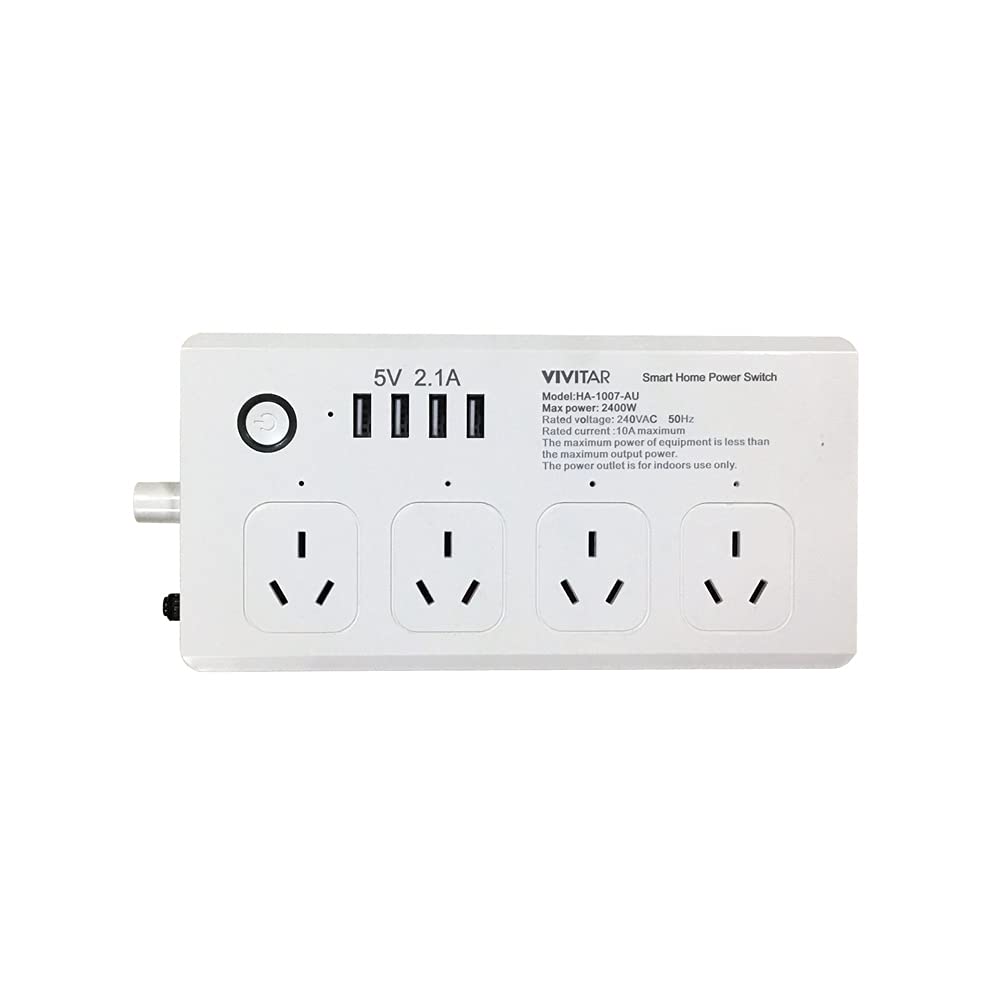
Image: Front view of the Vivitar Smart Home Power Strip HA-1007, showing four AC outlets and four USB ports.
The Vivitar Smart Home Power Strip HA-1007 features a compact design with multiple power options. It includes four standard 3-prong AC outlets and four USB charging ports. A master power button controls the entire strip, while individual outlets can be managed via the Vivitar Smart Home Security App.
- AC Outlets (x4): For standard electrical devices. Each can be controlled independently via the app.
- USB Ports (x4): For charging mobile devices. These ports are typically controlled as a group.
- Power Button: Located on the side or front, this button manually turns the entire power strip on or off. It also serves as a reset button for Wi-Fi pairing.
- LED Indicator: Shows the power status and Wi-Fi connection status.
Setup
1. Download the Vivitar Smart Home Security App
- Search for "Vivitar Smart Home Security" in the Apple App Store (for iOS devices) or Google Play Store (for Android devices).
- Download and install the app on your smartphone or tablet.
2. Register an Account
- Open the Vivitar Smart Home Security App.
- Follow the on-screen instructions to register a new account using your email address or phone number.
- Create a secure password.
3. Connect the Power Strip to Wi-Fi
- Plug the Vivitar Smart Home Power Strip into a wall outlet. The LED indicator should start blinking rapidly, indicating it's in pairing mode. If not, press and hold the power button for 5-10 seconds until it blinks rapidly.
- Ensure your smartphone is connected to a 2.4GHz Wi-Fi network. This device does not support 5GHz Wi-Fi networks.
- Open the Vivitar Smart Home Security App and tap "Add Device" or the "+" icon.
- Select "Power Strip" or the appropriate device type from the list.
- Confirm that the indicator light on the power strip is blinking rapidly.
- Enter your 2.4GHz Wi-Fi network password when prompted.
- The app will attempt to connect to the power strip. This process may take a few moments.
- Once connected, the LED indicator will turn solid, and the app will confirm successful pairing.
Operating Instructions
1. Controlling Outlets and USB Ports
- In the Vivitar Smart Home Security App, select your connected power strip.
- You will see individual controls for each AC outlet and a collective control for the USB ports.
- Tap the toggle switch next to each outlet or the USB section to turn them on or off.
- You can rename each outlet within the app for easier identification (e.g., "Lamp," "Fan," "Charger").
2. Setting Schedules and Timers
- Within the power strip's control interface in the app, look for options like "Schedule" or "Timer."
- You can set specific times for individual outlets or the USB ports to turn on or off automatically.
- Create recurring schedules for daily or weekly automation.
3. Voice Control Integration
The Vivitar Smart Home Power Strip is compatible with Amazon Alexa and Google Home/Assistant.
- For Amazon Alexa:
- Open the Alexa app, go to "Skills & Games," and search for "Vivitar Smart Home Security."
- Enable the skill and link your Vivitar account.
- Discover devices. You can then use voice commands like "Alexa, turn on the living room lamp" (if you named an outlet "living room lamp").
- For Google Home/Assistant:
- Open the Google Home app, tap "Add" > "Set up device" > "Works with Google."
- Search for "Vivitar Smart Home Security," link your account, and assign devices to rooms.
- Use commands like "Hey Google, turn off the fan."
Maintenance
- Cleaning: Disconnect the power strip from the wall outlet before cleaning. Use a soft, dry cloth to wipe the surface. Do not use liquid cleaners or abrasive materials.
- Storage: When not in use for extended periods, store the power strip in a cool, dry place away from direct sunlight.
- Inspection: Periodically check the power cord and the power strip for any signs of damage. If damaged, discontinue use and replace the unit.
Troubleshooting
| Problem | Possible Cause | Solution |
|---|---|---|
| Power strip not turning on. | No power from wall outlet; power strip switch off. | Check wall outlet with another device. Ensure the power strip's master switch is on. |
| Cannot connect to Wi-Fi. | Incorrect Wi-Fi password; 5GHz network used; power strip too far from router; incorrect pairing mode. | Verify Wi-Fi password. Ensure you are using a 2.4GHz network. Move power strip closer to router. Reset power strip by holding the power button until the indicator blinks rapidly. |
| App cannot find the device. | Power strip not in pairing mode; network issues. | Ensure the power strip's LED is blinking rapidly. Restart the app and try again. Check your home Wi-Fi connection. |
| Individual outlets unresponsive. | App glitch; device overload. | Restart the Vivitar app. Unplug and replug the device into the outlet. Check if the total load exceeds 10 Amps. |
Specifications
- Model: HA-1007
- Input Voltage: 240 Volts
- Total Power Outlets: 4 AC Outlets
- USB Ports: 4 USB Charging Ports
- Max Load: 10 Amps
- Wireless Connectivity: Wi-Fi 2.4GHz (IEEE 802.11 b/g/n)
- Dimensions: 7.5 x 1.9 x 10 inches
- Weight: 1 pound
- Operating Temperature: 0°C to 40°C (32°F to 104°F)
- Compatibility: iOS and Android devices, Amazon Alexa, Google Home/Assistant, IFTTT/Nest
Warranty Information
Vivitar products are covered by a limited warranty. For specific details regarding your product's warranty period and terms, please refer to the warranty card included in your product packaging or visit the official Vivitar website. Keep your purchase receipt as proof of purchase for warranty claims.
Customer Support
If you encounter any issues or have questions regarding your Vivitar Smart Home Power Strip HA-1007, please contact Vivitar Customer Support. You can typically find contact information (phone number, email, or support portal) on the Vivitar official website or within the Vivitar Smart Home Security App's settings/help section.
Related documentsHA-1007


Ask a question about this manual
Ask about setup, troubleshooting, compatibility, parts, safety, or missing instructions. Manuals+ will review the question and use this page’s manual context to help answer it.