
Introduction
This manual provides detailed instructions for the installation, operation, and maintenance of your Minolta MNCD53-S Car Dashboard Camera. Please read this manual thoroughly before using the device to ensure proper functionality and safety.
The Minolta MNCD53-S is designed to record your road trips in full 1080P HD resolution, featuring a 140-degree wide-angle lens, Wide Dynamic Range (WDR), G-Sensor for emergency recording, and loop recording capabilities. Review footage on the integrated 3.0-inch LCD screen.
What's in the Box
- Minolta MNCD53-S Car Dashboard Camera
- SD Card (8GB included)
- Pouch
- USB Cable
- Instruction Manual (this document)
- Warranty Card
Safety Information
- Do not operate the camera or adjust settings while driving. Always pull over to a safe location before making any adjustments.
- Ensure the camera is securely mounted and does not obstruct your view of the road or interfere with airbag deployment.
- Avoid exposing the camera to extreme temperatures, direct sunlight for prolonged periods, or excessive moisture.
- Use only the provided power cable and accessories to prevent damage to the device or vehicle.
- Keep the lens clean to ensure clear recordings.
- The internal battery is primarily for saving emergency files and maintaining settings. The camera requires continuous power from the vehicle's lighter socket for daily operation.
Product Overview
The Minolta MNCD53-S dash camera is designed for reliable in-car video recording. Below are its key features and a visual representation.
- Full HD 1080P Video Recording: Captures clear video footage.
- 140° Wide Angle Lens: Provides a broad view of the road.
- 3.0-inch LCD Screen: For live view, playback, and menu navigation.
- G-Sensor: Automatically detects sudden impacts or movements and locks the current video file to prevent overwriting.
- Loop Recording: Continuously records, overwriting the oldest unlocked files when the memory card is full.
- Motion Detection: Starts recording automatically when motion is detected in front of the camera (useful when parked).
- Wide Dynamic Range (WDR): Improves video quality in varying light conditions, such as bright sunlight and shadows.
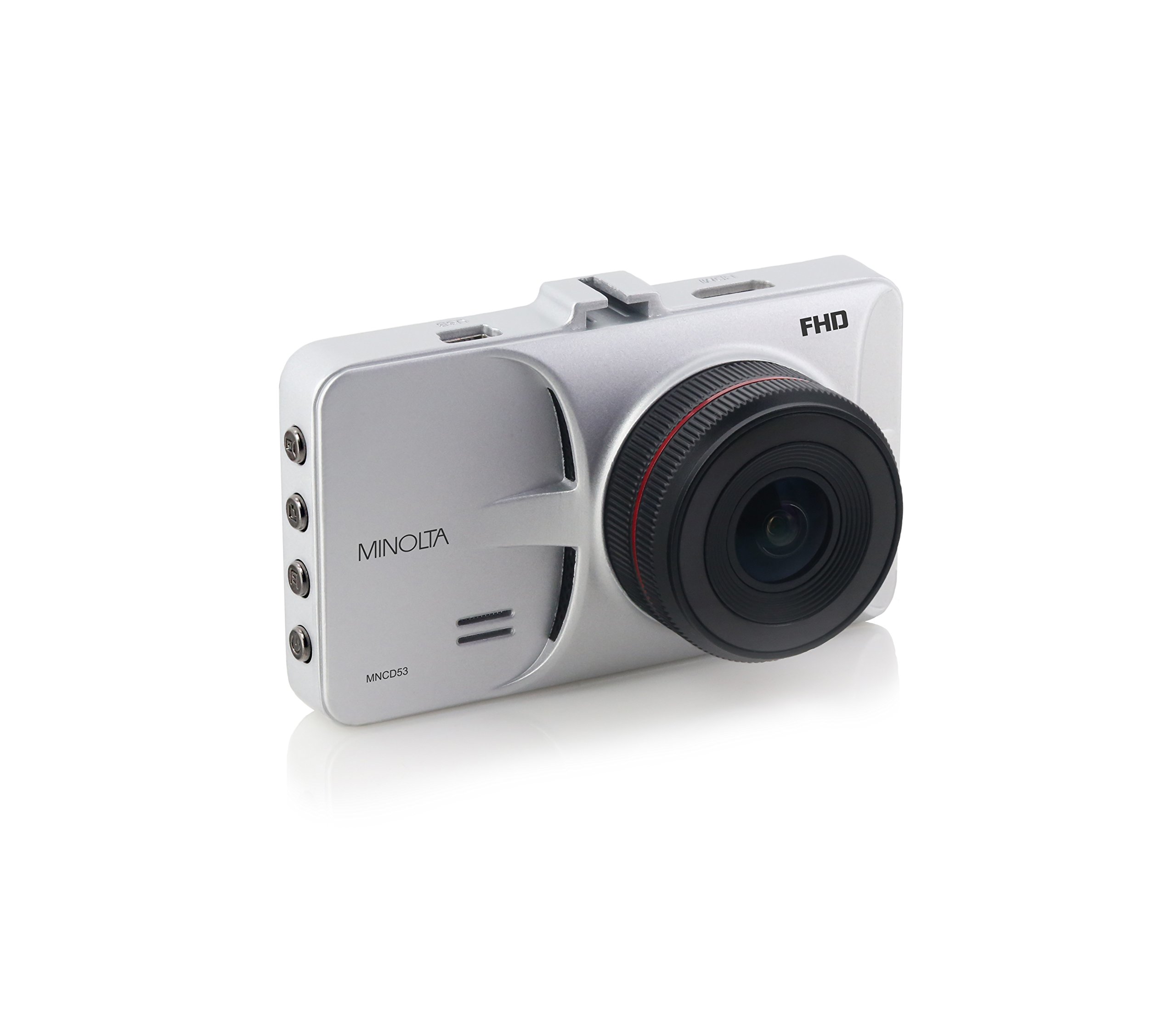
Figure 1: Front view of the Minolta MNCD53-S Car Dashboard Camera, showing the 3.0-inch LCD screen displaying a city night scene.
Setup
- Insert SD Card: Locate the SD card slot on the camera. Gently insert the provided 8GB SD card (or another compatible Class 10 or higher microSD card, up to 32GB) until it clicks into place. Ensure the camera is off before inserting or removing the SD card.
- Mounting the Camera:
- Attach the suction cup mount to the camera.
- Clean the desired area on your windshield. Ensure it does not obstruct your view or interfere with safety features.
- Press the suction cup firmly against the windshield and engage the locking mechanism to secure it.
- Adjust the camera angle to capture the road ahead.

Figure 2: The Minolta MNCD53-S Car Dashboard Camera mounted on a car windshield, showing the driver's perspective of the road.
- Power Connection:
- Connect the provided USB power cable to the camera's power input port.
- Plug the other end of the power cable into your vehicle's 12V lighter socket.
- The camera will typically power on automatically when the vehicle starts and power off when the vehicle is turned off.
- Initial Power On: The camera should power on automatically when connected to power. If not, press and hold the power button.
- Set Date and Time: Access the camera's menu settings to set the correct date and time. This is crucial for accurate timestamps on your recordings. Refer to the "Operating Instructions" section for general menu navigation.
Operating Instructions
Familiarize yourself with the camera's buttons and menu system for optimal use.
Basic Recording
- When the camera is powered on, it typically begins recording automatically. A red indicator or icon on the screen usually signifies active recording.
- Recordings are saved in segments (e.g., 3 or 5 minutes) due to loop recording.
- To manually start/stop recording, press the designated record button (refer to your camera's physical buttons).
Menu Navigation
The camera features a menu system accessible via physical buttons. Common buttons include:
- Menu Button: Enters the settings menu.
- Up/Down Buttons: Navigate through menu options.
- OK/Confirm Button: Selects an option or confirms a setting.
- Mode Button: Switches between video recording, photo mode, and playback mode.
Key Settings to Adjust:
- Date/Time: Set the current date and time for accurate timestamps.
- Loop Recording: Adjust the duration of video segments (e.g., 1, 3, 5 minutes).
- G-Sensor Sensitivity: Adjust sensitivity for emergency recording. Higher sensitivity means it will trigger more easily.
- Motion Detection: Enable or disable this feature. Use with caution when parked as it can drain the battery or fill the SD card quickly.
- WDR: Enable or disable Wide Dynamic Range for improved image quality in varied lighting.
Playback
- Switch to playback mode using the Mode button.
- Use the navigation buttons to browse through recorded video files.
- Press the OK/Confirm button to play a selected video.
- To view files on a computer, remove the SD card and insert it into a card reader, or connect the camera directly to a computer via USB.
Photo Mode
- Switch to photo mode using the Mode button.
- Press the record/shutter button to capture still images.
Maintenance
- Cleaning the Lens: Use a soft, lint-free cloth to gently wipe the camera lens. Avoid abrasive materials or harsh chemicals.
- Cleaning the Screen: Use a microfiber cloth to clean the LCD screen.
- SD Card Management:
- Regularly format the SD card (e.g., once a month) within the camera's settings to ensure optimal performance and prevent data corruption.
- Backup important footage to a computer before formatting.
- Replace the SD card if you notice frequent errors or degraded performance.
- Storage: If storing the camera for an extended period, remove it from the windshield and store it in its pouch in a cool, dry place.
Troubleshooting
| Problem | Possible Cause | Solution |
|---|---|---|
| Camera does not power on. | No power from vehicle; faulty power cable; internal battery depleted. | Check vehicle's lighter socket and fuse. Ensure power cable is securely connected. Try a different power source or cable if available. The internal battery is for emergency files, not sustained operation. |
| Camera stops recording or does not record continuously. | SD card full; SD card error; G-Sensor triggered too often; motion detection enabled. | Format the SD card. Use a Class 10 or higher SD card. Adjust G-Sensor sensitivity. Disable motion detection if not needed while driving. |
| Video footage is blurry or unclear. | Protective film on lens; dirty lens; incorrect focus (unlikely for fixed focus); poor lighting. | Remove any protective film. Clean the lens with a soft cloth. Ensure WDR is enabled in challenging light conditions. |
| Date and time settings reset. | Internal battery depleted. | Ensure the camera is consistently powered by the vehicle to allow the internal battery to maintain charge for settings. Re-enter date and time. |
| Suction mount does not hold. | Dirty windshield; cold temperatures; worn suction cup. | Clean the windshield and suction cup thoroughly. Warm the windshield slightly in cold weather. Replace the mount if it is damaged. |
Specifications
| Feature | Detail |
|---|---|
| Model Name | MNCD53-S |
| Video Capture Resolution | 1080p Full HD |
| Real Angle of View | 140 Degrees |
| Screen Size | 3 Inches LCD |
| Special Features | Loop Recording, Motion Sensing, G-Sensor, Wide Dynamic Range (WDR) |
| Connectivity Technology | USB Cable |
| Compatible Operating Systems | Windows 7 / 8 / 10, Mac OS 10.8 / 10.9 / 10.10 |
| Mounting Type | Suction Mount |
| Flash Memory Type | SD (supports up to 32GB, Class 10 recommended) |
| Battery Type | Lithium Ion (internal, for emergency files and settings) |
| Item Weight | 0.3 Pounds |
| Manufacturer | Minolta |
| UPC | 084438960143 |
Warranty and Support
Warranty Information
The Minolta MNCD53-S Car Dashboard Camera comes with a 1-Year Limited Warranty from the date of purchase. This warranty covers manufacturing defects and workmanship under normal use. It does not cover damage caused by misuse, accidents, unauthorized modifications, or natural disasters.
Please retain your proof of purchase for warranty claims.
Customer Support
For technical assistance, troubleshooting not covered in this manual, or warranty inquiries, please contact Minolta customer support. Refer to the warranty card or the official Minolta website for the most current contact information.
When contacting support, please have your product model number (MNCD53-S) and proof of purchase readily available.