
Introduction
This manual provides essential instructions for the proper setup, operation, and maintenance of your PKPOWER Audio Cable AUX Stereo Line. This cable is designed to provide a reliable audio connection for compatible devices, including the DBPOWER DB Power Webcam Wireless WiFi IP Camera VA033K. Please read this manual thoroughly before use to ensure optimal performance and longevity of your product.
Product Overview
The PKPOWER Audio Cable AUX Stereo Line is a male-to-male connector cable designed for audio signal transmission. It features robust construction and is tested to meet and exceed OEM specifications, ensuring reliable performance.
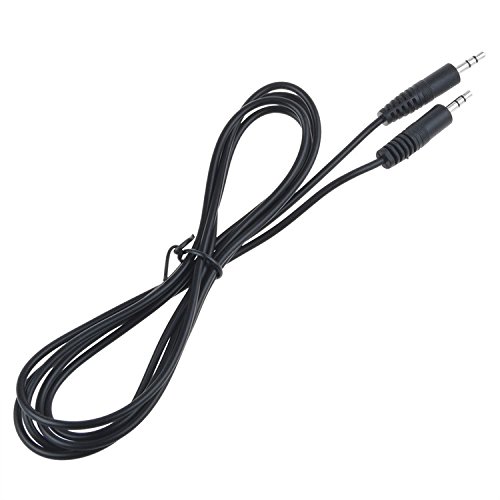
Image 1: PKPOWER Audio Cable AUX Stereo Line. This image shows the black audio cable with two 3.5mm male stereo jacks on either end, ready for connection.
Key Features:
- Input Compatibility: Designed for devices with 100-240V 50-60Hz power input requirements (referring to the connected device, not the cable itself).
- Quality Assurance: PK-Power products are CE / FCC / RoHS certified, ensuring compliance with safety and environmental standards.
- Protection Features: Incorporates OVP (Over Voltage output Protection), OCP (Over Current output Protection), and SCP (Short Circuit output Protection) for connected devices.
- Wide Compatibility: Compatible with various devices requiring a 3.5mm AUX stereo line, including the DBPOWER DB Power Webcam Wireless WiFi IP Camera VA033K.
Setup
Connecting your PKPOWER Audio Cable is a straightforward process. Ensure both devices you intend to connect are powered off before proceeding.
- Identify Audio Ports: Locate the 3.5mm audio output jack on your source device (e.g., DBPOWER Webcam) and the 3.5mm audio input jack on your receiving device (e.g., speaker, amplifier). These ports are typically labeled "AUX Out," "Audio Out," "Line Out," "AUX In," "Audio In," or "Line In."
- Connect First End: Insert one end of the PKPOWER Audio Cable into the 3.5mm audio output jack of your source device.
- Connect Second End: Insert the other end of the PKPOWER Audio Cable into the 3.5mm audio input jack of your receiving device.
- Secure Connection: Ensure both connectors are fully inserted and seated firmly in their respective ports to prevent loose connections and signal loss.

Image 2: Close-up of PKPOWER Audio Cable connectors. This image provides a detailed view of the 3.5mm male stereo jacks, highlighting their design for secure connection.
Operating Instructions
Once the cable is securely connected, follow these steps to begin audio transmission:
- Power On Devices: Turn on both the source device (e.g., webcam) and the receiving audio device (e.g., speaker).
- Select Input: On your receiving audio device, select the correct audio input source (e.g., "AUX," "Line In"). Refer to your receiving device's manual if you are unsure how to do this.
- Adjust Volume: Start with the volume on your receiving device at a low level and gradually increase it to a comfortable listening level.
- Test Audio: Play audio from your source device to confirm the connection and sound quality.
Maintenance
Proper care will extend the life of your PKPOWER Audio Cable:
- Cleaning: Use a soft, dry cloth to wipe the cable and connectors. Avoid using harsh chemicals or abrasive materials.
- Storage: When not in use, coil the cable loosely. Avoid tight coiling, sharp bends, or kinks, as these can damage the internal wiring.
- Handling: Always grasp the connector housing when plugging or unplugging the cable, rather than pulling on the cable itself.
- Environment: Store the cable in a cool, dry place away from direct sunlight, extreme temperatures, and moisture.

Image 3: PKPOWER Audio Cable coiled. This image shows the audio cable neatly coiled, demonstrating proper storage to prevent damage.
Troubleshooting
If you encounter issues with your audio cable, try the following solutions:
- No Sound:
- Ensure both devices are powered on.
- Verify the cable is securely connected to both the output and input jacks.
- Check that the correct input source is selected on your receiving audio device.
- Increase the volume on both the source device and the receiving audio device.
- Test the cable with different devices to rule out a faulty cable or device.
- Poor Sound Quality (Static, Distortion, Low Volume):
- Ensure connectors are clean and free of debris.
- Check for any kinks or damage along the cable length.
- Reduce the volume on the source device if distortion occurs at high volumes.
- Ensure the cable is not running near sources of electromagnetic interference.
- Intermittent Sound:
- Check for loose connections at both ends of the cable.
- Inspect the cable for any visible damage or fraying.
Specifications
| Brand | PKPOWER |
| Model (Compatible Device) | VA033K (DBPOWER DB Power Webcam Wireless WiFi IP Camera) |
| Connector Gender | Male-to-Male |
| Special Feature | Wireless (Refers to the compatible webcam's feature) |
| UPC | 716833212434 |
| ASIN | B074NW2HRS |
| Date First Available | August 9, 2017 |
| Manufacturer | PKPOWER |
Warranty and Support
PKPOWER is committed to providing quality products and customer satisfaction.
- Customer Service: Our friendly and reliable customer service team is available to assist you. We aim to respond to all inquiries within 24 hours.
- Contact: For support, warranty claims, or any questions regarding your PKPOWER product, please refer to the contact information provided with your purchase or visit the official PKPOWER store page on Amazon: PKPOWER Amazon Store.