
1. Introduction
This manual provides essential information for the safe and effective use of your Vivibright GP90 UP Portable Video Projector. Please read it thoroughly before operating the device and retain it for future reference. The Vivibright GP90 UP is a portable video projector featuring an Android 4.42 operating system, 3200 lumens brightness, and 1280x800 native resolution, designed for multimedia entertainment and presentations.
2. Safety Instructions
- Do not block the ventilation openings. Ensure adequate airflow around the projector to prevent overheating.
- Do not expose the projector to rain or moisture to avoid electric shock or fire.
- Avoid looking directly into the projector lens when the lamp is on, as the bright light can cause eye damage.
- Place the projector on a stable, level surface to prevent it from falling.
- Use only the power adapter supplied with the projector.
- Do not attempt to disassemble or repair the projector yourself. Refer all servicing to qualified personnel.
- Keep the projector away from heat sources and direct sunlight.
3. Package Contents
Verify that all items are present in the package:
- Vivibright GP90 UP Projector
- Power Cable
- Remote Control (may not be included with all models)
- User Manual (this document)
4. Product Overview
Familiarize yourself with the projector's components and connection ports.
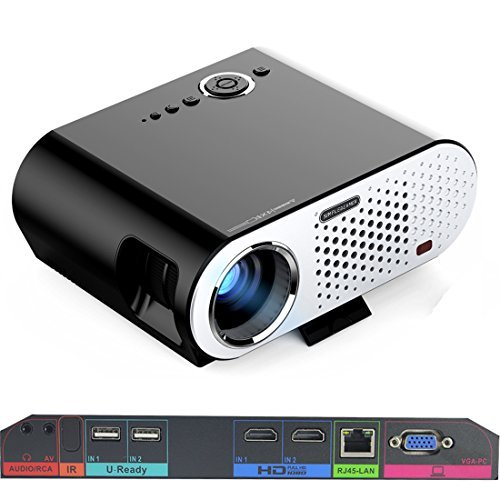
Image: The Vivibright GP90 UP projector showing its top controls, lens, and various input/output ports on the rear panel. The top features power and navigation buttons. The front has the projection lens. The rear panel includes Audio/RCA, IR receiver, two USB ports (U-Ready), two HDMI ports (HD), an RJ45-LAN port, and a VGA-PC port.
4.1 Front Panel
- Projection Lens: Emits the image.
4.2 Top Panel
- Control Buttons: Power, navigation, and menu access.
4.3 Rear Panel (Input/Output Ports)
- AUDIO/RCA: Audio output and composite video input.
- IR: Infrared receiver for remote control.
- IN 1 / IN 2 (USB): Two USB ports for connecting USB storage devices.
- IN 1 / IN 2 (HDMI): Two HDMI inputs for digital video and audio sources.
- RJ45-LAN: Ethernet port for wired network connection.
- VGA-PC: VGA input for connecting to computers.
5. Setup
5.1 Placement
- Place the projector on a flat, stable surface or mount it on a ceiling or tripod.
- Ensure the projector is positioned directly in front of the screen or wall. Avoid angled placement as horizontal keystone correction is not available.
- The optimal projection distance ranges from 1.2m to 8.5m, producing screen sizes from 35 to 280 inches. For a 100-inch image, a distance of approximately 3 meters is recommended.
5.2 Power Connection
- Connect the power cable to the projector's power input.
- Plug the other end of the power cable into a suitable electrical outlet (90~240V/50~60Hz).
5.3 Connecting Input Devices
- HDMI: Connect an HDMI cable from your source device (e.g., laptop, Blu-ray player, gaming console) to one of the projector's HDMI ports.
- USB: Insert a USB flash drive or external hard drive into a USB port to access media files.
- VGA: Connect a VGA cable from your computer to the projector's VGA-PC port.
- AV: Use an RCA cable to connect older devices to the AV input.
- LAN: Connect an Ethernet cable to the RJ45-LAN port for a wired internet connection.
5.4 Focus and Keystone Adjustment
- Focus: Rotate the focus ring around the lens until the projected image is sharp and clear.
- Keystone Correction: Use the manual vertical keystone correction feature (±15°) to adjust the image shape if the projector is not perfectly perpendicular to the screen. This corrects trapezoidal distortion.
6. Operating Instructions
6.1 Powering On/Off
- Power On: Press the power button on the projector or the remote control. The indicator light will change, and the projector will start.
- Power Off: Press the power button again. Confirm shutdown if prompted. Allow the projector to cool down before unplugging.
6.2 Navigating the Android OS
- The projector runs on Android 4.42. Use the remote control or connect a wireless mouse (recommended for easier navigation) to interact with the interface.
- Access pre-installed apps or download compatible applications from the app store. Note that some newer applications may not be compatible with Android 4.42.
6.3 Wireless Projection
- Wi-Fi: Connect to a wireless network via the settings menu. Supports dual-band Wi-Fi 2.4G.
- Bluetooth: Supports Bluetooth 4.0 for connecting wireless devices such as speakers. Note that Bluetooth audio output may only be available when using USB or Android sources, not HDMI.
- Wireless Push (EZCast / Miracast / Airplay): Use compatible apps on your smartphone or tablet to mirror your device's screen to the projector. Ensure your device and the projector are on the same Wi-Fi network.
6.4 Audio Settings
- The projector features built-in 4Ω, 5W stereo speakers with SRS sound technology.
- For enhanced audio, connect external speakers via the Audio Out port or wirelessly via Bluetooth (when using Android or USB sources).
7. Maintenance
7.1 Cleaning
- Lens: Use a soft, lint-free cloth specifically designed for optical lenses. Do not use abrasive cleaners.
- Casing: Wipe the projector's exterior with a soft, dry cloth. For stubborn dirt, use a slightly damp cloth and then dry thoroughly.
- Ventilation Openings: Periodically clean the ventilation openings with a soft brush or compressed air to prevent dust buildup, which can affect performance and lifespan.
7.2 Storage
- When not in use for extended periods, store the projector in a cool, dry place, away from direct sunlight and extreme temperatures.
- Cover the lens with its cap to protect it from dust and scratches.
8. Troubleshooting
| Problem | Possible Cause | Solution |
|---|---|---|
| No image projected | Power not connected; Input source not selected; Lens cap on | Check power connection; Select correct input source; Remove lens cap |
| Image is blurry | Focus not adjusted; Projector too close/far | Adjust focus ring; Adjust projection distance |
| Image is trapezoidal | Projector not perpendicular to screen | Adjust vertical keystone correction; Reposition projector to be centered |
| No sound | Volume too low; Muted; External speakers not connected/selected | Increase volume; Unmute; Check external speaker connections/settings |
| Wireless projection unstable | Weak Wi-Fi signal; Device incompatibility; Outdated Android OS | Ensure strong Wi-Fi signal; Check device compatibility with Miracast/Airplay; Consider wired connection if issues persist with older Android version. |
9. Specifications
| Feature | Detail |
|---|---|
| Brand | Vivibright |
| Model | GP90 UP |
| Operating System | Android 4.42 |
| Brightness | 3200 Lumens (LED Luminous efficiency) |
| Native Resolution | 1280 x 800 (supports up to 1080P) |
| Contrast Ratio | 3000:1 (Dynamic up to 10,000:1) |
| Projection Size | 35-280 inches |
| Projection Distance | 1.2m - 8.5m |
| Throw Ratio | 1.45:1 |
| Keystone Correction | Manual Vertical ±15° |
| Light Source Life | Up to 30,000 hours |
| Connectivity | Wi-Fi (2.4G), Bluetooth 4.0, 2x HDMI, 2x USB, VGA, AV, RJ45-LAN |
| Audio | Built-in 4Ω, 5W stereo speakers with SRS sound |
| Power Supply | 90~240V/50~60Hz |
| Product Dimensions | 27 x 22 x 9 cm |
| Item Weight | 3.17 kg |
10. Warranty and Support
For warranty information and technical support, please refer to the documentation provided at the time of purchase or contact Vivibright customer service. Keep your purchase receipt as proof of purchase for warranty claims.


