
ROVE R2-4K
ROVE R2-4K Dash Cam User Manual
Built-in WiFi 6 GPS Car Dashboard Camera Recorder with UHD 2160P
1. Introduction
Thank you for choosing the ROVE R2-4K Dash Cam. This manual provides essential information for setting up, operating, and maintaining your device. The ROVE R2-4K is designed to capture high-quality video footage of your journeys, offering advanced features like 4K Ultra HD recording, built-in WiFi 6, GPS tracking, and comprehensive parking surveillance.
Please read this manual thoroughly before using the dash cam to ensure proper operation and to maximize its capabilities. Keep this manual for future reference.

Figure 1.1: ROVE R2-4K Dash Cam and companion smartphone application.
2. What's in the Box
Your ROVE R2-4K Dash Cam package includes the following items:
- ROVE R2-4K Dash Cam Unit
- Car Charger
- Charging Cable
- User Manual
- Warranty Card

Figure 2.1: Included accessories and components in the ROVE R2-4K package.
3. Setup
3.1 Mounting the Dash Cam
The ROVE R2-4K comes with both a suction mount and a 3M sticky mount for flexible installation. Choose the mount that best suits your vehicle and preferences.
- Clean the Windshield: Ensure the mounting surface on your windshield is clean and dry for optimal adhesion.
- Attach Mount to Dash Cam: Securely attach your chosen mount (suction or sticky) to the dash cam unit.
- Position the Dash Cam: Place the dash cam on your windshield, ideally behind the rearview mirror, to avoid obstructing your view. Adjust the camera's angle for optimal recording coverage.
- Secure the Mount: For the suction mount, press firmly and flip the lever to secure. For the 3M sticky mount, peel off the protective film and press firmly onto the windshield for at least 30 seconds.

Figure 3.1: Mounting options for the ROVE R2-4K Dash Cam.
3.2 Power Connection
Connect the provided car charger to your vehicle's 12V power outlet and the dash cam's USB Type-C input. Route the cable neatly along the windshield and dashboard to avoid interference with driving controls.

Figure 3.2: Dash Cam ports and connections.
3.3 Micro SD Card Installation
Insert a Class 10 - U3 speed micro SD card (up to 512GB, not included) into the designated slot on the dash cam. The device will prompt you to format the card upon first use. Formatting is crucial for optimal performance and to prevent data corruption.
Important: We strongly recommend using ROVE Ultimate Micro SD Cards for reliable operation. Avoid using generic or non-recommended cards as they may lead to performance issues or data loss.

Figure 3.3: Recommended Micro SD Cards for ROVE Dash Cams.
4. Operating Instructions
4.1 Basic Operation
- Power On/Off: The dash cam will automatically power on and begin recording when connected to your vehicle's power and the engine starts. It will power off automatically when the engine is turned off.
- Recording: Once powered on, the dash cam automatically starts loop recording.
- Menu Navigation: Use the 'MENU' button to access settings and the arrow buttons to navigate. 'OK' confirms selections.
4.2 Key Features
- 4K Ultra HD Recording: Captures video at a resolution of 2160P for exceptional clarity.
- Built-in WiFi 6: Connect to the ROVE App on your smartphone (iOS/Android) to view live footage, manage settings, and download recorded videos at high speeds.
- Built-in GPS: Accurately records driving location and speed. View your route on Google Maps via the ROVE App or GPS Player software.
- Super Night Vision: Equipped with a 6-glass lens, F1.5 aperture, and SONY IMX335 sensor for clear footage in low-light conditions.
- Parking Mode: Provides 24-hour surveillance when your vehicle is parked. Requires a separate hardwire kit for continuous power.
- G-Sensor: Detects sudden impacts or collisions and automatically locks the current video segment to prevent it from being overwritten.
- Loop Recording: Continuously records video, overwriting the oldest unlocked files when the memory card is full.
- Time-Lapse Video: Records long-duration events at a low frame rate, condensing hours of footage into minutes.
- Voice Guidance: Provides audio alerts and guidance for various functions and status updates.
- Screen Saver: Minimizes distractions by turning off the display after a set period while recording continues in the background.

Figure 4.1: Dash Cam display and feature icons.
4.3 ROVE App & Firmware Updates
The ROVE App allows for seamless interaction with your dash cam. You can view live video, play back recordings, download files to your smartphone, and adjust camera settings. The app also facilitates over-the-air (OTA) firmware updates, ensuring your dash cam always has the latest features and improvements.
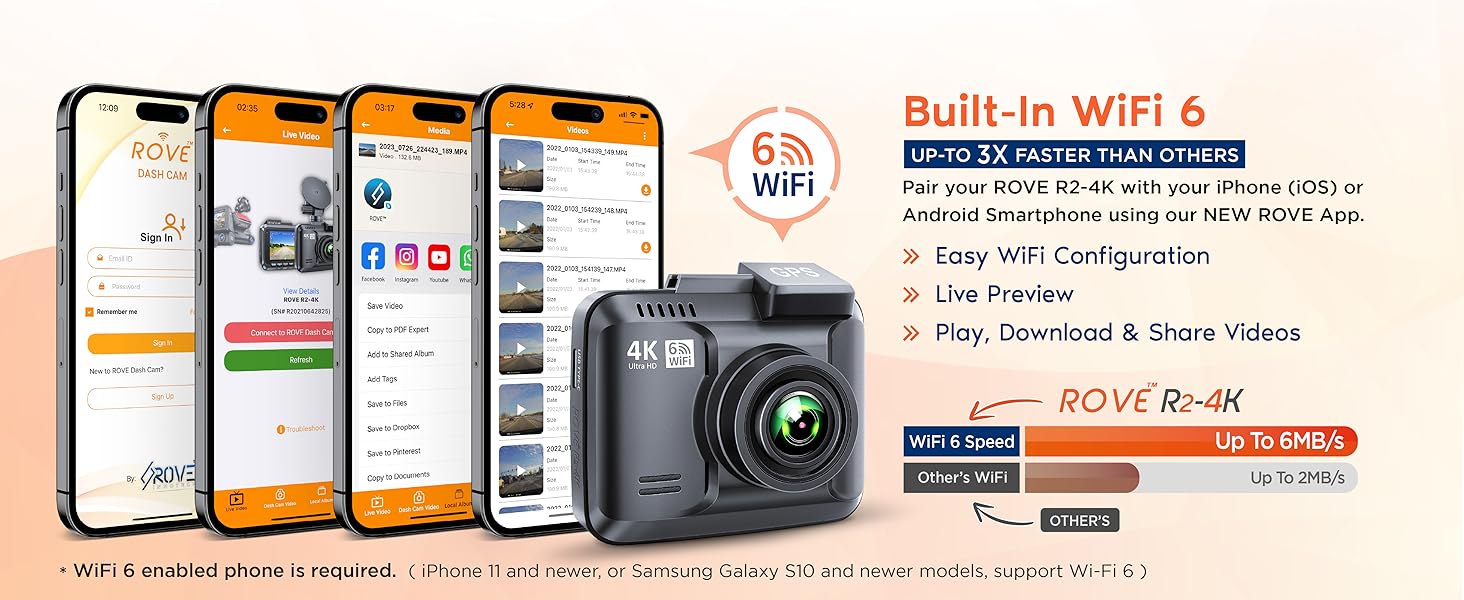
Figure 4.2: ROVE App functionality and firmware update process.
4.4 Official Product Video
Video 4.1: Official product overview of the ROVE R2-4K Dash Cam, highlighting its features and benefits.
5. Maintenance
- Regular Formatting: Format your micro SD card regularly (e.g., once a month) to maintain optimal performance and prevent data corruption.
- Clean the Lens: Use a soft, lint-free cloth to gently clean the camera lens to ensure clear video quality.
- Temperature Considerations: The built-in supercapacitor allows the dash cam to withstand extreme temperatures (-4°F to 140°F / -20°C to +60°C). However, prolonged exposure to direct sunlight in extreme heat can still affect device longevity.
- Firmware Updates: Regularly check for and install firmware updates via the ROVE App to ensure your dash cam has the latest features and bug fixes.

Figure 5.1: Supercapacitor benefits and loop recording explanation.
6. Troubleshooting
- Choppy Video Playback: If videos appear choppy, try playing them back using a dedicated video player like VLC. Ensure you are using a recommended Class 10 - U3 speed micro SD card.
- Speed Freezes on Screen: This might be a software or GPS signal issue. Ensure the GPS is receiving a strong signal. Check for and install any available firmware updates.
- Camera Not Turning On/Off Automatically: Verify the power connection to your vehicle's 12V outlet. Ensure the car charger is functioning correctly.
- Poor Night Quality: While the dash cam has Super Night Vision, extreme darkness or glare from other lights can affect quality. Ensure your windshield is clean.
- App Connectivity Issues: If you have trouble connecting to the ROVE App, try disabling mobile data on your phone temporarily to ensure a proper connection to the dash cam's built-in WiFi.
7. Specifications
| Feature | Detail |
|---|---|
| Product Dimensions | 4.33 x 4.33 x 4.33 inches |
| Item Weight | 1.14 pounds |
| Item Model Number | R2-4K |
| Batteries | 1 Lithium Ion batteries required (included) |
| Connectivity Technologies | Wi-Fi |
| Special Features | Built-In WiFi, 360 Degree, Night Vision, App Control, Loop Recording, Parking Monitor, G-Sensor, Over-The-Air Firmware Update, Screen Saver, Live Speed, Voice Alert, Built-In Supercapacitor, Built-In GPS |
| Human Interface Input | Buttons |
| Color | Black |
| Manufacturer | ROVE |
| Country of Origin | China |
| Video Capture Resolution | 2160p, 1440p, 1080p |
| Mounting Type | Windshield Mount |
8. Warranty & Support
The ROVE R2-4K Dash Cam is backed by a full 1-YEAR WARRANTY. For any questions or issues, you can contact ROVE customer care via text for a faster response or email. The support team is based in Chicago, USA, and is dedicated to resolving your concerns promptly.
Legal Disclaimer: Please read and understand the user manual, safety warnings, and precautions before using this product.
Related documentsR2-4K


Ask a question about this manual
Ask about setup, troubleshooting, compatibility, parts, safety, or missing instructions. Manuals+ will review the question and use this page’s manual context to help answer it.