
1. Product Overview
The Fortinet FortiSwitch FS-248E-POE is a high-performance Ethernet switch designed to provide secure, reliable, and scalable network connectivity. It is part of the FortiSwitch Secure Access Family, offering advanced security, performance, and manageability features suitable for threat-conscious businesses.
This managed PoE switch features 48 ports, enabling power and data transmission over a single Ethernet cable to compatible devices. Its robust design ensures efficient network operation and simplified deployment.
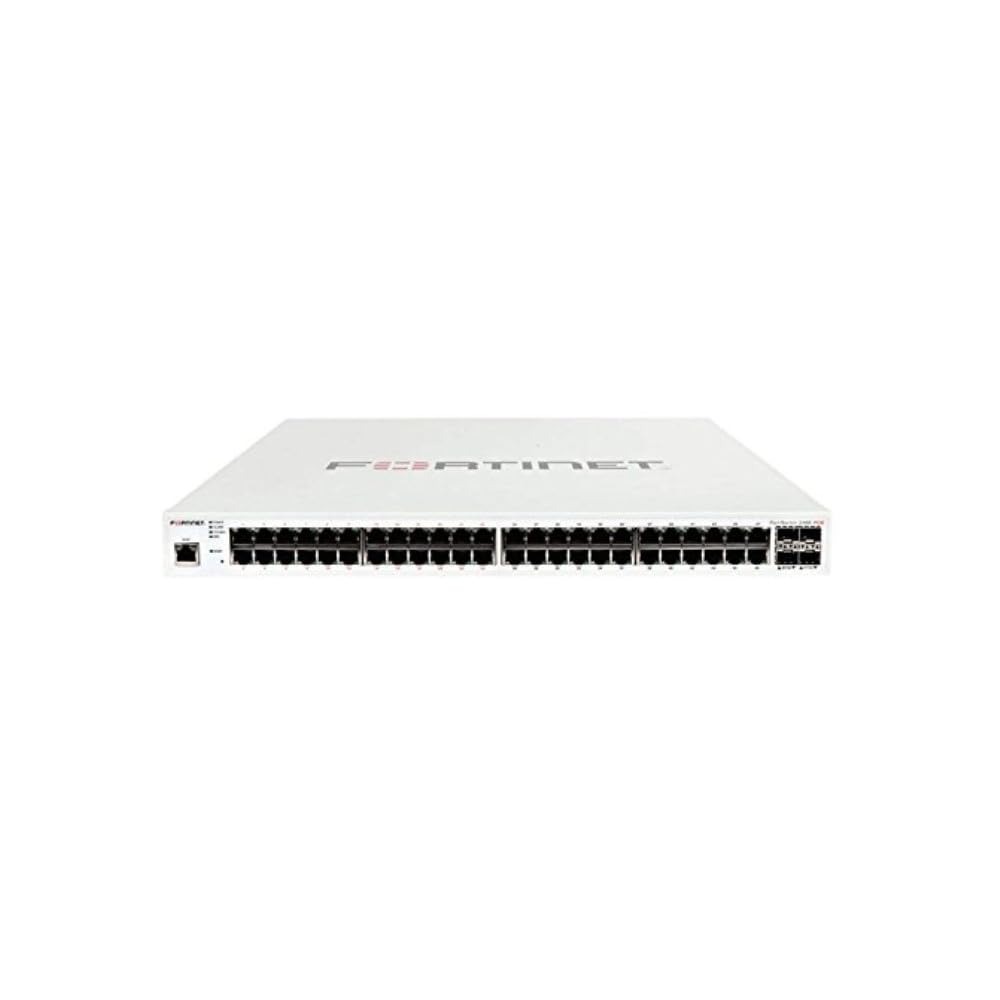
Figure 1: Front view of the Fortinet FortiSwitch FS-248E-POE Ethernet Switch. This image displays the port layout and indicator lights.
2. Setup and Installation
Follow these steps to properly set up your FortiSwitch FS-248E-POE:
- Unpack the Switch: Carefully remove the switch and all accessories from the packaging. Verify that all components are present.
- Mounting (Optional): The switch can be placed on a desktop or mounted in a standard 19-inch rack.
- Desktop Placement: Ensure adequate ventilation around the switch.
- Rack Mounting: Attach the provided rack-mount brackets to the sides of the switch using the included screws. Secure the switch into the rack.
- Connect Power: Connect the power cord to the switch's power input and then to a grounded electrical outlet.
- Connect Network Cables: Connect Ethernet cables from your network devices (computers, access points, IP cameras) to the RJ45 ports on the switch. For PoE devices, ensure they are connected to PoE-enabled ports.
- Initial Configuration: Refer to the FortiSwitch documentation for initial configuration steps, typically involving connecting a management workstation to a dedicated management port or using a console cable.
3. Operating Instructions
Once the FortiSwitch FS-248E-POE is powered on and connected, it will begin to operate. The switch is designed for plug-and-play functionality for basic network connectivity, but its full capabilities are unlocked through configuration.
3.1 Indicator Lights
Monitor the LED indicators on the front panel to understand the switch's status:
- Power LED: Indicates power status. Solid green typically means the device is powered on.
- System LED: Indicates system health. Refer to the detailed FortiSwitch documentation for specific blink patterns and colors.
- Port LEDs: Each port has an LED indicating link status and activity.
- Solid Green: Link established.
- Flashing Green: Data activity.
- Off: No link or port disabled.
- PoE LEDs: For PoE-enabled ports, these indicate PoE power delivery status.
3.2 Management Interface
The FortiSwitch FS-248E-POE is a managed switch, meaning its advanced features are configured via a management interface. This can be accessed through:
- Web-based GUI: Access via a web browser using the switch's IP address.
- Command Line Interface (CLI): Access via a console cable or SSH/Telnet.
- FortiGate Integration: For seamless management within a Fortinet security fabric.
Consult the FortiSwitch Administration Guide for detailed instructions on configuring VLANs, QoS, security policies, and other advanced features.
4. Maintenance
Regular maintenance ensures optimal performance and longevity of your FortiSwitch FS-248E-POE.
- Firmware Updates: Periodically check the Fortinet support website for new firmware versions. Keeping the firmware updated ensures access to the latest features, security patches, and performance improvements.
- Environmental Control: Ensure the operating environment remains within specified temperature and humidity ranges (refer to specifications). Avoid placing the switch in direct sunlight or near heat sources.
- Cleaning: Keep the switch free from dust. Use a soft, dry cloth to clean the exterior. Do not use liquid cleaners or aerosols. Ensure ventilation openings are clear of obstructions.
- Cable Management: Organize network cables to prevent strain on ports and ensure proper airflow.
- Backup Configuration: Regularly back up your switch configuration to prevent data loss in case of an unexpected event.
5. Troubleshooting
This section provides solutions to common issues you might encounter with your FortiSwitch FS-248E-POE.
5.1 No Power
- Check Power Cord: Ensure the power cord is securely connected to both the switch and the electrical outlet.
- Verify Outlet: Test the electrical outlet with another device to confirm it is functional.
- Power Supply: If using an external power supply, ensure it is correctly connected and functioning.
5.2 No Network Connectivity on a Port
- Check Cable: Ensure the Ethernet cable is securely connected at both ends. Try a different cable.
- Verify Device: Ensure the connected device is powered on and functioning correctly.
- Port Status: Check the port LED. If it's off, the link is not established. Check for physical damage to the port.
- Configuration: If the port is configured for a specific VLAN or has security policies, verify these settings in the management interface.
5.3 PoE Device Not Receiving Power
- PoE Port: Ensure the device is connected to a PoE-enabled port.
- PoE Budget: Verify that the switch's total PoE power budget is not exceeded. Check the PoE status in the management interface.
- Device Compatibility: Confirm the connected device is a standard PoE (802.3af/at) compliant device.
For more advanced troubleshooting, consult the Fortinet support documentation or contact technical support.
6. Technical Specifications
| Feature | Specification |
|---|---|
| Brand | FORTINET |
| Model Number | FS-248E-POE |
| Number of Ports | 48 |
| Switch Type | Managed PoE Switch |
| Interface | PoE, SFP |
| Number of Layers | 1 |
| Case Material | Plastic |
| Color | White |
| Upper Temperature Rating | 40 °C |
| Current Rating | 10 A |
| Compatible Devices | Desktop |
Note: Specifications are subject to change without notice. For the most current information, please refer to the official Fortinet product documentation.
7. Warranty and Support
7.1 Product Warranty
Fortinet products typically come with a limited hardware warranty. The exact terms and duration of the warranty may vary by region and product. Please refer to the warranty information included with your product packaging or visit the official Fortinet website for detailed warranty policies.
Keep your proof of purchase for warranty claims.
7.2 Technical Support
For technical assistance, product registration, and access to software updates, please visit the Fortinet Support website:
Before contacting support, please have your product model number (FS-248E-POE) and serial number ready. You may also find extensive documentation, FAQs, and community forums on the support portal.


