
1. Introduction
The Monoprice Blackbird 4K 8x8 HDMI Matrix Switch is designed to independently distribute any of eight HDMI inputs to any of eight displays. This device supports advanced video and audio technologies, including 4K@60Hz 4:4:4, HDR, and 18Gbps bandwidth, ensuring high-quality signal transmission. It offers versatile control options via front panel, IR remote, RS232, and a web-based GUI for seamless integration into various setups.
Key Features:
- Independently distributes any of eight HDMI sources to any of eight HDMI displays.
- Supports video resolutions up to 4K@60Hz 4:4:4, including 1080p 3D video.
- Fully compliant with HDMI 2.0 and HDCP 2.2 standards.
- Features 18Gbps maximum bandwidth.
- Includes eight digital coaxial S/PDIF outputs for audio extraction.
- Multiple control methods: Front panel buttons, IR remote control, RS232, and TCP/IP (web-based GUI).
- Front panel LCD screen displays real-time connection status.
- DIP switches for manual EDID management.
2. Safety Information
Please read this entire manual before operating this device, paying extra attention to these safety warnings and guidelines. Keep this manual for future reference.
- Do not expose this device to water or moisture.
- Do not place heavy objects on the device.
- Do not attempt to open, service, or modify this device. There are no user-serviceable parts inside.
- Use only the provided power adapter. Using an unauthorized power supply may damage the device and void the warranty.
- Ensure proper ventilation around the unit to prevent overheating.
- Disconnect power during lightning storms or when unused for long periods.
3. Package Contents
Please ensure you have all the following items before proceeding with the installation:
- 1x Monoprice Blackbird 4K 8x8 HDMI Matrix Switch
- 1x IR Remote Control
- 1x IR Receiver Extender Cable
- 1x RS232 Cable
- 1x DC 24V Power Adapter
- 2x Mounting Ears (Brackets)
- 1x User Manual (this document)

Figure 3.1: Package Contents. This image displays the main unit, an IR remote control, an IR receiver cable, an RS232 cable, a power adapter, and mounting brackets.
4. Product Diagram
4.1 Front Panel

Figure 4.1: Front Panel Layout. The front panel features power indicator, IR receiver, input and output selection buttons (1-8), ENTER, ALL, CLEAR buttons, and preset recall/store buttons.
- Power LED: Indicates power status.
- IR Receiver: For receiving signals from the IR remote control.
- INPUTS Buttons (1-8): Selects the desired HDMI input source.
- OUTPUTS Buttons (1-8): Selects the desired HDMI output display.
- ENTER Button: Confirms selection.
- ALL Button: Routes the selected input to all outputs.
- CLEAR Button: Clears current selection.
- PRESET RECALL/HOLD TO STORE Buttons (1-4): Recalls or stores routing presets.
4.2 Rear Panel
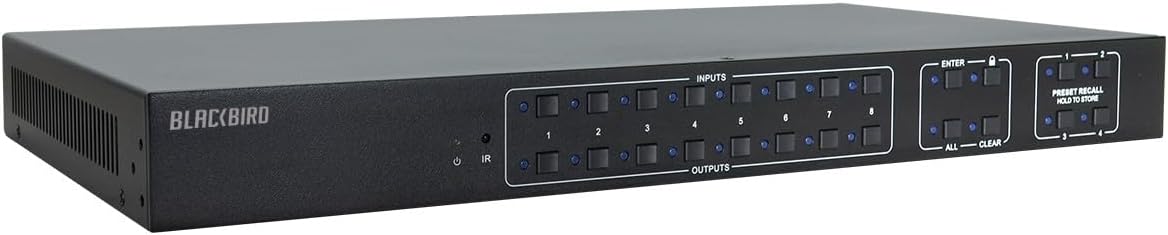
Figure 4.2: Rear Panel Layout. The rear panel includes eight HDMI inputs, eight HDMI outputs, eight SPDIF audio outputs, RS232 port, TCP/IP port, IR EYE port, and DC 24V power input.
- HDMI INPUTS (1-8): Connect your HDMI source devices (e.g., Blu-ray player, game console).
- HDMI OUTPUTS (1-8): Connect your HDMI displays (e.g., TV, projector).
- SPDIF Outputs (1-8): Digital coaxial audio outputs for each corresponding HDMI output.
- IR EYE: Connect the IR receiver extender cable.
- RS232: Serial port for computer control.
- TCP/IP: Ethernet port for network control via web-based GUI.
- DC 24V: Power input for the included power adapter.
- EDID DIP Switches: For manual EDID configuration.
5. Setup
5.1 Connection Instructions
- Ensure all devices (sources, displays, and the matrix switch) are powered off before making connections.
- Connect your HDMI source devices (e.g., Blu-ray players, media streamers, game consoles) to the HDMI INPUT ports (1-8) on the rear panel of the matrix switch using high-quality HDMI cables.
- Connect your HDMI displays (e.g., TVs, projectors) to the HDMI OUTPUT ports (1-8) on the rear panel of the matrix switch using high-quality HDMI cables.
- If desired, connect audio receivers or sound systems to the corresponding SPDIF Outputs (1-8) using coaxial audio cables.
- For IR remote control, connect the IR Receiver Extender Cable to the IR EYE port. Position the IR receiver in a location where it can receive signals from the remote.
- For RS232 control, connect a computer or control system to the RS232 port using the provided RS232 cable.
- For TCP/IP control, connect an Ethernet cable from your network router or switch to the TCP/IP port.
- Connect the DC 24V Power Adapter to the DC 24V input port on the matrix switch, then plug the adapter into a power outlet.
5.2 Initial Power On
After all connections are made, power on your displays first, then your HDMI source devices, and finally the Monoprice Blackbird 4K 8x8 HDMI Matrix Switch. The front panel LCD will display the current routing status.
6. Operation
6.1 Front Panel Control
To route an input to an output using the front panel:
- Press the desired OUTPUTS button (1-8) for the display you wish to control.
- Press the desired INPUTS button (1-8) for the source you want to display.
- Press the ENTER button to confirm the routing.
To route one input to all outputs, select the desired INPUTS button, then press the ALL button, and finally ENTER.
6.2 IR Remote Control
The included IR remote control mirrors the functionality of the front panel buttons. Point the remote towards the IR receiver on the front panel or the connected IR Eye extender to control the matrix switch.
6.3 RS232 Control
The RS232 port allows for control via a computer or third-party control system. Refer to the detailed RS232 command set documentation (typically available on the Monoprice product page) for specific commands and protocols.
6.4 TCP/IP (Web-based GUI) Control
The matrix switch features a built-in web server for control via a web browser. Connect the switch to your network via the TCP/IP port. Obtain the IP address of the device (refer to the network settings or use a network scanner if DHCP is enabled). Enter the IP address into your web browser to access the GUI and manage routing, EDID, and other settings.
6.5 EDID Management
The matrix switch supports EDID management to ensure compatibility between sources and displays. DIP switches on the rear panel allow for manual configuration of EDID settings. Consult the full manual or product page for specific EDID modes and their corresponding DIP switch settings.
7. Troubleshooting
| Problem | Possible Cause | Solution |
|---|---|---|
| No video output on display. | Incorrect input/output selection; Loose HDMI cables; EDID incompatibility; Source/display issues. | Verify correct input/output routing. Check all HDMI cable connections. Adjust EDID settings using DIP switches or web GUI. Test source and display directly. |
| No audio output. | Audio format not supported; Loose audio cables; Display/receiver audio settings. | Ensure audio format is supported. Check SPDIF cable connections. Verify audio settings on display/receiver. |
| Control issues (IR, RS232, TCP/IP). | IR receiver blocked; Incorrect RS232 settings; Network connectivity issues; Incorrect IP address. | Ensure clear line of sight for IR. Verify RS232 baud rate and settings. Check network cable and IP address. Reboot the matrix switch and network devices. |
| Intermittent signal or flickering. | Poor quality HDMI cables; Cable length too long; Signal interference. | Use certified high-speed HDMI cables. Consider shorter cables or an HDMI extender/repeater for long runs. Ensure cables are not near strong interference sources. |
8. Specifications
| Feature | Specification |
|---|---|
| Model Number | 124180 |
| HDMI Compliance | HDMI 2.0 |
| HDCP Compliance | HDCP 2.2 |
| Video Bandwidth | 18 Gbps |
| Supported Resolutions | Up to 4K@60Hz 4:4:4, 1080p 3D |
| Color Depth | 8-bit, 10-bit, 12-bit |
| Audio Outputs | 8x Digital Coaxial S/PDIF |
| Control Methods | Front Panel, IR Remote, RS232, TCP/IP (Web GUI) |
| Product Dimensions (L x W x H) | 21.6 x 13.4 x 5.8 inches |
| Item Weight | 8.1 pounds |
| Power Supply | DC 24V |
| Operating Temperature | 0°C to 40°C (32°F to 104°F) |
| Storage Temperature | -20°C to 60°C (-4°F to 140°F) |
9. Maintenance
The Monoprice Blackbird 4K 8x8 HDMI Matrix Switch requires minimal maintenance. To ensure optimal performance and longevity:
- Cleaning: Use a soft, dry cloth to clean the exterior of the unit. Do not use liquid cleaners or aerosol cleaners.
- Ventilation: Ensure that the ventilation openings are not blocked. Do not place the unit in an enclosed space without adequate airflow.
- Storage: If storing the unit for an extended period, disconnect it from power and store it in a cool, dry place away from direct sunlight and extreme temperatures.
10. Warranty and Support
Monoprice stands behind its products. For warranty information, technical support, or customer service inquiries, please visit the official Monoprice website or contact their customer support team directly. Please have your product model number (124180) and purchase details ready when contacting support.
For the most up-to-date information and resources, please visit: www.monoprice.com