
NETGEAR EX8000-100NAS
Contents
NETGEAR WiFi Mesh Range Extender EX8000 User Manual
Model: EX8000-100NAS | Brand: NETGEAR
1. Introduction and Overview
The NETGEAR WiFi Mesh Range Extender EX8000 is designed to expand your existing WiFi network coverage, providing seamless connectivity throughout your home or office. This tri-band wireless signal booster and repeater extends WiFi range up to 2500 square feet and supports up to 50 devices, offering speeds up to 3000 Mbps for demanding applications like 4K HD streaming and multi-player gaming.
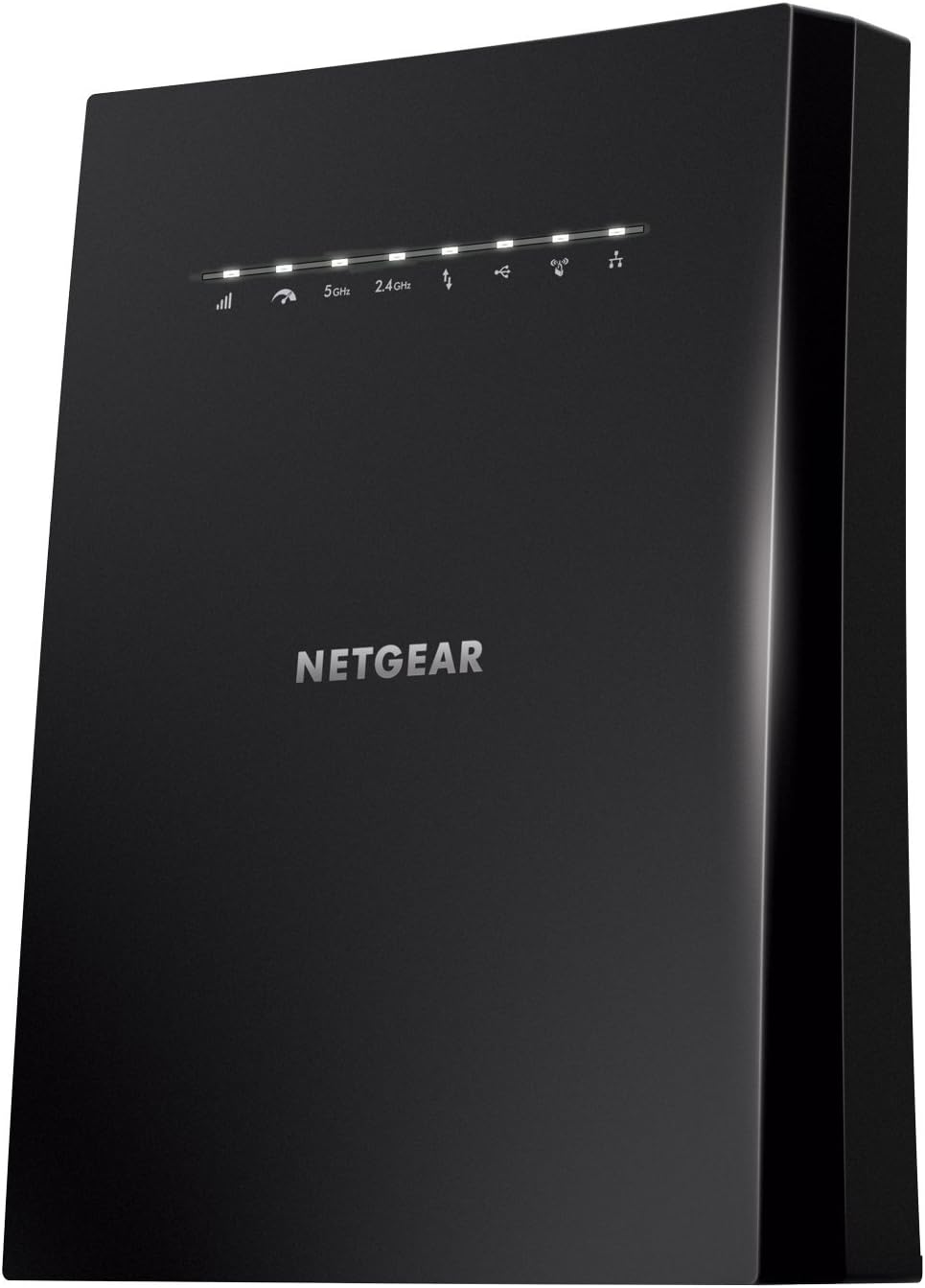
Figure 1: The NETGEAR EX8000 WiFi Mesh Range Extender, a black rectangular device with indicator lights on the front.
Key features of the EX8000 include:
- Extended Wireless Coverage: Adds Wi-Fi range coverage up to 2500 square feet, connecting up to 50 devices such as laptops, smartphones, speakers, IP cameras, tablets, and IoT devices.
- Seamless Smart Roaming: Uses your existing network SSID name, ensuring you remain connected as you move throughout your home or office without manual switching.
- AC3000 Wi-Fi Speed: Provides up to 3000Mbps performance using tri-band technology and patented FastLane3™ technology for heavy-duty 4K HD streaming and multi-player gaming.
- Universal Compatibility: Works with any wireless router, gateway, or cable modem that has Wi-Fi capabilities.
- Wired Ethernet Ports: Includes four Gigabit ports for connecting wired devices like game consoles, streaming players, or smart TVs for maximum speed and stability.

Figure 2: A visual summary of the EX8000's top features, including Premium Tri-band WiFi, Mesh Networking, FastLane3™ Technology, Dedicated WiFi Band, Amplified Internal Antenna Array, and 4 Gigabit Ethernet Ports.
2. Package Contents
Ensure all items are present in your product package:
- Nighthawk X6S AC3000 Tri-Band WiFi Range Extender (EX8000)
- Quick start guide
Note: If any items are missing or damaged, please contact NETGEAR customer support.
3. Setup Guide
There are two primary methods to set up your NETGEAR EX8000 extender: using the WPS button or through a web browser.
3.1. Setup with WPS (Wi-Fi Protected Setup)
- Power On: Plug the extender into an electrical outlet near your WiFi router. Wait for the Power LED on the extender to light solid green.
- Press WPS on Extender: Press the WPS button on the side of your EX8000 extender. The WPS LED should start blinking.
- Press WPS on Router: Within two minutes, press the WPS button on your WiFi router.
- Connect: The Extender Link LED should light solid white, indicating a successful connection to your router.
- Relocate: Unplug the extender and move it to a new location, about halfway between your router and the area with poor WiFi coverage. Plug it into an electrical outlet.
- Verify Link: Wait for the Extender Link LED to light solid white or amber. If it's red, the extender is too far from the router; move it closer.

Figure 3: An illustration demonstrating how the NETGEAR WiFi Extender expands network coverage from a router to cover a larger area, indicating coverage up to 2800 sq. ft. and 55 devices.
3.2. Setup with Web Browser
- Power On: Plug the extender into an electrical outlet near your WiFi router. Wait for the Power LED to light solid green.
- Connect to Extender: On a computer or mobile device, connect to the extender's WiFi network. The network name (SSID) will be "NETGEAR_EXT" or "NETGEAR_EXT_5G".
- Access Setup Page: Open a web browser and type www.mywifiext.net or 192.168.1.250 into the address bar.
- Follow Prompts: Follow the on-screen instructions to create a NETGEAR account (if you don't have one) and select the WiFi networks you want to extend.
- Relocate: Once setup is complete, unplug the extender and move it to a new location, about halfway between your router and the area with poor WiFi coverage. Plug it into an electrical outlet.
- Verify Link: Wait for the Extender Link LED to light solid white or amber. If it's red, the extender is too far from the router; move it closer.
4. Operating Instructions
The NETGEAR EX8000 operates to enhance your WiFi experience through several advanced technologies:
- Tri-Band WiFi: The extender uses three WiFi bands (one 2.4GHz and two 5GHz) to maximize bandwidth and reduce network congestion, ensuring optimal performance for all connected devices.
- FastLane3™ Technology: This patented technology utilizes a dedicated WiFi link to your router, preventing the extended WiFi bandwidth from being cut in half, which is common in traditional extenders. This ensures maximum speed to your devices.
- Smart Roaming: The EX8000 allows your mobile devices to automatically connect to the strongest available WiFi signal, whether from your router or the extender, using the same network name (SSID). This provides seamless connectivity as you move around your home.
- Access Point Mode: The extender can also function as a tri-band WiFi access point. Connect it to your router via an Ethernet cable to create a new WiFi hotspot, ideal for extending wired network access wirelessly.
- MU-MIMO Support: Multi-User, Multiple-Input, Multiple-Output (MU-MIMO) technology enables simultaneous streaming of data to multiple devices, improving efficiency and performance in multi-device environments.

Figure 4: Individuals engaged in online gaming and 4K HD streaming, illustrating the high-speed capabilities of the EX8000 for demanding internet activities.

Figure 5: A man smiling while looking at a tablet, illustrating the benefit of seamless roaming with an existing network name.

Figure 6: A diagram illustrating how the NETGEAR EX8000 uses a dedicated WiFi band to the router and extends coverage with 2X speed to devices, maximizing overall network performance.
5. Maintenance
To ensure optimal performance and longevity of your NETGEAR EX8000 extender, consider the following maintenance tips:
- Firmware Updates: Regularly check the NETGEAR support website for firmware updates. Updates often include performance improvements, bug fixes, and security enhancements. You can usually update firmware via the web browser interface (www.mywifiext.net).
- Placement: Ensure the extender is placed in an open area, away from obstructions like large metal objects, concrete walls, or other electronic devices that might cause interference.
- Cleaning: Keep the device clean and free from dust. Use a soft, dry cloth to wipe the exterior. Do not use liquid cleaners or aerosols.
- Ventilation: Ensure the ventilation slots are not blocked to prevent overheating.
6. Troubleshooting
If you encounter issues with your NETGEAR EX8000 extender, try the following troubleshooting steps:
- No Internet Access:
- If you can access your router but not the Internet, check if the router can obtain an IP address from your Internet Service Provider (ISP). Unless your ISP provides a fixed IP address, your router requests an IP address from the ISP. You can determine whether the request was successful using your router's advanced home page.
- Ensure the extender is within range of your router. The Extender Link LED should be solid white or amber. If it's red, move the extender closer to the router.
- Restart both your router and the extender by unplugging them from power for 10 seconds and then plugging them back in.
- Poor Signal or Slow Speed:
- Relocate the extender. It should be placed roughly halfway between your router and the area where you need improved WiFi coverage. Avoid placing it near large metal objects, concrete walls, or other electronic devices.
- Ensure your devices are connecting to the extended network.
- Check for firmware updates for both your router and extender.
- Cannot Access www.mywifiext.net:
- Ensure your device is connected to the extender's WiFi network (e.g., "NETGEAR_EXT").
- Try using a different web browser (e.g., Chrome, Firefox, Edge).
- Clear your browser's cache and cookies.
- Try accessing 192.168.1.250 directly.
For more detailed troubleshooting or advanced configurations, refer to the full user manual available on the NETGEAR support website.
7. Specifications
| Feature | Detail |
|---|---|
| Model Number | EX8000-100NAS |
| Wireless Type | 802.11ac |
| Frequency Band Class | Tri-Band |
| Data Transfer Rate | Up to 3000 Mbps (AC3000) |
| Ethernet Ports | 4 x Gigabit Ethernet Ports (RJ45) |
| USB Ports | 1 x USB 2.0 Port |
| Dimensions (LxWxH) | 8.08 x 10.01 x 5.2 inches |
| Item Weight | 1.89 pounds |
| Color | Black |
| Security | Wi-Fi Protected Access (WPA/WPA2-PSK) and WEP Standards |
| System Requirements | Microsoft Internet Explorer 8.0, Firefox 20, Safari 5.1, or Google Chrome 25.0 browsers or higher |
8. Support and Warranty
For technical support, product registration, and warranty information, please visit the official NETGEAR support website. You can find comprehensive resources, including FAQs, troubleshooting guides, and software downloads.
- Official NETGEAR Support: www.netgear.com/support/
- User Manual (PDF): For a more detailed guide, you can download the official user manual PDF from here.
- Installation Manual (PDF): An installation-specific guide is available here.
NETGEAR products typically come with a limited hardware warranty. Please refer to the warranty card included with your product or the NETGEAR website for specific terms and conditions applicable to your region.
Ask a question about this manual
Ask about setup, troubleshooting, compatibility, parts, safety, or missing instructions. Manuals+ will review the question and use this page’s manual context to help answer it.