
Introduction
This manual provides detailed instructions for setting up, operating, maintaining, and troubleshooting your ViewSonic VA2446MH-LED 24-inch Full HD 1080p LED monitor. Please read this manual thoroughly before using the product to ensure proper functionality and safety.
What's in the Box
- LCD Monitor
- Power Cable
- VGA Cable
- Audio Cable
- Quick Start Guide

The package includes the ViewSonic VA2446MH-LED monitor, a power cable, an HDMI cable, and a Quick Start Guide to assist with initial setup.
Setup
Assembling the Stand
Follow the instructions in the Quick Start Guide to attach the stand to the monitor. Ensure all connections are secure.
Connecting the Monitor
The VA2446MH-LED monitor supports both HDMI and VGA inputs.
Power Connection
Connect the provided power cable to the monitor's power input and then to a power outlet.
Video Connection
Choose either an HDMI or VGA cable to connect your computer to the monitor.
- For HDMI: Connect one end of the HDMI cable to the HDMI port on your computer and the other end to the HDMI input on the monitor.
- For VGA: Connect one end of the VGA cable to the VGA port on your computer and the other end to the VGA input on the monitor.
Audio Connection (Optional)
If using the monitor's built-in speakers or audio output, connect the audio cable from your computer's audio output to the monitor's audio input.

This image displays the rear of the monitor, highlighting the HDMI, VGA, and audio input/output ports for flexible connectivity, as well as the location of the integrated 2x 2.5-watt speakers.

A detailed view of the monitor's back panel, illustrating the power input, HDMI port, VGA port, and audio ports for connecting external devices.
Operating the Monitor
Power On/Off
Press the power button located on the front or bottom bezel of the monitor to turn it on or off. The power indicator light will illuminate when the monitor is on.
Input Selection
Use the monitor's On-Screen Display (OSD) menu or dedicated input selection buttons to switch between HDMI and VGA inputs.
On-Screen Display (OSD) Menu
The OSD menu allows you to adjust various display settings such as brightness, contrast, color temperature, and aspect ratio.
- Press the Menu button to access the OSD.
- Use the navigation buttons (usually arrows) to browse through options.
- Press the Select or Enter button to confirm a selection.
- Press the Exit or Menu button again to close the OSD.
ViewSplit Software (Optional)
ViewSonic's exclusive ViewSplit software allows you to create customized screen layouts for enhanced productivity.
To install, download the software from the ViewSonic website's product support page.
After installation, double-click the ViewSplit icon on your desktop or click the notification tray icon to open the application.
Select a predefined template or create a customizable template by dragging and resizing the red borders. Save your customized templates for future use.
This official ViewSonic video illustrates how to use the ViewSplit software to divide your monitor screen into multiple viewing windows, enhancing multitasking and productivity. It shows how to select predefined templates and customize layouts by dragging application windows into desired zones.
Maintenance
Cleaning the Screen
Gently wipe the screen with a soft, lint-free cloth. For stubborn marks, lightly dampen the cloth with water or a non-abrasive screen cleaner. Avoid spraying liquid directly onto the screen.
Cleaning the Casing
Use a soft, dry cloth to clean the monitor casing. Do not use strong detergents or abrasive cleaners.
Storage
When storing the monitor for an extended period, ensure it is powered off and disconnected from the power source. Store it in a cool, dry place, ideally in its original packaging.
Troubleshooting
No Power
- Make sure the power button (or switch) is ON.
- Ensure the A/C power cord is securely connected to the display.
- Plug another electrical device (like a radio) into the power outlet to verify that the outlet is supplying proper voltage.
Power is ON but no screen image
- Make sure the video cable supplied with the display is properly secured to the video output port on the back of the computer. If the other end of the video cable is not attached permanently to the display, properly secure it to the display.
- Adjust brightness and contrast settings via the OSD menu.
- If you are using an older Macintosh (older than G3), a Macintosh adapter may be required.
Wrong or abnormal colors
- If any colors (red, green, or blue) are missing, check the video cable to make sure it is securely connected. Loose or broken pins in the cable connector could cause an improper connection.
- Connect the display to another computer to isolate the issue.
- If you have an older graphics card, contact ViewSonic for a non-DDC adapter.
Control buttons do not work
- Press only one button at a time. Ensure no objects are obstructing the buttons.
Specifications
| Feature | Specification |
|---|---|
| Standing screen display size | 24 Inches |
| Screen Resolution | 1920x1080 |
| Max Screen Resolution | 1920 x 1080 Pixels |
| Brand | ViewSonic |
| Series | VA |
| Item model number | VA2446MH-LED |
| Item Weight | 9.02 pounds |
| Product Dimensions | 8.32 x 22.49 x 15.78 inches |
| Item Dimensions LxWxH | 8.32 x 22.49 x 15.78 inches |
| Color | Black |
| Power Source | 10 |
| Voltage | 240 Volts |
| Manufacturer | ViewSonic |
| ASIN | B074F28QNS |
| Date First Available | July 1, 2017 |
| Screen Size | 24 Inches |
| Resolution | FHD 1080p |
| Aspect Ratio | 16:9 |
| Screen Surface Description | Anti-glare, Hard coating (3H) |
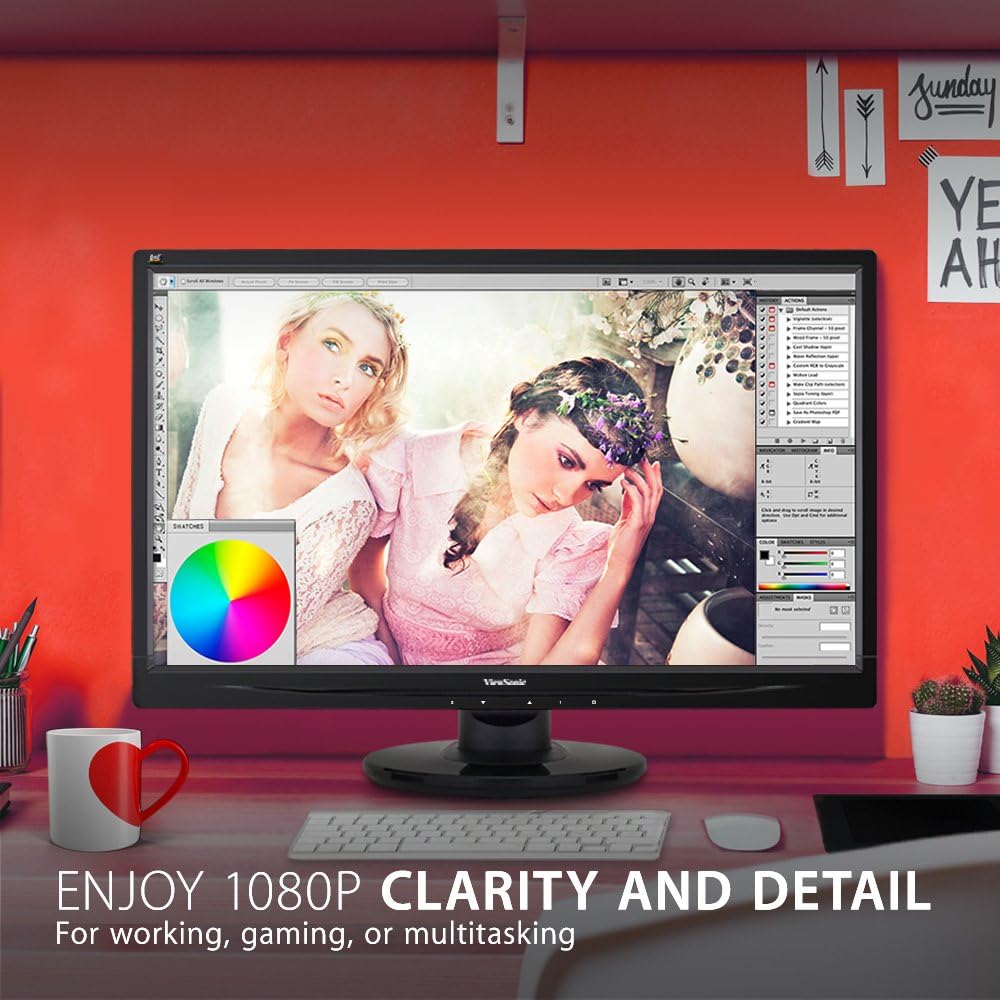
The monitor showcases its Full HD 1080p clarity and detail, ideal for tasks like graphic design, gaming, or general multitasking, with a color palette visible on screen.
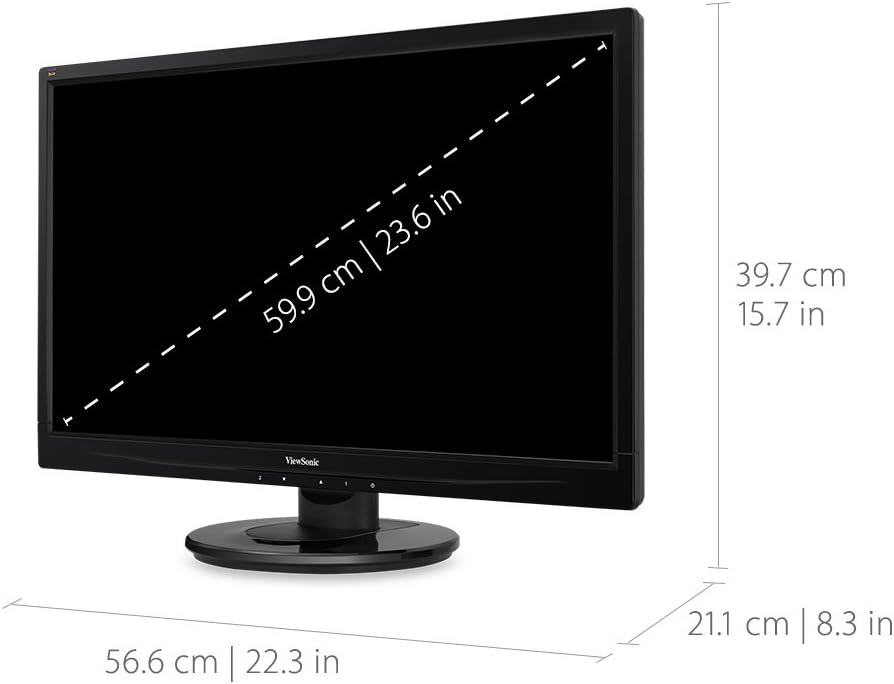
This diagram provides the physical dimensions of the monitor, indicating a 23.6-inch diagonal screen size (59.9 cm) and overall measurements of 22.3 inches (56.6 cm) width, 15.7 inches (39.7 cm) height, and 8.3 inches (21.1 cm) depth.
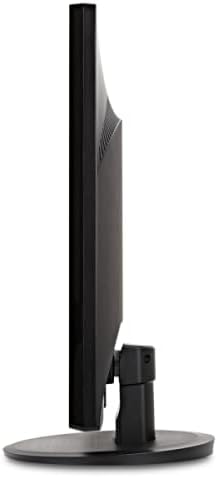
A side view of the monitor, highlighting its slim profile and the design of the stand.
Warranty and Support
For warranty information and technical support, please refer to the official ViewSonic website or the documentation included with your product.
You can visit the official ViewSonic Store for more information: ViewSonic Store


