
Micca MPLAY-HD Mini
Micca MPLAY-HD Mini Digital Media Player User Manual
Model: MPLAY-HD Mini
1. Introduction
The Micca MPLAY-HD Mini is a compact 1080P Full-HD digital media player designed to play videos, music, and photo slideshows from USB drives or microSD cards on your television or projector. It offers universal compatibility with both modern and older displays through HDMI and analog audio/video connections. Its automatic playback and resume features enhance user convenience, making it suitable for various environments including home, office, or RV use.
2. Product Overview
Familiarize yourself with the components and ports of your MPLAY-HD Mini player.

Figure 2.1: Micca MPLAY-HD Mini player with its remote control.
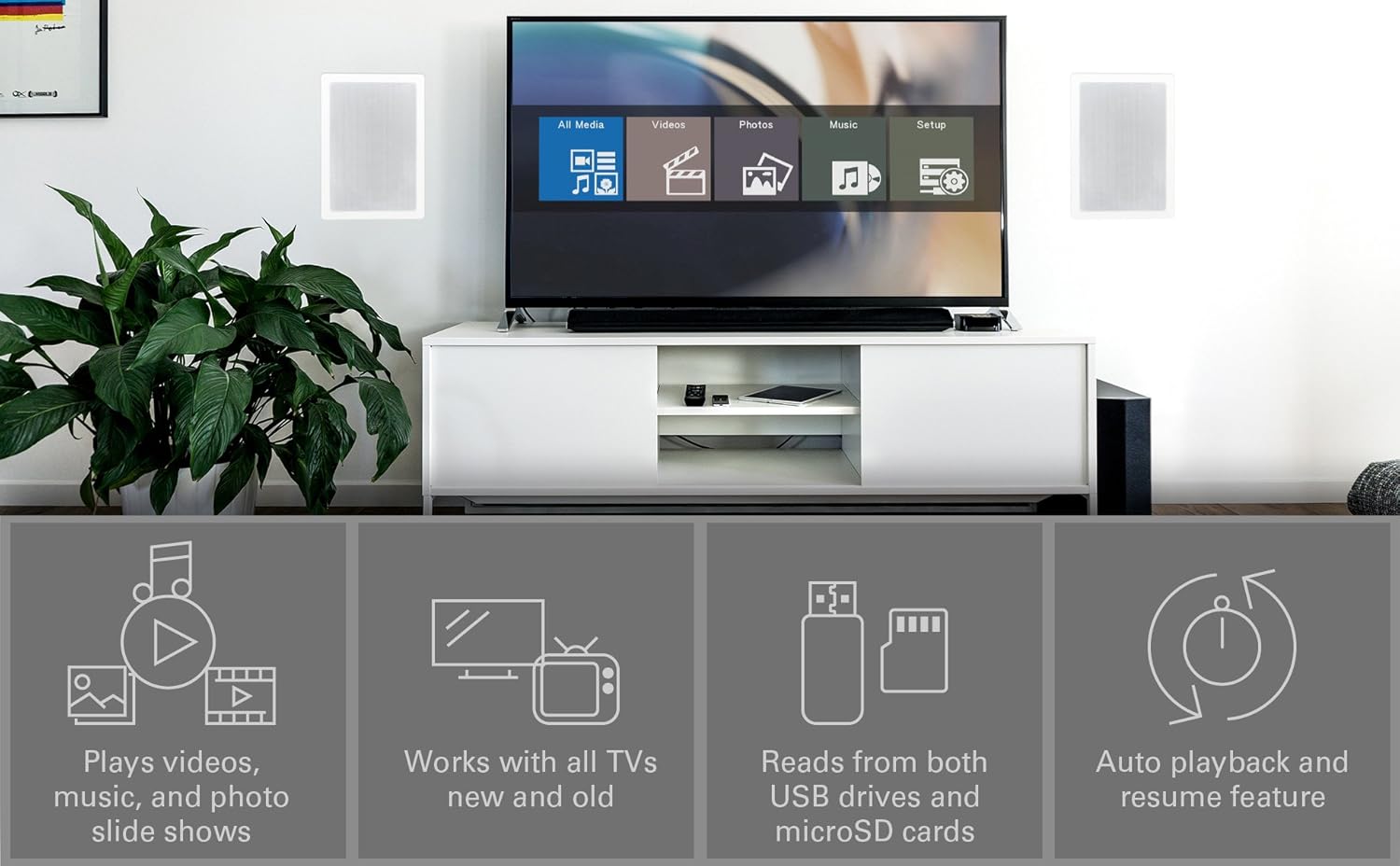
Figure 2.2: Rear panel connections including HDMI output and AV output.
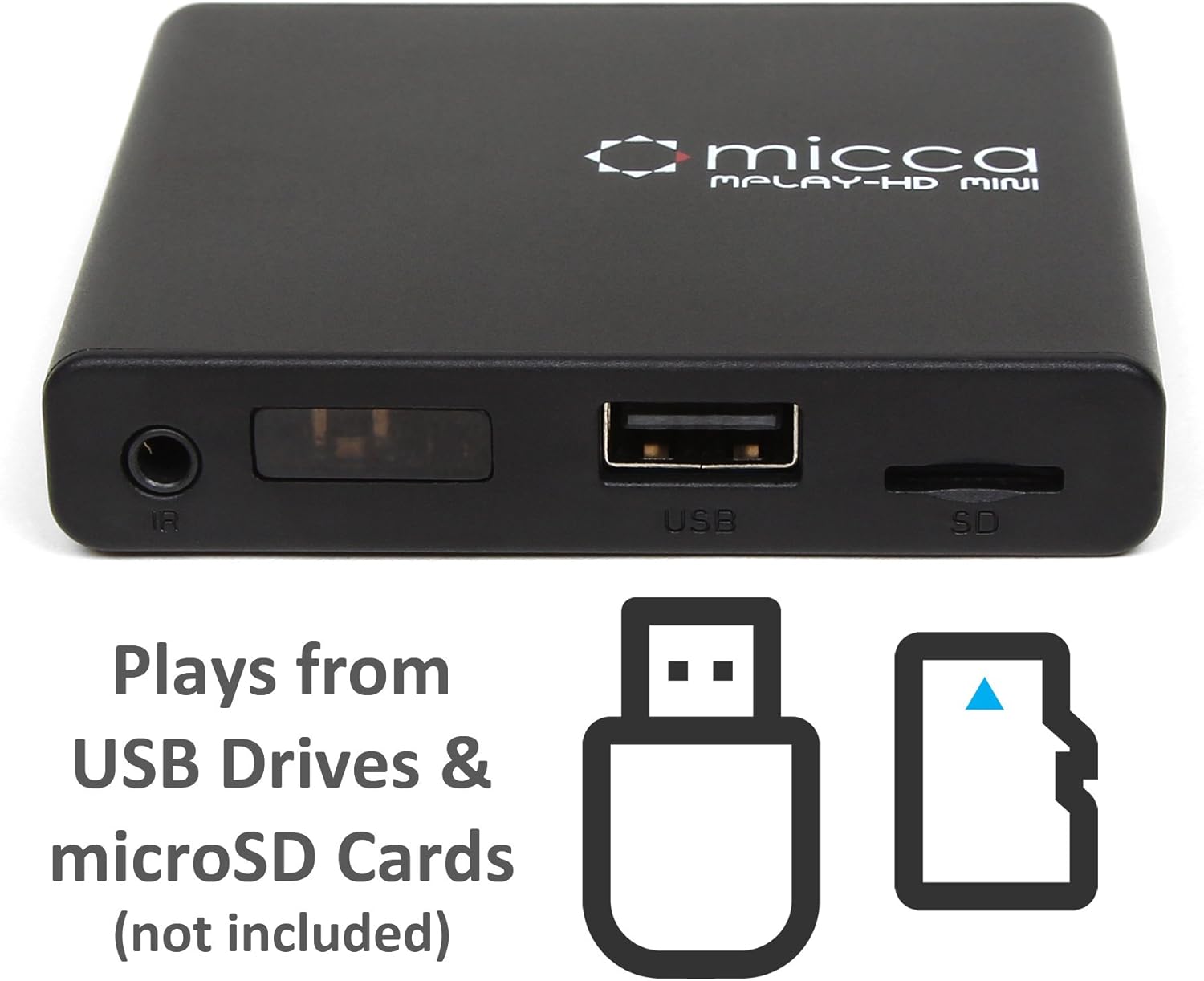
Figure 2.3: Side panel with USB port and microSD card slot.
2.1. Front/Side Panel
- IR Receiver: Receives signals from the remote control.
- USB Port: Connect USB flash drives or external hard drives.
- MicroSD Card Slot: Insert microSD cards for media playback.
2.2. Rear Panel
- HDMI Output: Connect to an HDMI-enabled TV or projector for high-definition video and audio.
- AV Output: Connect to older TVs or displays using the included AV cable for standard definition video and stereo audio.
- DC 5V Power Input: Connect the provided power adapter.
3. Setup
Follow these steps to set up your Micca MPLAY-HD Mini player.
- Connect to TV:
- For High Definition: Connect an HDMI cable (not included) from the MPLAY-HD Mini's HDMI output to an HDMI input on your TV or projector.
- For Standard Definition: Connect the included AV cable from the MPLAY-HD Mini's AV output to the corresponding composite video (yellow) and stereo audio (red/white) inputs on your TV.
- Connect Power: Plug the provided power adapter into the DC 5V input on the MPLAY-HD Mini, then plug the adapter into a wall outlet. The player will power on automatically.
- Insert Media: Insert your USB flash drive or external hard drive into the USB port, or your microSD card into the microSD card slot. Ensure media is formatted as FAT32, NTFS, or exFAT.
- Select Input: On your TV, select the correct input source (e.g., HDMI 1, AV) that corresponds to where you connected the MPLAY-HD Mini.
- Remote Control: Insert two AAA batteries (not included) into the remote control.
4. Operating Instructions
This section details how to navigate and play media on your device.
4.1. Main Menu Navigation
Upon powering on, the player will display a main menu with options such as "All Media", "Videos", "Photos", "Music", and "Setup". Use the arrow keys on the remote to navigate and the "OK" button to select.

Figure 4.1: Example of the main menu interface on a connected display.
4.2. Playing Media Files
- From the main menu, select the desired media type (e.g., "Videos").
- Navigate through your connected USB drive or microSD card to locate the desired file or folder.
- Press "OK" to select and play the file.
- Use the remote control buttons for playback functions: Play/Pause, Stop, Fast Forward, Rewind, Next/Previous Track.
The MPLAY-HD Mini supports automatic playback, which can be configured in the settings to start playing media immediately after power on. It also features a resume capability, allowing you to continue watching a video from where you left off.
4.3. Supported Media Formats
The player supports a wide range of media formats:
- Video: MKV, AVI, MOV, MP4, ISO with MPEG4 or H.264/AVC encoding, up to 1920x1080p resolution and 30fps.
- Audio: MP3, WMA, OGG, FLAC, APE, AAC.
- Photo: JPG, JPEG, BMP, GIF, PNG.
- Subtitles: SRT, SSA, SMI, SUB.
Important Note: The MPLAY-HD Mini does not support HEVC/H.265, 10-bit MKV, and 4K videos.
5. Maintenance
Proper care ensures the longevity and optimal performance of your device.
- Cleaning: Use a soft, dry cloth to clean the exterior of the player. Do not use liquid cleaners or aerosols.
- Ventilation: Ensure the player is placed in a well-ventilated area to prevent overheating. Do not block any ventilation openings.
- Storage: When not in use for extended periods, disconnect the power adapter and store the player in a cool, dry place.
- Port Care: Keep USB and microSD card slots free from dust and debris.
6. Troubleshooting
Refer to this section for solutions to common issues.
6.1. No Power / No Display
- Ensure the power adapter is securely connected to the player and a working power outlet.
- Verify that your TV is set to the correct input source (HDMI or AV).
- Check all cable connections between the player and the TV.
6.2. No Audio
- Check the volume level on your TV and the player.
- Ensure audio cables (HDMI or AV stereo) are correctly connected.
- Some video files may have unsupported audio codecs. Try playing a different file.
6.3. Remote Control Not Responding
- Ensure fresh AAA batteries are correctly inserted into the remote.
- Point the remote directly at the IR receiver on the front of the player.
- Remove any obstructions between the remote and the player.
- Consider updating the firmware if available, as some remote issues (e.g., fast forward functionality) have been addressed in updates.
6.4. Media Files Not Playing / Recognized
- Verify that the media file format is supported (refer to Section 4.3).
- Ensure the USB drive or microSD card is properly inserted and recognized by the player.
- Check the file system of your USB drive/microSD card (FAT32, NTFS, exFAT are supported).
- Large USB drives (128GB or larger) might take longer to be recognized or display files.
- Ensure files are not corrupted. Try playing them on a computer.
6.5. Firmware Update
Periodically check the official Micca website for firmware updates. Firmware updates can improve performance, add features, and resolve known issues. Instructions for updating firmware are typically provided on the Micca support page for your specific model.
7. Specifications
| Brand | Micca |
| Model Name | MPLAY-HD Mini |
| Resolution | 1080p (Full-HD) |
| Connectivity Technology | HDMI, USB |
| Connector Type | HDMI, AV (Composite Video + Stereo Audio) |
| Media Storage | USB Drives, MicroSD Cards |
| Supported File Systems | FAT32, NTFS, exFAT |
| Video Encoding | MPEG4, H.264/AVC (up to 1080p 30fps) |
| Dimensions | 2.98 x 2.55 x 0.59 inches |
| Item Weight | 3 ounces |
| Color | Black |
| Controller Type | Remote Control |
8. Support and Warranty
For technical support, warranty information, or further assistance, please visit the official Micca website or contact Micca customer service. Details can typically be found on the product packaging or the manufacturer's website.
Official Micca Website: miccatron.com
Related documentsMPLAY-HD Mini


Ask a question about this manual
Ask about setup, troubleshooting, compatibility, parts, safety, or missing instructions. Manuals+ will review the question and use this page’s manual context to help answer it.