
AXESS SPBL1049
Axess SPBL1049 Vidrio Vibe LED Wireless Bluetooth Speaker User Manual
Model: SPBL1049

Image: Axess SPBL1049 speaker displaying multi-color LED lights.
Introduction
This manual provides detailed instructions for the safe and efficient operation of your Axess SPBL1049 Vidrio Vibe LED Wireless Bluetooth Speaker. Please read this manual thoroughly before using the device and retain it for future reference.
Safety Information
- Do not expose the speaker to extreme temperatures, direct sunlight, or high humidity.
- Avoid dropping or subjecting the speaker to strong impacts.
- Do not disassemble or attempt to repair the speaker yourself. This will void the warranty.
- Keep the speaker away from water or other liquids.
- Use only the provided charging cable or a certified equivalent.
- Clean the speaker with a soft, dry cloth. Do not use abrasive cleaners.
Package Contents
- Axess SPBL1049 Vidrio Vibe LED Wireless Bluetooth Speaker
- USB Charging Cable
- User Manual (this document)
Product Features
- Wireless Bluetooth connectivity for audio streaming.
- Integrated color-changing LED lights.
- Built-in microphone for hands-free calling.
- Supports USB and TF card playback.
- 3.5mm AUX line-in for wired audio connection.
- Rechargeable 1650 mAh Lithium-Ion battery.
- 7W speaker output for clear sound.
Controls and Ports

Image: Front view of the Axess SPBL1049 speaker showing control buttons and ports at the base.
- Power Button: Press and hold to turn the speaker ON/OFF.
- Play/Pause Button: Press to play or pause music. During a call, press to answer/end a call.
- Volume Down / Previous Track Button (-): Press to decrease volume. Press and hold to go to the previous track.
- Volume Up / Next Track Button (+): Press to increase volume. Press and hold to go to the next track.
- Mode Button (M): Press to switch between Bluetooth, USB, TF Card, and AUX modes.
- Micro USB Charging Port: For charging the speaker.
- USB Port: For USB flash drive playback.
- TF Card Slot: For TF (microSD) card playback.
- AUX-in Port: For connecting external audio devices via a 3.5mm audio cable.
Setup
1. Charging the Speaker
Before first use, fully charge the speaker. Connect the small end of the included USB charging cable to the Micro USB Charging Port on the speaker and the larger end to a USB power adapter (not included) or a computer's USB port.
- The LED indicator will illuminate during charging.
- The indicator will turn off or change color once charging is complete.
- A full charge typically takes 2-3 hours.
2. Powering On/Off
- To turn ON, press and hold the Power Button until the LED lights illuminate and you hear an audible prompt.
- To turn OFF, press and hold the Power Button again until the LED lights turn off and you hear an audible prompt.
Operating Instructions
1. Bluetooth Pairing
- Ensure the speaker is powered ON and in Bluetooth mode. If not, press the Mode Button (M) until you hear the Bluetooth pairing prompt. The LED lights will flash, indicating it's ready to pair.
- Enable Bluetooth on your smartphone, tablet, or other Bluetooth-enabled device.
- Search for available Bluetooth devices. Select "SPBL1049" from the list.
- Once paired, you will hear a confirmation sound, and the LED lights will stop flashing.
- You can now play music from your device through the speaker.
Note: The speaker will automatically attempt to reconnect to the last paired device when powered on.
2. USB and TF Card Playback
- Insert a USB flash drive or a TF (microSD) card with MP3 audio files into the respective port.
- The speaker will automatically switch to USB/TF card mode and begin playing music. If not, press the Mode Button (M) to select the correct mode.
- Use the Play/Pause, Volume Up (+), and Volume Down (-) buttons to control playback.
3. AUX Input
- Connect one end of a 3.5mm audio cable (not included) to the AUX-in Port on the speaker.
- Connect the other end to the audio output jack of your external device (e.g., MP3 player, computer).
- Press the Mode Button (M) until you hear the AUX mode prompt.
- Control playback and volume primarily from your external device.
4. Hands-Free Calling
- When connected via Bluetooth, if a call comes in, the music will pause.
- Press the Play/Pause Button once to answer the call.
- Press the Play/Pause Button again to end the call.
- Press and hold the Play/Pause Button to reject an incoming call.
- Speak clearly towards the speaker's built-in microphone.
5. LED Light Modes
The speaker features dynamic LED lights that change color. The lights are typically active when the speaker is on. There is no specific button mentioned to change light modes, so it's assumed they cycle automatically or are tied to music playback.

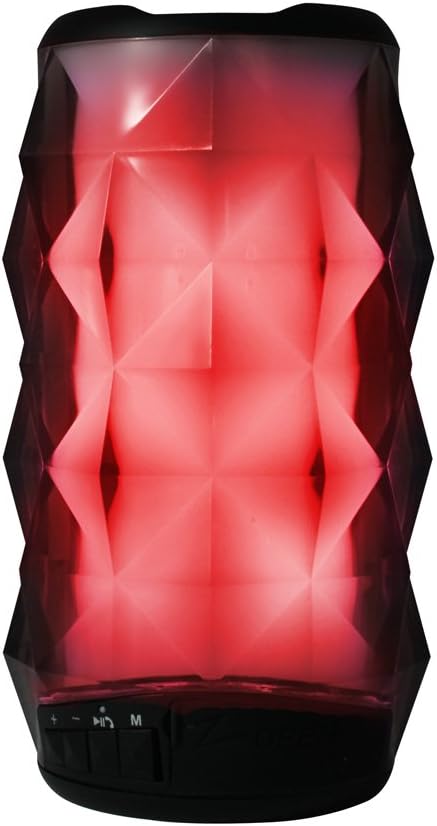
Images: Axess SPBL1049 speaker displaying green and red LED light patterns.
Maintenance
- Cleaning: Use a soft, dry, lint-free cloth to clean the speaker's exterior. Do not use liquid cleaners, aerosols, or solvents.
- Storage: When not in use for extended periods, store the speaker in a cool, dry place, away from direct sunlight and extreme temperatures.
- Battery Care: To prolong battery life, avoid fully discharging the battery frequently. Charge the speaker regularly, even if not in use, to maintain battery health.
Troubleshooting
| Problem | Possible Solution |
|---|---|
| Speaker does not turn on. | Ensure the battery is charged. Connect the speaker to a power source using the USB charging cable. |
| Cannot pair via Bluetooth. |
|
| No sound from speaker. |
|
| Poor sound quality. |
|
Specifications
| Model Name | SPBL1049 |
| Brand | AXESS |
| Connectivity Technology | Bluetooth, USB, Auxiliary |
| Speaker Type | Subwoofer |
| Speaker Output Power | 7 Watts |
| Impedance | 4 Ohms |
| Subwoofer Diameter | 4 Inches |
| Battery | 1650 mAh Lithium-Ion (Rechargeable) |
| Power Source | Battery |
| Product Dimensions | 7.62 x 15.24 x 7.62 cm (3 x 6 x 3 inches) |
| Product Weight | 385.55 g (0.85 lbs) |
Warranty Information
Specific warranty details for the Axess SPBL1049 speaker are typically provided with the product packaging or available on the manufacturer's official website. Please refer to the documentation included with your purchase for precise warranty terms and conditions. Generally, Axess products come with a limited manufacturer's warranty covering defects in materials and workmanship for a specified period from the date of purchase.
Keep your proof of purchase for warranty claims.
Customer Support
For technical assistance, troubleshooting not covered in this manual, or warranty inquiries, please contact Axess customer support. Contact information can usually be found on the official Axess website or on the product packaging.
Website: www.axessproducts.com
Please have your model number (SPBL1049) and purchase date ready when contacting support.
Ask a question about this manual
Ask about setup, troubleshooting, compatibility, parts, safety, or missing instructions. Manuals+ will review the question and use this page’s manual context to help answer it.