1. Introduction
This manual provides comprehensive instructions for the Accessory USA USB A to Mini B Data Cable. This cable is designed to facilitate high-speed data transfer and, where supported by the device, charging for various digital cameras and other portable electronic devices. Please read this manual carefully before use to ensure proper operation and longevity of your cable.
2. Product Overview
The Accessory USA USB A to Mini B Data Cable is a high-quality replacement cable engineered for reliable performance. It features a standard USB Type-A connector on one end and a USB Mini-B 5-pin connector on the other.
Key Features:
- High Speed USB 2.0: Supports data transfer rates up to 480 Mbps.
- Durable Construction: Complies with fully rated cable specifications, featuring braid-and-foil shield protection to minimize interference.
- Flexible Jacket: Designed for maximum usability and ease of handling.
- Molded-Strain Relief: Ensures flexible movement, enhanced durability, and a secure fit.
- EMI/RFI Shielding: Guards against electromagnetic and radio-frequency interference for stable operation.
Compatibility:
This cable is compatible with various devices that utilize a USB Mini-B 5-pin port, including but not limited to:
- Concord Camera models: DV2020, Eye-Q 2040, 3045, 4340Z, 3042AF, 3040AF, 3103, 5345Z, 3346Z, 3340Z, 3132Z, 3120AF, 3X, 4360z, 4060AF, 4363Z, 5062AF, 5330Z, Go 2000, Go LCD, GO Wireless Duo 2000.
- Other compatible devices: Cellphones, GPS systems, PDAs, MP3/MP4 players, and OTG devices that use a USB Mini-B 5-pin connector.
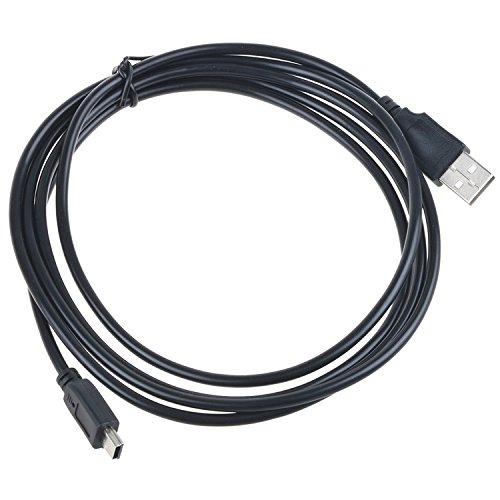
Image showing the Accessory USA USB A to Mini B Data Cable, featuring a standard USB-A connector on one end and a Mini-B 5-pin connector on the other, both black.
3. Setup Instructions
Follow these steps to connect your device using the USB data cable:
- Identify Connectors: Locate the standard USB Type-A port on your computer or USB wall adapter, and the USB Mini-B 5-pin port on your compatible device (e.g., digital camera).
- Connect to Computer/Adapter: Insert the USB Type-A end of the cable into an available USB port on your computer or a compatible USB wall adapter.
- Connect to Device: Carefully insert the USB Mini-B 5-pin end of the cable into the corresponding port on your digital camera or other portable device. Ensure the connector is oriented correctly to avoid damage.
- Device Recognition: Your computer should automatically detect the connected device. If prompted, allow the installation of any necessary drivers (typically, modern operating systems will install these automatically).
4. Operating Instructions
Once the cable is connected and your device is recognized, you can perform various operations:
Data Transfer:
- Access Device Storage: On your computer, open 'My Computer' or 'This PC' (Windows) or 'Finder' (macOS). Your connected device should appear as a removable drive or a camera device.
- Browse Files: Double-click on the device icon to browse its contents, typically photos and videos stored in folders like 'DCIM'.
- Transfer Files: Drag and drop files from your device's storage to a folder on your computer. Alternatively, use your device's proprietary software for photo and video management, if available.
- Eject Safely: Before disconnecting the cable, always safely eject the device from your computer to prevent data corruption. Right-click the device icon in 'My Computer'/'This PC' or 'Finder' and select 'Eject' or 'Safely Remove Hardware'.
Charging (if supported):
Some devices may charge their internal battery when connected via USB. Refer to your device's specific manual to confirm if it supports charging via a USB data cable. If supported, ensure the USB Type-A end is connected to a powered USB port on a computer or a USB wall adapter.
5. Maintenance
Proper care will extend the life of your USB cable:
- Storage: Store the cable in a cool, dry place away from direct sunlight and extreme temperatures. Avoid tightly coiling or bending the cable sharply, especially near the connectors.
- Cleaning: If the cable or connectors become dirty, gently wipe them with a soft, dry, lint-free cloth. Do not use liquid cleaners or solvents.
- Handling: Always grasp the connector housing when plugging or unplugging the cable, not the cable itself, to prevent damage to the internal wires.
6. Troubleshooting
If you encounter issues with your USB data cable, try the following solutions:
- Device Not Recognized:
- Ensure both ends of the cable are securely connected.
- Try connecting the cable to a different USB port on your computer.
- Restart your computer and the connected device.
- Verify that your device's drivers are up to date.
- Test the cable with another compatible device or try a different USB cable to isolate the issue.
- Slow Data Transfer:
- Ensure you are using a USB 2.0 compatible port on your computer.
- Avoid running multiple data-intensive applications during transfer.
- Check for any background processes that might be consuming system resources.
- Intermittent Connection:
- Check for any physical damage to the cable or connectors.
- Ensure the connectors are clean and free of debris.
7. Specifications
| Feature | Description |
|---|---|
| Brand | Accessory USA |
| Connector Type | USB Type-A Male, USB Mini-B 5-pin Male |
| Cable Type | USB 2.0 Data Cable |
| Compatible Devices | Concord Cameras, Cellphones, GPS, PDAs, MP3/MP4 players, OTG devices with Mini-B port |
| Color | Black |
| Connector Gender | Male-to-Male |
| Shape | Round |
| Unit Count | 1.0 Count |
| Specification Met | CE, FCC, RoHS Certified |
| Usage Environment | Indoor, Outdoor |
8. Warranty and Support
This product is a brand new, high-quality replacement part. It has been tested by the manufacturer to meet or exceed OEM specifications and is CE, FCC, and RoHS certified, ensuring safety and quality standards.
It includes OVP (Over Voltage output Protection), OCP (Over Current output Protection), and SCP (Short Circuit output Protection) for enhanced safety.
For specific warranty details or technical support, please refer to the retailer or manufacturer's official website where the product was purchased. Always ensure the cable is compatible with your device model before purchase and use.


