
Introduction
The Amcrest NV4108E-A2 is a powerful 8-channel 4K Power Over Ethernet (PoE) Network Video Recorder (NVR) designed for advanced surveillance systems. This NVR supports recording and live viewing in resolutions up to 8MP/4K, providing clear and detailed video footage. It is compatible with a wide range of Amcrest IP cameras, both wired and wireless, and offers limited compatibility with third-party ONVIF compliant IP cameras.
The system is engineered for ease of use, offering straightforward setup and reliable performance to help you monitor and secure your property effectively. With advanced video compression and ample storage capacity, the NV4108E-A2 ensures efficient recording and convenient access to your surveillance data.

Figure 1: Amcrest NV4108E-A2 4K 8CH POE NVR
Key Features
- 8-Channel 4K Recording: Supports up to 8 IP cameras with recording and live view capabilities up to 8MP/4K resolution at real-time 30 frames per second (fps).
- Flexible Playback: Offers versatile playback options including 8-channel @1080p (30fps), 4-channel @4MP (30fps), and 2-channel @4K (30fps).
- Extensive Compatibility: Fully supports all Amcrest WiFi and wired IP cameras, with limited compatibility for third-party ONVIF compliant IP cameras.
- Advanced H.265 Compression: Utilizes H.265 video compression technology to significantly reduce file sizes (up to 50% compared to H.264) without compromising UltraHD video quality, allowing for longer recording times and efficient storage usage.
- Intelligent Functions: Features intelligent search, playback, and backup functions for enhanced ease of use and security, including precise motion detection event searches.
- AI Feature Support: Supports AI features from compatible AI IP cameras (AI features depend on the camera model; NVR itself has no built-in AI features). Supports 2-channel AI cameras at 4K@30fps.
- High Bandwidth: Provides a maximum incoming bandwidth of 80Mbps. Can record 8 cameras at 4K by adjusting settings from H.264 to H.265 and optimizing bit rates.
- Large Storage Capacity: Supports hard drives up to 10TB (HDD not included), providing ample space for extensive video archives.

Figure 2: Overview of NVR features including 4K resolution and 8 PoE ports.

Figure 3: Illustration of 10TB maximum storage capacity and H.265 compression benefits.
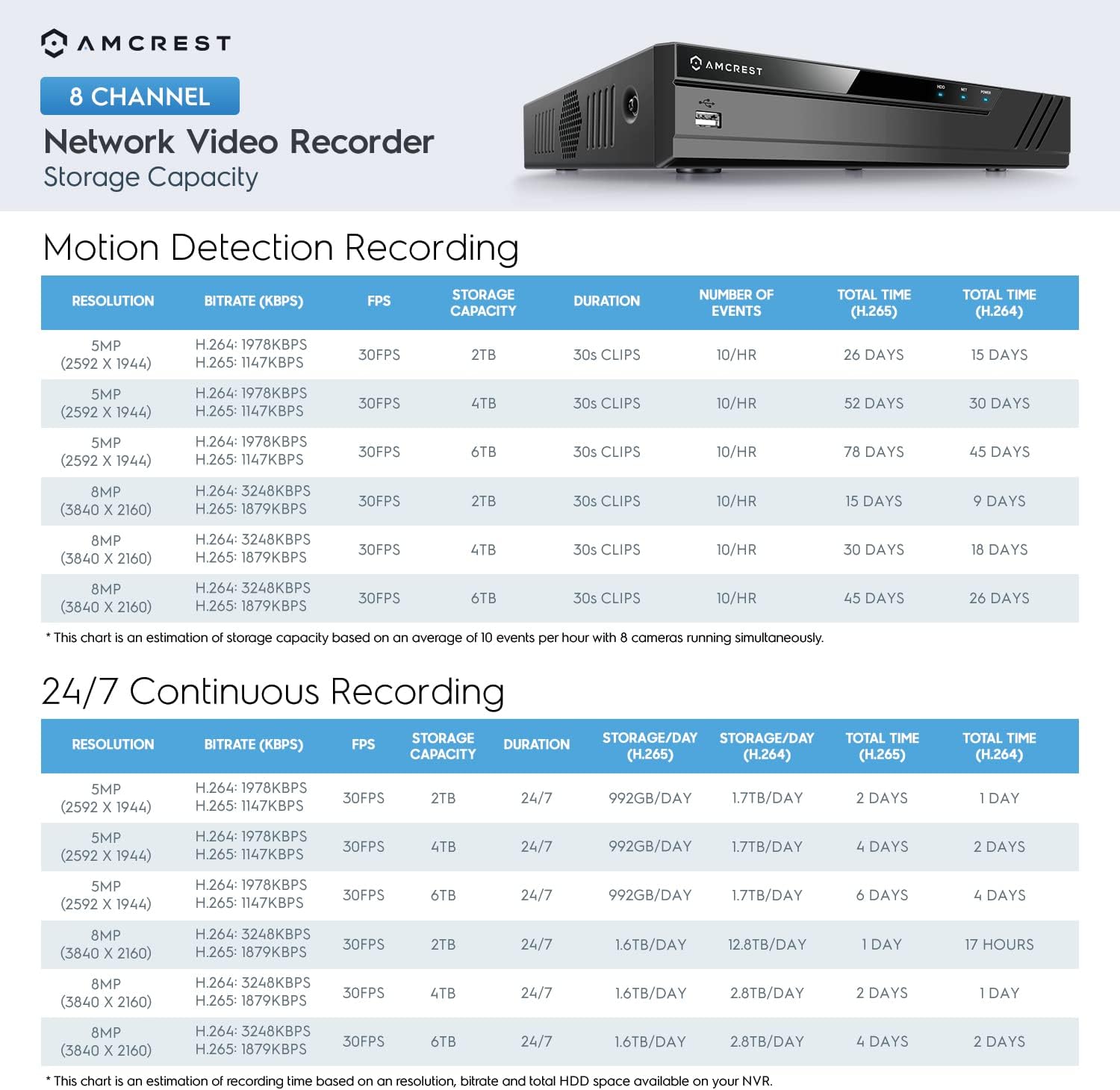
Figure 4: Storage estimation charts for motion detection and continuous recording.

Figure 5: NVR compatibility with various Amcrest IP cameras and rear panel connections.
Setup Guide
1. Unboxing and Initial Hardware Setup
Upon receiving your Amcrest NV4108E-A2 NVR, ensure all components are present: the NVR unit, a USB mouse, and a network cable. An HDD is not included and must be installed separately if you wish to record video.
Hard Drive Installation (Optional)
If you plan to record video, you will need to install a compatible SATA hard drive (up to 10TB). Simply unscrew the NVR casing, place the hard drive into the designated bay, and secure it with screws. Connect the SATA power and data cables to the NVR's motherboard.
Connecting Peripherals
- Connect a monitor to the NVR using either the HDMI or VGA output port.
- Plug the included USB mouse into one of the NVR's USB 2.0 ports (front or back panel).
- Connect the NVR to your network router using the provided Ethernet cable.
- Connect your PoE IP cameras directly to the NVR's 8 PoE ports using Ethernet cables. This provides both power and data connectivity.
- Connect the DC power adapter to the NVR and plug it into a power outlet. The NVR will power on automatically.

Figure 6: Detailed diagram of the NVR's front and back panel connections.
2. Software Configuration (Plug & Play)
The Amcrest NVR is designed for simple plug-and-play setup. Once powered on and connected to a monitor, follow the on-screen prompts using the USB mouse to complete the initial setup wizard. This typically involves setting the date/time, network settings, and adding cameras.
Adding Cameras
The NVR will automatically detect and add Amcrest PoE cameras connected to its ports. For other cameras or advanced configurations, you may need to manually add them via the NVR's interface, often using the ONVIF protocol for third-party devices.
Mobile App Setup
For remote viewing and management, download the free Amcrest View Pro app for Android or iOS devices. The app allows you to scan a QR code displayed on the NVR's monitor to quickly add your device and begin viewing your cameras remotely.

Figure 7: Steps for quick setup using the Amcrest View Pro mobile application.
Download the Amcrest View Pro app: www.amcrestview.com
Operating the NVR
Live View and Remote Access
Access your camera feeds in real-time through the connected monitor, the Amcrest View Pro mobile app, or a web browser. The NVR's P2P (Peer-to-Peer) feature simplifies remote access, eliminating the need for complex port forwarding configurations in most cases.

Figure 8: Remote monitoring capabilities via the Amcrest View Pro app.
Recording and Playback
The NVR supports continuous recording, scheduled recording, and motion-activated recording. You can configure these settings via the NVR's interface. For playback, navigate to the recording timeline, where you can easily select and review footage from any connected camera. Motion detection events are accurately marked for quick retrieval.
Motion Detection and Alerts
Configure motion detection zones and sensitivity for each camera. When motion is detected, the NVR can trigger various actions, such as recording, sending email alerts, or activating alarms. This feature helps you stay informed of important events.
Backup Functions
The NVR includes a USB backup feature, allowing you to easily export recorded video footage to an external USB drive for safekeeping or further analysis.
Maintenance
- Regular Cleaning: Keep the NVR unit clean and free from dust to ensure proper ventilation and prevent overheating. Use a soft, dry cloth for cleaning.
- Fan Maintenance: The NVR contains an internal fan for cooling. If the fan becomes excessively loud, it may indicate dust buildup or a need for replacement. Ensure the NVR is placed in a well-ventilated area.
- Firmware Updates: Periodically check the Amcrest website for firmware updates. Keeping your NVR's firmware up-to-date ensures optimal performance, security, and access to new features.
- Hard Drive Health: Monitor the health of your installed hard drive through the NVR's system settings. Regular checks can help prevent data loss due to drive failure.
Troubleshooting
- No Video Output: Ensure the monitor is correctly connected via HDMI or VGA and is set to the correct input source. Verify the NVR is powered on and its power indicator light is active.
- Cameras Not Displaying: Check that IP cameras are properly connected to the NVR's PoE ports and are receiving power. Verify network connectivity. For third-party cameras, ensure they are ONVIF compliant and correctly added through the NVR's interface.
- 4K Playback Issues: While the NVR records in 4K, playback performance can be affected by the NVR's processing capacity, especially with multiple 4K streams. Ensure your display device supports 4K resolution. Adjusting video quality settings for playback may resolve issues.
- Loud Fan Noise: A loud fan can indicate overheating or dust accumulation. Ensure the NVR is in a well-ventilated area. If the issue persists, the fan may need cleaning or replacement.
- Difficulty with Interface/Software: The NVR interface and associated software (e.g., Amcrest View Pro) may require some familiarity. Refer to the detailed user manual (PDF) available on the Amcrest website for comprehensive instructions. Note that different applications may offer varying configuration options.
- Missing Software CD: If a software CD was expected but not included, all necessary software and drivers can be downloaded directly from the official Amcrest support website.
Specifications
| Attribute | Value |
|---|---|
| Model Number | NV4108E-HS |
| Product Dimensions | 8.9 x 10.2 x 1.9 inches (22.6 x 25.9 x 4.8 cm) |
| Item Weight | 4.58 pounds (2.08 kg) |
| Connectivity Technology | Ethernet (PoE) |
| Compatible Devices | IP Cameras |
| Memory Storage Capacity | Up to 10 TB (HDD not included) |
| Video Input | 8 IP Cameras |
| Network Bandwidth | 80 Mbps (access), 80 Mbps (storage), 60 Mbps (forwarding) |
| Output Resolution | HDMI: 8MP/5MP/4MP/3MP/1080P |
| Operating Systems | Windows PC, Mac, Mobile Devices (iOS, Android) |

Figure 9: Detailed technical specifications of the NVR.
Official Product Video
Video 1: "Simple. Reliable. Secure." This video provides an overview of Amcrest's commitment to accessible and reliable security solutions, demonstrating how their products, including NVRs, help users monitor their homes and businesses with ease. (Duration: 0:45)
Warranty and Support
The Amcrest NV4108E-A2 NVR comes with a Full Year Warranty from the date of purchase. Amcrest provides dedicated US-based support and warranty services directly to its customers.
In addition to the one-year warranty, Amcrest offers Lifetime Support for this product, ensuring long-term assistance with any technical inquiries or operational issues you may encounter.
For further assistance, detailed user guides, and software downloads, please visit the official Amcrest support website or refer to the comprehensive User Guide PDF: User Guide (PDF).


