
1. Introduction
This manual provides detailed instructions for the installation, configuration, operation, and maintenance of the Fortinet FortiAP-U321EV Universal Indoor Wireless Access Point. Please read this manual thoroughly before attempting to install or operate the device to ensure proper functionality and safety.
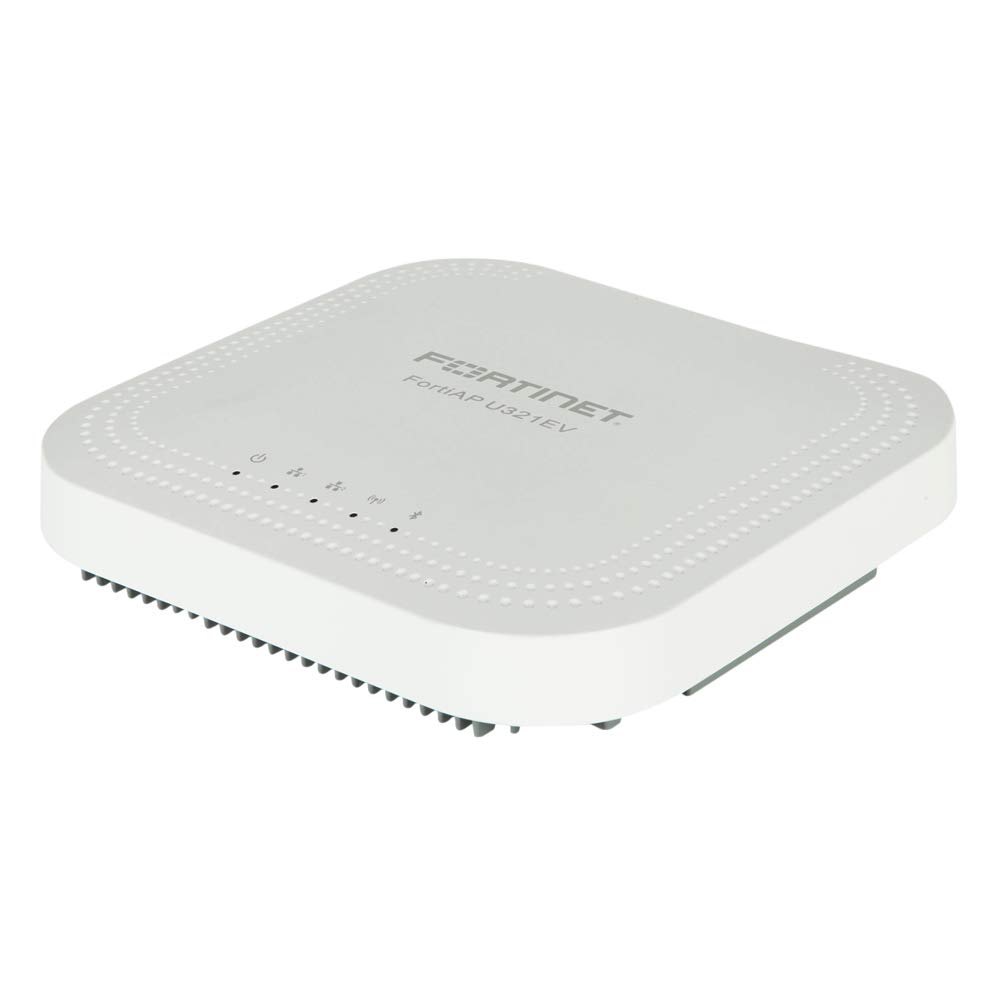
Figure 1: Front view of the Fortinet FortiAP-U321EV Universal Indoor Wireless Access Point. This image shows the compact design suitable for indoor deployments.
2. Package Contents
Verify that all items are present in the package. If any items are missing or damaged, contact your vendor immediately.
- FortiAP-U321EV Universal Indoor Wireless Access Point
- Mounting Bracket
- Mounting Hardware (screws, anchors)
- Ethernet Cable (optional, check specific package)
- Quick Start Guide
3. Setup and Installation
3.1. Safety Precautions
- Ensure the installation environment is dry and well-ventilated.
- Do not expose the device to extreme temperatures or humidity.
- Use only the power adapter or Power over Ethernet (PoE) source specified for this device.
- Disconnect power before cleaning or servicing the device.
3.2. Mounting the Access Point
The FortiAP-U321EV can be mounted on a wall or ceiling. Choose a central location for optimal wireless coverage.
- Attach the mounting bracket to the desired surface using the provided screws and anchors.
- Align the FortiAP-U321EV with the mounting bracket.
- Slide the access point onto the bracket until it clicks securely into place.
3.3. Powering On the Device
The FortiAP-U321EV supports Power over Ethernet (PoE) or an external power adapter (sold separately).
- PoE: Connect an Ethernet cable from a PoE-enabled switch or injector to the LAN port on the FortiAP-U321EV.
- External Power Adapter: Connect the power adapter to the device's power input and then to a power outlet.
The device will power on automatically. Observe the LED indicators for status.
3.4. Initial Configuration
The FortiAP-U321EV is typically managed by a FortiGate firewall or FortiCloud. Refer to the FortiGate or FortiCloud documentation for detailed configuration steps.
- Connect the FortiAP to your network.
- Ensure the FortiAP can reach the FortiGate or FortiCloud.
- Authorize and configure the FortiAP from your FortiGate or FortiCloud interface.
4. Operating the FortiAP-U321EV
4.1. LED Indicators
The device features LED indicators to provide status information:
- Power LED:
- Solid Green: Device is powered on and operating normally.
- Flashing Green: Device is booting up or performing a firmware upgrade.
- Off: Device is powered off.
- Wi-Fi LED (2.4GHz/5GHz):
- Solid Green: Wireless radio is active and transmitting.
- Flashing Green: Data activity on the wireless radio.
- Off: Wireless radio is disabled.
4.2. Wireless Connectivity
Once configured via FortiGate or FortiCloud, the FortiAP-U321EV will broadcast the configured SSIDs (Wi-Fi networks). Users can connect to these networks using standard Wi-Fi client devices.
- Ensure your client device's Wi-Fi is enabled.
- Select the appropriate SSID from the list of available networks.
- Enter the network password (if required).
5. Maintenance
5.1. Firmware Updates
Regularly update the device firmware to ensure optimal performance, security, and access to new features. Firmware updates are typically managed through the connected FortiGate or FortiCloud platform.
- Access your FortiGate or FortiCloud management interface.
- Navigate to the FortiAP management section.
- Check for available firmware updates and follow the on-screen instructions to apply them.
- It is recommended to perform updates during off-peak hours to minimize service disruption.
5.2. Cleaning
To clean the device, power it off and disconnect it from the power source. Use a soft, dry cloth to wipe the exterior. Do not use liquid cleaners or aerosols.
6. Troubleshooting
This section addresses common issues you might encounter with your FortiAP-U321EV.
| Problem | Possible Cause | Solution |
|---|---|---|
| No Power LED indication | No power supply or faulty power source. |
|
| No Wi-Fi signal | Wireless radios disabled or incorrect configuration. |
|
| Slow Wi-Fi connection | Interference, poor signal strength, or network congestion. |
|
| Cannot connect to FortiGate/FortiCloud | Network connectivity issues or incorrect management settings. |
|
7. Specifications
Key technical specifications for the FortiAP-U321EV:
- Model: FAP-U321EV
- Wireless Type: 802.11a/b/g/n (Dual Radio, 3x3 MIMO 2.4/5GHz)
- Frequency Band Class: Dual-Band
- Operating System: FortiOS
- Connectivity Technology: Wireless
- Item Weight: Approximately 3.88 pounds (1.76 kg)
- Package Dimensions: Approximately 13.23 x 11.61 x 4.13 inches (33.6 x 29.5 x 10.5 cm)
- Manufacturer: Fortinet, Inc
- Special Feature: WPS (Wi-Fi Protected Setup)
- Recommended Uses: Home, Small Office
8. Warranty Information
Fortinet products are covered by a limited warranty. For specific warranty terms and conditions, including duration and coverage details, please refer to the official Fortinet warranty policy available on their website or contact your authorized Fortinet reseller. Keep your proof of purchase for warranty claims.
9. Technical Support
For technical assistance, product documentation, and software downloads, please visit the official Fortinet support website. You may also contact your authorized Fortinet partner or reseller for local support.
- Fortinet Support Website: support.fortinet.com
- Fortinet Main Website: www.fortinet.com


